
How do I connect Google Workspace with Kibi?
Updated Reading time: 3 min
On this page
With a Google project, you connect your platform to Google Workspace. Then you enable individually what you need: login with Google, calendar synchronization, mailboxes, and groups.
Info
Setup is available to system admins. You also need access to the Google Cloud Console and, for domain-wide delegation, to the Google Admin Console.
Set up connection#
Open the Administration and select Integrations → G-Suite in the menu.
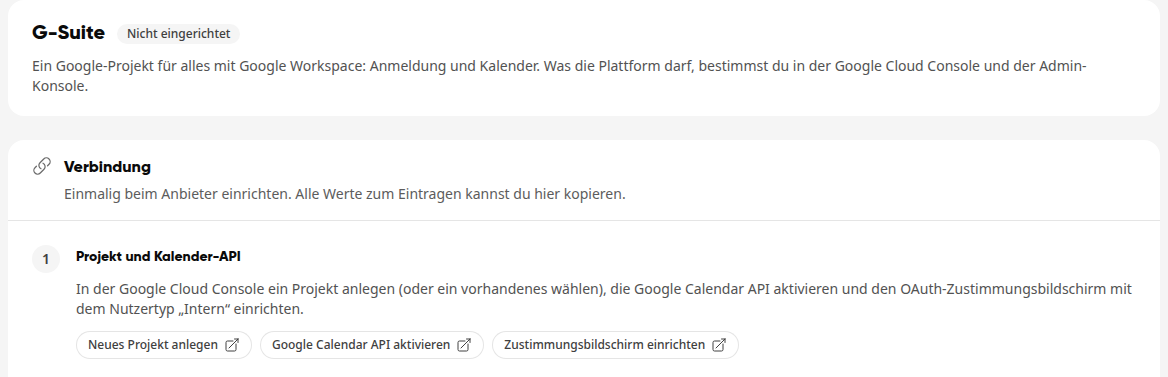
Step Project and Calendar API: In the Google Cloud Console, create a project or select an existing one. Enable the Google Calendar API and set up the OAuth consent screen with the user type "Internal". The buttons Create new project, Enable Google Calendar API, and Set up consent screen take you directly to the correct place at Google.
Step Create OAuth client: Click Open credentials and select "Create OAuth client ID" with the type "Web application" at Google. Enter all redirect URIs that Kibi displays for you: for the calendar, for login, and for mailboxes. Use Copy to transfer them.
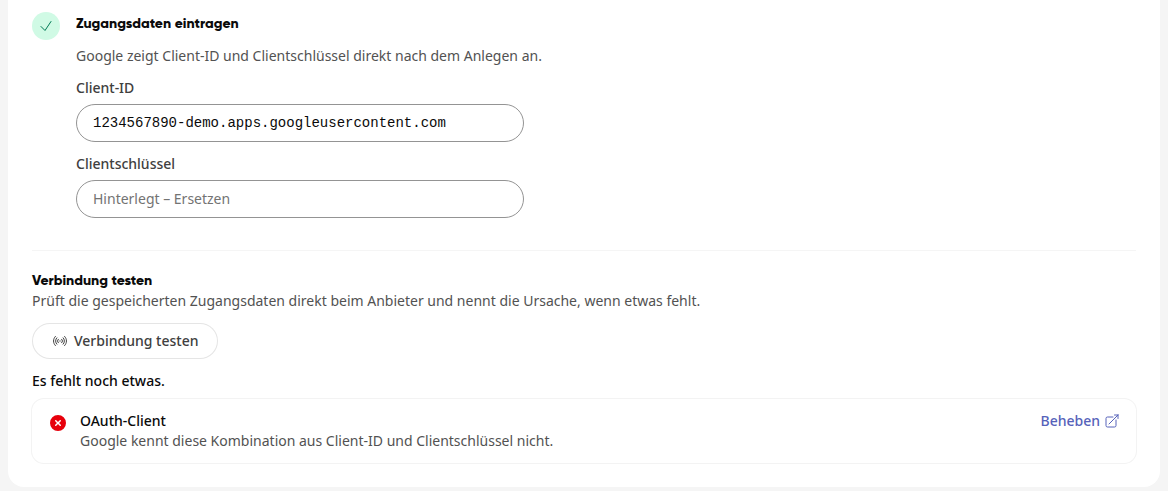
Step Enter access data: Enter the Client ID and Client secret. Google shows you both immediately after creation. Kibi automatically saves each field as soon as you leave it, and "Set up" then appears at the top.
Test connection#
Click Test connection. Kibi checks the saved access data directly with Google and specifies the cause if something is missing, for example: "Google does not recognize this combination of client ID and client secret." With Fix, you go directly to the appropriate place at Google.
Enable functions#
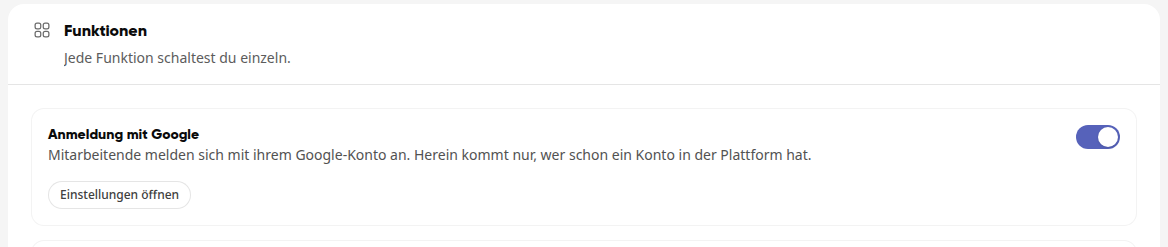
Under Functions, you enable each function individually.
Login with Google#
Employees log in with their Google account. Only those who already have an account on the platform can enter. With Open settings, you access the settings for this login.
Calendar synchronization#
Appointments are synchronized in both directions between the platform and the employees' calendars. Under Who connects the calendars?, you choose:
Each person themselves: Employees connect their calendar under Calendar → Manage calendars → Synchronization.
All automatically: You connect all employees' calendars at once, without individual login.
The assignment is based on the email address. No one can link another person's calendar to their own.
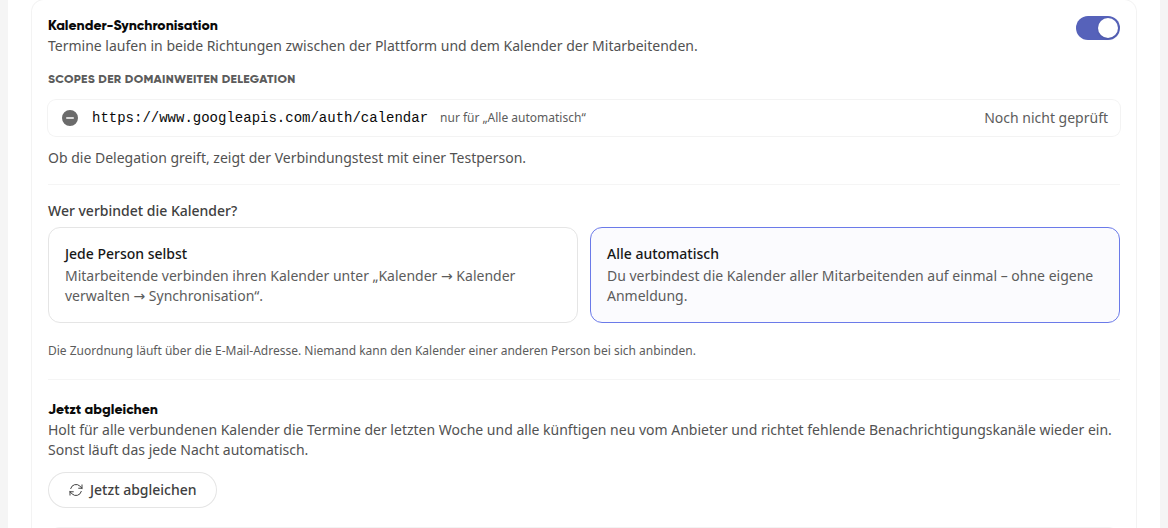
With Sync now, you retrieve the appointments from the last week and all future ones from the provider for all connected calendars. Missing notification channels are set up again by Kibi. Otherwise, this runs automatically every night.
Connect all calendars automatically#
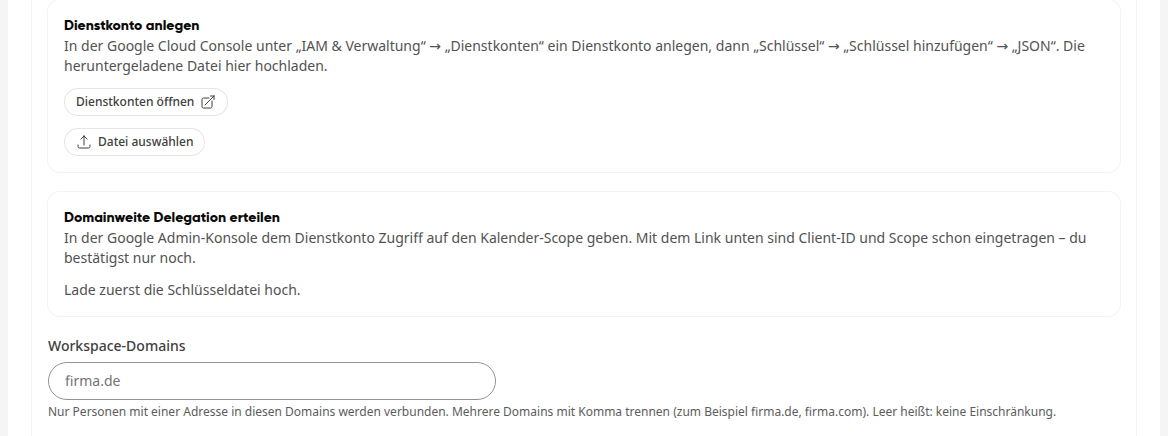
For All automatically, you additionally need a service account:
Create service account: Click Open service accounts and create a service account in the Google Cloud Console under "IAM & Admin" → "Service Accounts". Then select "Keys" → "Add key" → "JSON" and upload the downloaded file via Select file.
Grant domain-wide delegation: As soon as the key file is uploaded, the link to the Google Admin Console appears here. The client ID and scope are already entered there; you just need to confirm.
Workspace domains: Enter the domains whose people should be connected, separated by commas if multiple (e.g., firma.de, firma.com). Leave blank for no restrictions.
Connect calendars: Enter a test person and click Test with this person. If it works, use Connect for this person or Connect for all employees.
Mailboxes#
Mailboxes remain with Google Workspace and appear live in the platform's webmail. For mailboxes created by the administration and for migration, enter the displayed scopes in the Admin Console as domain-wide delegation. Employees who connect their mailbox in webmail themselves do not need them, but the OAuth client must be set to "Internal". With Open settings, you access mailbox management.
If you disable the function, all Google mailboxes are suspended. The connections remain intact.
Groups#
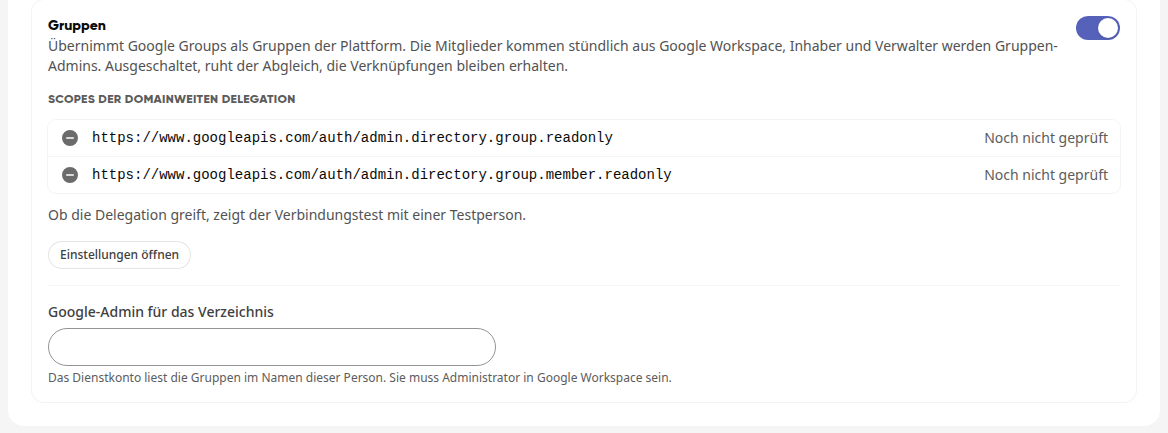
Kibi adopts Google Groups as platform groups. Members are updated hourly from Google Workspace; owners and managers become group admins. Enter the displayed scopes as domain-wide delegation and specify a person under Google admin for the directory who is an administrator in Google Workspace. The service account reads the groups on their behalf. With Open settings, you access the linked groups.
If you disable the function, synchronization is suspended. The links remain intact.
Tipp
For each function with domain-wide delegation, "Not yet checked" initially appears next to the scopes. Whether the delegation works is shown by the connection test with a test person.
Disable or delete access data#
Disable: Under Integrations → Overview, you disable G-Suite using the switch on the card. Appointments are then no longer synchronized with Google. Employees' connections remain saved, and login with Google continues to work.
Delete access data: The button is at the bottom of the G-Suite page.
Warnung
When deleting, the platform removes the OAuth client and service account and disables login with Google. Existing calendar connections will no longer work afterward. Also remove the access data in the Google Cloud Console.