
How do I process form submissions as tasks?
Updated Reading time: 3 min
On this page
Each response from a form can automatically become a task, for example for an IT ticket, an error message, a feature request, or a defect report. The person who submitted the form tracks the status via a status link, reads your published messages, and can reply there.
Info
Content managers can set up forms. Tasks are processed by anyone who can see the selected group and its tasks.
Making answers into tasks#
Open the Administration, click on Forms under Content, and open the form. For a new form, the templates IT ticket, Error report, Feature request, and Defect report are suitable: they already ask for an email address for responses.
Click on the Settings tab and find the section Answers become tasks.
Under Task type, select the type of task, for example a custom type "IT ticket". With Do not create tasks, everything remains as before.
Select the group in which the tasks will land. Only then will answers become tasks.
Under Email notification to, select the form's email question. The status link and a message will be sent to this address when new comments are approved and when the task is completed. Without an email question in the form, only No emails is available here.
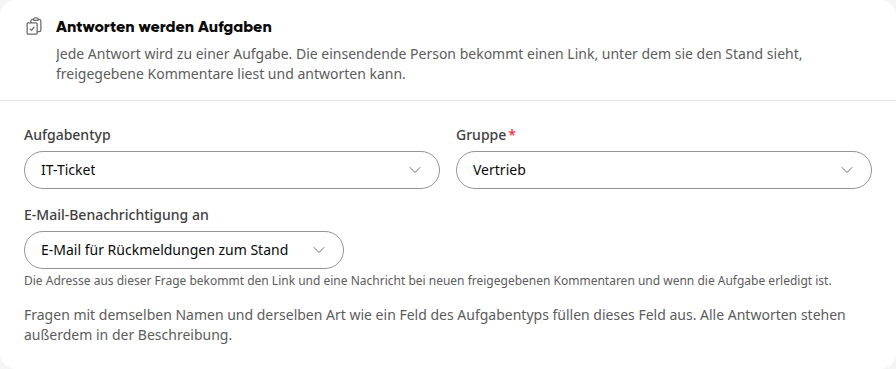
Click on Publish in the top right corner.
Each new answer will now become a task. The title consists of the form name and the first answer, and the description mentions the reference number and all answers. If the task type has fields, questions with the same name and type will fill those fields.
Tip
System administrators define the task types and their fields under Administration › Tasks.
What the submitting person sees#
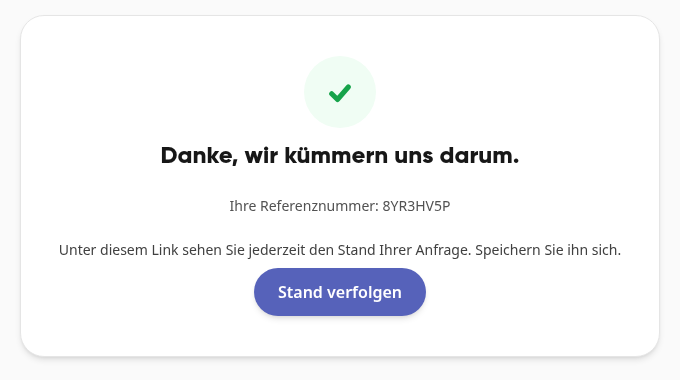
After submitting via a public link, the thank-you page shows the reference number and the button Track status. Staff can find the status link under Forms › My responses.
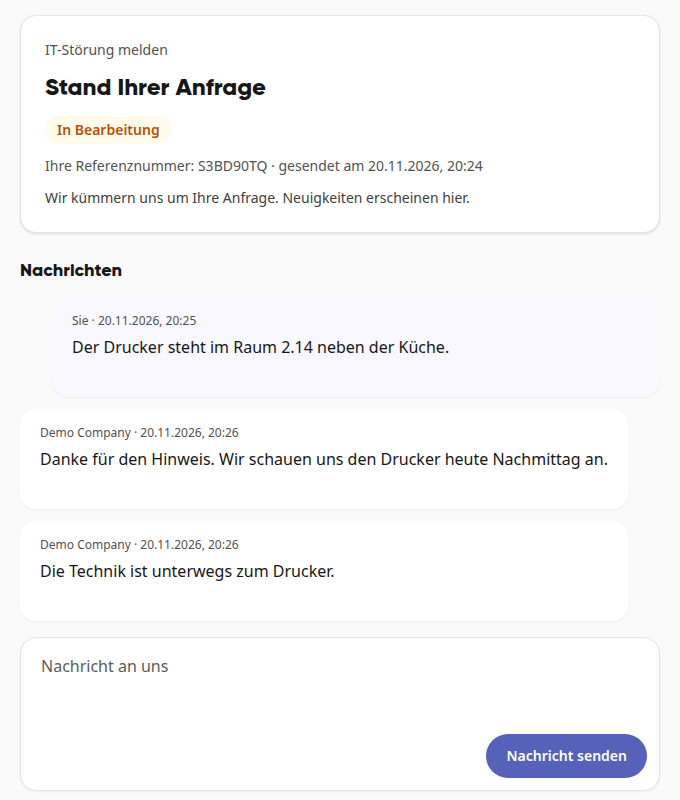
The status page shows whether the request is Received, In progress, or Completed, along with all messages you have released for it. Via Message to us and Send message, the person can reply without needing an account.
Info
The status page never shows internal comments, names of colleagues, the case number, or the responses themselves. Anyone with the link can see the status, so the person should not share it.
Finding Requests#
Open Tasks in the navigation. Tasks from a response via a public link carry the label External.
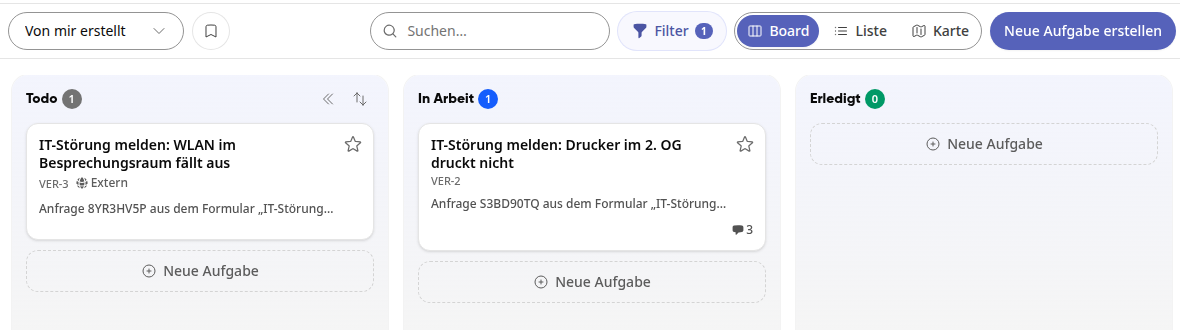
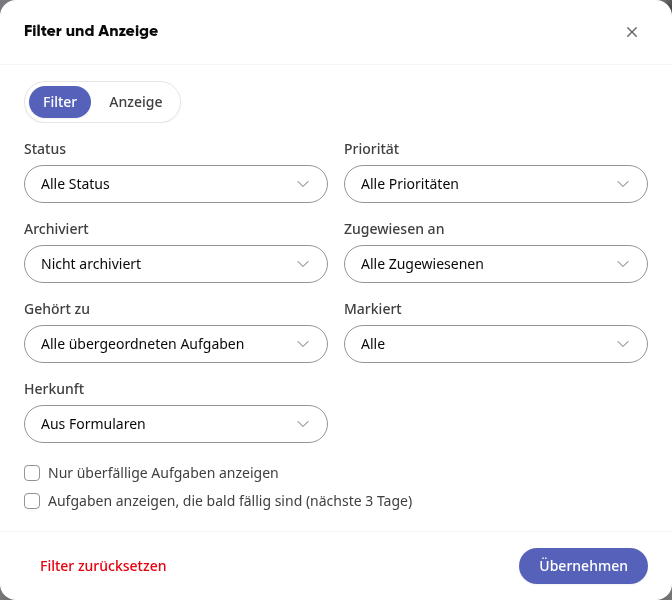
Click on Filter and select From forms or Submitted externally under Origin. Click on Apply.
If someone gives you the reference number, simply enter it into the search.
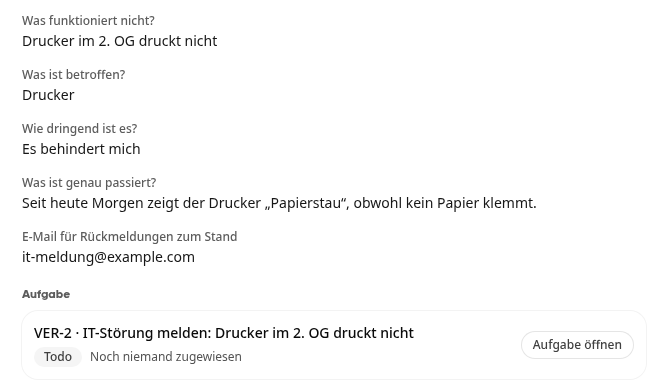
In the form itself, you can also get to the task: Click on a response in the Responses tab. Under Task, you will see the case number, status, and assignee; with Open task, you can jump to it. Conversely, in the task, the link Request … in the header leads to the response.
Write to the submitting person#
Open the task and write your comment below.
Check the box for Visible to submitting person and click on Comment. The comment will then be marked with the label Visible to submitting person, and the person will receive an email.
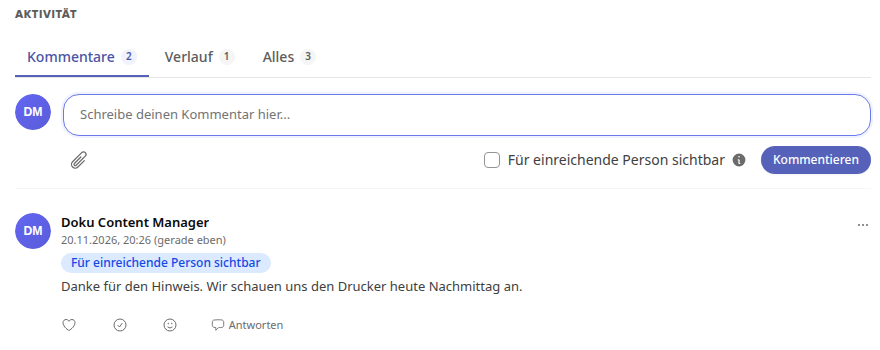
Comments without a checkmark remain internal. If the person replies via the status link, their message appears as a comment from Submitting person.
Change status#
Change the status of the task as usual, for example to In progress or Done, in the task header, in the list, or by dragging it on the board.
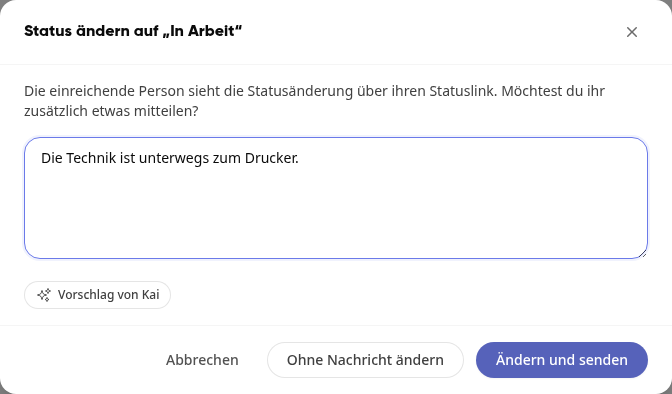
A dialog asks whether you would also like to send a message to the person. Write a message and click on Change and send, or click on Change without message. With Cancel, the status remains as it was.
Tip
With Kai's suggestion, Kai writes up to three drafts for the message. A click adopts a draft into the text field, where you can adjust it. Kai does not quote internal comments.
If you set the task to Done, the person will receive an email that their request has been completed. They can still reply.