
How do I set up the filing structure in the DMS?
Updated Reading time: 2 min
On this page
You define the folders in which your team stores documents in the DMS. You start with a suggestion or build the folders yourself and adjust the structure later.
Info
This function is available to the system administration. You maintain the structure centrally at this point: In the file manager, no folders can be created at the top level.
Open structure#
Open the Administration and click on DMS under Organization. You will land in the Structure tab.
Under Filing structure, you will see all folders, the number of their files, and their read permissions.
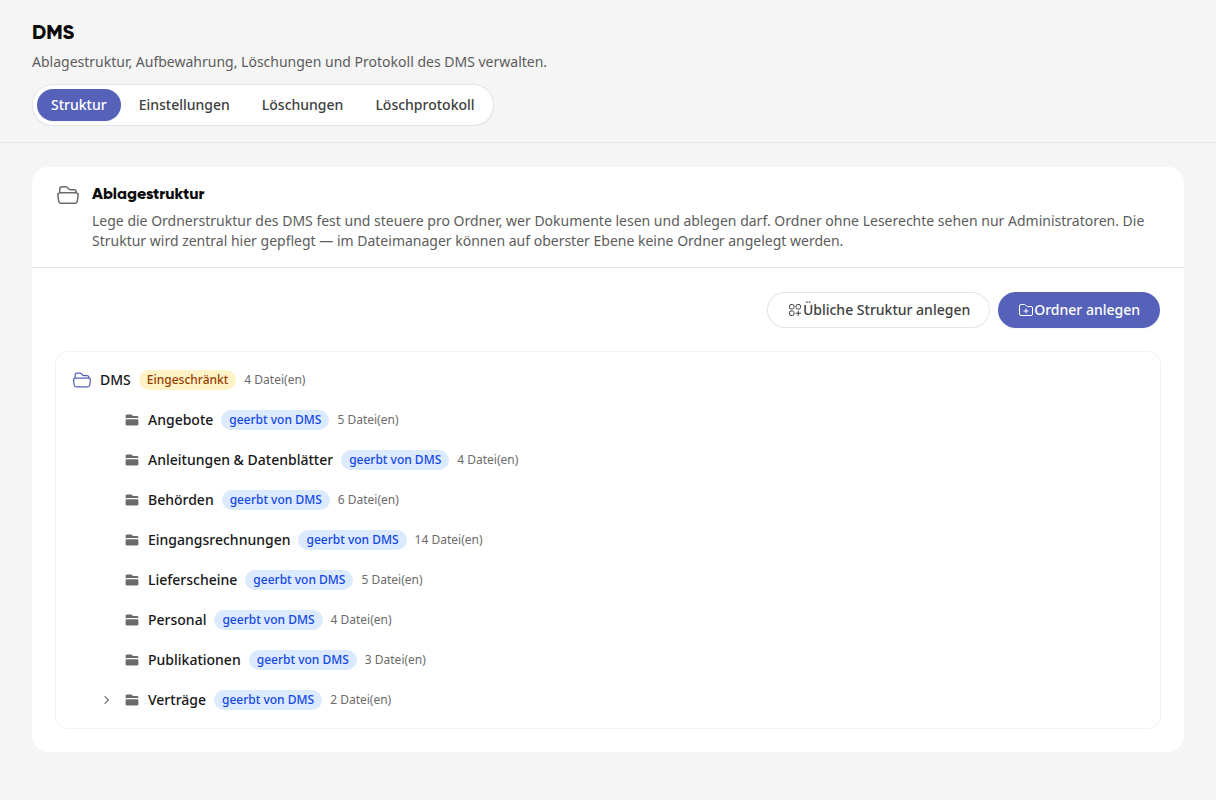
Start with the usual structure#
Click on Create usual structure. All folders in the suggestion are preselected.
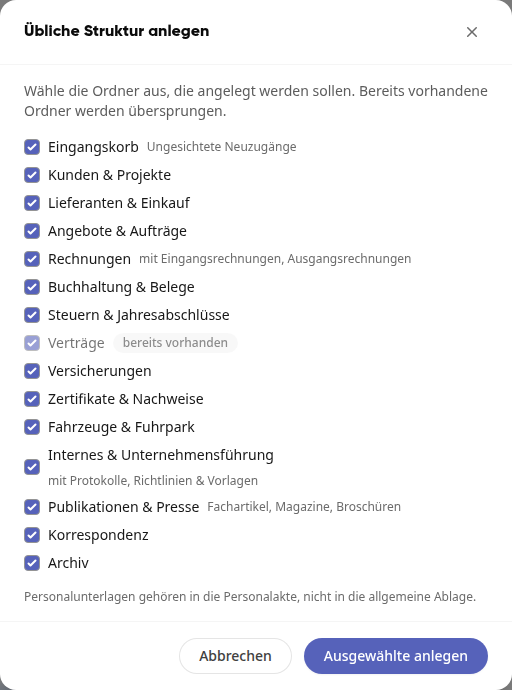
Remove the checkmarks from the folders you don't need. Folders marked as already existing will be skipped.
Click on Create selected. The folders will appear in the folder tree.
Tip
Personnel documents belong in the personnel file, not in the general filing system.
Create folders yourself#
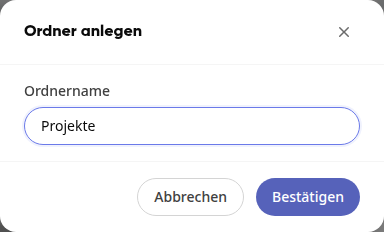
Click on Create folder.
Enter the folder name and click on Confirm. The folder is now located at the top level under DMS.
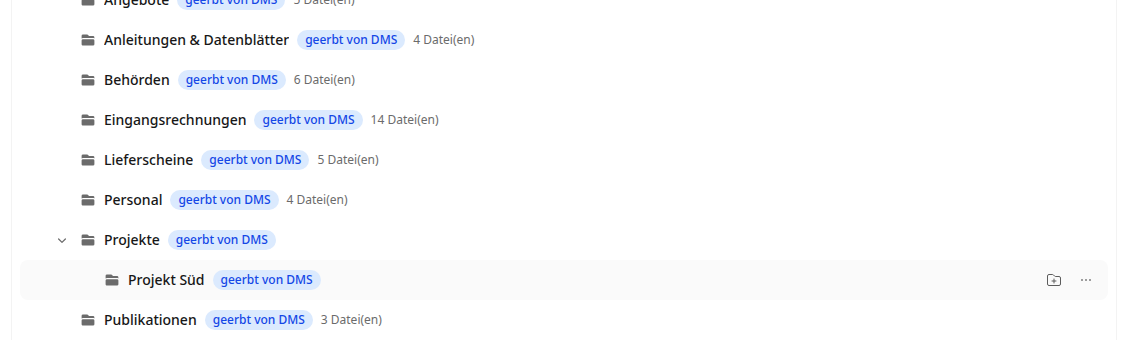
For a subfolder, hover over the parent folder, click on the Create subfolder icon on the right, and confirm the name. Use the arrow in front of the folder to expand and collapse the subfolders.
Info
On the same level, each name can only appear once, and capitalization does not matter. Otherwise, the message "A folder with this name already exists here." will appear.
Change structure#
Hover over a folder with the mouse. On the right, the Create subfolder icon and the … menu appear. Click on … to see all other actions for this folder.
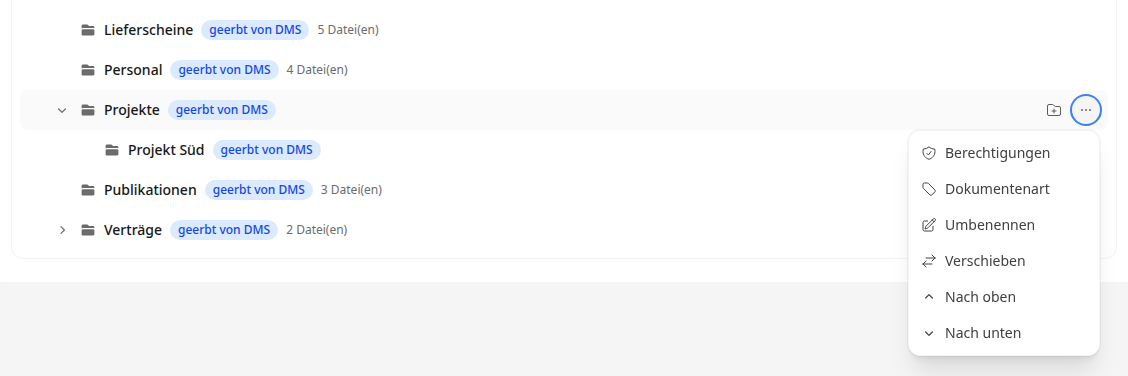
Permissions and Document type: Sets custom read permissions, storage permissions, and a fixed document type for the folder (see below).
Rename: Enter the new folder name and click Confirm.
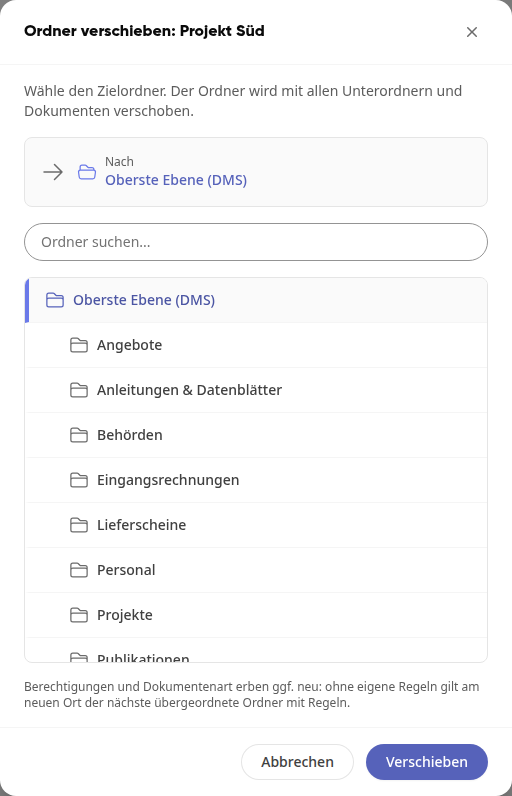
Move: Select the destination folder or Top level (DMS) and click Move. The folder moves along with all subfolders and documents.
Up and Down: Moves the folder within its level. The new order takes effect immediately. The entries only appear if the folder still has space in that direction.
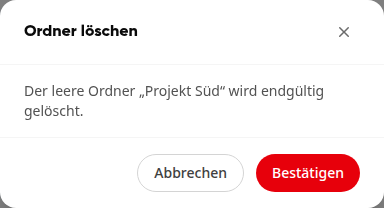
Delete: Only appears in the menu for empty folders without subfolders. Click Confirm in the Delete folder dialog.
For the top-level folder DMS, the menu only contains Permissions and Document type.
Warning
When moving, permissions and document type can change: Without custom rules, the next parent folder with rules applies at the new location.
Who sees the new folders#
A new folder inherits the read permissions of the parent folder; in the folder tree, this is then shown, for example, as inherited from DMS. Employees with these read permissions will find it in the DMS on the left under Filing. Only administrators can see folders without read permissions.
You assign individual permissions and a fixed document type for each folder in the … menu via Permissions and Document type. This is explained in the guide How do I set up the filing structure, permissions, and deletion periods in the DMS?.