How do I maintain shift templates in the duty roster?
Updated Reading time: 2 min
Shift templates are the recurring shifts of a department, for example early shift, late shift, or night shift. When you create a shift from a template during scheduling, the times, break, and staffing requirement are already filled in.
Info
You maintain templates in each department where you have the Planner role. Each department has its own templates.
Open the templates of an area#
Click on Schedule in the navigation.
Under My areas, click on Plan next to the area.
Click on the Templates tab at the top.
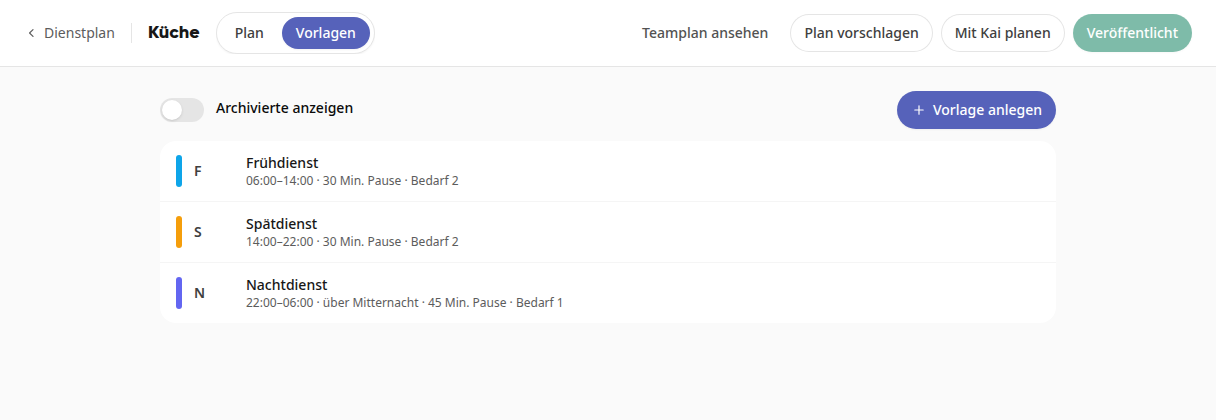
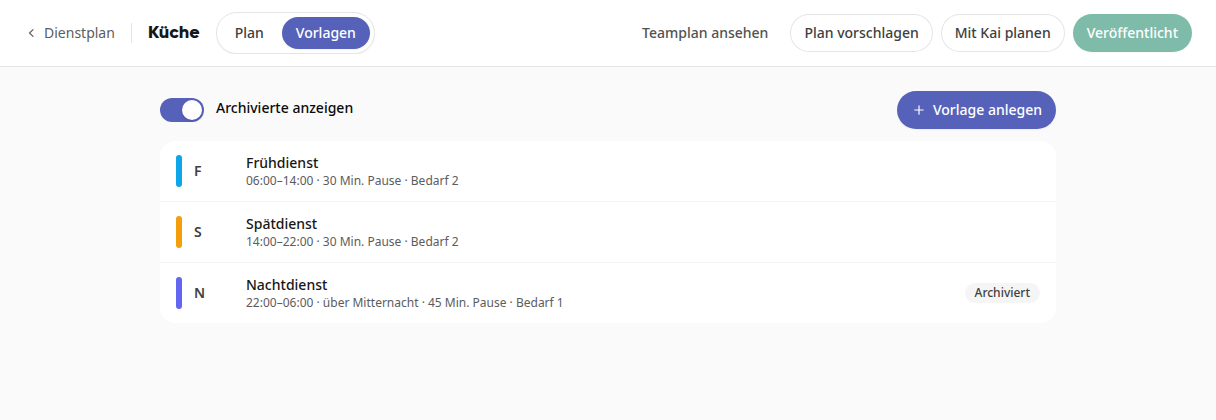
Each row shows the color, abbreviation, and name of the template, below it the start and end, the break, and the requirement. For shifts that go past midnight, past midnight is also displayed.
Create a template#
Click on Create template. If the area does not have a template yet, the button is called Create first template.
Fill in the fields:
Name: the name of the shift, for example "Night shift".
Abbreviation: up to four characters, for example "N".
Start and End: if the end is before the start, the shift goes past midnight.
Break (minutes): the break that is deducted from the working time.
Requirement: how many people the shift needs.
Color: this is how the shift appears in the schedule.
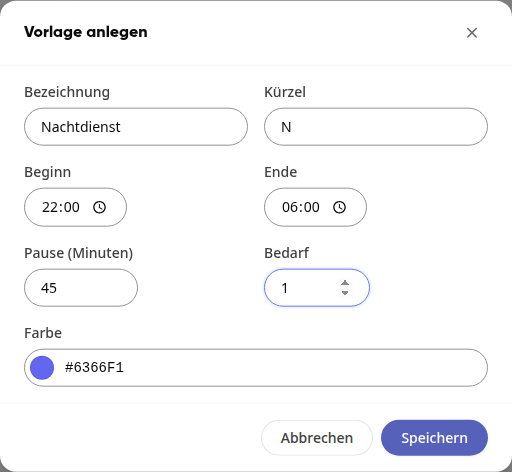
Click on Save.
The new template is immediately available for selection when you click on + in the schedule.
Editing a Template#
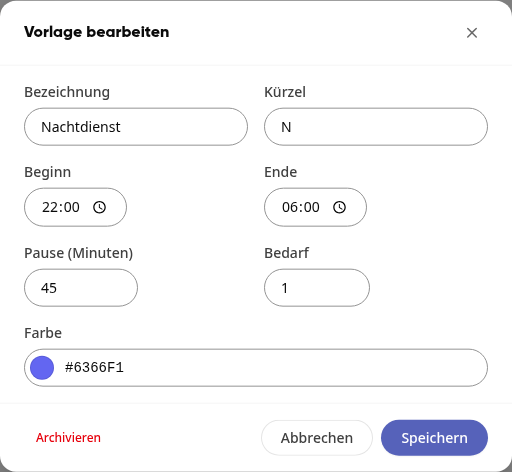
Click on the template in the Templates tab.
In the Edit template window, change the fields and click on Save.
Important
A changed template only applies to shifts that you create afterwards. Shifts that have already been created keep their times. If you want to change them too, edit the shifts in the schedule.
Archive a template#
Templates you no longer need can be archived. Nothing is deleted in the process.
Click on the template and then on Archive in the window.
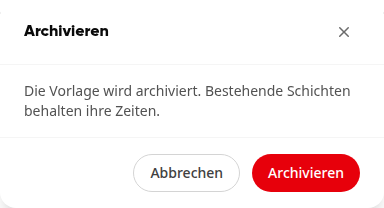
Confirm with Archive. Existing shifts keep their times.
Archived templates are no longer offered when planning. Enable Show archived to see them in the list. They are then marked with the Archived label.