
How do I give up a shift or take one over?
Updated Reading time: 3 min
If a shift in the published schedule doesn't suit you, you can pass it on to colleagues in the area. Conversely, you take over shifts that someone passes on, and open slots that are still looking for someone. Depending on the area's settings, the takeover applies immediately or only once planning releases it.
Info
You can pass on and take over shifts in any area where you are assigned as employee or planner. This only works for published shifts that have not yet started.
Give up shift#
Click on Schedule in the navigation.
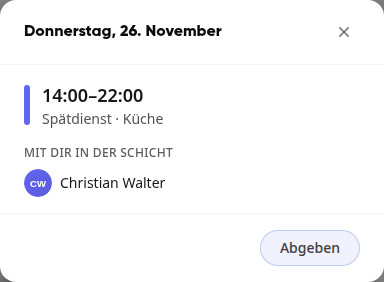
Under My Schedule, click on the shift you want to give up, and then click on Give up.
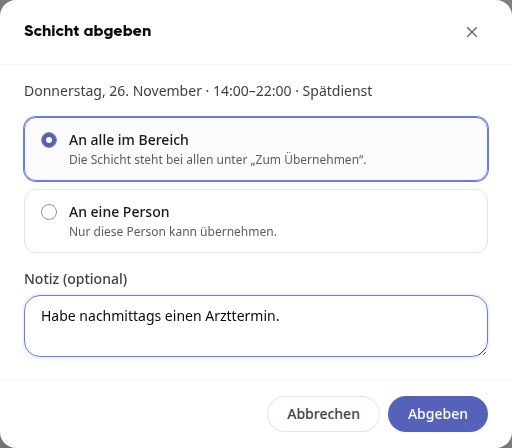
Under To whom, choose who can take the shift:
To everyone in the area: The shift appears under Available to take for everyone.
To one person: Under Person, choose someone from the area. Only this person can take it and will receive a notification about it.
If needed, write a note (optional), for example the reason, and click on Give up.
The shift is now marked as Offered and appears under My offers and requests. Until someone takes it, it remains your shift. With Withdraw, you take back the offer.

If someone takes the shift, you will receive a notification. The shift disappears from your schedule, and under My offers and requests it will then say, for example, "Katja Stein has taken it over".

Take over a shift#
Click on Schedule in the navigation and then on Available to take. Below that, it shows how many shifts are currently looking for someone.
The list shows shifts that someone is giving up ("Given up by …", with the note) and open slots ("Still looking for someone") in your areas. Each shift states what happens when you take it over:
Yours immediately: The shift is yours as soon as you take it over.
Planning must approve: Planning receives a request and decides. If taking the shift would exceed your rest period or permitted working hours, the reason is shown in red below.
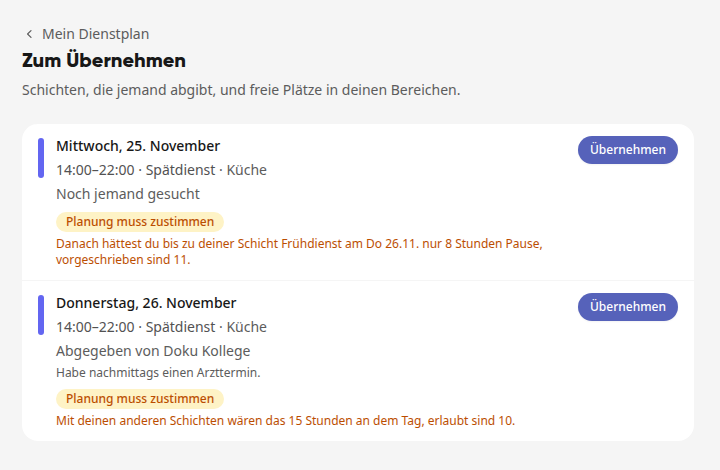
Click on Take over for the shift.
Check the details in the Take over shift? window and click on Take over.
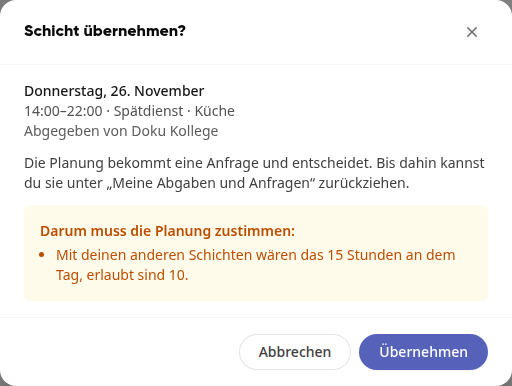
If the takeover applies immediately, the shift will appear in your schedule right away. If planning must approve, your request will appear under My give-ups and requests with the status Waiting for approval. Until planning has decided, you can Withdraw it there. You will receive a notification about the decision.

Tip
If a taken-over shift doesn't work out after all, you can give it up again.
Approve takeovers (Planning)#
Anyone who plans an area receives the message "Takeover awaiting approval" as soon as someone wants to take over a shift and planning needs to approve it.
Click on the message. Or click on Rota in the navigation and next to the area under My Areas on Plan.
Click on Requests above the plan. The number of open requests is shown in parentheses.

Under Takeover Requests, each request is listed with the person who wants to take over, who they are replacing, the shift, the note, and a notice if a rule would be violated (for example, "15 hrs. per day, max. 10 hrs.").
If necessary, write a Reason (optional) and click on Approve or Reject.
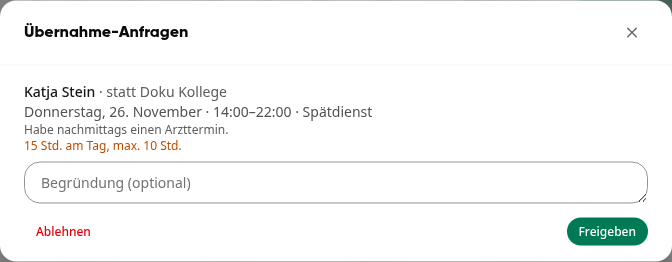
After approval, the shift appears in the published plan under the new person. Both receive a message, as do they in case of rejection.
Info
Whether planning must approve every takeover is determined by HR managers in the Settings of the area under Shift Swap (Planning confirms every swap, enabled by default). If the setting is disabled, a takeover takes effect immediately. However, if it would violate rest periods or maximum working hours, Kibi still asks planning for approval.
Warnung
If planning is currently editing the shift and has not republished the plan, a takeover will not be executed. Under My Submissions and Requests, it will then say "Planning is currently editing the shift."