
How do I read and write emails?
Updated Reading time: 4 min
On this page
In the Email module, you read, reply to, and write your emails directly on the platform. Using filter rules, you can automatically sort new messages or forward them to an agent.
Info
You need your own mailbox for this. If it is missing, you will see the message No mailbox available. In this case, contact your administration.
Reading emails#
Click on Email in the navigation. On the left, you will see your folders, and next to them, the messages in the selected folder with the Status and Date filters above.
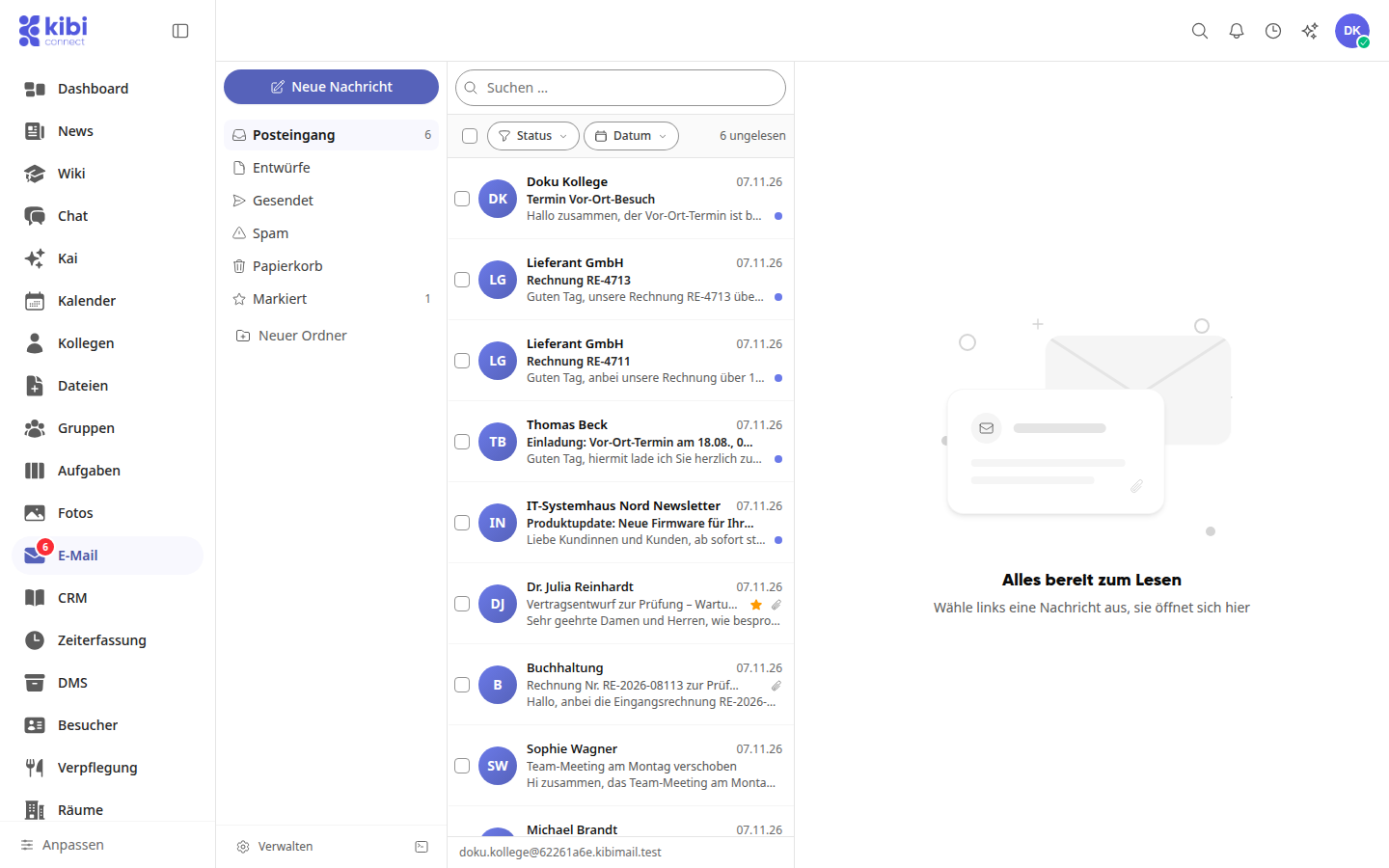
Click on a message to open it on the right.
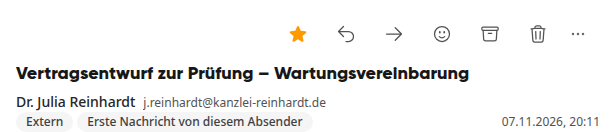
At the top right above the message, you will find these actions: Mark, Reply, Forward, React with emoji, Archive, and Delete. Under More actions, you can mark the message as unread, snooze it, mark it as spam, save it to Files, or download it.
Writing an email#
Click on New Message.
Enter a name or address under To. Use Cc and Bcc to add more recipients.
Enter the Subject and your text. Use Attach file to add attachments.
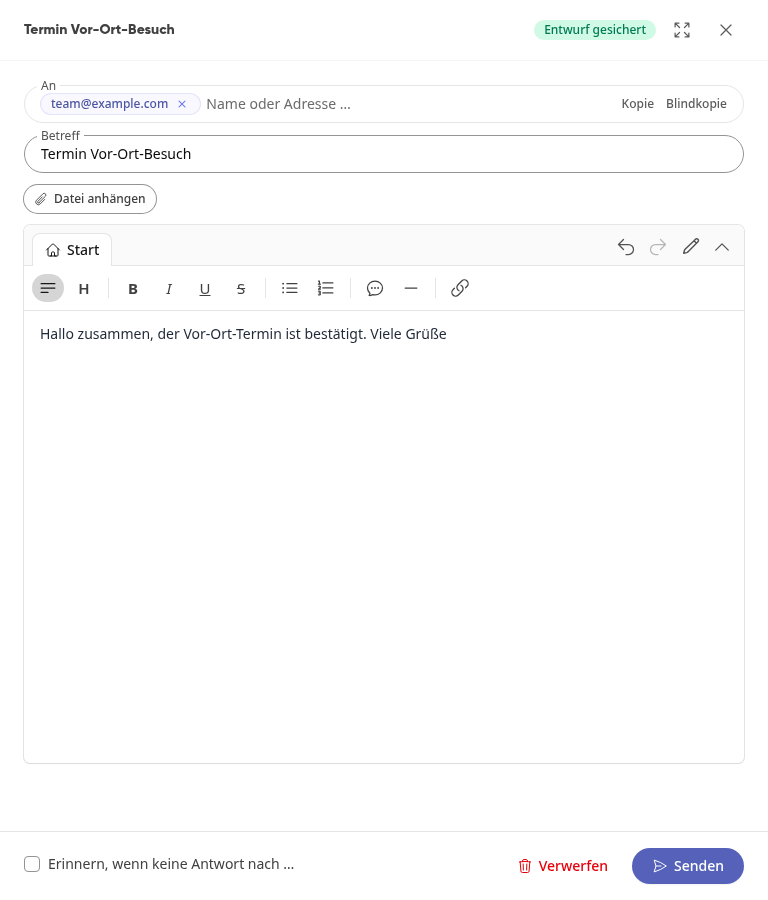
Click on Send.
The message will then be in the Sent folder. During sending, it may briefly appear in the Outbox.
Tip
Your draft is automatically saved. If you check the box for Remind me if there is no reply after …, the platform will remind you of pending replies.
Replying to an email#
Open the message and click Reply in the top right.
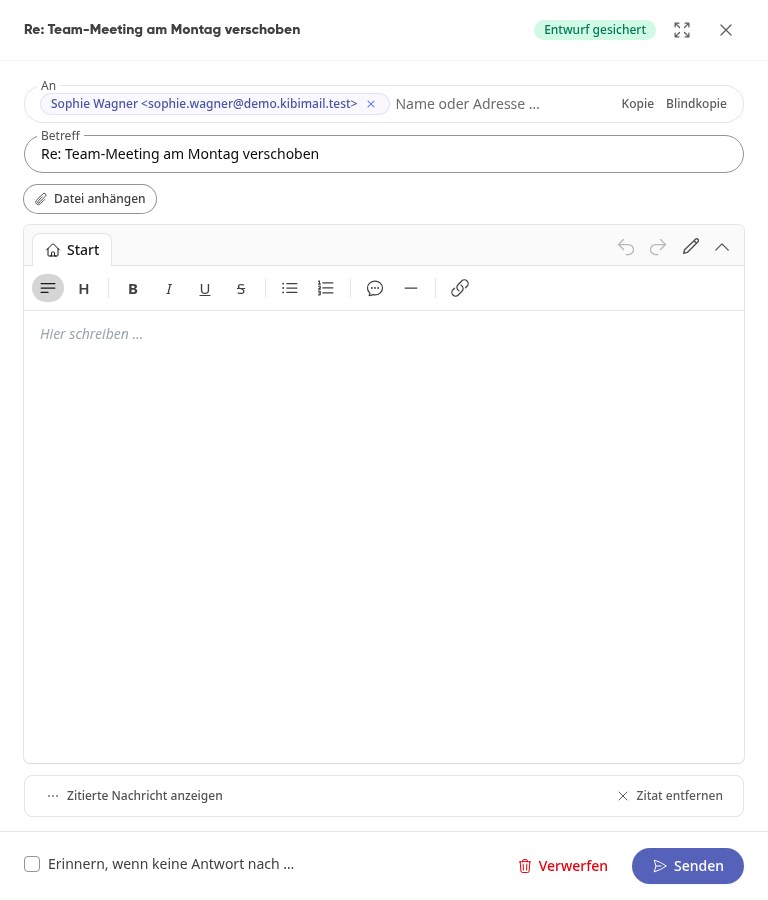
Write your reply and click Send.
Use Discard to delete the draft again.
Searching for messages#
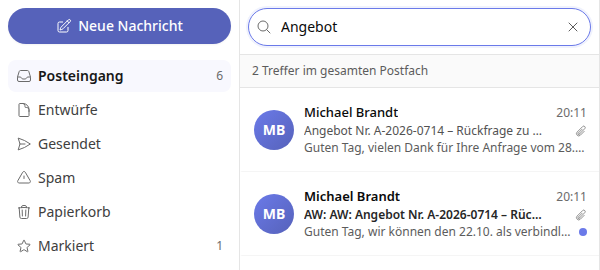
Enter your search term in the Search … field above the message list. The results come from the entire mailbox.
Filtering messages#
Above the message list, you can limit the display by status and date. The two filters can be combined.
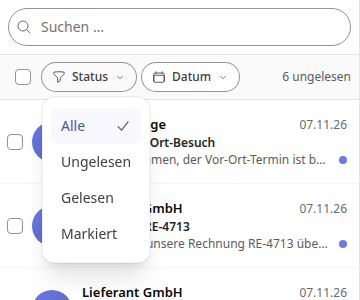
Click on Status and select Unread, Read, or Flagged. With All, you will see every message again.
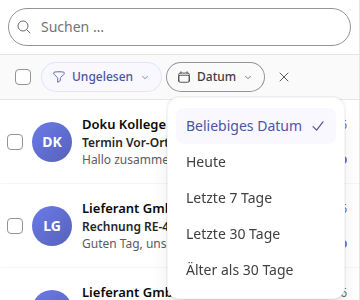
Click on Date and select Today, Last 7 days, Last 30 days, or Older than 30 days. With Any date, you remove the restriction.
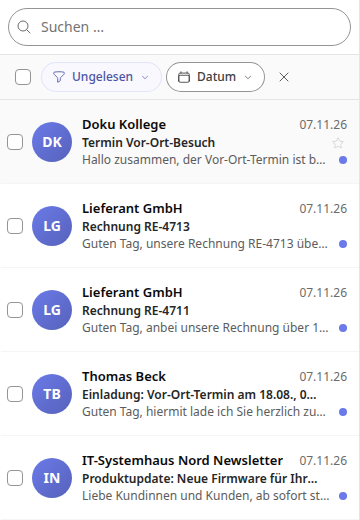
An active filter shows its selection in the button, for example Unread. Use the X next to it to reset all filters. If no message matches, you will see No message matches these filters. and the button Reset filters.
Info
Messages that have already been loaded are filtered. You can load older messages. If you have multiple mailboxes, you can filter in All Inboxes in the same way.
Setting up the mailbox#
Click on Manage at the bottom of the folder list.
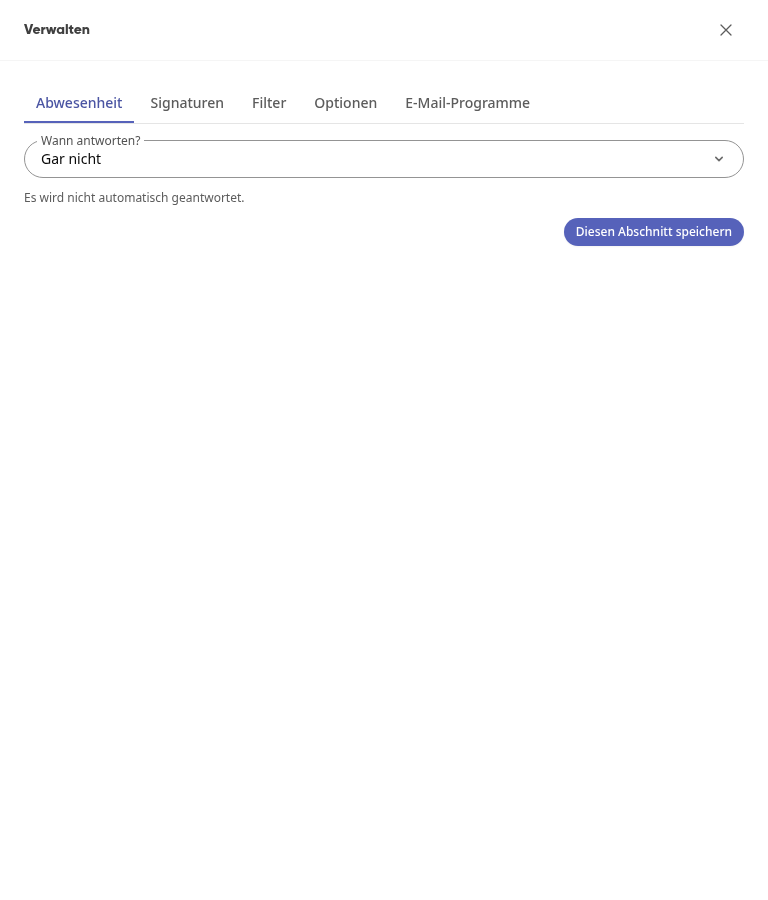
Out of Office sets when automatic replies are sent.
Signatures stores your signatures, optionally created from your profile.
Filters automatically sorts new messages in the inbox according to your rules, creates tasks from them, or starts an agent.
Options notes sent messages in the CRM and specifies which senders always have images loaded.
Email Programs displays the access data for Outlook, Thunderbird, or the mail app on your smartphone if your administration has enabled them.
Forwarding new emails to an agent#
A filter rule can start a dedicated Kai agent for each matching new message, for example for invoices from a supplier. The agent suggests its steps, which are only executed after your approval.
Info
The available agents are those you are allowed to use. Your administration sets up agents under AI & Workflows. If your company has disabled emails for Kai, a rule cannot start an agent.
Click on Manage at the bottom of the folder list and open the Filters tab.
Click on Create rule and enter the Rule name.
Under If, specify which messages the rule applies to, for example Sender contains and an address.
Under Then, select the action Start agent and the agent next to it.
If needed, enter a Task for this run. Without a task, the agent works according to its own task.
Under Runs per hour, specify how often the rule can start at most. The default is 20, with a maximum of 60.
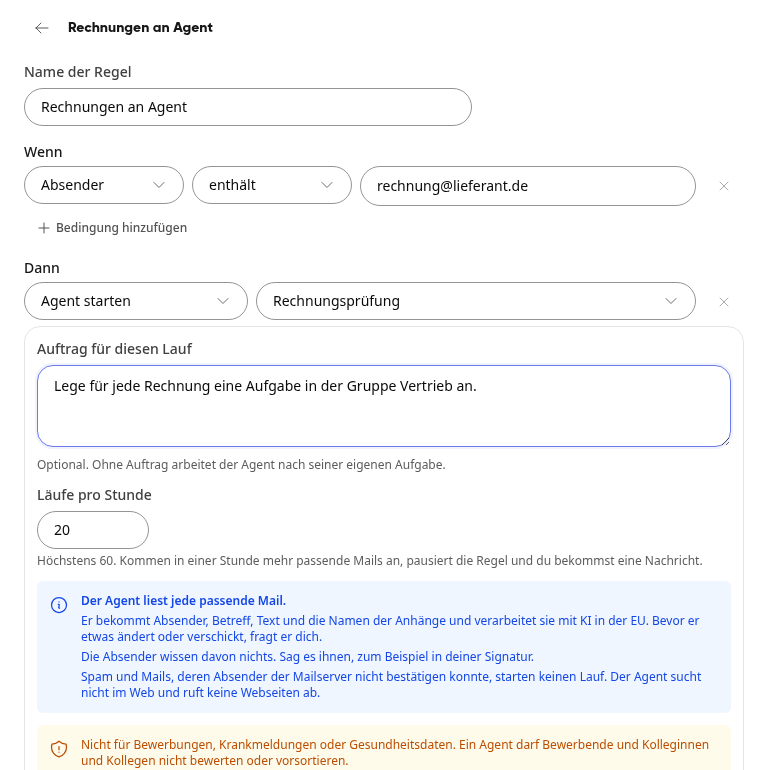
Read the notices and click on Save.
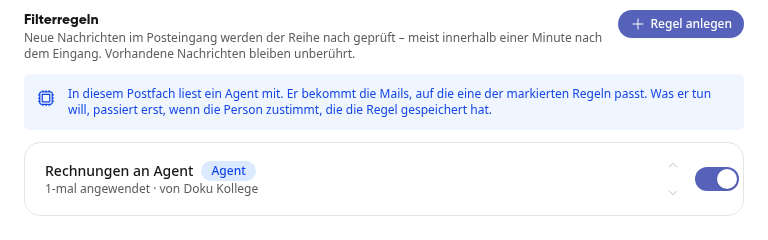
In the list, the rule now has the Agent label. At the top, there is a notice that an agent is reading along in this mailbox. Everyone who reads the mailbox can see this.
Warning
Do not use this action for job applications, sick notes, or health data. An agent must not evaluate or pre-sort applicants or colleagues.
Important
The agent receives the sender, subject, text, and the names of the attachments, but not their content. The senders are not aware of this. Inform them, for example in your signature. In a group mailbox, the rule applies to all emails, including those addressed to your team. Discuss this with the team in advance and, if applicable, with the works council.
Confirming the agent's suggestion#
Click on Kai in the navigation. Under Conversations, you will find a separate conversation for each run with the title Mail: and the subject of the message.
Read the agent's result and check exactly what it wants to do on the Waiting for your approval card. The email was written by someone outside.
Click on Yes, execute or Discard.
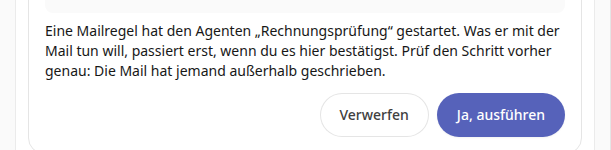
The agent works with your permissions. If it suggests something you are not allowed to do, for example a task in a group you do not belong to, the card will show that did not work after confirmation. You can decide on the card for 72 hours.
When no run starts#
Spam and emails whose sender the mail server could not verify do not start a run. This also applies to mailboxes with Microsoft 365 and Google: there, the provider's verification counts, and the provider's spam does not start a run. Additionally, the agent does not search the web or retrieve web pages.
A rule pauses automatically and shows the reason in the list if
more matching emails arrive in one hour than allowed. You will receive a message about this; the emails remain unprocessed in the inbox.
the agent is disabled, deleted, or no longer available to you.
your company disables emails for Kai. The rule will run again as soon as it enables them.