
To manage what Kai remembers about you, you can adjust your privacy settings in the app or platform where Kai operates. Look for options like "Memory," "Data," or "Privacy" in the settings menu, where you can review, edit, or delete stored information. For specific steps, refer to the help section or support documentation of the service you are using.
Updated Reading time: 2 min
On this page
Kai has a long-term memory: He remembers important information from your conversations, such as how you prefer to receive answers or what you are currently working on. Everything Kai remembers about you can be seen in your Kai settings. There, you can create, edit, and delete entries yourself.
Info
Only you can see the list of your memories.
Opening Memories#
Open Kai in the navigation.
In the Conversations tab, click the gear icon next to New Conversation.
Switch to the Memories tab.
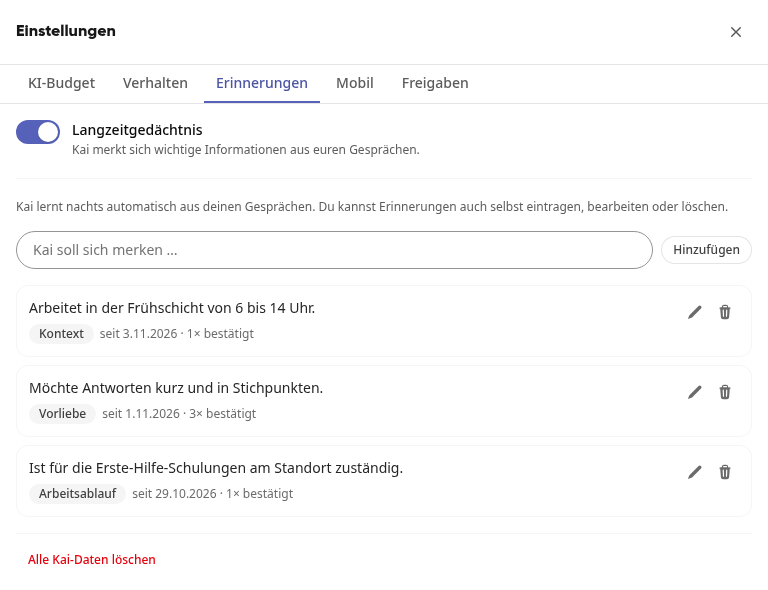
Each memory shows a category, such as Context, Preference, or Workflow, and how long Kai has known it. The indication Confirmed 3× means that Kai has found the information again in multiple conversations.
Tip
Kai automatically learns from your conversations at night. New memories from a conversation therefore only appear in the list the next day.
Enter something yourself#
Write in the field Kai should remember ... what Kai should know, for example, "I work the early shift from 6 a.m. to 2 p.m."
Click on Add.
The text must be at least 3 characters long.
Change reminder#
Click on the pencil icon (Edit) next to the reminder.
Adjust the text.

Click on Save.
A reminder that you have changed yourself is considered confirmed for Kai and takes precedence over what he has only derived from conversations.
Delete reminder#
Click on the trash can icon (Delete) for the reminder.
Confirm with Delete.
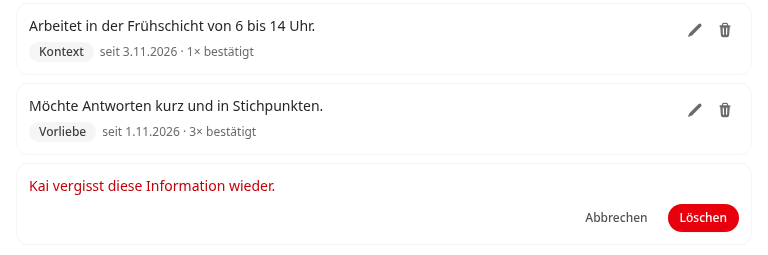
Kai forgets the information. He does not relearn it at night from older conversations.
Disable long-term memory#
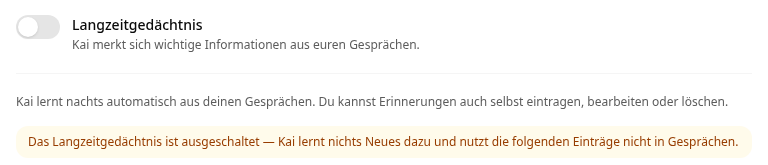
At the top, in the Memories tab, turn off the Long-term memory switch. Kai will then not learn anything new and will no longer use existing entries in conversations. However, the entries remain saved until you delete them. If you turn long-term memory back on, Kai will use them again.
Delete all Kai data#
Do you want to remove everything Kai has stored about you:
Click on Delete all Kai data in the Memories tab at the bottom.
Confirm with Delete permanently.

Warning
This will delete all memories and other data that Kai has stored about you. This cannot be undone.