
How do I set up notifications for the company?
Updated Reading time: 2 min
As an administrator, you determine when Kibi Connect sends push notifications for news, whether admins are notified about new groups, how much a push notification reveals on the phone, and the default times when employees receive notifications.
Info
These settings are available to system administrators. They apply to the entire company.
Open notification settings#
Open the administration and select Notifications from the menu under Platform.
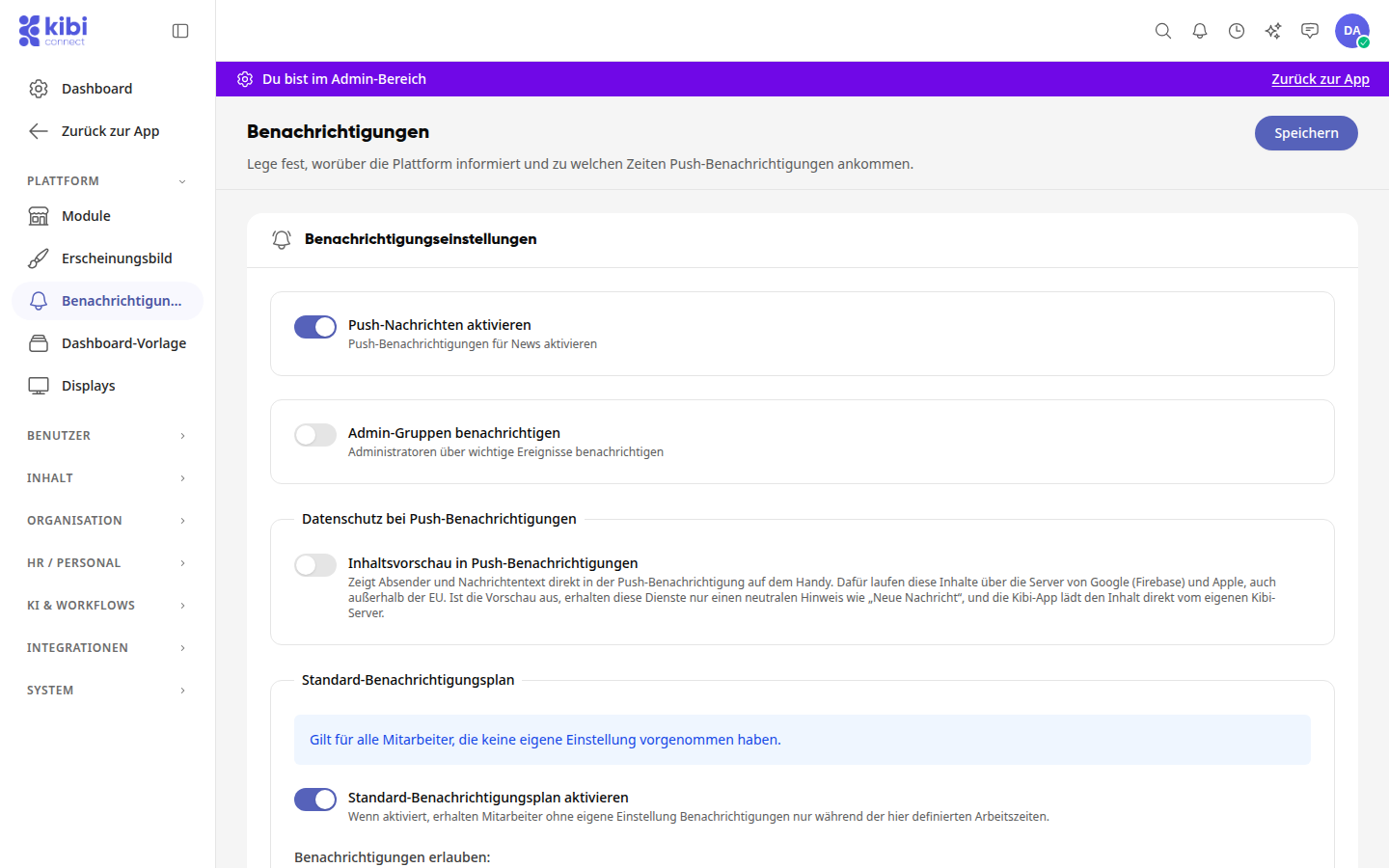
Change the desired settings (see below).
Click Save in the top right. The button will then display Saved.
Info
The button in the top right displays Save as long as there are unsaved changes, and Saved afterward. If you try to leave the page before saving, the platform will ask Discard changes?: Select Continue editing to stay on the page, or Discard to lose the changes.
Overview of the toggles#
-
Enable push notifications: If the toggle is on, employees receive a push notification for every published news item. If it is off, a notification is only sent if Notify employees was selected for the post.
-
Notify admin groups: If the toggle is on, system administrators are notified whenever someone creates a new group.
-
Content preview in push notifications: If the toggle is on, the push notification on the phone displays the sender and message text. This content is then routed through Google (Firebase) and Apple servers, even outside the EU. If it is off, these services only receive a neutral notice such as "New message," and the Kibi app loads the content directly from the Kibi server.
Tipp
For information on what the content preview means for data privacy, see the page Data privacy for push notifications.
Set default notification schedule#
The default notification schedule determines when employees receive notifications. It applies to everyone who has not set their own preferences.
Enable Activate default notification schedule. Afterward, employees without their own settings will only receive notifications during the specified times.
Under Allow notifications:, select a schedule (see below).
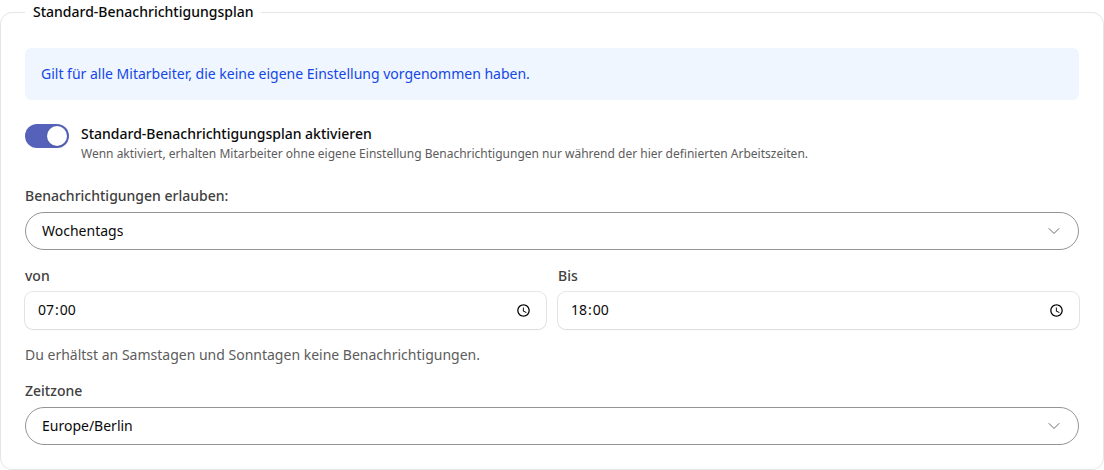
Enter the times and select your company's time zone under Time zone, for example Europe/Berlin.
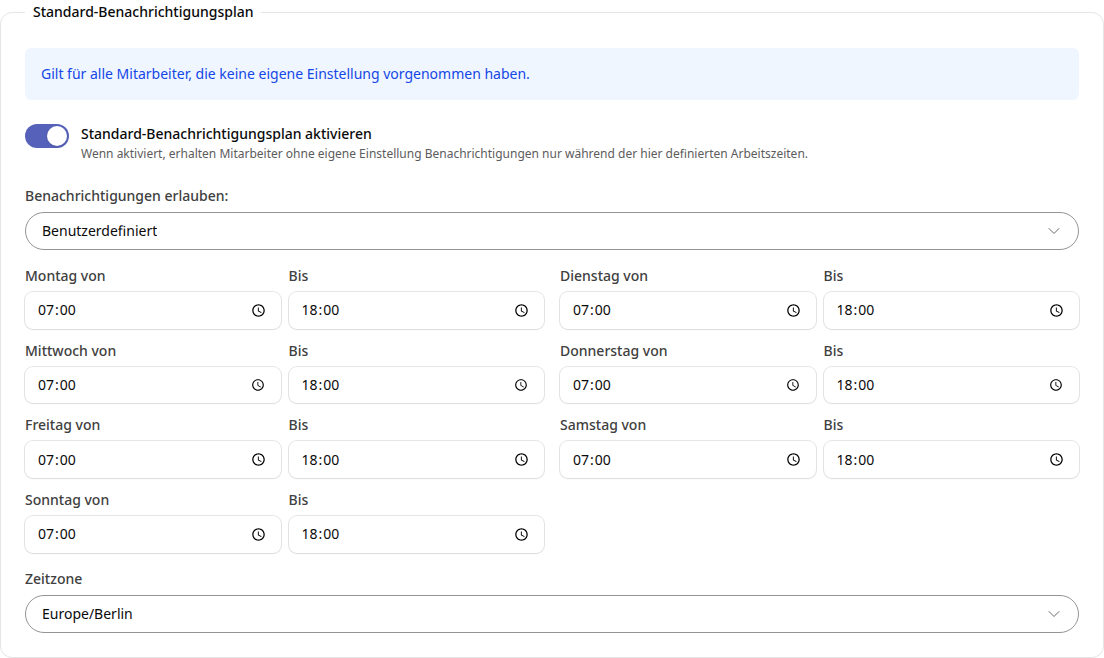
Click Save in the top right.
The following schedules are available:
-
Every day: a time range with From and To that applies to all days of the week.
-
Weekdays: a time range from Monday to Friday. No notifications are sent on Saturdays and Sundays.
-
Custom: a custom time range for each day from Monday to Sunday.
Info
Employees can choose a different schedule in their own settings. Their personal schedule will then apply instead of the default.