
How do I use my own backgrounds in a video call?
Updated Reading time: 2 min
On this page
In a video call, you replace your real background with an image. In addition to the built-in images, you can also upload your own images, for example an image with your company's logo.
Uploading your own image as a background#
Start or join a video call.
Click on Background effects (sparkle icon) in the bar at the bottom.
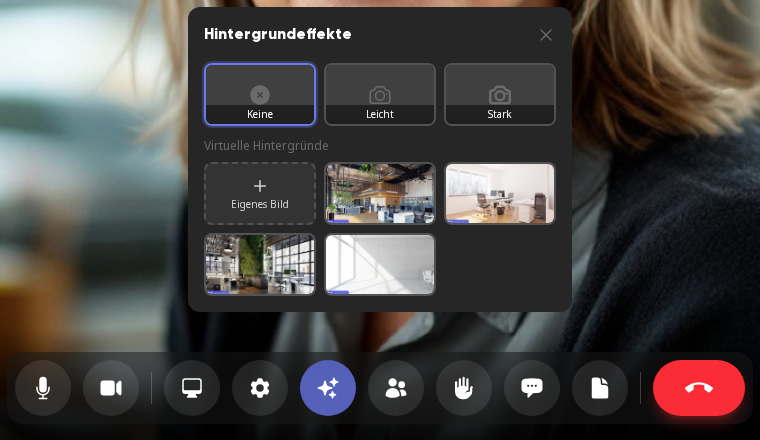
Under Virtual backgrounds, click on Own image and select an image from your device.
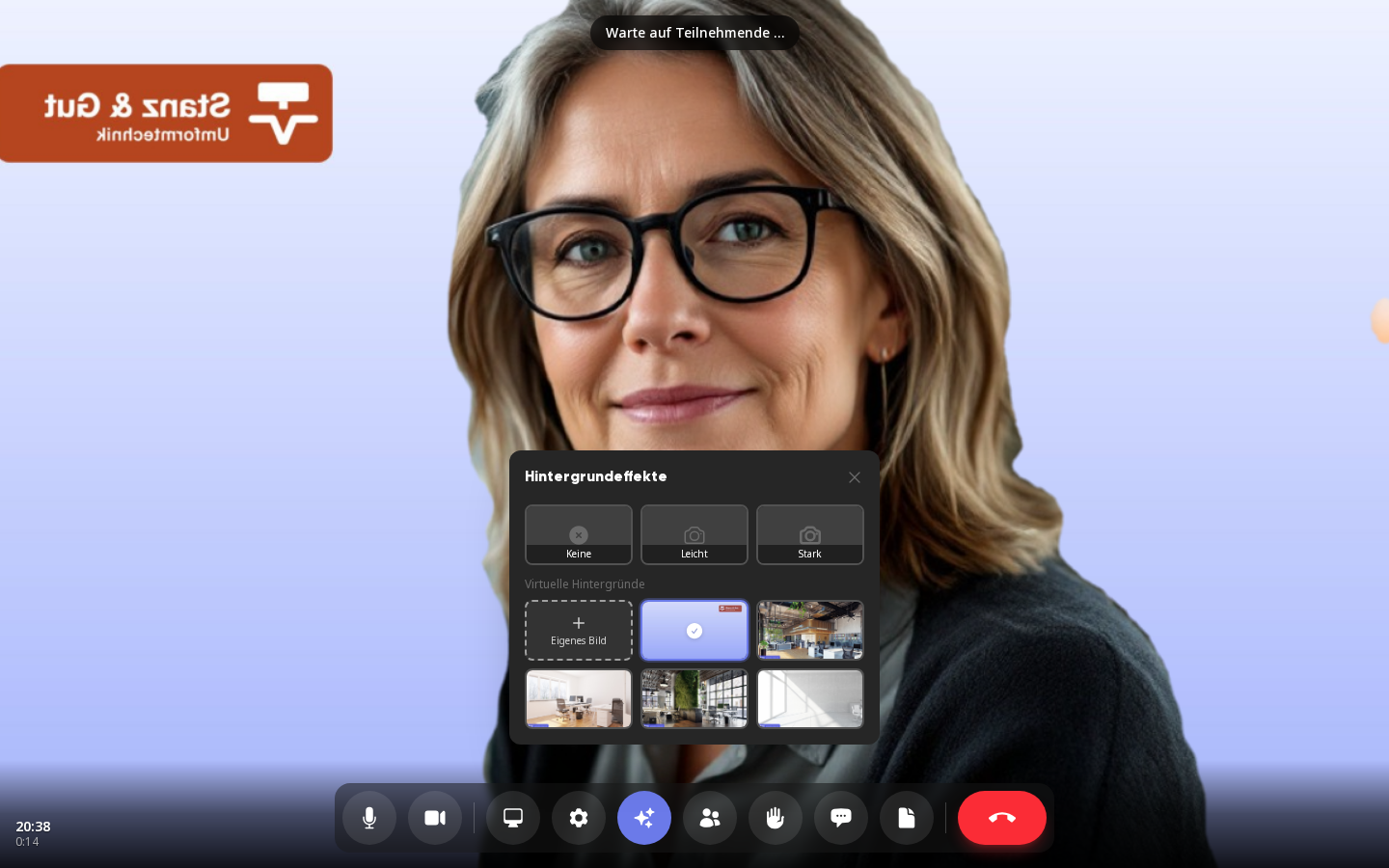
The image is uploaded and immediately used as your background. In the selection, it appears before the built-in images and is marked with a checkmark.
Info
Images in JPG, PNG, or WebP format up to 5 MB are allowed. A landscape image in 16:9 format works best. You can save up to 10 of your own backgrounds.
Tip
In your own preview, the image appears mirrored, just like in a mirror. The others in the call see it the right way around, so text and logos are also readable.
Change or turn off a background#
Click on Background effects.
Click on another image to use it. With Light or Strong, you only softly blur your real background; with None, you turn off the effect.
Your own images remain saved and are available for you to choose from in every future call.
Deleting your own image#
Click on Background effects.
Hover over your image with the mouse and click on the trash can icon at the top right of the tile. On smartphones and tablets, the icon is always visible.
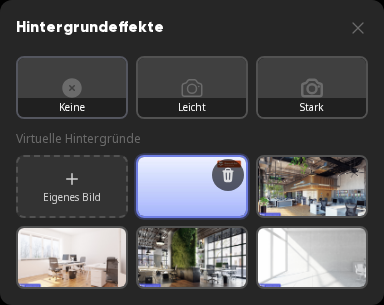
The image disappears from your selection without asking, and you see the message Background deleted. If you had it active, no background will be active afterward.
Company Backgrounds#
Administrators can store images for the entire company in the administration under Appearance in the Backgrounds tab. These images are available in the selection before the built-in images, for all employees and also for guests who participate via a meeting link. You cannot delete company backgrounds, only your own.
Info
All employees can upload their own images. Guests who participate via a meeting link choose from the company backgrounds and the built-in images.