
How do I plan shifts and assign people?
Updated Reading time: 3 min
On this page
As a planner for a department, you create the shifts for a week and assign the employees. As long as you are planning, no one else sees anything. Only when you publish the plan do the employees see their shifts.
Info
You can plan in any department where you have the role Planner. HR managers assign this role in the administration, see How do I set up departments in the shift schedule?.
Open the Plan#
Click on Schedule in the navigation.
Under My Areas, click on Plan next to the area.
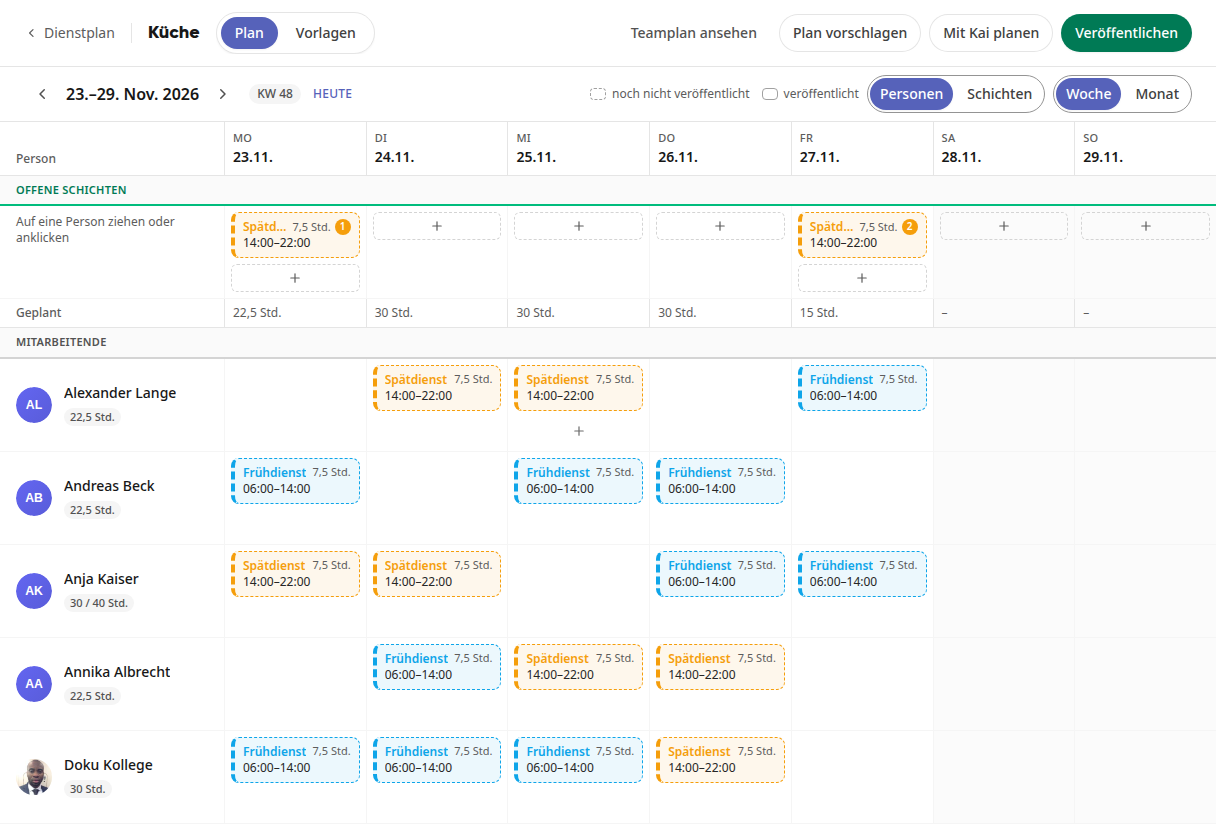
The plan shows one week. At the top are the Open Shifts, below that the Scheduled row with the planned hours per day, and then one row per person. Next to the name, you can see how many hours the person is scheduled for that week, and with a working time model, also in relation to the weekly working hours, for example, "30 / 40 hrs." Use the arrows next to the date to switch weeks, Today jumps back. On the right, you can switch between Week and Month and between the People and Shifts views.
Creating templates#
Templates fill in times, breaks, and requirements when planning. In the new area, you create them first.
Click on the Templates tab at the top, then on Create template.
Enter Name, Abbreviation, Start, End, and Break (minutes). Under Requirement, specify how many people the shift needs. Choose a color and click on Save.
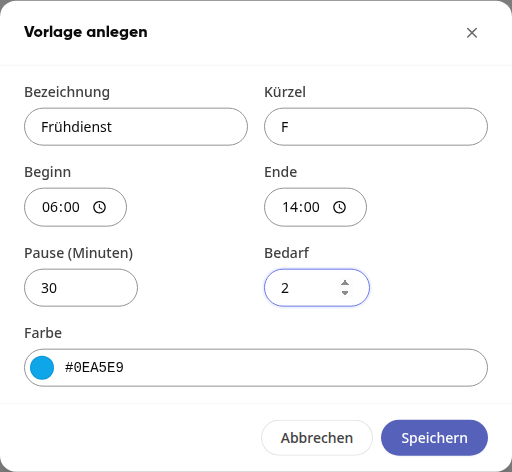
Create additional templates the same way, for example a late shift.
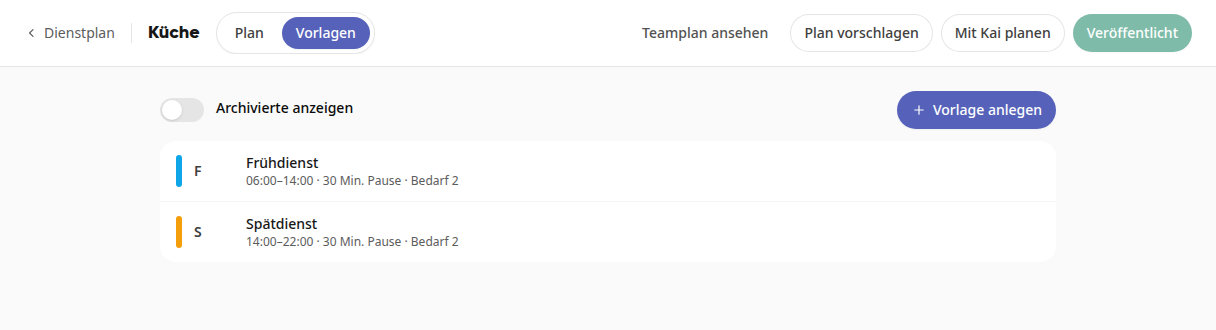
An end before the start means a shift that goes past midnight. If you change a template later, already created shifts remain as they are.
Create open shifts#
Switch back to the Plan tab and select the desired week.
Click + in the Open shifts row on the desired day.
Select a template, for example Early shift · 06:00–14:00. With Custom times … you can create a shift without a template.
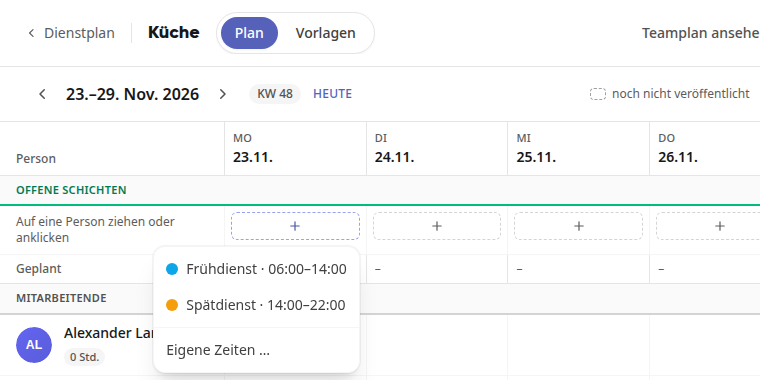
The shift appears dashed because it has not been published yet. The number on the card shows how many spots are still available.
Assigning People#
There are three ways:
Drag: Drag an open shift onto a person's row. The person is then scheduled for that day.
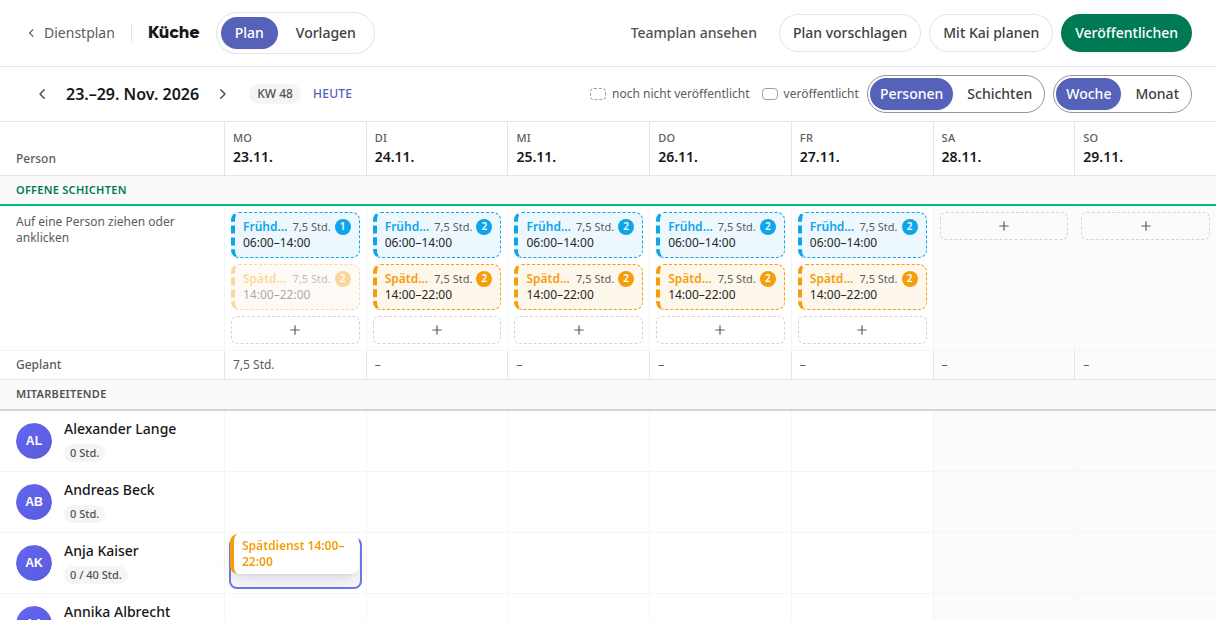
Click: Click on an open shift and select the name in the Select person window.
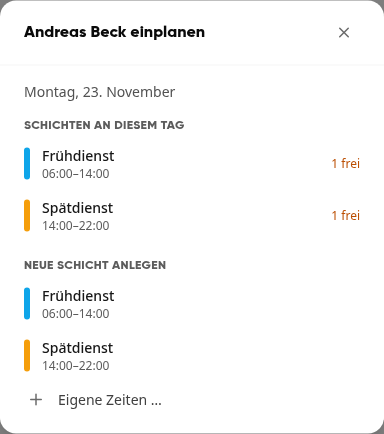
From the person: Click on + in a person's row on the desired day. In the "… schedule" window, select a shift with available slots or create a new one directly under Create new shift.
If you drag a scheduled shift to another person on the same day, that person takes over the shift.
Edit or Delete a Shift#
Click on a shift to edit it. In the Edit Shift window, you can change the template, label, date, times, break, requirement, and a note. Use Delete Shift to remove it.
Publishing the Plan#
Click Publish in the top right corner.
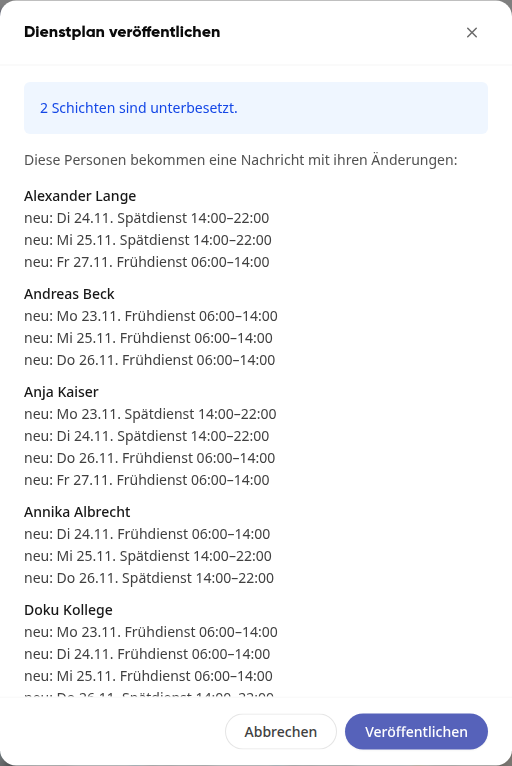
The Publish Schedule window shows what changes for each person and highlights understaffed shifts.
Click Publish.
Each person receives a message with their changes and sees the shifts under My Schedule. The button then shows Published. If you change the plan later, it will revert to Publish, and the next time, only the affected people will receive a message.
Tip
With Suggest Plan or Plan with Kai, you can have a staffing suggestion generated. Via View Team Plan, you can see the plan the way employees see it.