
How do I create a contact in the CRM?
Updated Reading time: 2 min
In the CRM, you create people that your company deals with, such as contacts at customers, suppliers, and partners. You then add and change their details directly on the detail page.
Create contact#
Click on CRM in the navigation on the left.
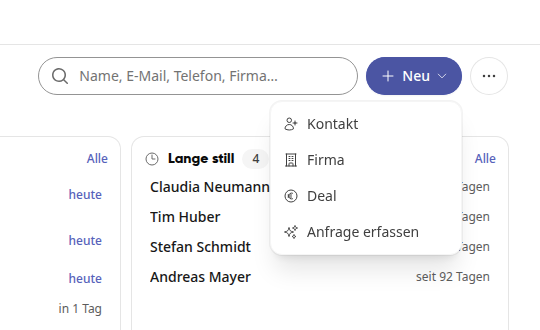
Click on New at the top right and select Contact.
Enter First name and Last name. At least one of the two is sufficient. You can also provide Email, Phone and Job title right away or add them later.
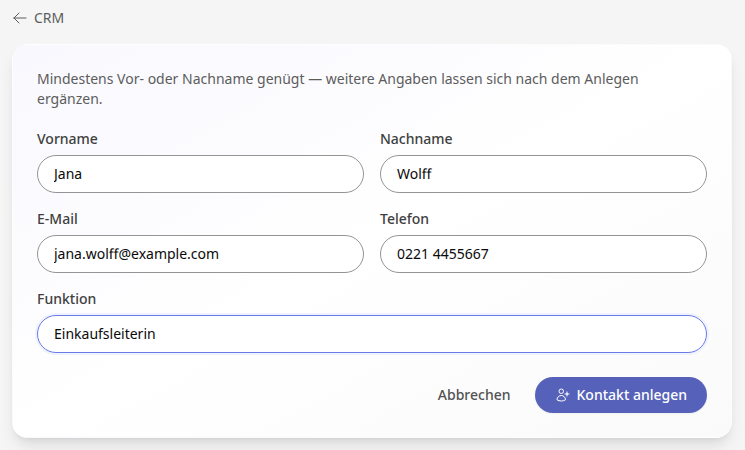
Click on Create contact. The detail page of the new contact opens.
Tip
If the person belongs to a company that is already in the CRM, you can also create them directly on the company's page via New contact.
Edit contact#
Open the contact in the CRM via the list or the search.
Change the details directly in the fields, for example under Contact details (Email, Phone, Mobile, Birthday), Address or Notes. Every change is saved immediately, and Saved briefly appears at the top.
To change the first name, last name, or job title, click on the contact's name at the top.
You can add other ways to reach the person under Contact channels using Add channel.
Under Assignment, click on Choose company and type the company name into the search field. The list shows the matching companies with their location; a click assigns the company. If the company is not yet in the CRM, click on "Create '...' as company", and it will be created with the entered name.
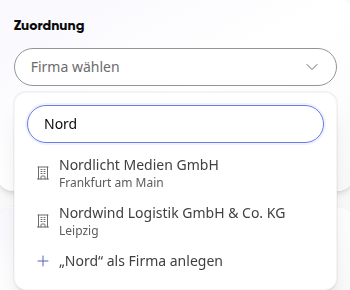
You also assign tags under Assignment and determine who can see the contact: Everyone, a Group, or Only me. If a company is assigned, its visibility applies.
Info
If a company with an address is assigned to the person, the contact displays the company's address. You enter a separate address under Address.
Continue working with the contact#
At the top right of the overview is the Actions card. It only shows what matches the stored information, for example Call mobile only if there is a mobile number and Plan route only with an address.
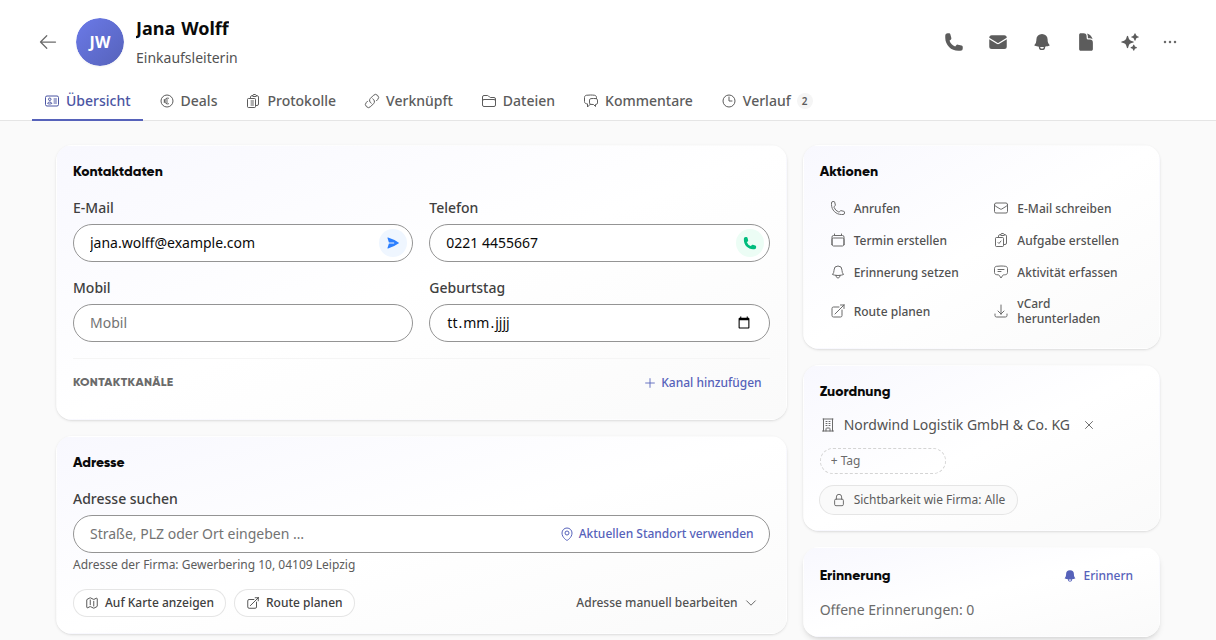
Call and Call mobile select the number, Write email opens a new email.
Create appointment opens a new appointment with the title "Appointment with …", the contact is already listed among the participants.
Create task opens a new task "Follow up: …" that is linked to the contact.
Set reminder opens the Reminder card, Log activity jumps to the Activities card.
Plan route shows the way to the address, Download vCard saves the contact as a file for your address book.
Info
All employees can create and edit contacts. You can delete a contact via the … menu at the top right.
Warning
A deleted contact cannot be restored.