
How do I open a door on the Advent calendar?
Updated Reading time: 3 min
On this page
During the Advent season, a new door awaits you every day: with a saying, a photo, a quiz question, or a giveaway. Here's how you open the doors and participate in quizzes and giveaways.
Open the door#
Click on Advent calendar in the navigation on the left. The number next to the entry shows you how many doors you can still open.
Click on the door with today's date number.
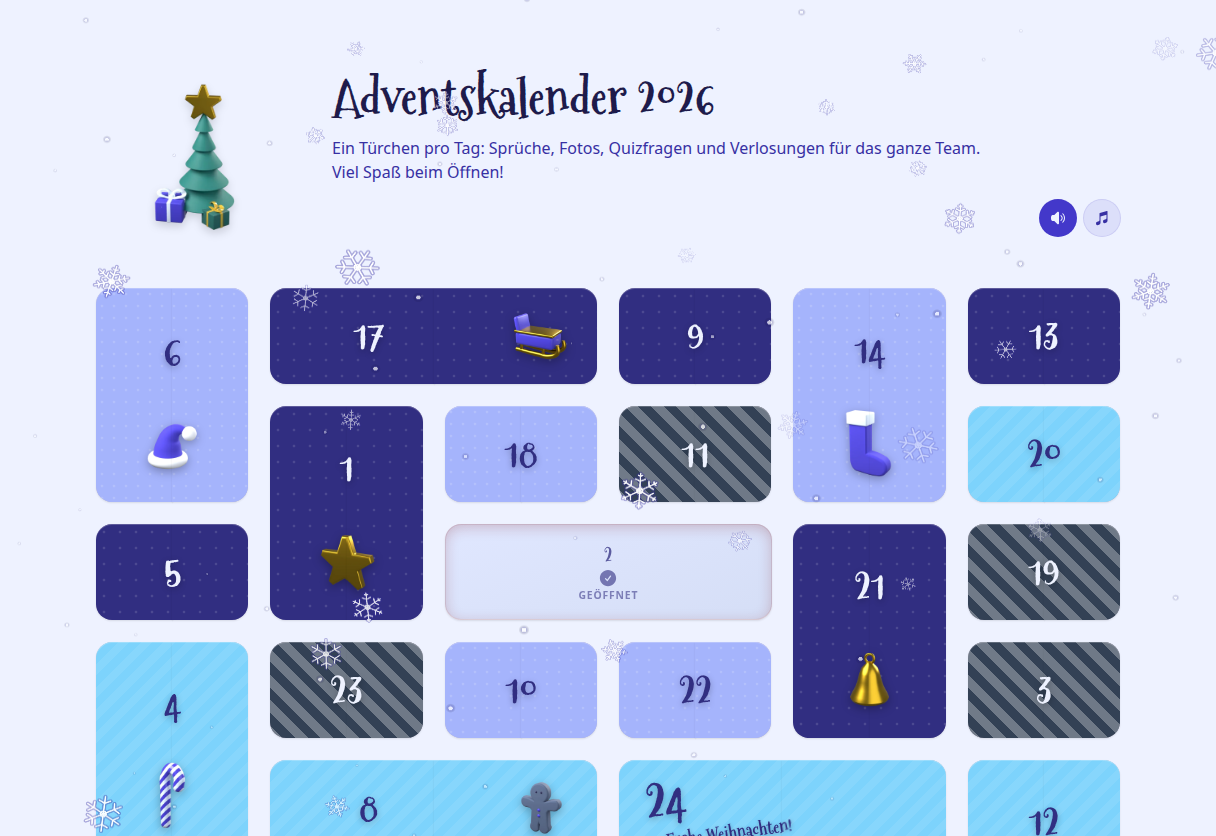
The door opens and shows its content, for example a text with a photo. Click on Close to return to the calendar.
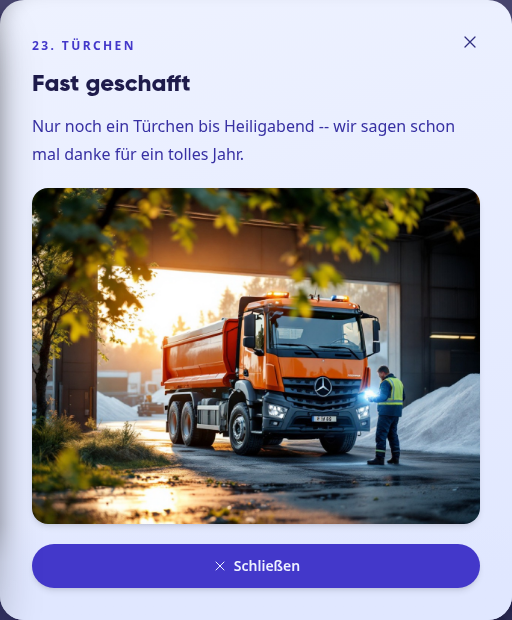
Opened doors are marked with Opened in the calendar. You can click on them again at any time and view the content once more.
Tip
If you missed a door, you can catch up on it – until the end of the calendar, which HR has set. Doors for future days remain closed until their day arrives.
Info
Images and videos in the doors carry a description if HR has added one when setting them up. If you use a screen reader, it will read this description aloud in the opened door.
Season's Grand Prize#
If HR has set up a grand prize, there will be a note under the calendar introduction with the prize and the rule: whoever answers the most quiz questions correctly during the season wins. In the event of a tie, the winner will be drawn by lot.
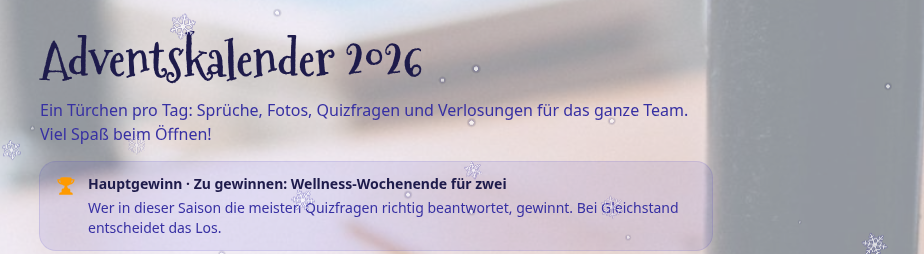
For the grand prize, every correct answer to a quiz door counts, even for quiz questions without their own prize. There is no score or leaderboard. If the note says Only answers on the day of the door count, then answers submitted later do not count toward the grand prize.
Info
The grand prize is in addition to the daily draw. For quiz doors with a prize and for draws, you can still win on the individual door as well.
Participating in a quiz#
Open the quiz door and read the question.
Click on the answer you think is correct, and then on Submit answer.
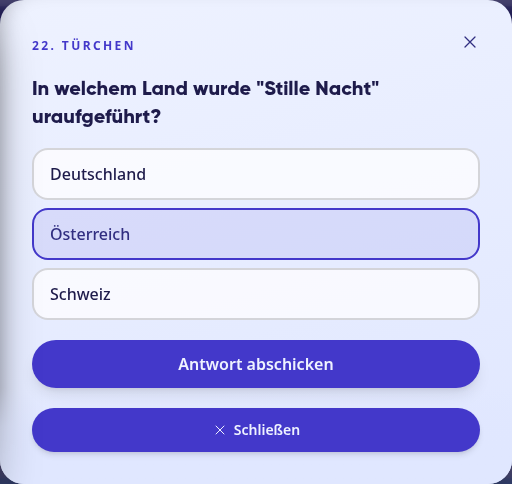
You will immediately see whether your answer is correct. If the quiz is giving away a prize, your ticket is in the pot if you answer correctly: Your ticket is in the pot.
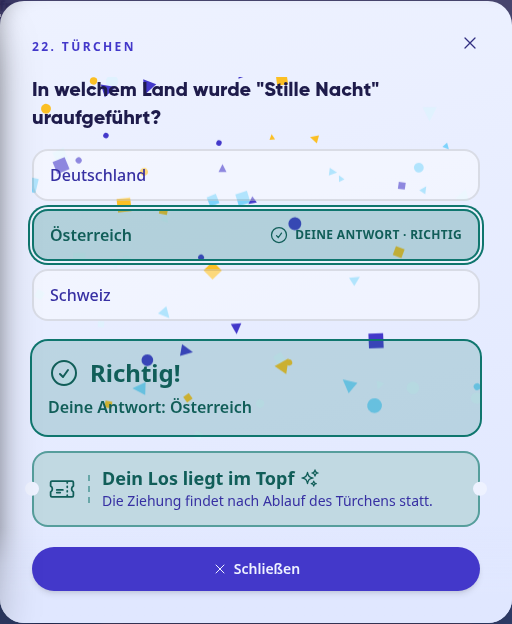
Each quiz question can only be answered once. Not every quiz is a prize draw: If no prize is listed, you will only see the solution after your answer, for example Correct! with your answer, without a ticket and without a draw.
Info
For some quiz questions, the solution is only available together with the draw. You will then see Answer has been received and you will get a notification as soon as the draw has taken place.
Participating in a raffle#
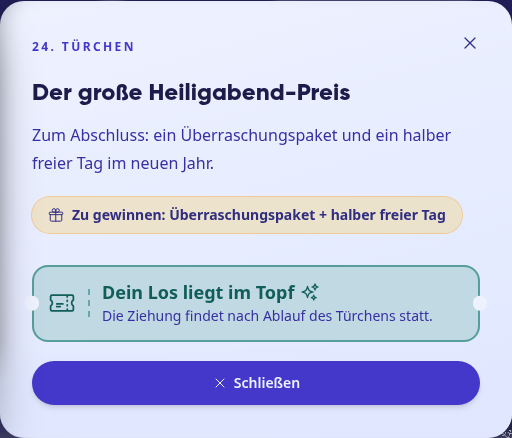
For a raffle, it is enough to open the door: Under To win the prize is listed, and by opening it, your ticket is in the pot. The drawing takes place after the door expires.
Winning#
After the draw, the door under Winners shows who has won. If you have won, you will receive a notification. In the door you will then find You have won and – if there is one – Your winning code, which only you can see. The handover of the prize is organized by the contact person of the calendar.
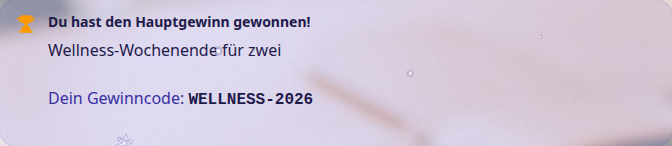
If you have won the main prize, you will also receive a notification. In the calendar header it will then say You have won the main prize! with the prize and – if there is one – your winning code. Everyone else will see The main prize has been drawn.
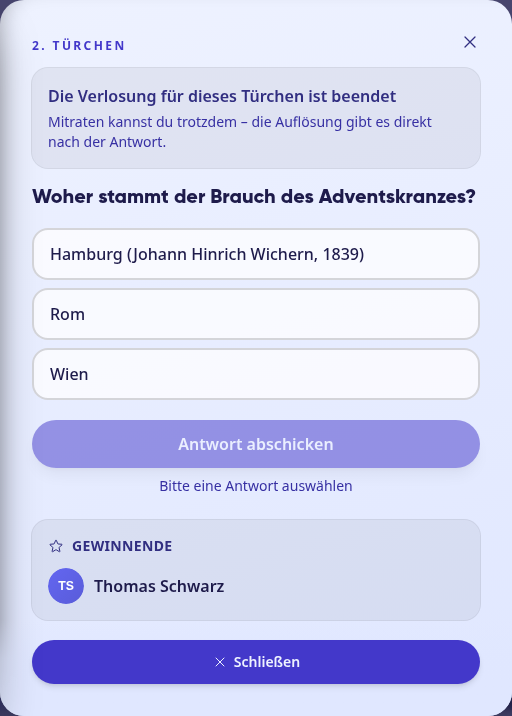
If you open a door only after its draw has ended, it will say at the top The draw for this door has ended. In the case of a quiz, you can still take part in the guessing – you will then receive the solution directly after your answer.
Turning sound on and off#
At the top right of the calendar, you can use the two round buttons to turn the sound effects and the Christmas music on or off. The music is turned off at the beginning.
Info
All employees can see the Advent calendar as soon as HR has published it. Before that, the entry in the navigation will not appear either.