
How do I retrieve our invoices?
Updated Reading time: 2 min
In the Invoices tab, you will find all invoices for your platform in one place. You can see at a glance what is outstanding, download each invoice as a PDF, and pay open invoices directly.
Info
This feature is available to system administrators. Users with the right to "manage system settings" can also view and download the invoices. Only system administrators can see the link for online payment.
Accessing Invoices#
In the administration, open System → Subscriptions & Contracts.
Click on the Invoices tab.
Info
The Invoices tab only appears once your platform is linked to a subscription contract with Weslink. It is missing during the trial phase.
What the overview shows#
At the very top, under Open, you can see how much still needs to be paid in total, and below it in red the portion that is already overdue. If all invoices have been settled, it shows All paid. If there are no invoices yet, you will see No invoices yet.
Below that, the invoices are sorted into two groups:
To pay: open invoices, overdue ones first, then by due date. Each card shows the invoice number, amount, and Due on or Overdue since.
Completed: paid, cancelled invoices and credit notes with the Invoice date.
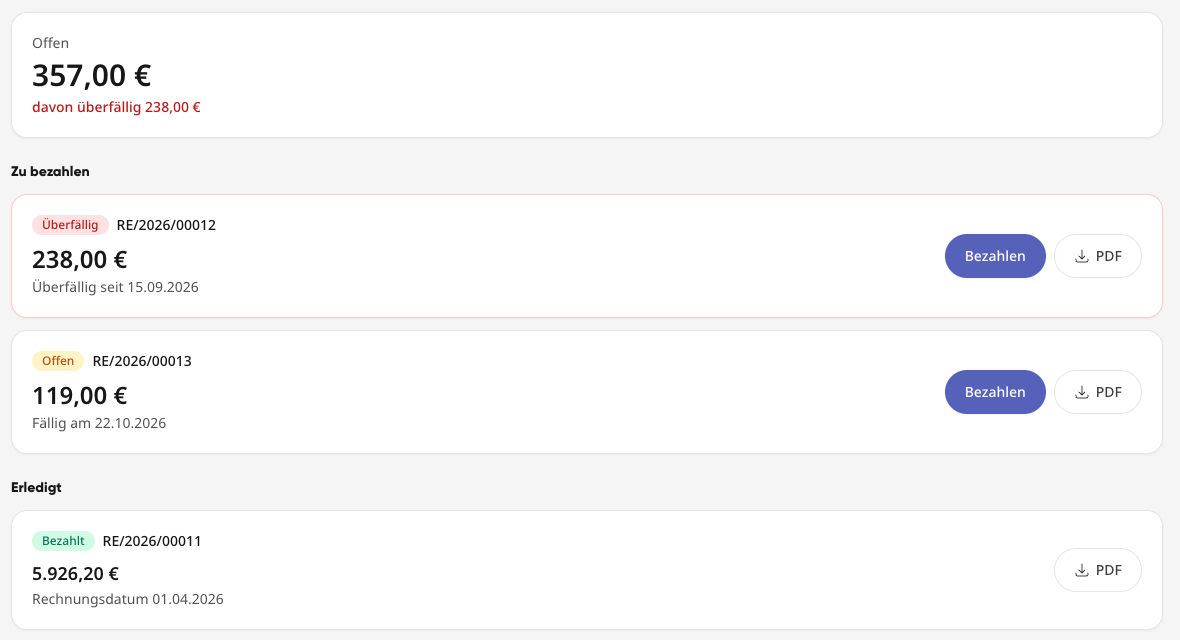
The label on each invoice shows its status:
Status | Meaning |
|---|---|
Open | not yet paid, due date not yet reached |
Overdue | due date has passed |
Partially paid | a partial amount has been received, the rest is open |
Payment in progress | the payment is on its way |
Paid | completed |
Cancelled | the invoice is no longer valid |
Download invoice as PDF#
Click on PDF for the desired invoice.
The invoice is downloaded as a PDF file. This works for both open and completed invoices.
Tip
You will also receive every invoice by email to the invoice email address. You set this in the Invoice data tab.
Pay Open Invoice#
Click on Pay for an open invoice.
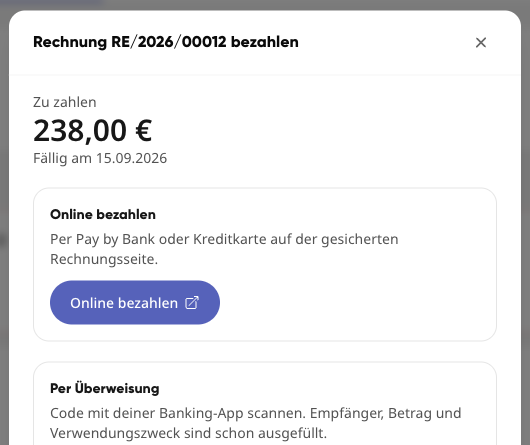
Choose one of the two options:
Pay online: Opens the secure invoice page. There you pay via Pay by Bank or credit card.
By bank transfer: Scan the GiroCode with your banking app. Recipient, IBAN, amount and purpose are already filled in. Use the icon next to each field to copy it individually.
Info
After payment, it may take a while for the invoice to appear under Completed. As long as the payment is in transit, it shows Payment in progress.