
How do I work with Kai in a folder?
Updated Reading time: 2 min
From any folder in the file manager, you start a conversation with Kai that is focused on exactly that folder. Kai then searches and reads within this folder and its subfolders and saves new documents directly there. For example, you can ask, "What does the maintenance plan for the heating system say?" or have a summary written from the documents in a project folder.
Start a conversation about a folder#
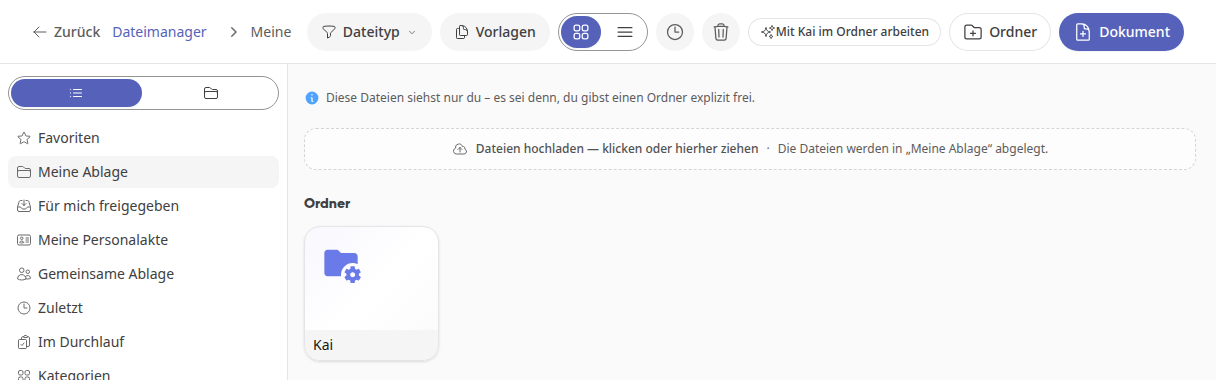
Open Files in the navigation and go to the folder you want to work with, for example My Storage or a group's folder.
Click on Work with Kai in the folder at the top of the bar.
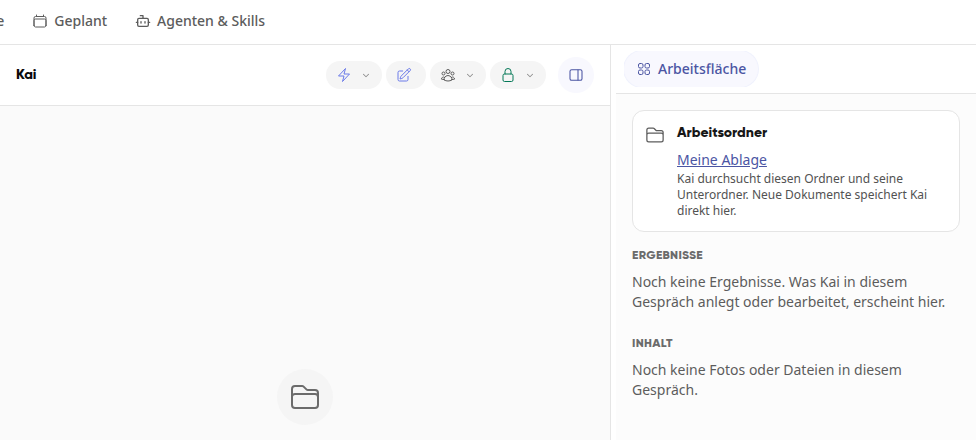
Kai opens a new conversation. On the right in the Workspace, under Working folder, the folder's name appears as a link and what Kai is allowed to do there.
Write to Kai what you need, for example "Which files are here?" or "Summarize the maintenance plan for me."
You can return to the folder in the file manager at any time via the link in the Working folder card.
What Kai is allowed to do in the working folder#
In a conversation about a folder, Kai only works with files: searching, reading, and creating new documents. For appointments, tasks, notes, or questions for your wiki, you start a normal conversation with Kai.
Reading: Kai finds and reads files in the selected folder and in all subfolders, but only those that you are allowed to open yourself.
Saving: If you are allowed to create files in the folder, Kai saves new documents directly there. The card then shows "Kai saves new documents directly here."
Read-only: If you only have read access to the folder, the card shows "You do not have write access here." Kai can then read the files but cannot save anything there.
Info
The conversation about a folder is private and cannot be shared. If you later lose access to the folder, the card shows "This folder is no longer accessible to Kai." Kai then does not switch to another folder.
Tip
The button Work with Kai in the folder is available in every folder you open. It is missing on the file manager home page and in views such as Recent, Categories, or the trash, because these are not folders.