
How do I check what permissions a person has?
Updated Reading time: 2 min
With the permission check, you can see for a person or an entire group what they are allowed to do and which role grants this right. This way, you can quickly answer the question "Why can't this person see this?".
Info
This function is available to System Admins.
Check a person's rights#
In the administration, open Users and select the entry Roles & Rights.
Switch to the Permission Check tab. Person is already selected.
Click on Select person... and choose the person from the list. Use the search field to find them by name.
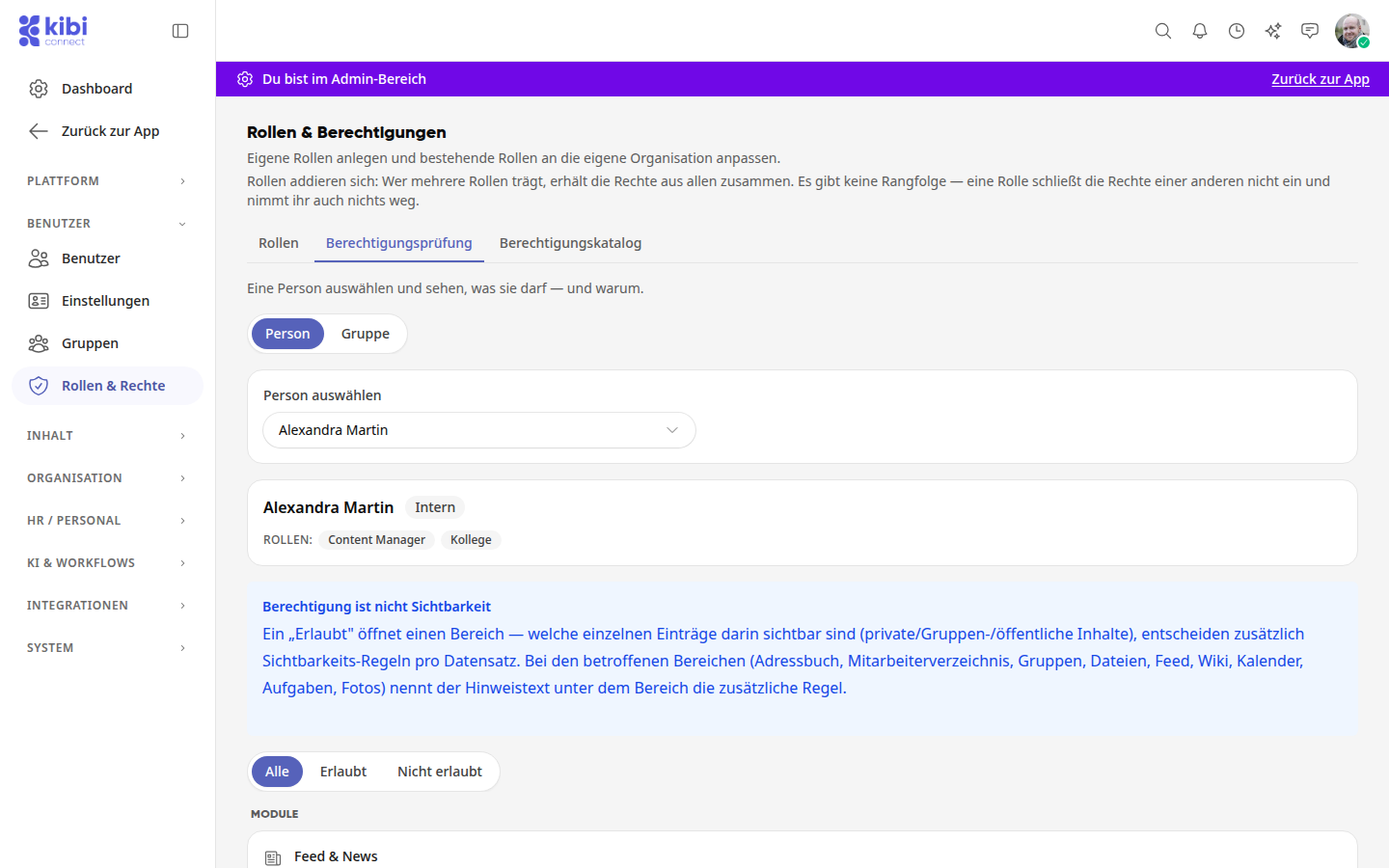
Read the result: At the top are the user type and all roles of the person. Below are all rights, organized by Modules and areas.
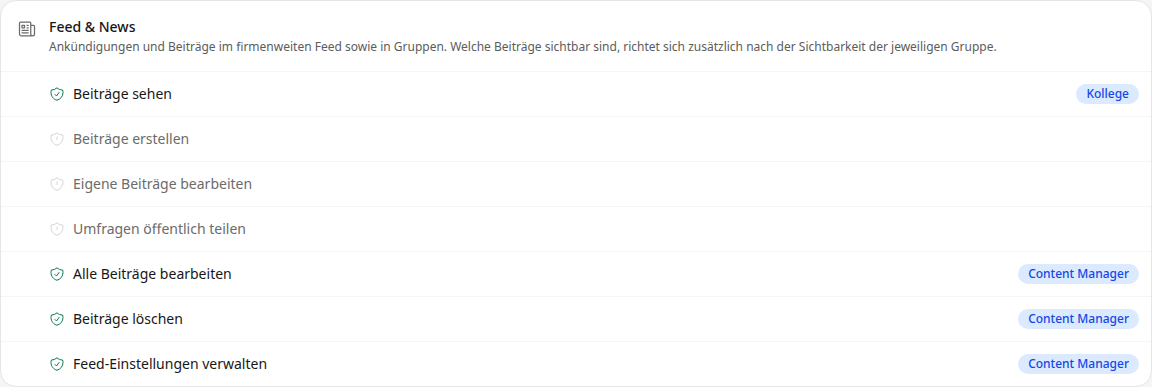
A green shield and a role next to the right mean: The person has this right through exactly this role. A grayed-out right without a role means they do not have it. With All, Allowed, and Not allowed, you can filter to show only the entries you currently need.
Tipp
If someone is missing a right, switch to Not allowed and search for the area. In the Permission Catalog, you can see which roles include this right.
Check the rights of all members of a group#
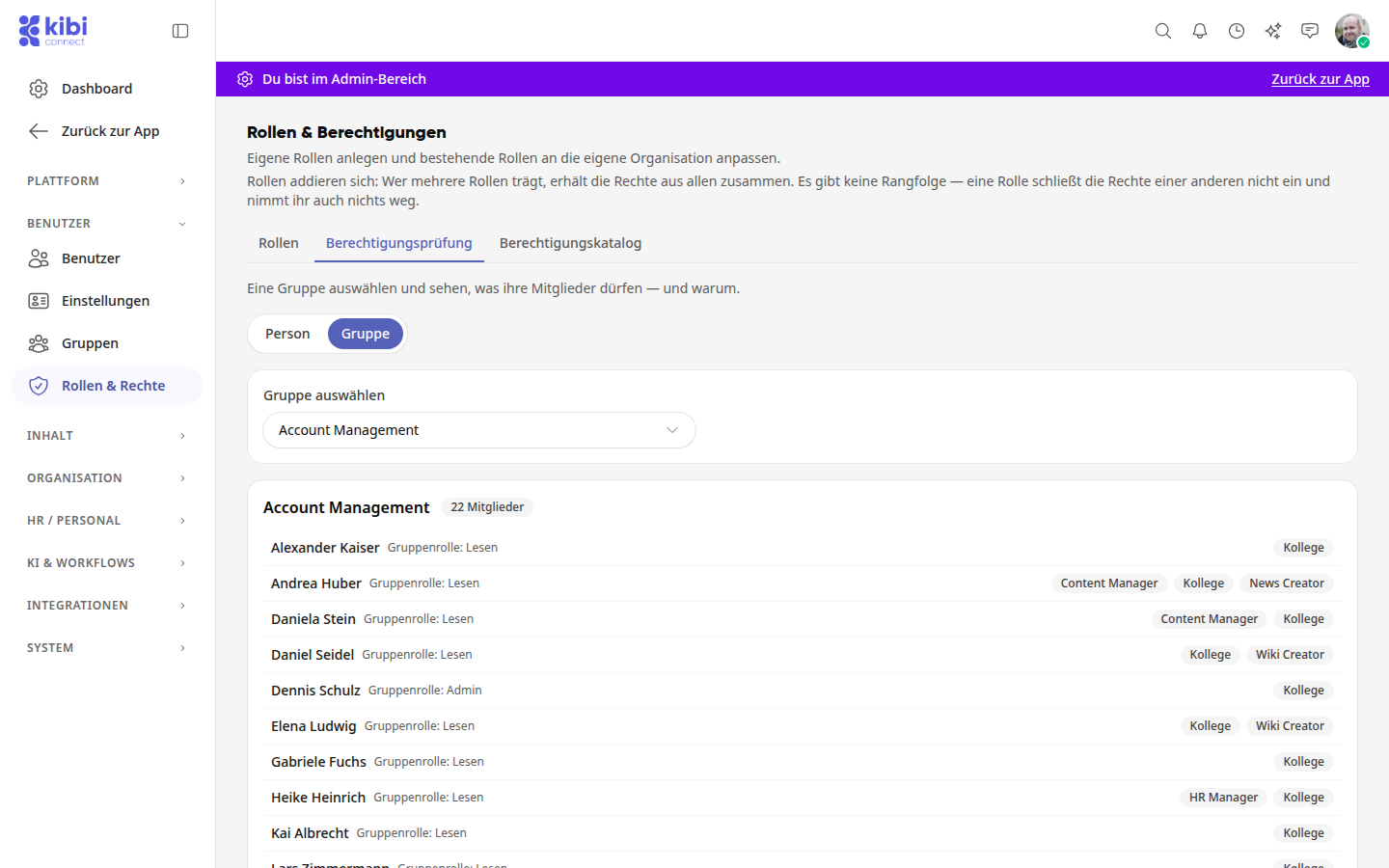
In the Permission Check tab, select Group at the top.
Click on Select group... and choose the group. You will see all members with their group role and their roles.
Scroll to the rights. Next to each right, it shows how many members have it, for example 2 of 22. Use All, All members, Partial, and None to filter the list.
Click on a right to see who has it and who does not.
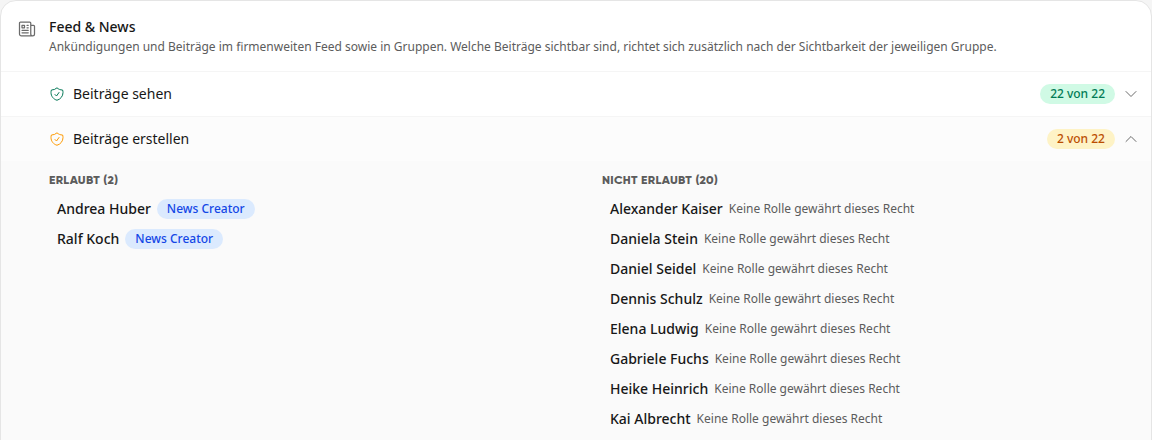
Under Allowed, the role that grants the right is listed for each person; under Not allowed, the reason is given, for example No role grants this right.
Wichtig
Permission is not visibility: An "Allowed" opens an area. Which individual entries are visible within it is additionally determined by the visibility rules of the respective content. For the affected areas, the additional rule is stated in the note text below the area.