
How do I manage sales opportunities in the pipeline?
Updated Reading time: 2 min
On this page
In the pipeline, you see all sales opportunities of your company on a board, from the first inquiry to the closing. Sales opportunities are called Deals in the CRM. Each column is a phase, and you move your Deals from phase to phase.
Open pipeline#
Click on CRM in the navigation on the left.
Click on the Pipeline tab at the top.
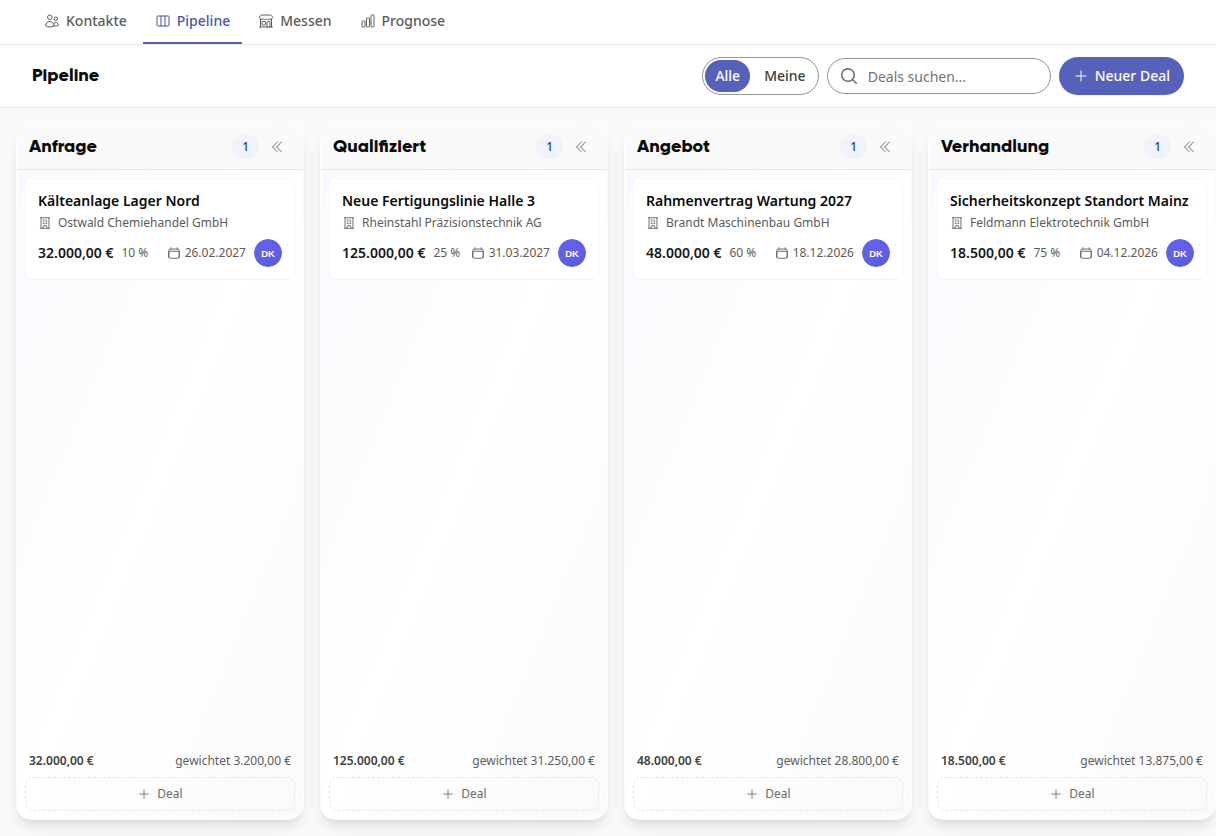
On each card, you see the title, the company, the value, the probability, the expected closing date, and who is responsible. At the bottom of the column, you see the sum of the values and the weighted sum (value × probability). If the expected closing date is exceeded and the Deal is still open, the date turns red.
Info
The pipeline is available to all employees. You can see Deals from colleagues, but you can only edit Deals that you created or for which you are responsible. System admins define which phases exist.
Create a Deal#
Click on New Deal in the top right.
Enter a Title. That's all that's required, but you can also add Value, Expected Closing, Company, and Contact right away.
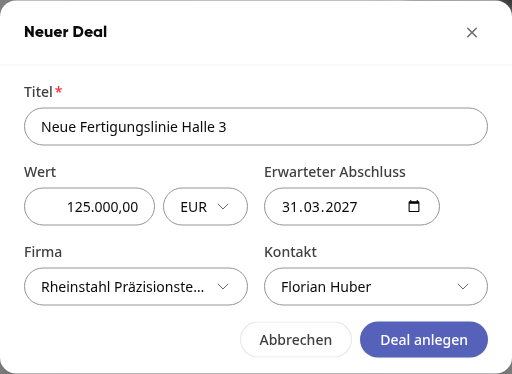
Click on Create Deal. The Deal starts in the first phase, its page opens directly, and you are entered as responsible.
Tipp
It's faster directly in a column: Click on Deal at the bottom of an open phase, type the title, and press Enter. The Deal lands in this phase, and you stay on the board. The field remains open so you can immediately type the next Deal.
Move a Deal to another phase#
Hover over the card with your mouse. A handle appears on the left side of the card.
Drag the card by the handle into the new phase. The probability on the card adjusts to the phase.
Click on the card to open the Deal.
Mark a Deal as lost#
The phases Won and Lost are collapsed to the right of the open phases. If the window is too narrow, scroll the board to the right.
Drag the card to Lost.
Enter the Reason and click on Mark as lost.
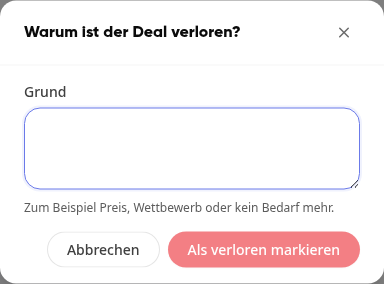
With Cancel, the card jumps back to its phase. Click on a collapsed phase to expand it. Use the double arrow in the column header to collapse any phase again.
Find Deals#
All and Mine switch between all Deals and those for which you are responsible.
In the Search Deals... field, you can find Deals by their title or the company name.
If your company has multiple pipelines, select which one you see to the left of All and Mine.
View forecast#
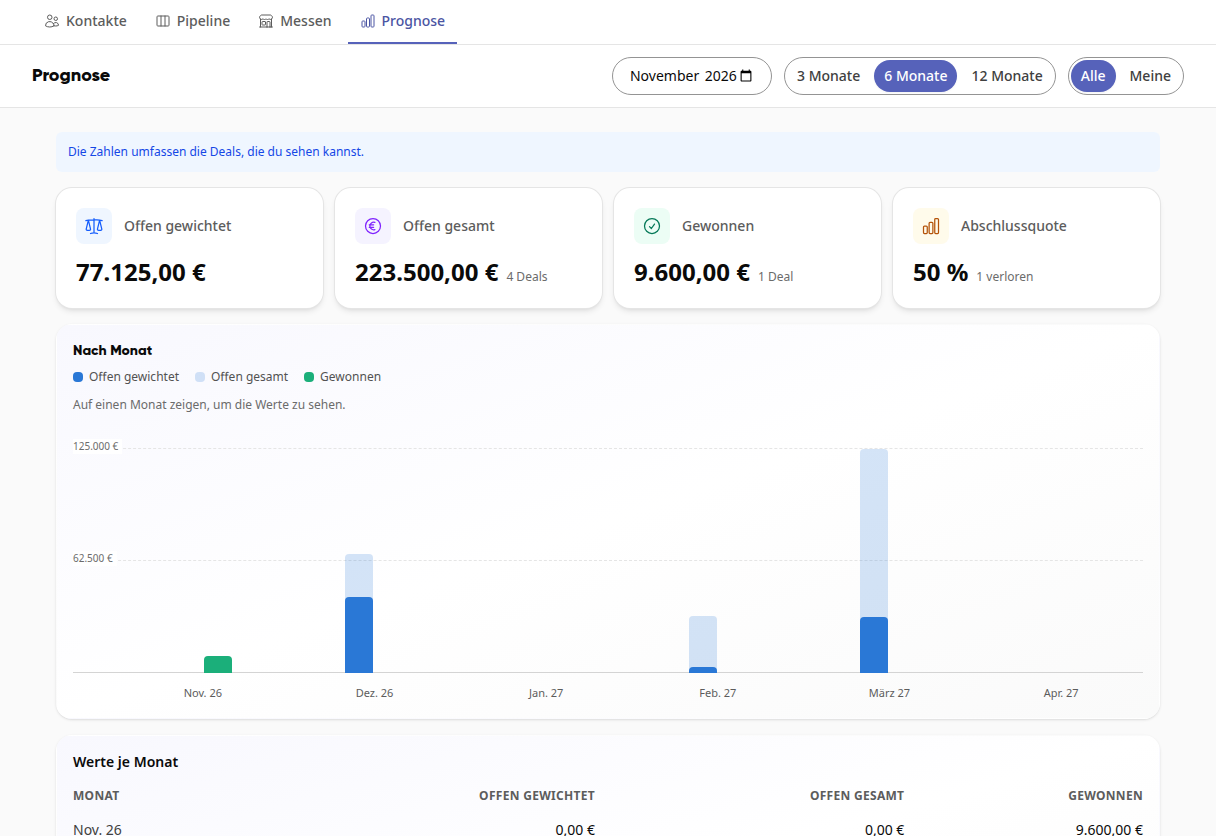
Click on the Forecast tab at the top. There you see what is open, what has been won, and what closing rate you have achieved, both in total and per month. You can set the period to 3 months, 6 months, or 12 months, and you can also switch between All and Mine here.
Info
The numbers include the Deals you can see.