
How do I work with task types and exams?
Updated Reading time: 5 min
On this page
A task type adds its own fields to a task, for example a damage report with type of damage, location, and photo. With the Review and Approve types, you can also send a document from the file storage to colleagues and keep track of where it currently is.
Info
Which types exist and which fields they query are defined by system administrators under Administration › Tasks, see How do I manage task types?. The examples on this page show a "Damage report" type.
Create a task with a type#
Open Tasks and click on Create new task.
Enter the title and click on the Type chip. Select the appropriate type, for example Damage report. With No type you create a normal task.
Below the chips, the fields of the type appear. Fill in what you already know. Fields with an asterisk (*) are required fields.
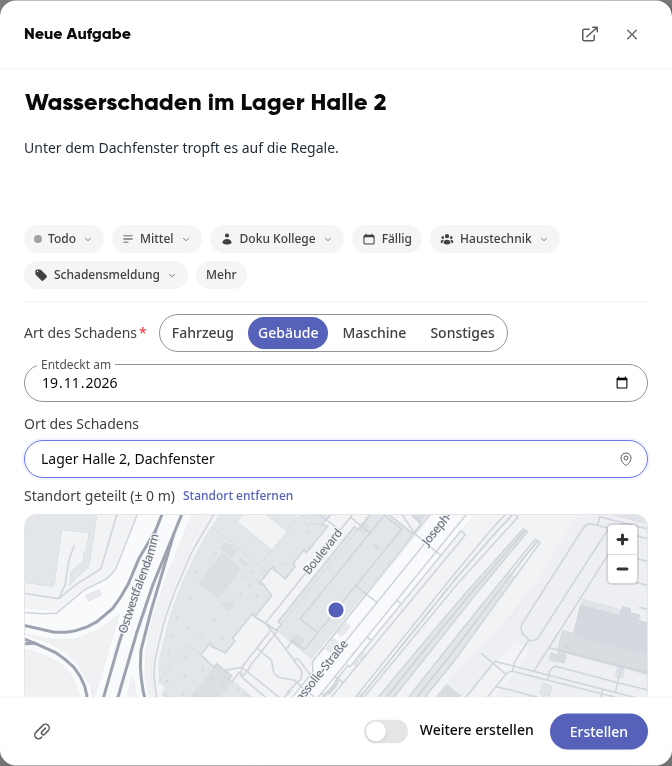
Click on Create or on Create and open.
You only need required fields when completing the task; the window tells you with Required fields (\*) are only needed when completing. You fill in file and photo fields after creating the task in the opened task; the window says, for example, Photo of damage: You can add files after creating.
Tip
If your group has a standard task type, it is already entered when creating a task in the group's board. You can still change it. A task that you create directly in a column via New task starts without a type.
Fill in fields in the opened task#
Short fields such as selection, date, or rating are on the right under the properties under Type. A click on the value changes it. Longer fields such as location, photo, file, or signature are on the left under the description.
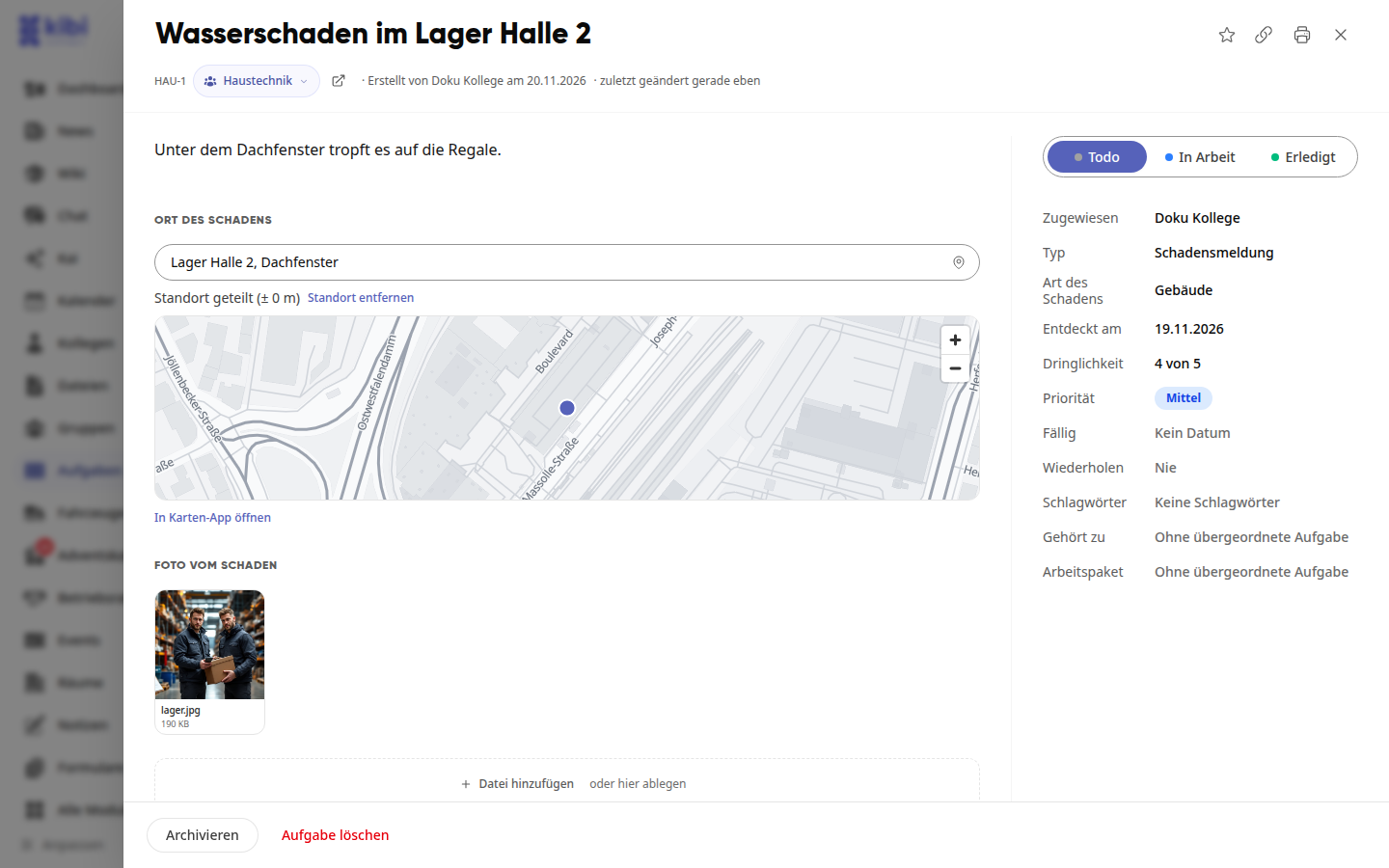
For a location field, you write an address or description in the field. With the icon on the right in the field (Share location) you adopt your current location, the task then shows it on a map. Open in map app shows the location in your map app.
For a photo or file field, you click on Add file or drop the file there.
Every change is saved immediately.
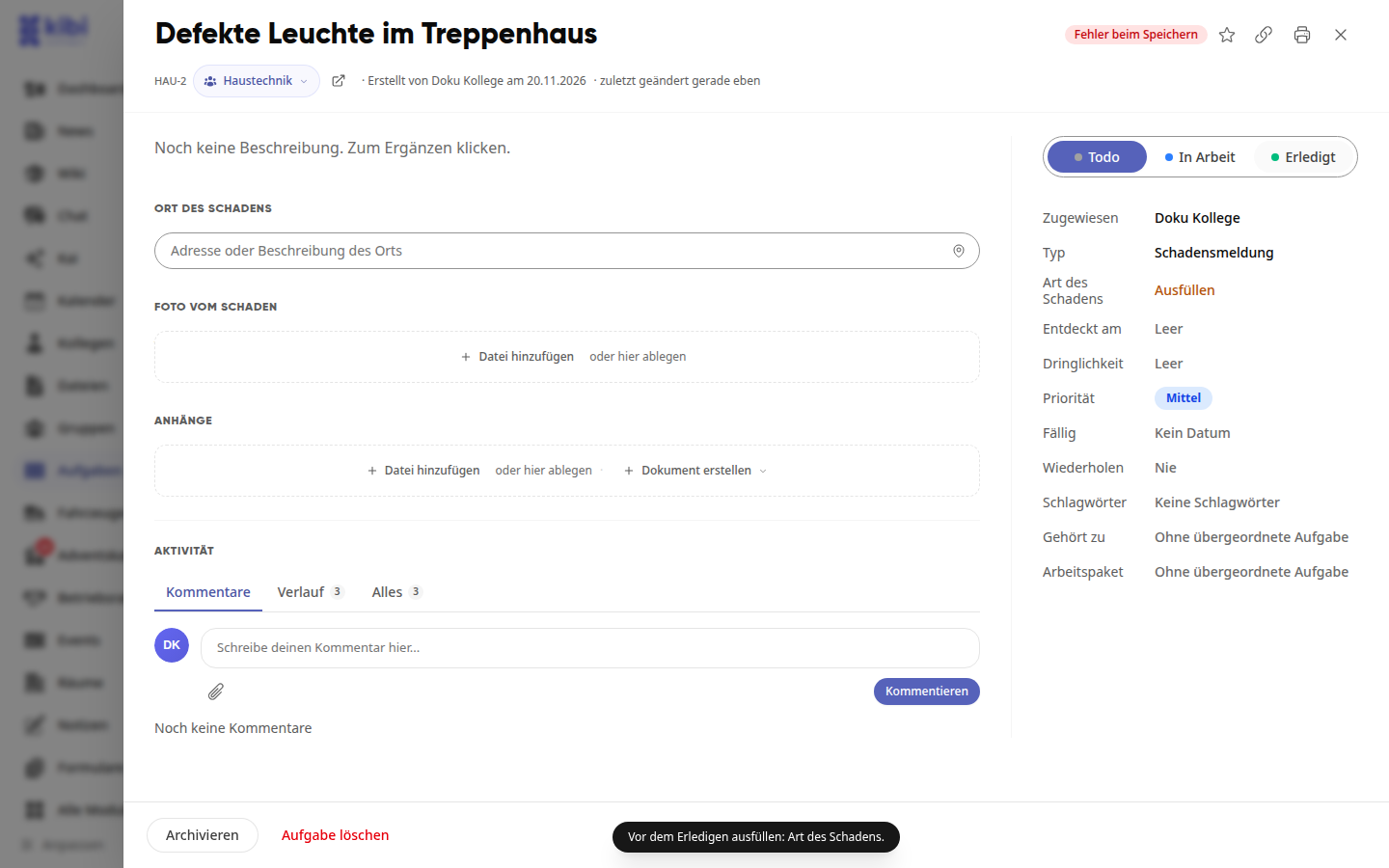
If you want to set a task to Done while a required field is empty, it remains open and you see, for example, Fill in before completing: Type of damage. Fill in the field and then set the task to Done.
Change the type of a task#
Open the task and click on Type on the right.
Select a different type or No type.
Fields that exist in the new type with the same name keep their answers. The remaining answers are not lost: if you switch back later, they will be there again. Check and Approve are not available here; they can only be started from the file storage.
View tasks on the map#
You can see tasks with a location on a map.
Open Tasks and select Map at the top right.
Click on a point. You will see the task title and the location.
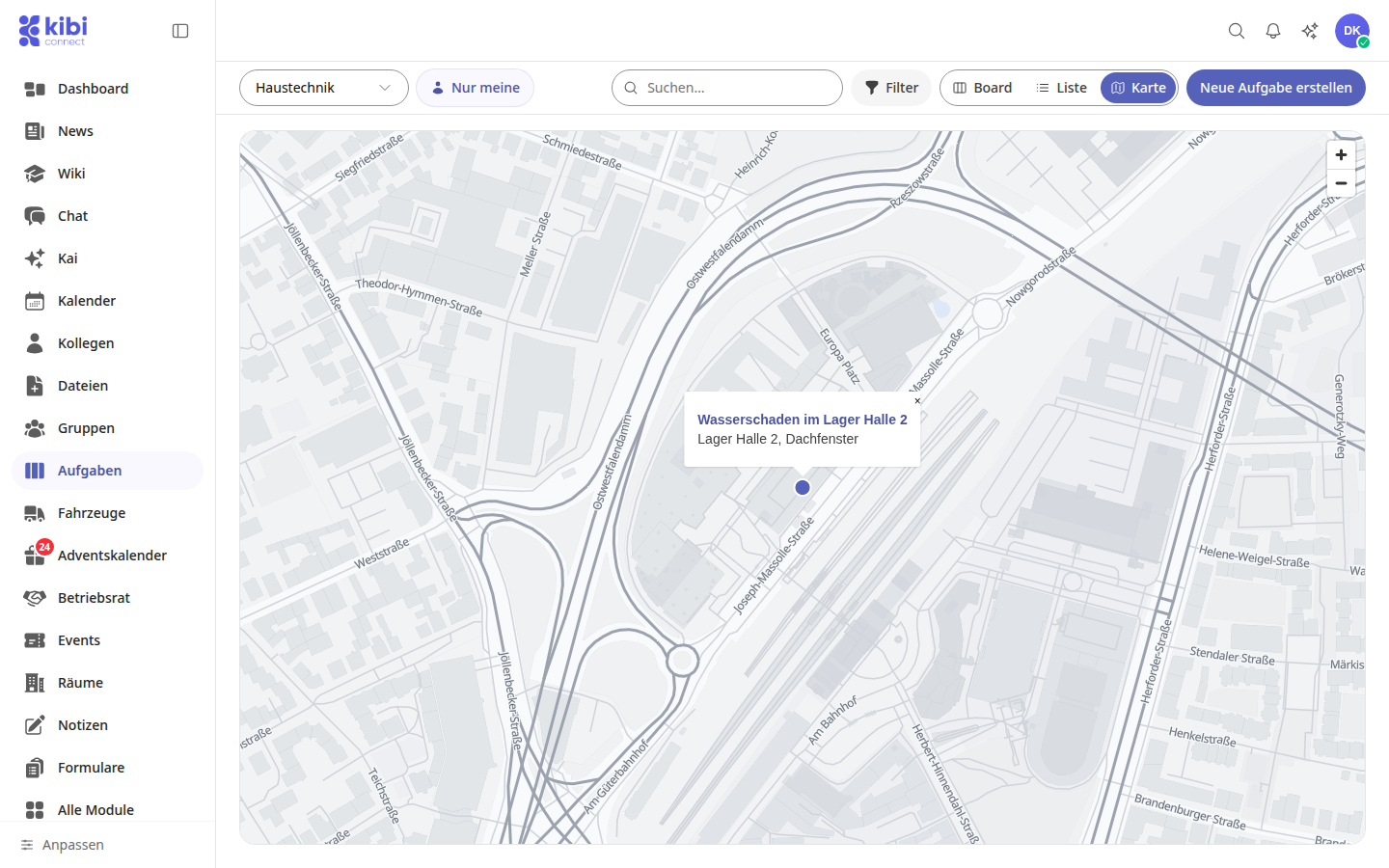
The map shows the tasks of the selected view, for example your own or those of a group. Filters also apply here.
Send document for review or approval#
Open Files and right-click the document, or open the file's menu.
Select Send for review.
Under Recipients, select a person or a group. For a group, one member will handle the review.
Under Task type, select Review or Approve and, if needed, set a date under Due on.
Under More, enter your own title and description, for example what should be reviewed. Under Assign, choose Assign directly or By email.
Click Send for review.
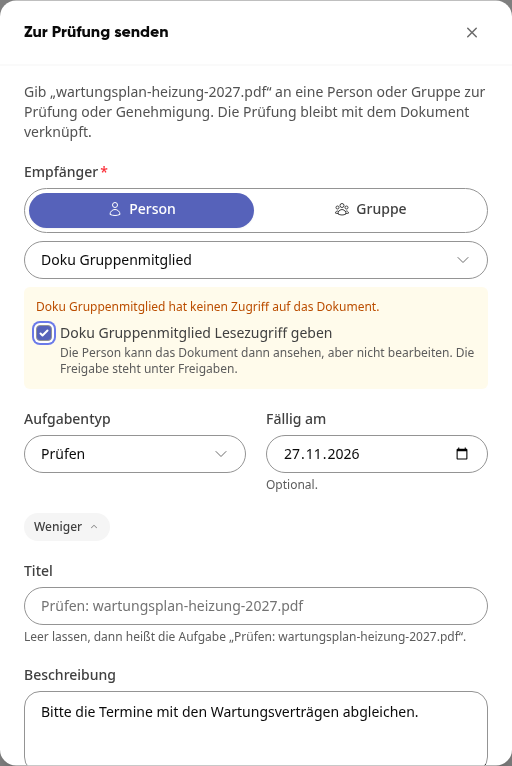
If the person does not yet have access to the document, you will see a notice. Check the box for … grant read access there, then they can view the document but not edit it. The sharing will then appear under Shared.
The review is a task linked to the document. Exactly the version you sent is reviewed, even if someone changes the document afterward.
Check document#
Open Files › In progress. Under Waiting for me you will find the documents that are your turn.
Click on the document's status, for example In review. The review task opens with Your turn and the person who sent it.
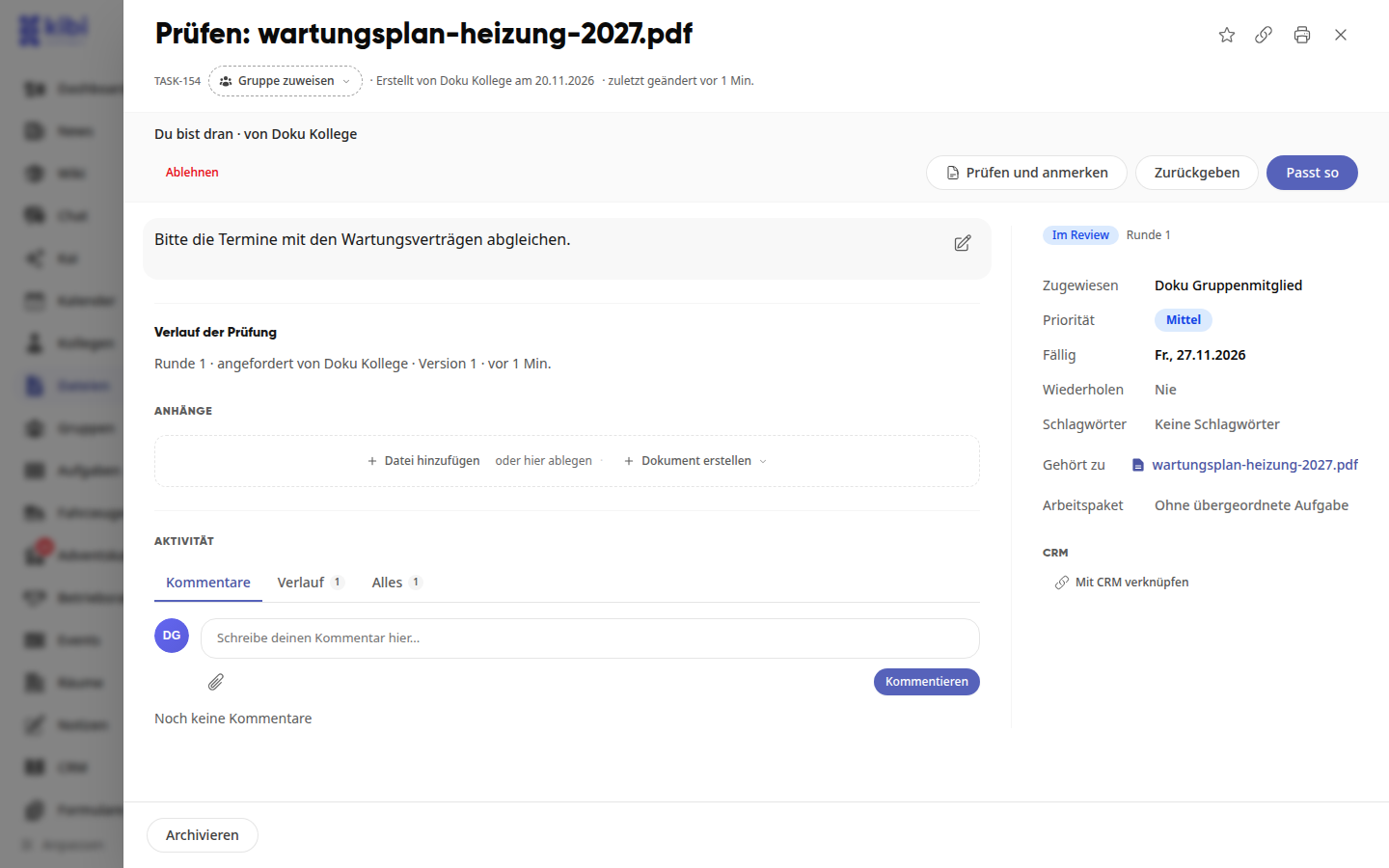
Decide:
Looks good completes the review, the document is considered reviewed.
Return sends the document back for revision. Under To-dos, enter what still needs to be done, with Add to-do you can also add several, and write a Comment (optional) if needed. Then click on Return.
Reject ends the review without approval.
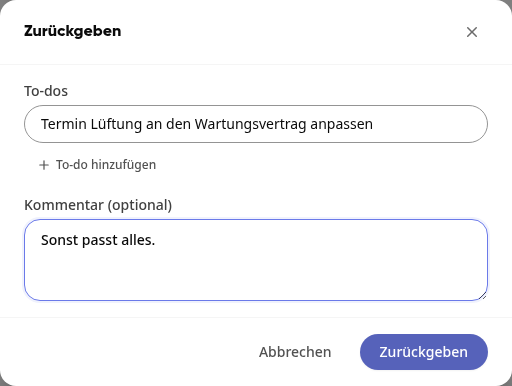
The person who sent the document will be notified. Each to-do becomes its own task under the review.
If there are still open to-dos from a return when clicking on Looks good, Kibi asks in the Open to-dos window. With Approve anyway you complete the review regardless.
Info
Anyone who requested a review cannot decide on it themselves. If the review went to a group, the first member who accepts it takes it over.
Revise a returned document#
Open Files › In progress › Waiting for me and click on Returned next to the document. At the top, it says Back with you with the number of open to-dos and the comment. The to-dos are listed under Tasks in this package.
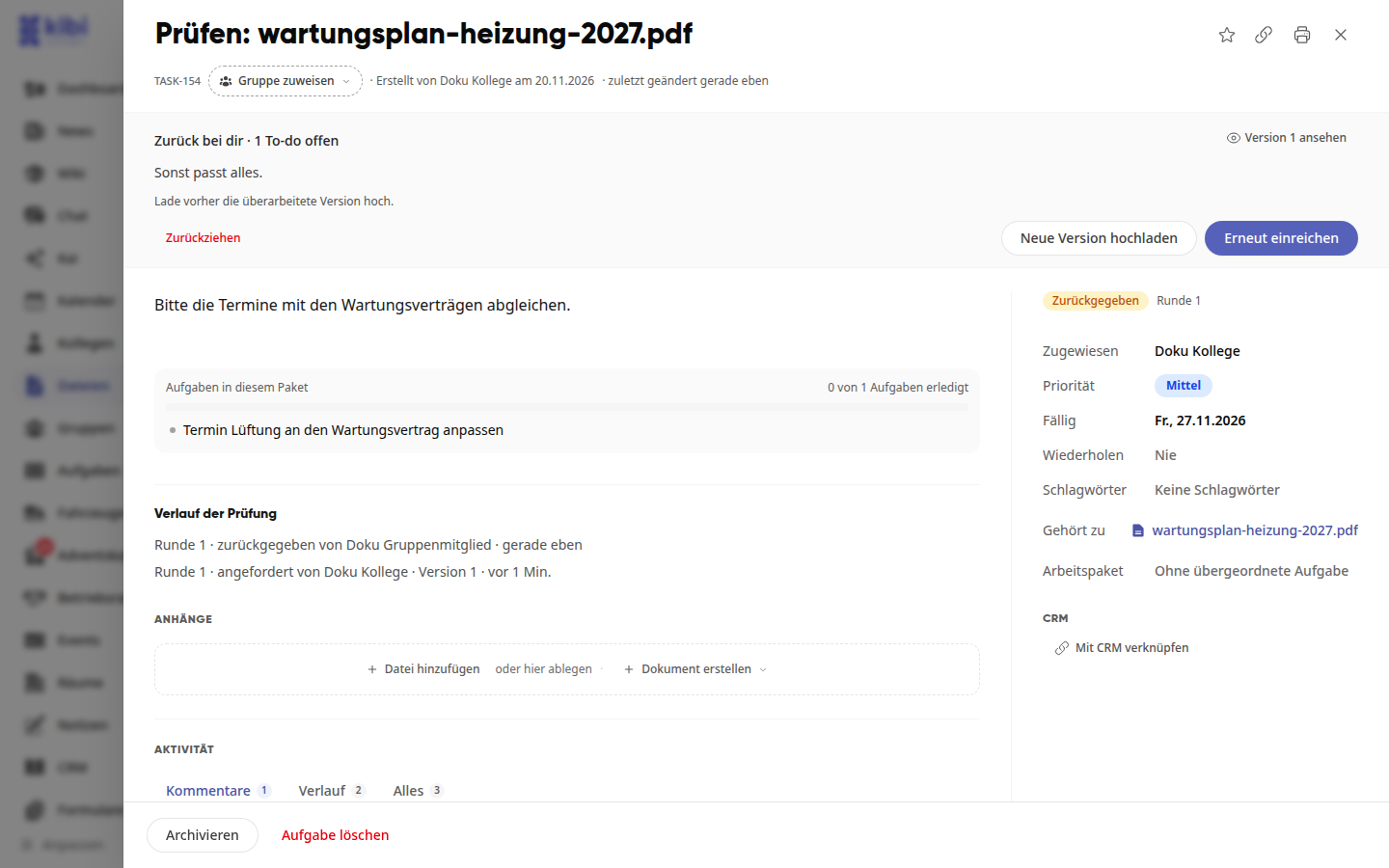
Click on Upload new version, select the revised file under Select new file, and confirm with Upload new version. The previous file remains saved as a version.
Click on Resubmit. The review moves to the next round, and at the top it says Waiting for followed by the name of the reviewer.
With Withdraw, you end the review without resubmitting it. Under Review history, you can see each round with the person, version, and time.
In Progress: All Reviews at a Glance#
Under Files › In Progress, you will find all documents that are currently being reviewed:
Tab | What you see |
|---|---|
Waiting for me | Documents you need to review, and returned documents you need to revise |
Requested by me | Documents you have sent for review and that are still in progress |
Completed | Completed reviews from the last 90 days, for example Reviewed · Version 2 |
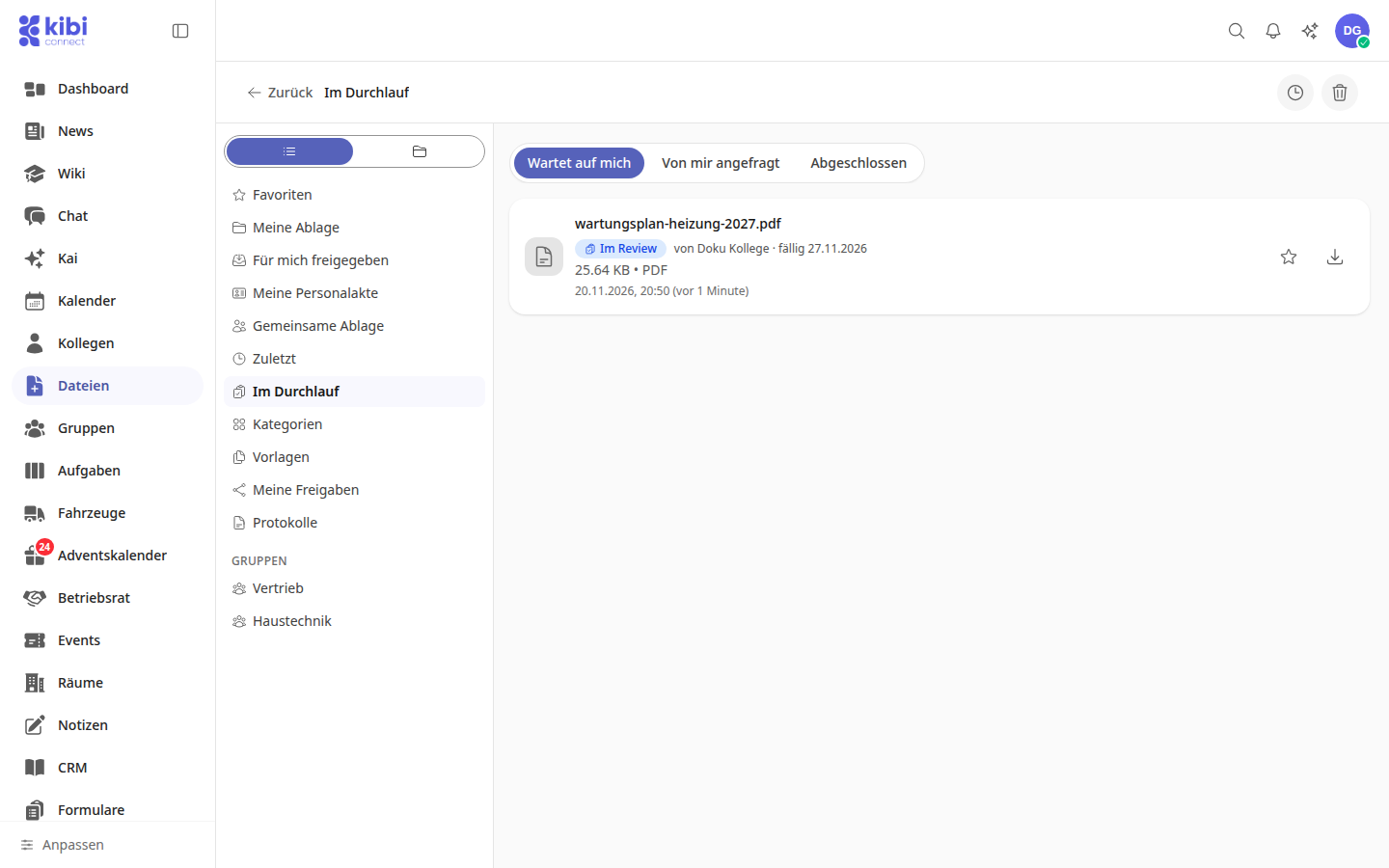
For each document, you can see the status, who sent it, and when it is due. You only see documents here that you are allowed to open.