
How do I order food and drinks?
Updated Reading time: 4 min
On this page
In the Catering module, you select what you want to eat on a given day from the menu. Your order is confirmed immediately, so there is no need to save it manually. For meetings, you order drinks and snacks as catering directly when booking the room.
Info
This feature is available to all employees.
Order a dish#
Open Catering in the navigation. You will land in the Day view.
Select the day at the top. Use the arrows next to the calendar week to switch to the next week.
Click the + button next to the desired dish. The portion is then ordered, and the total is displayed at the top, for example, "1 menu ordered · €8.90".
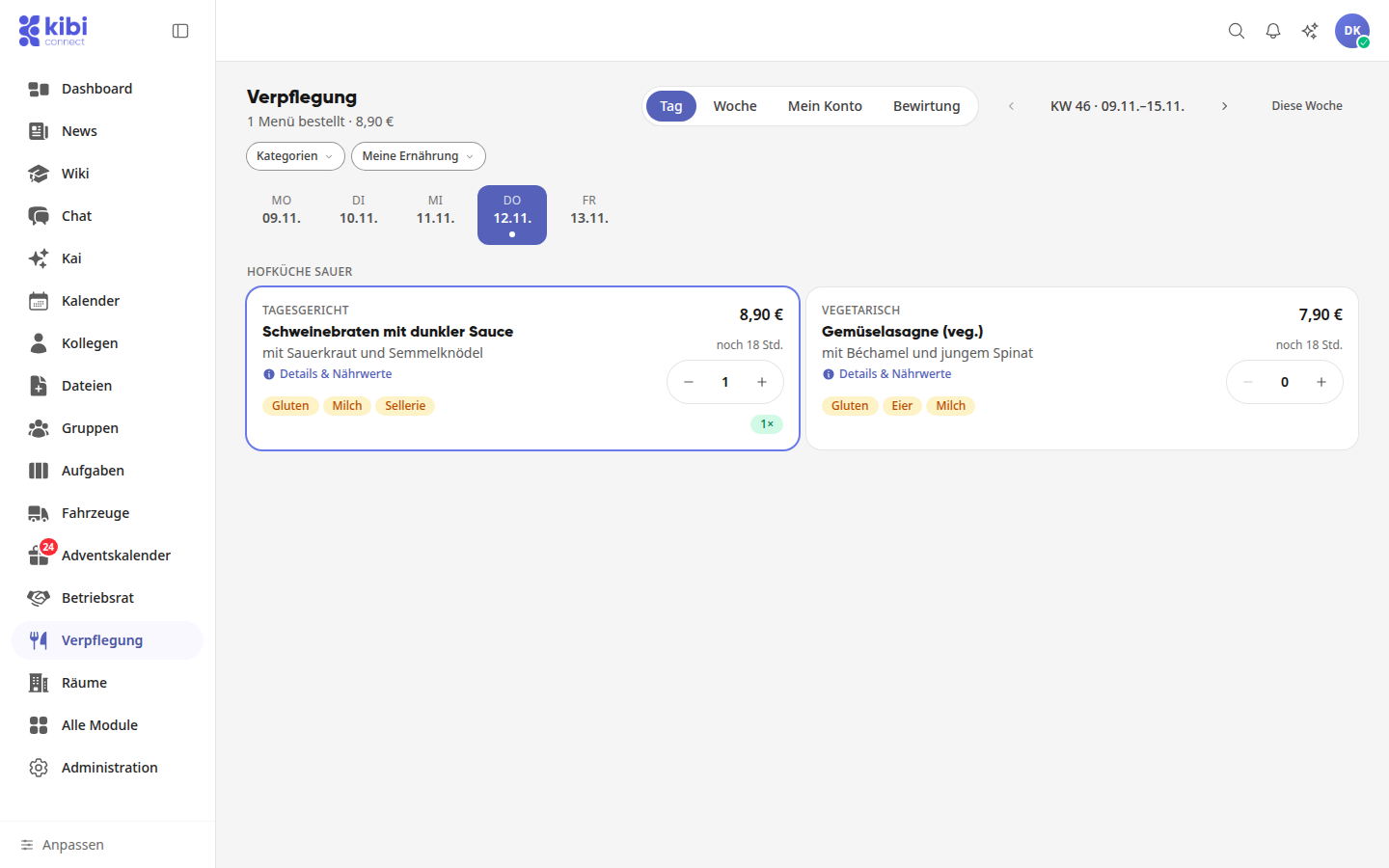
Above each menu, the provider is listed, for example, "Hofküche Sauer". Each dish shows how long you can still order it, for example, "18 hours left". After ordering, a message will show you until when you can cancel.
Info
If you pay by credit, the amount is deducted immediately upon ordering. You cannot order without sufficient credit.
View details, allergens, and notes#
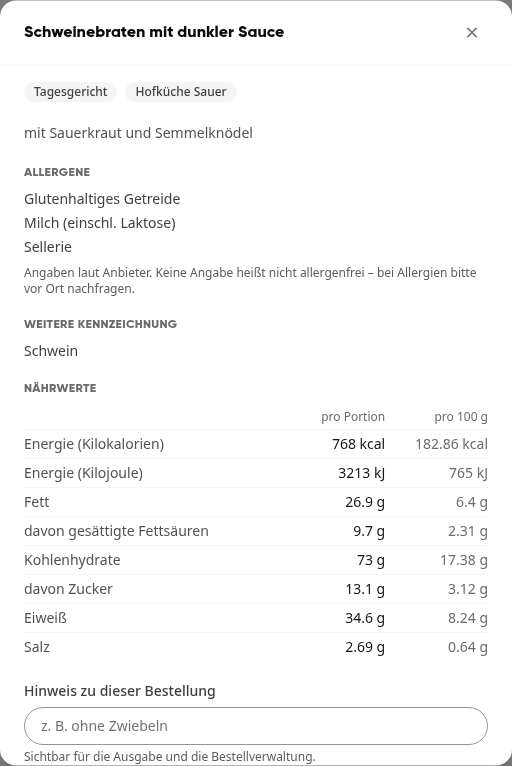
Click Details & Nutritional Information on the dish.
Here you will find allergens, additional labels, and nutritional information per portion and per 100 g.
If needed, enter a request under Note for this order, for example, "no onions". The note will be visible to the pickup point and order management.
Warnung
The information is provided by the supplier. No information does not mean allergen-free. If you have allergies, please ask on-site.
Mark the menu according to your diet#
In the Day view, click My Diet.
Under I eat, select what applies to you, and under This must not be included, mark the relevant allergens.
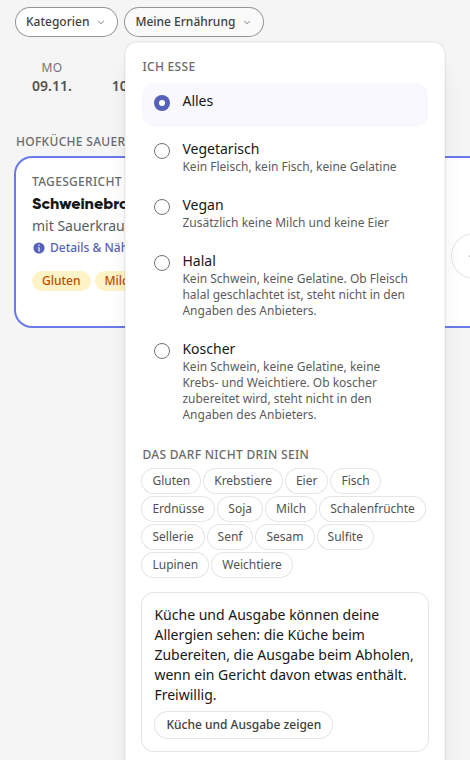
Dishes that do not match are marked but not hidden. Your information remains only on this device and is not transferred to your employer. If you want the kitchen and pickup point to see your allergies, click Show to kitchen and pickup at the bottom and voluntarily give your consent; you can delete the information at any time. Under Categories, you can also display only certain menu lines, for example, Vegetarian.
Keep track of your week#
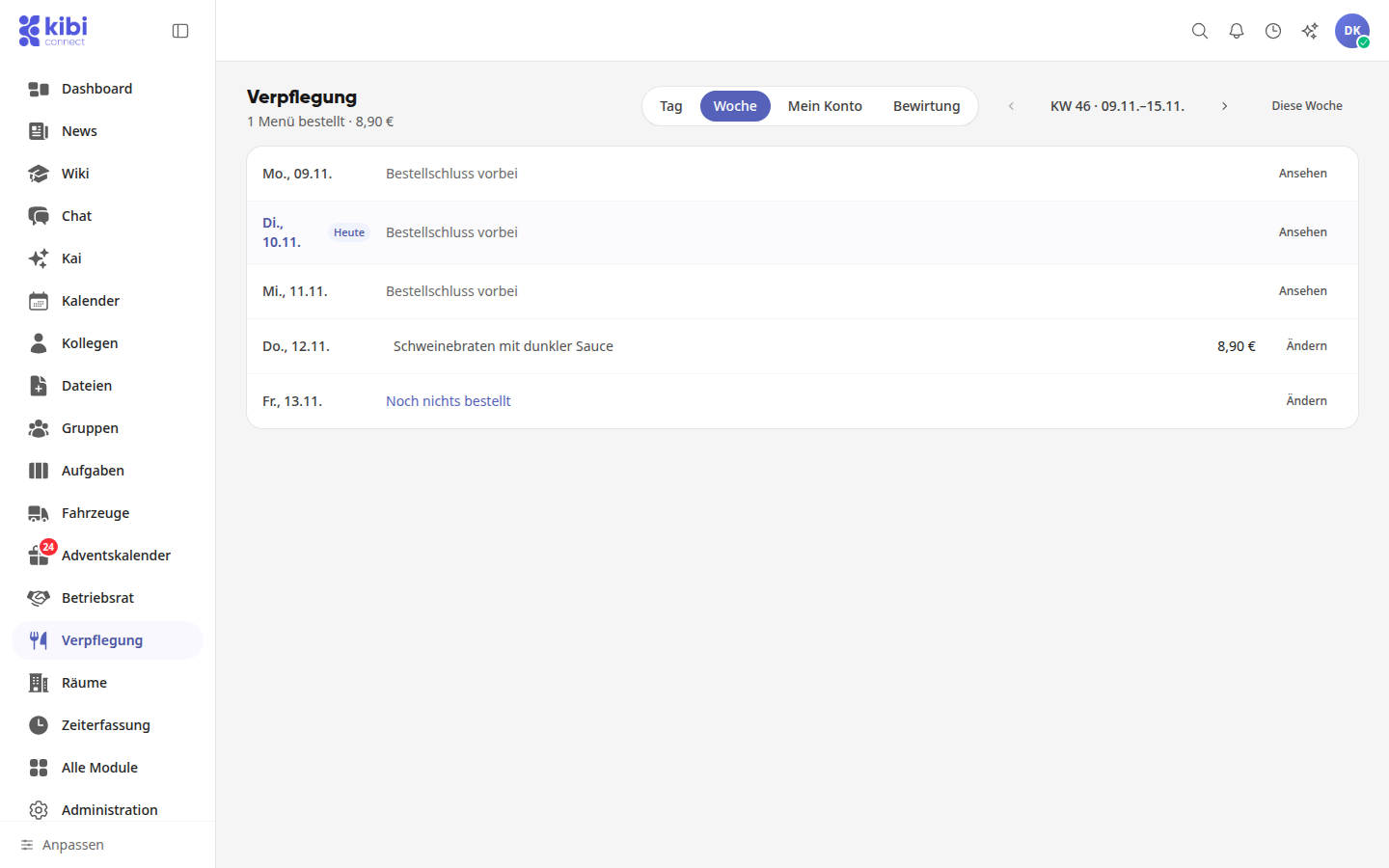
Switch to the Week view. There you can see what you have ordered for each day. Use Edit to jump to a day where you can still order. If the deadline has passed, it will say Order deadline passed, and you can only view the day using View.
Cancel an order#
Switch to the My Account view. Here you will see your orders for the selected period and the outstanding amount.
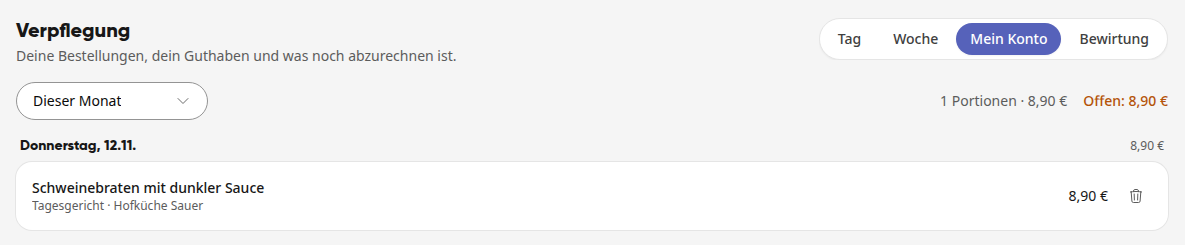
Click the trash can icon next to the order.
Confirm the prompt Cancel order? with Confirm.
The order remains in the list with the note Canceled and is no longer counted toward the outstanding amount.
Select food for an event#
If food selection is set up for an event, you choose your dish directly at the event, not in the menu.
Open Events and then the event.
Click RSVP. Then you will see the Your Food section with the deadline, for example, "Editable until Tue., 11/10, 2:30 PM".
Click on the desired dish. It will then appear under Noted for you. Use Choose another to change it until the deadline.
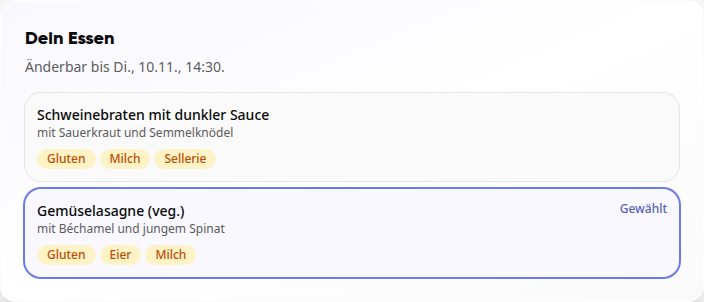
If you have not selected anything by the order deadline, you will receive the standard dish if the organization has set one.
Wichtig
If you cancel or are on the waiting list, your ordered portion will be automatically canceled. It will then appear in My Account with the note Canceled. If the order deadline has already passed, the portion remains because it is already with the provider.
If your portion has been withdrawn, for example, due to your cancellation or because the organization has entered No Food for you, the standard dish will not replace it at the order deadline. If you RSVP again later, please select your food again.
Order catering for a room booking#
You do not order drinks and snacks for a meeting in the menu, but rather when creating the appointment.
Open the Calendar and click Create.
Enter the title, day, and time, and click Select Room….
Select a room that is Available. The Order Catering button will then appear next to the room. Click it.
Click Add for the desired item and adjust the quantity using + and −. In the Cart, set the Catering Time for each item and, if needed, add a note, for example, "lactose-free milk". The total is displayed at the bottom, for example, "Catering total: €34.40".
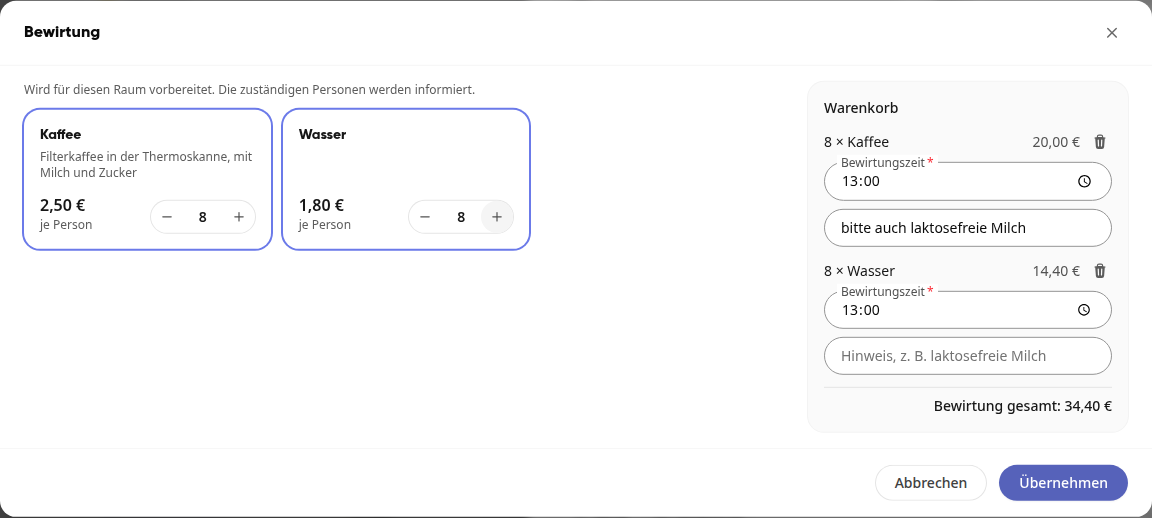
Click Apply. The appointment will now show, for example, Catering (2).
Click Create in the appointment.
Info
Catering is only available in rooms set up as locations with catering and where an offer with a range is available. If the Order Catering button is missing, catering is not available for that room. The catering time must be within the appointment time.
The responsible persons will be informed. Once you have ordered catering, you will find it under Catering in the additional Catering tab. There you can see for each appointment what has been ordered, which offer it comes from, and the preparation status, for example, "0 of 2 completed". Use Go to Appointment to open the calendar entry.
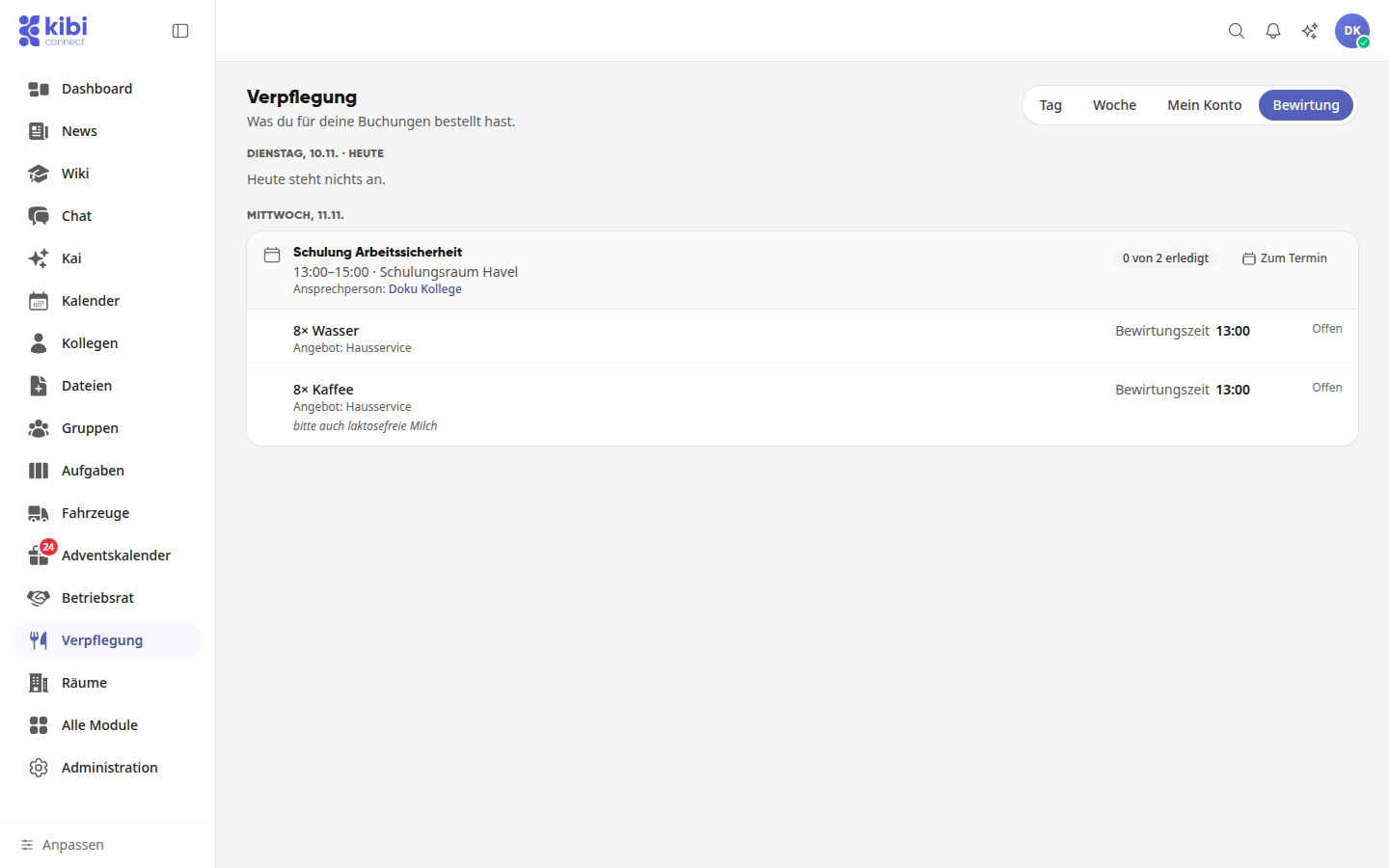
If the responsible person adjusts your catering, for example, because something is out of stock, you will receive a notification with the changes and, if applicable, a message.