
How do I find a contact in the CRM?
Updated Reading time: 2 min
In the CRM, you will find all the people and companies your business deals with. This is how you search for a contact and view their details.
Search for contacts#
Click on CRM in the left navigation. The Contacts tab is selected at the top, and the Contacts view is above the list.
Enter a name, email address, phone number, or company name in the search field at the top right. The list immediately shows the matching entries.
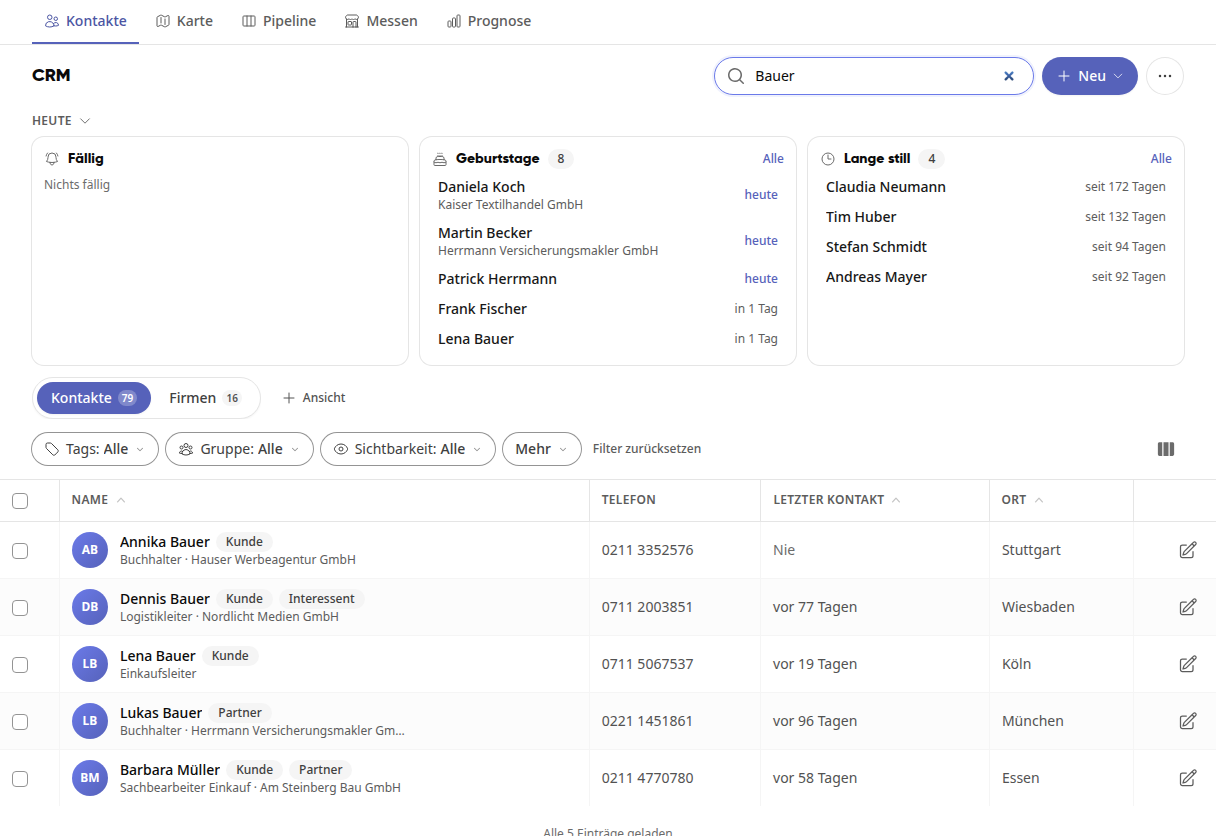
If needed, narrow down the list using the Tags, Group, and Visibility filters. Under More, you will find additional filters; with Reset filters, you can show all entries again.
Tip
Clicking on Today collapses the Due, Birthdays, and Quiet for a while cards to leave more room for the list.
Switching between contacts and companies#
Click on Contacts or Companies above the list. The number next to it shows how many entries there are.
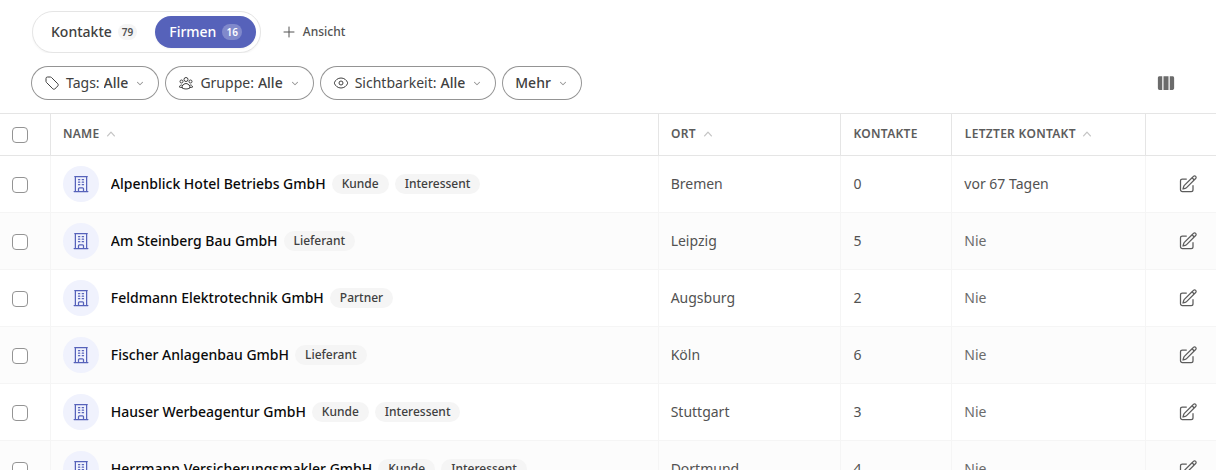
For companies, you can see the location, how many contacts are stored there, and when you last had contact.
View contact#
Click on a name in the list. The contact's detail page opens.
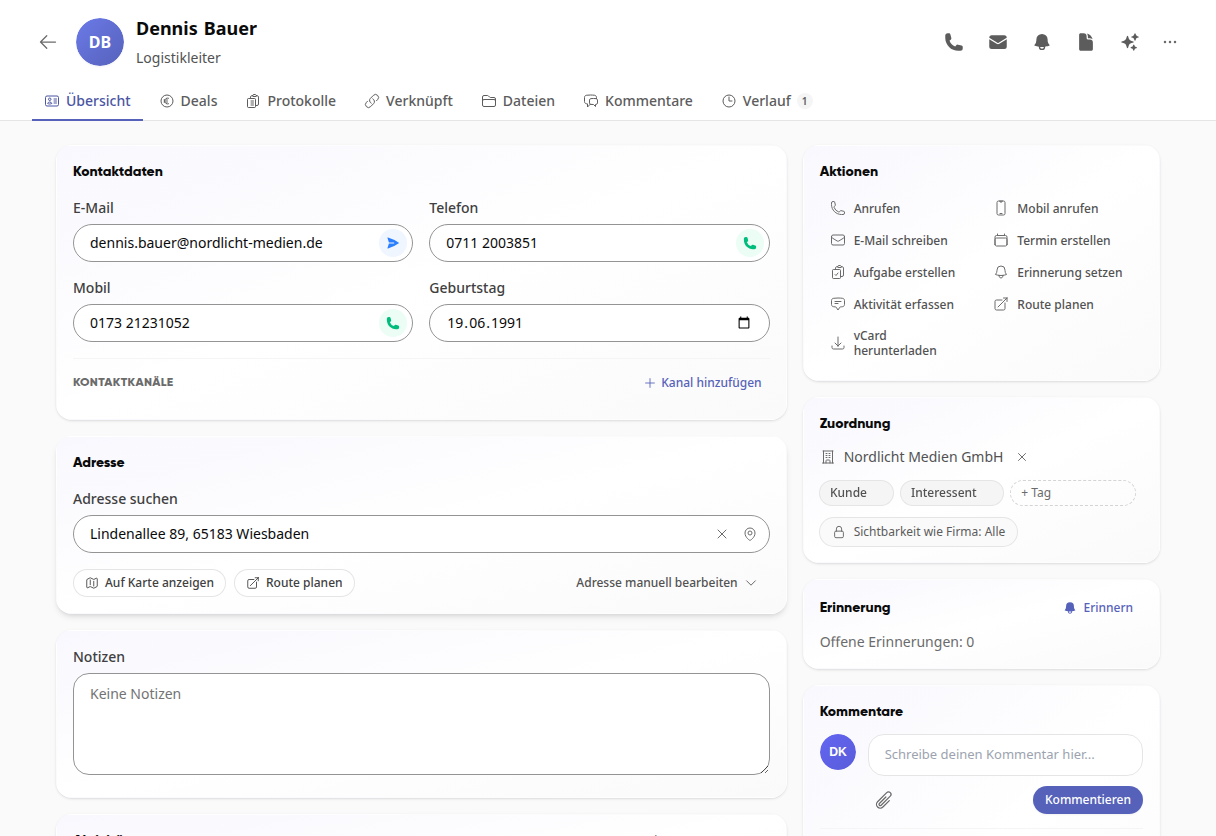
On the Overview you will find the contact details, the address, notes and activities. On the right are the Actions card, the assignment to the company with tags and visibility, the reminder and comments with the recorded activities.
Using the tabs Deals, Logs, Linked, Files, Comments and History you can see everything related to this contact.
Using the Actions card you can call directly, write an email, create an appointment or a task, set a reminder, record an activity, plan the route or download the vCard.
Info
The CRM is available to all employees. Which contacts you see depends on their visibility: for everyone, for a group, or only for the person who created the contact.