
How do I release vehicle bookings?
Updated Reading time: 2 min
When bookings require approval, you review pending requests in one place and either approve or reject them.
Info
This function is available to fleet managers. Pending requests exist as long as Bookings must be approved is enabled in the fleet settings.
View open requests#
Click on Vehicles in the navigation and then on the Approvals tab. The number next to the tab shows how many requests are open.
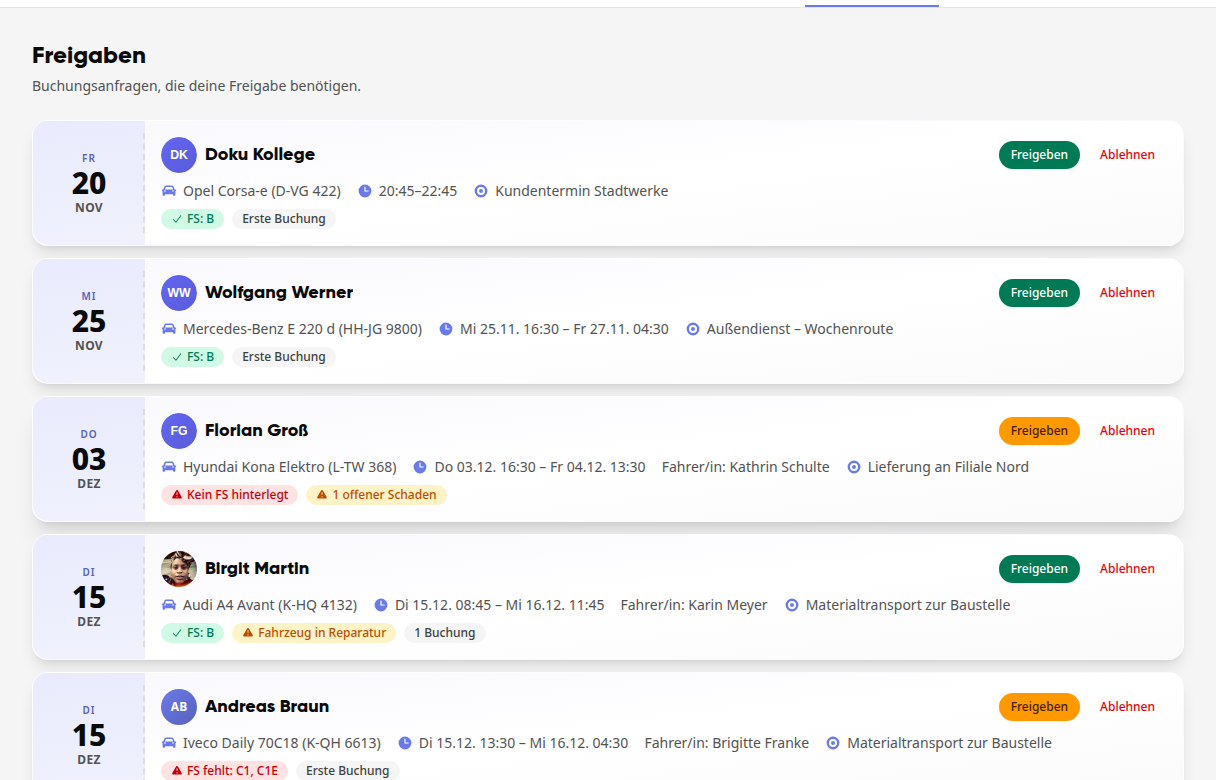
Each card shows who made the request, the vehicle, the time period, the driver, and the purpose. The notes below mention, for example, License: B, No license on file, Vehicle in repair, 1 open damage, or First booking.
Click on a card to see all details. Under Review booking request you will find the vehicle and time period, the answers to the questions about the vehicle, the driver's license data, and the person's history.
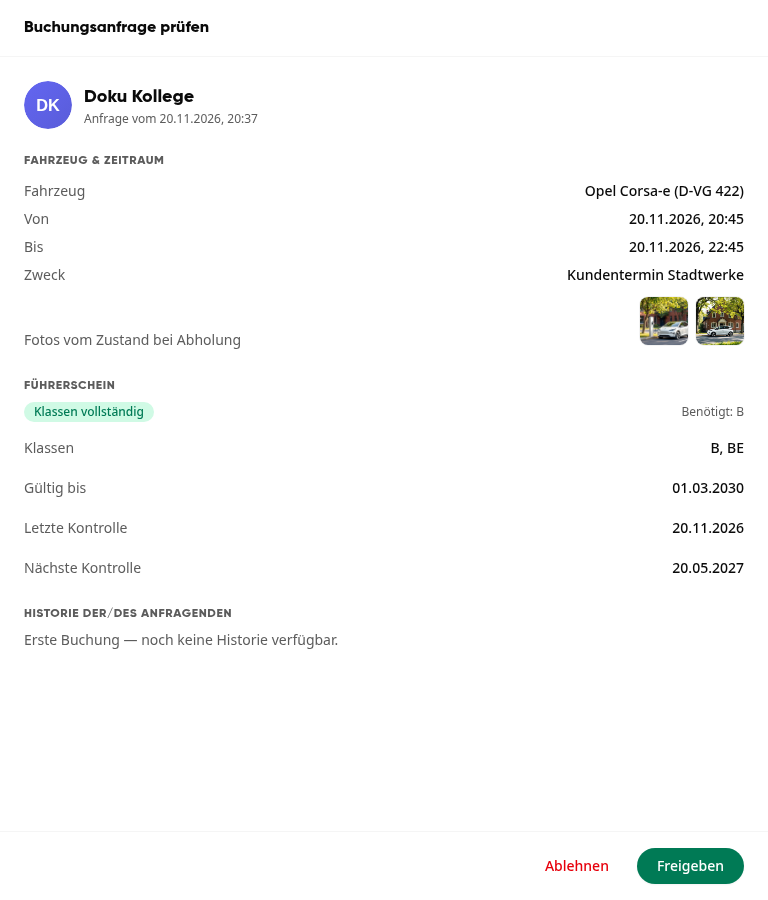
If the person uploaded photos or files in response to a question, they appear as preview images or file names in the request. Click on them to open them in a new tab.
Info
If someone changes the vehicle for a booking, it will come back to you even if you had already approved it. Your approval applied to the previous vehicle. If the request is still waiting for you, the platform replaces it with a new request for the new vehicle. The card then always shows the vehicle you are deciding on.
You can also find the approvals in the admin area under Organization > Fleet > Approvals.
Release booking#
Click on Release on the card.
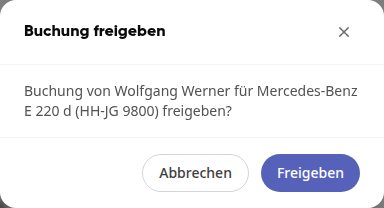
Confirm again with Release in the Release booking window. The request disappears from the list.
If you have already opened the request via Check booking request, you can release it directly there with Release without any further confirmation.
Reject booking#
Click on Reject on the map or in the detail window.
Under Reason, enter why you are rejecting. This is optional; the reason will be communicated to the requesting person.
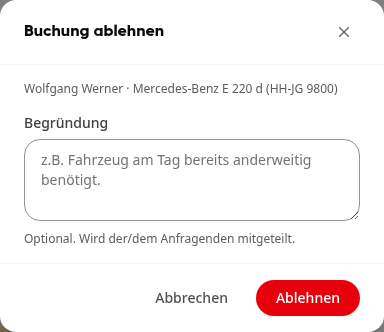
Click on Reject.
Release booking as an exception#
If the driver's license does not match the vehicle, the Release button is orange. You can then only release the booking as an exception.
Click on Release. The Exception approval window names the problem, for example No driver's license on file.
Enter a reason. It is mandatory, is saved on the booking, and remains traceable later.
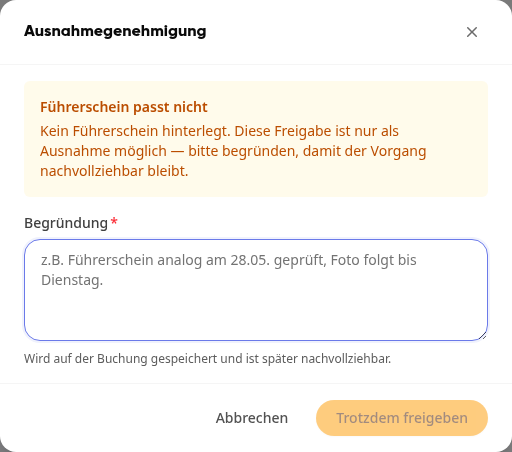
Click on Release anyway.