
How do I create my own skills for Kai?
Updated Reading time: 5 min
On this page
With a skill, you give Kai a fixed instruction, for example a response style or a workflow. You write it once and enable it in any conversation where you need it. Kai then follows the instruction, always with your rights.
Info
Any person who is allowed to use Kai can create and share skills. Shared skills are reviewed by a system admin before everyone can see them.
Creating a Skill#
Open Kai in the navigation and switch to the Agents & Skills tab. The agents are at the top, and below them is your skill library. With All, Agents, Skills, and Automations, you can display only a portion.
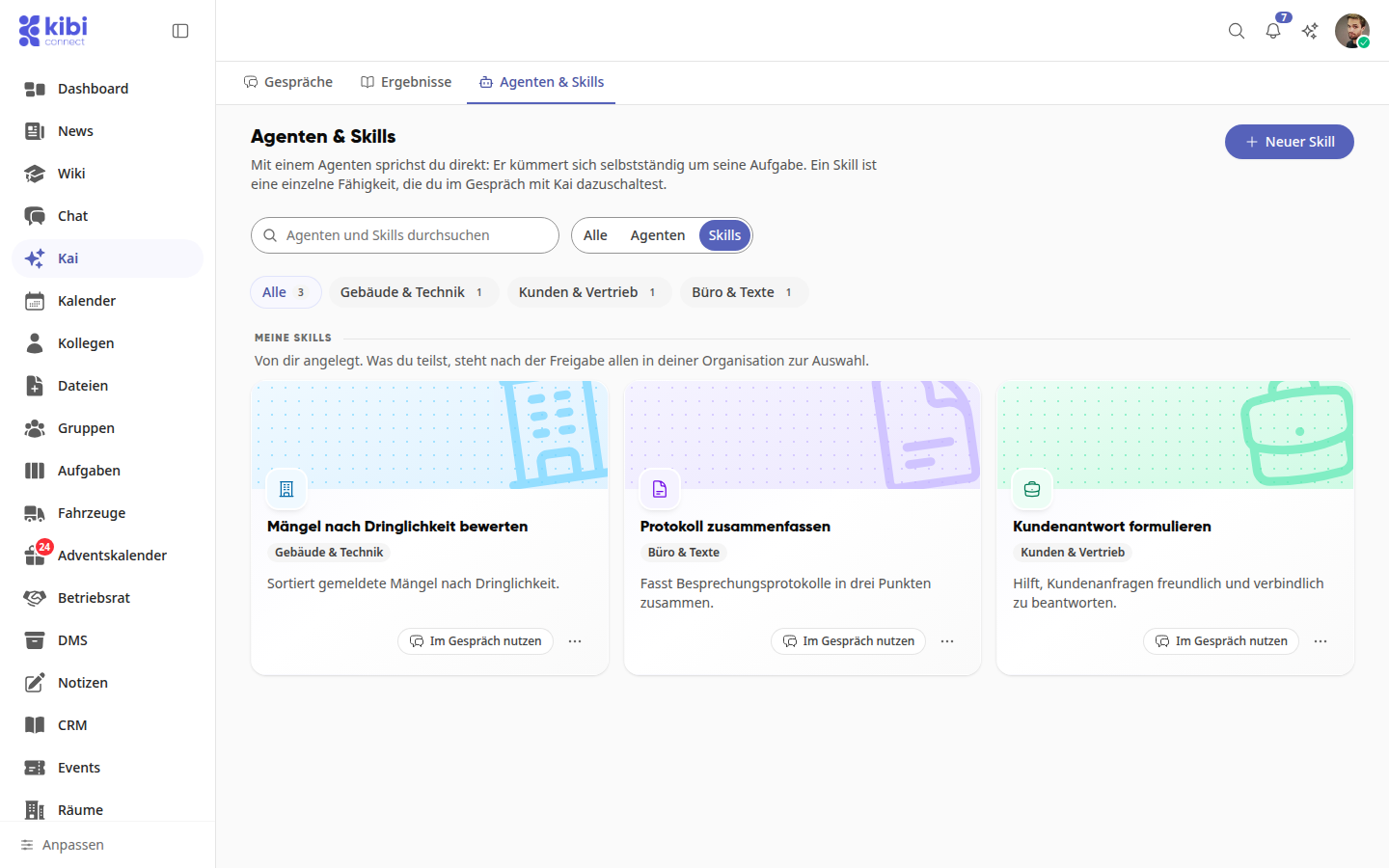
Click New Skill at the top right. If your library is still empty, you can also do this via Create first skill.
Enter a Skill name and write under Instruction what Kai should do. Two to five sentences are enough: who Kai is („You are our …“), what needs to be done, with what background, in what form, and for what purpose.
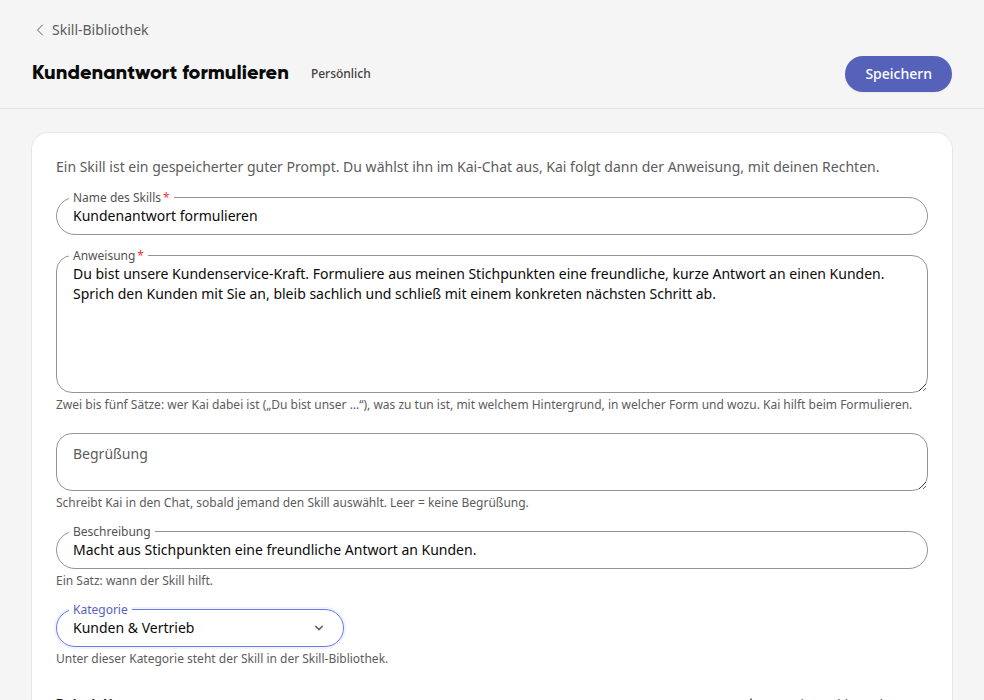
Optionally, you can add:
Greeting: Kai writes this in the chat as soon as someone selects the skill.
Description: one sentence about when the skill helps.
Category: the skill appears under this category in the skill library, for example Customers & Sales.
Example questions: these appear as suggestions as soon as someone selects the skill in a conversation. With Add example question you can create one, and Have Kai suggest fills it in for you.
Click Save at the top right. After that, Saved will appear there until you make another change. The skill is now under My Skills and has the status Personal.
Name and instruction are required fields. The instruction can be up to 4000 characters long.
Tip
To the left of the form, Kai helps you with the wording. For example, click on Formulate according to the five building blocks or Write greeting. Kai enters his suggestion directly into the form, and you can undo any change.
Using a skill in a conversation#
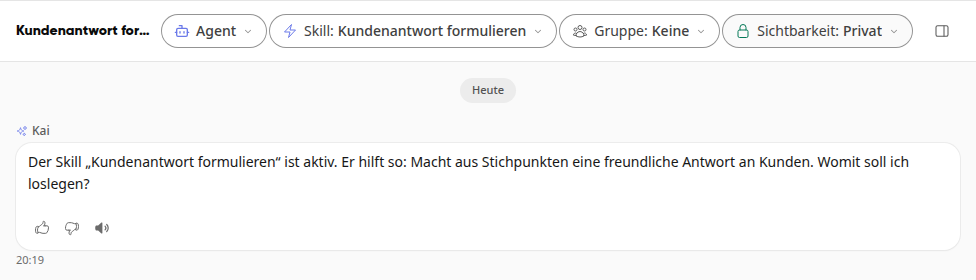
Click on Use in conversation in the Skill Studio. Kai starts a new conversation in which the skill is already active.
Kai greets you with the skill's greeting. If the skill has no greeting of its own, Kai states its description, for example: "The skill 'Formulate customer response' is active. It helps like this: …"
In an ongoing conversation, you can add skills using the Skill button at the top of the conversation:
Click on Skill.
Select a skill. Under My skills you will find your own, under From the organization the skills that others have shared with everyone. You can select several.
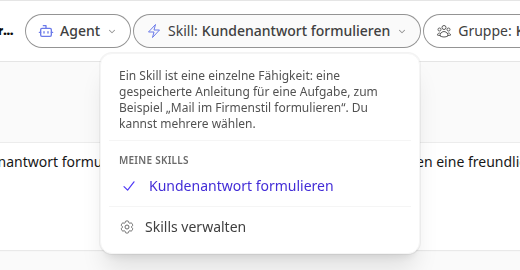
The button now shows the name of the skill. It applies to this conversation. If you select the skill again in the same menu, you remove it again.
You can reach the same menu via the + in the input field and Skills. With Manage skills you return to your skills.
Enabling a skill by its name#
You can also enable a skill directly in your message without opening the menu:
Type @ in the input field followed by the first letters of the skill. Kai suggests matching skills, recognizable by the lightning bolt symbol and the description below.
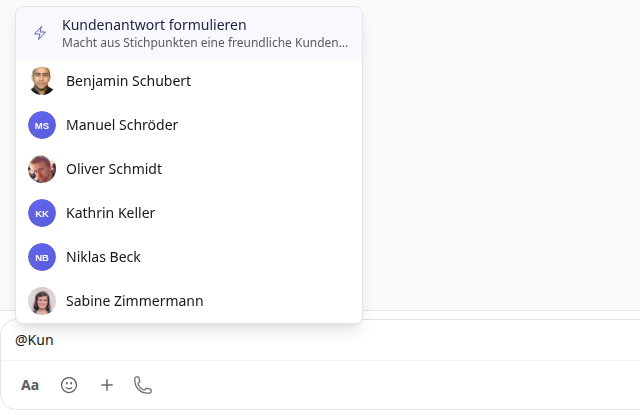
Select the skill. Its abbreviation then appears in the input field, for example @kundenantwort-formulieren.
Write your message after it and send it. Kai enables the skill for this conversation, Skill: now appears at the top with its name, and Kai responds according to the skill's instructions.
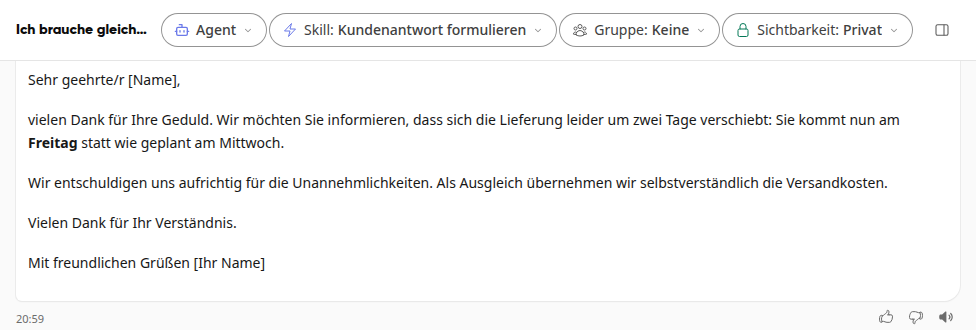
Instead of using @, you can also use normal words, for example "Take the skill Formulate customer response", "Use the skill …" or "with the skill …". If you say "Don't use the skill … anymore", Kai will not enable it. If Kai cannot find a skill with that name, he will tell you instead of pretending it is active.
Info
The suggestions after @ appear in the Kai area, in an ongoing conversation, and on the start page of a new conversation, but not in the Kai bar next to an editor. In a conversation you share with others, only skills that are shared and approved with the entire organization can be enabled.
Change, disable, or delete a skill#
In the Agents & Skills tab, click on your skill. You can find many skills faster using the search Search agents and skills or the categories above the library: There you will see All and each category in which you have skills, with the count. The skill opens in the Skill Studio, where you can change all fields and click Save.
Further actions can be found in the … menu at the top right:
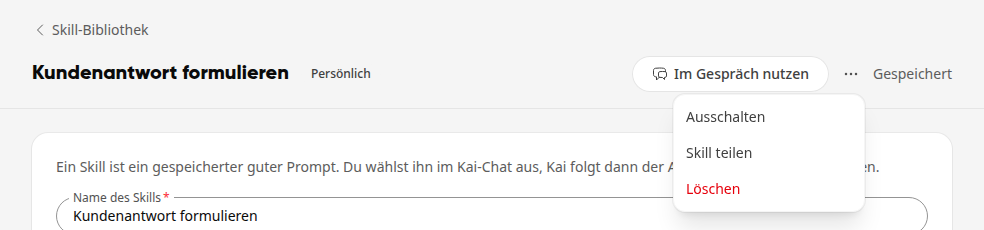
Disable: removes the skill from the menu without deleting it. Next to the title, Disabled will then appear. Use Enable to bring it back.
Share skill: submits the skill for review (see below).
Delete: Deleted skills cannot be restored.
On the card in the library, the … menu also takes you to Edit and Delete.
Sharing a skill with the company#
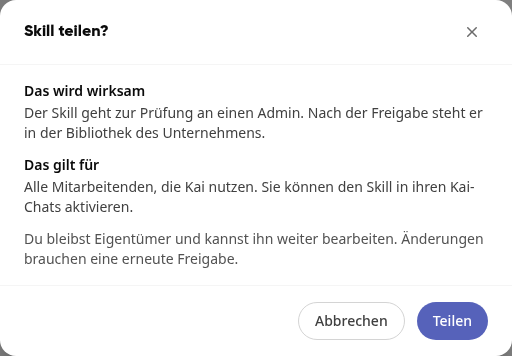
Open your skill, click on … at the top right, and then on Share skill.
The prompt Share skill? tells you in advance what will happen: Under What will take effect, it states that the skill will first go to an admin for review and, after approval, will be placed in the company's library. Under What this applies to, it states who can use it afterward: all employees who use Kai. Confirm with Share.
The skill now has the status Under review. A system admin decides on it, and you will receive a notification afterward.
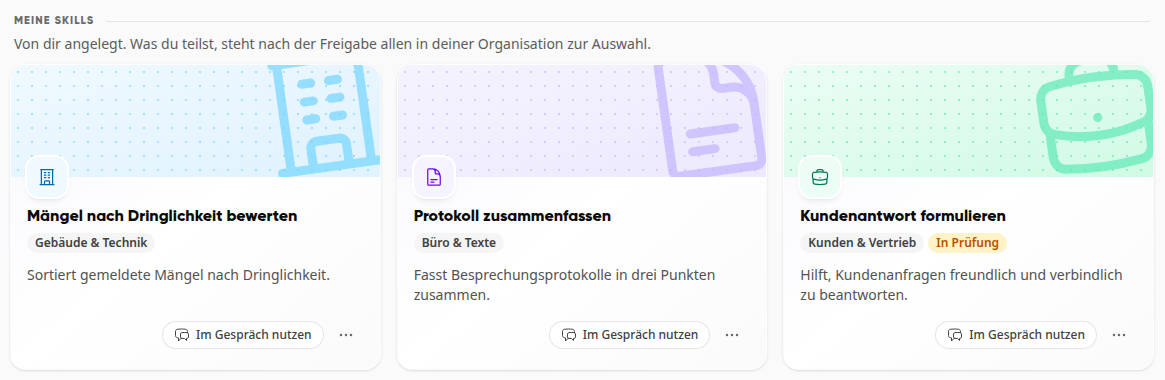
After approval, the card shows Shared with the organization, and all employees will find the skill in their selection under From the organization. You remain the owner and can continue to edit it.
Important
If you make content changes to a shared skill, it goes back into review.
Under From the organization, you will also see the skills of others. You can read and use them, but you cannot change them.
Review shared skills (System Admins)#
Open Administration and there under AI & Workflows the entry Skills. The page is called Organization Skill Library; on the left you narrow down under Category, on the top right you search it.
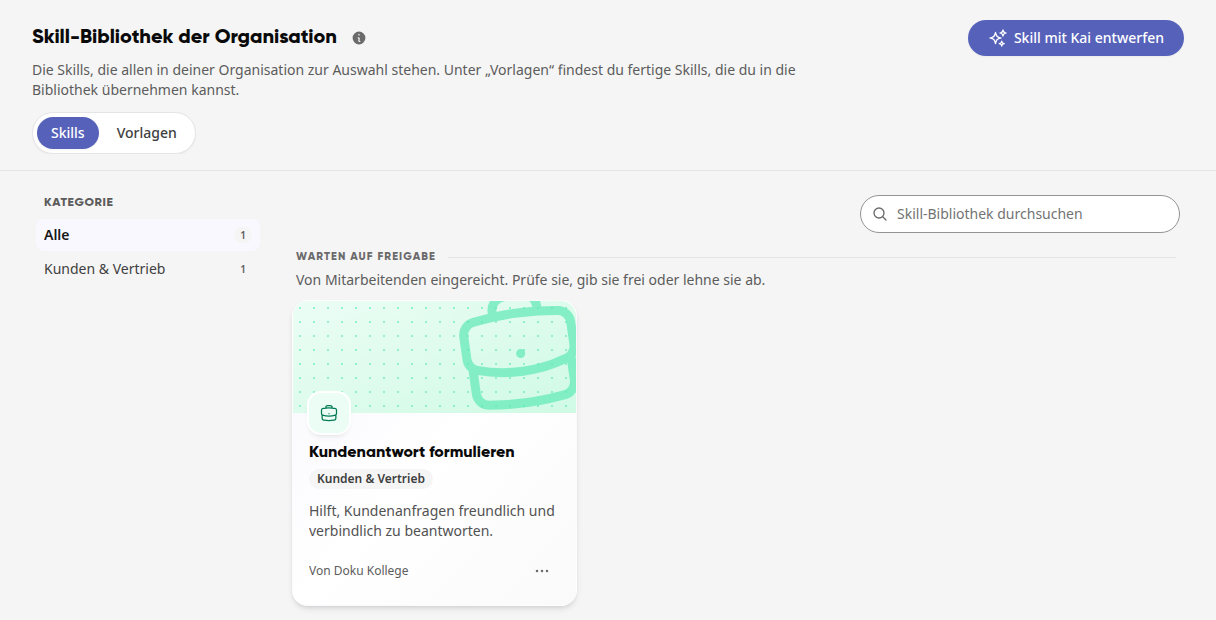
Under Pending approval are the submitted skills. Click on a skill and read the instruction.
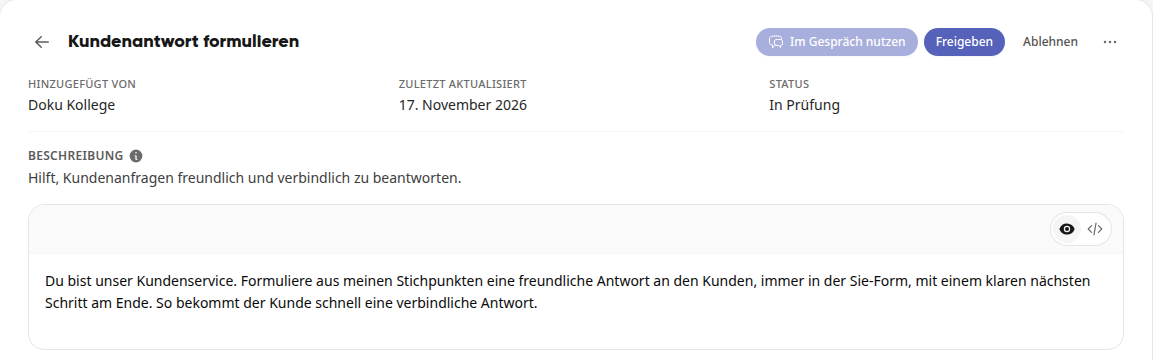
Click on Approve or Reject. A rejected skill is private again.
Approved skills then appear under In the library. Via the … menu of a card you can Edit, Disable or Delete a skill. A disabled skill disappears from the menu for everyone.
Adopting a Skill from a Template (System Admins)#
Ready-made skills are available for common tasks, for example Plain Language, Meeting Minutes, Shift Handover, or Write a LinkedIn Post. Weslink maintains them for all companies.
Open Administration and there under AI & Workflows the entry Skills.
Switch to Templates. On the left, under Area, you select a topic; at the top right, you search the templates. At the top is the Recommended section, below it More Templates.
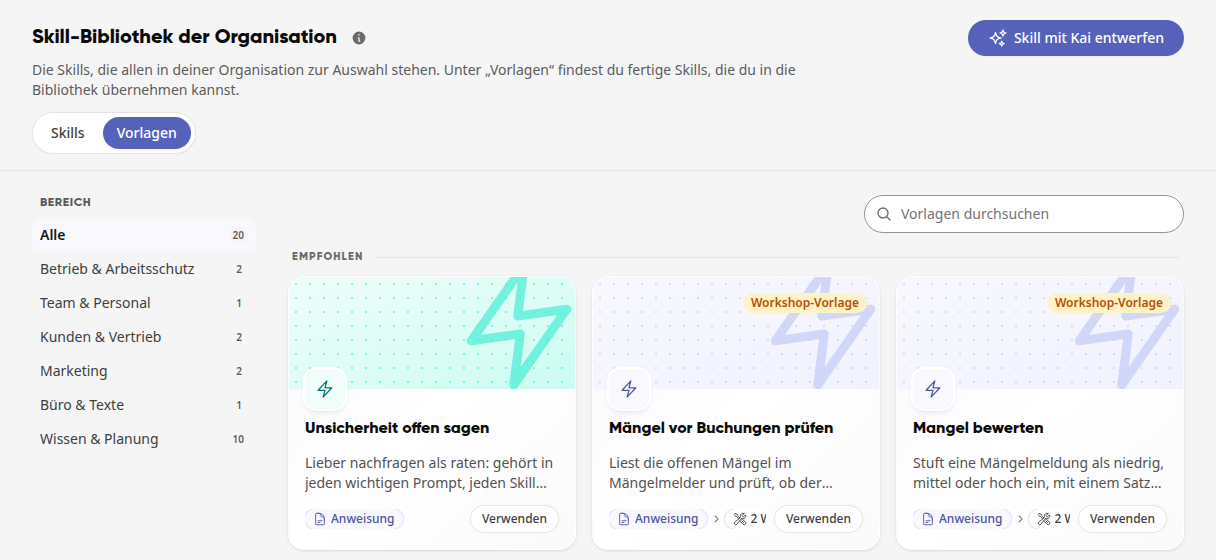
Click on a card. The preview shows the instruction and the tools the skill uses.
Click on Use. The copy lands in your company's skill library.
The copy belongs to your company; you can customize it freely. Later changes to the template do not reach it. Placeholders in square brackets such as [Company] and the notes regarding the works council work the same as with the agent templates.
Info
Templates are visible to anyone with the right Manage agents.