
How do I enter requests for the duty schedule?
Updated Reading time: 2 min
Under My Preferences, you tell the planning system when you prefer to work and when not: as a fixed rule for each week or for individual days, for example a day off for a doctor's appointment.
Info
You can enter preferences as soon as you are assigned as an employee or planner in an area of the schedule. Preferences are notes for planning, not a guarantee.
Open My Requests#
Click on Schedule in the navigation.
Click on My Requests below your shifts.
Set wishes for each week#
In the Each week section, there is a line for each day of the week per shift: Early (starting 4–11 a.m.), Late (starting 11 a.m.–7 p.m.), and Night (starting from 7 p.m.).
Click on the field of a day. Each click toggles between possible (dash), preferred (checkmark), and not possible (cross).
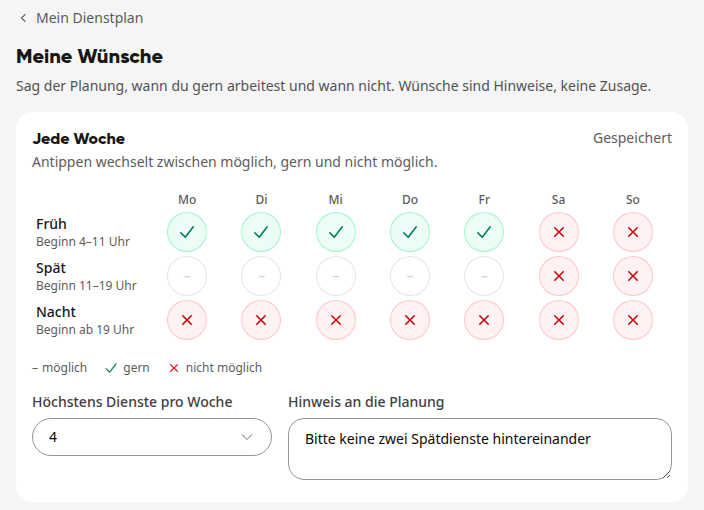
Under At most shifts per week, select a number from 1 to 7 if you do not want to be scheduled more often. No specification leaves it open.
If needed, write a note to the planning, for example "Please no two late shifts in a row".
Each change is saved after a moment, and Saved then appears at the top right.
Enter a wish for a single day#
Under Single days in the Wish for a day section, select the date under Day.
Under Wish, select whether you want to be off that day or prefer to work.
Under Shift, select all day or a shift (early, late, night).
If needed, enter a note, for example "doctor's appointment", and click on Save wish.
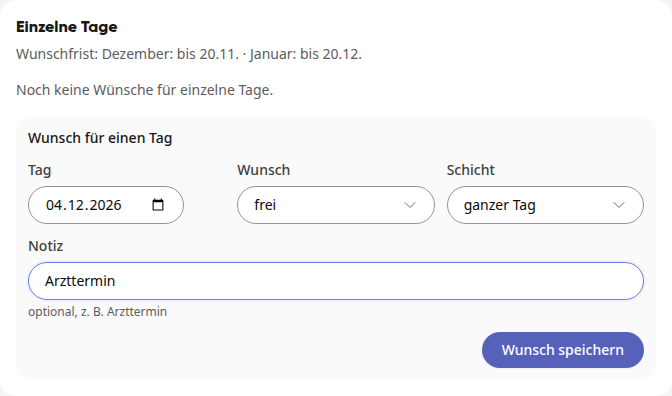
Your wishes will then appear in the list above the form, a red line for off, a green one for prefer to work. If there is already a wish for the day, it will be replaced. Use the trash can icon to delete a wish again.
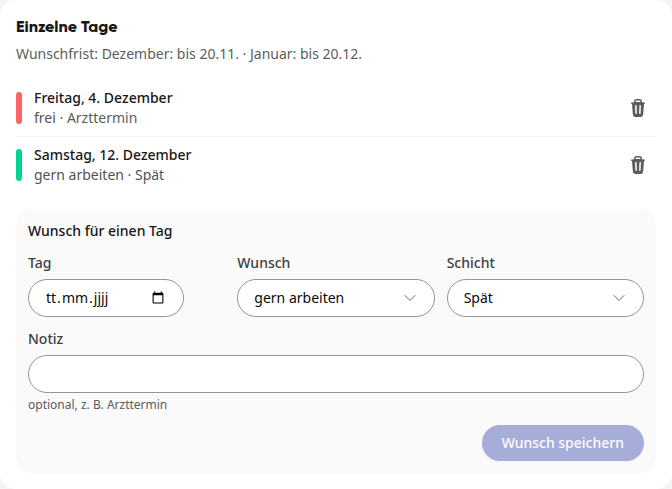
Request Deadline#
Above the list is the request deadline, for example "December: until Nov 20". Until this day, you can enter and delete requests for individual days of the month. Three days before the deadline, you will receive a reminder. After the deadline, a request is marked with Deadline passed and can no longer be changed. HR managers set the deadline for each area. If it says "no deadline", there is no limit.
Tip
The planning sees your requests directly in the plan. If it still schedules you against a request, it will receive a notice, but the shift remains scheduled. You can see your shifts after publication under My schedule.