
Kibi Kumpel: Kai and Voice Notes
Updated Reading time: 4 min
On this page
The Kibi Buddy is a small wearable device with a display and speaker. You hold down the KAI button and speak. Kibi Connect turns this into a note, answers your question about Kai, opens a view, or prepares an action.
Prerequisites#
Kai is enabled for you. Which roles are allowed to use Kai is determined by admins in the role editor.
Voice input is active. Speech-to-text conversion must be enabled in your tenant.
Admins allow the Buddy. Under Administration > API, Enable REST API and Allow linking Kibi Buddy must be turned on.
The Buddy is connected to your account. You set this up yourself, see Set up Buddy via USB-C or Link Buddy via code or QR. Everything the Buddy does happens in your name and with your permissions.
One button for everything: how Kibi Connect organizes your recording#
On the Kumpel, there is only one voice gesture: hold the KAI button and speak.
Press and hold the KAI button on the Kumpel.
Speak what you want to capture, ask, or get done.
Release the KAI button.
Longer notes are also possible: The Kumpel sends your recording in segments, and Kibi Connect combines them into one note. A note can be up to 120 minutes long.
You don't need to select anything beforehand. What you say determines what happens:
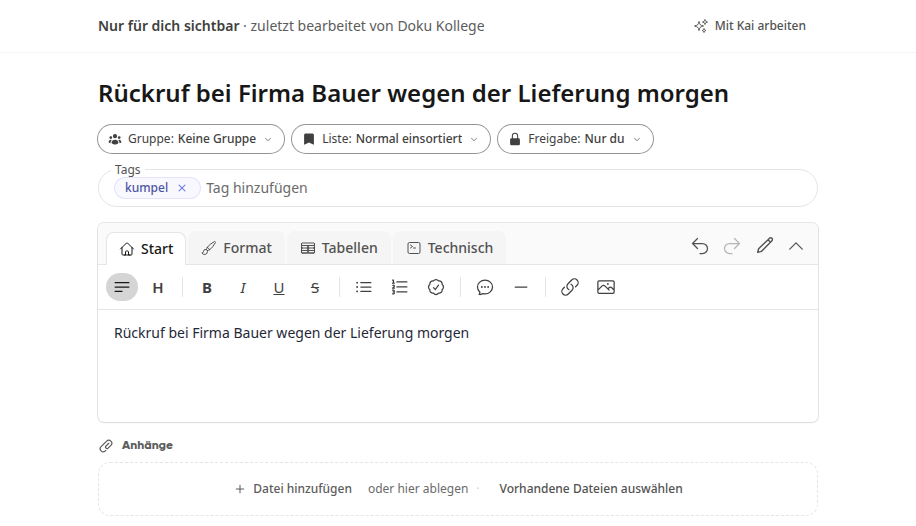
Note: This is the standard; in doubt, a recording always becomes a note. A personal note is created with the text of your recording, the tag
kumpel, and the recording as an attachment. You'll find it under Notes.Question for Kai: For example, when you start with "Kai, ...". Kai answers on the display and, if requested, also by voice.
Open view: "Show me my tasks," "... my messages," "... my time tracking," "... my notes," or "... my status." The Kumpel shows you the appropriate view.
Action: Book arrivals and departures, complete or create a task, send a message to a group chat, or fill out a form. The Kumpel asks for confirmation. It is only executed once you confirm on the device.
Examples of actions:
Message: "Feedback to Sales: Trade fair booth is ready" becomes a message to the Sales group chat. If you don't name a specific group chat, a note is created.
Form: "Playground inspection Am Wiesengrund: Nest swing closed" becomes a response to the appropriate form that you can fill out. Forms with required fields such as photo, file, or signature are filled out in the app or browser. If something remains unclear or a required value is missing, a note is created.
Warnung
Actions never without you: Arrivals and departures, messages, form responses, and changes to tasks are never executed automatically by Kibi Connect. Without your confirmation on the Kumpel, nothing happens.
Ask Kai on the buddy#
On the buddy, Kai answers as you: with your permissions and about your Kai balance. So he only sees what you are allowed to see in Kibi Connect as well.
The answers are deliberately short so that they fit on the display and sound good:
in your language,
at most two short sentences or 30 words,
the number first when you ask for a number,
without formatting such as lists or tables.
Follow-up questions: If you ask another question within 10 minutes, Kai continues the conversation. So you can refer to the previous answer, for example with "And tomorrow?".
What Kai does for you on the buddy#
On the buddy, Kai can do everything he can do in the chat, with your permissions. This also includes the third-party systems that your company has connected. He answers common questions particularly quickly:
Notes: create a note
Tasks: count, read out, create, and complete tasks
Time tracking: check whether you are on duty, book arrivals and departures
Calendar: your appointments, for example for today
Company knowledge: search your knowledge on the platform
Chat: send a chat message and query unread chats
Examples: "Kai, how many tasks do I have today?", "Kai, am I clocked in?", "Kai, what is on the calendar today?"
What is only available in the app and in the browser#
Steps with confirmation: What Kai only executes in the chat after your confirmation, such as sending an email or sharing a note, he does not execute on the buddy. He tells you that, and you do it in the app or in the browser.
Results for the screen: Long lists, tables, or documents do not fit on the display. Kai summarizes them briefly; you see the whole thing in the app or in the browser.
Info
Questions you ask on the buddy do not appear in your Kai chat in the app or in the browser.
Costs and Data Protection#
Kai credit: Speech recognition, Kai's responses, and the spoken response are processed using the Kai credit of the person whose account the buddy is connected to, just like a voice note in the browser or a conversation in the Kai chat. Learn more at Kai credit.
Microphone only while button is pressed: The microphone only runs while you hold down the KAI button. The buddy does not listen for a wake word and does not listen in the background.
Spoken response stored only briefly: The spoken response is available for retrieval for 10 minutes and is then deleted.