
How do I see who is present or absent in the team?
Updated Reading time: 3 min
On this page
In the Team tab of time tracking, you can see who is currently present and plan around your colleagues' absences using the team calendar. You can request your own absence directly in the calendar.
Info
Whether you see the Team tab is determined by your administration via team visibility. It is set to all employees, only HR and administration, or is disabled.
View Attendance#
Open Time Tracking and switch to the Team tab.
In the Attendance section, see who is present today.
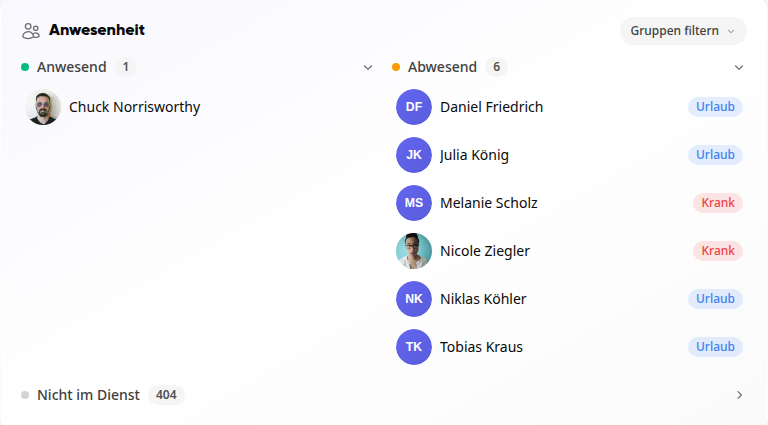
Use Filter by groups to narrow the overview to specific groups.
The people are categorized as follows:
Present: The person is on duty.
Absent: The person has an absence today, for example Vacation or Sick is listed next to them.
Not on duty: The person is neither on duty nor absent. Click to expand the list.
Tip
You can also see the numbers in the Today tab. Clicking the Attendance row takes you here.
Reading the Team Calendar#
Below the attendance section is the team calendar: one row per person, one column per day. Your own row is always at the very top, followed by your colleagues.
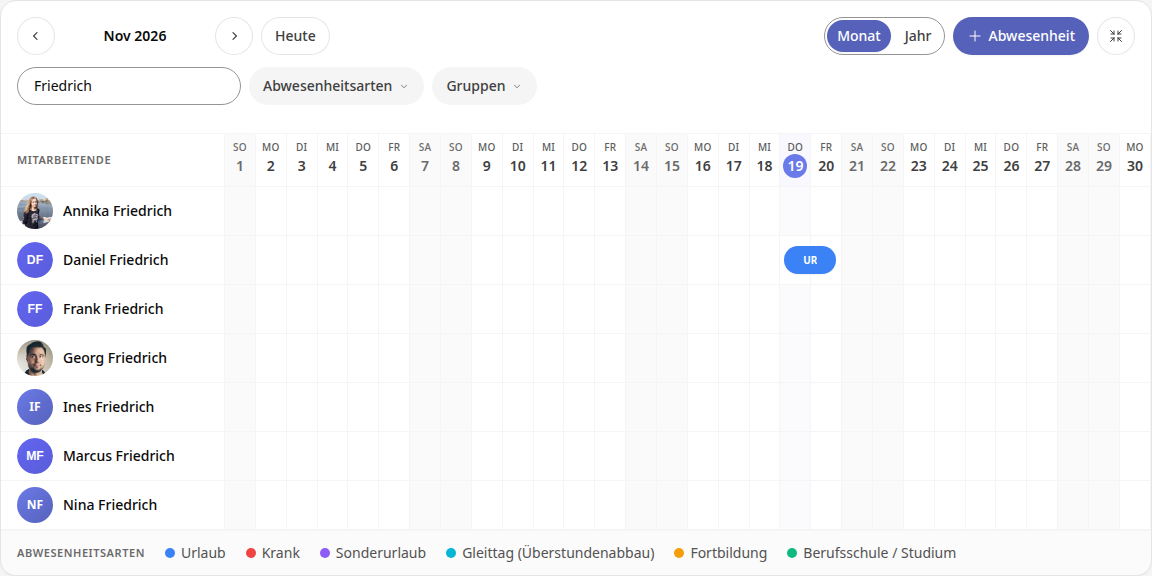
Colored bars show absences. The colors are explained in the Absence types legend at the end of the calendar. If you hover over a bar with your mouse, you will see the type and period.
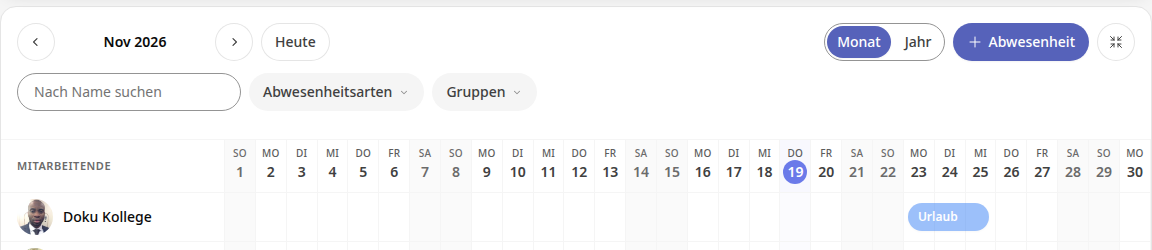
Pale bars are requested absences. From others, you only see approved entries; from yourself, you also see your open requests.
Gray columns are days on which the person does not work, for example the weekend.
The current day is highlighted in color.
Info
Your organization can specify that an absence type is not visible to others. In that case, only Absent is shown for the affected individuals, without the type.
Requesting absence in the team calendar#
If you see in the calendar that enough colleagues are present during your desired period, you can submit the request right here.
Mark the days in your own row: click on a single day or drag with the mouse button held down across multiple days.
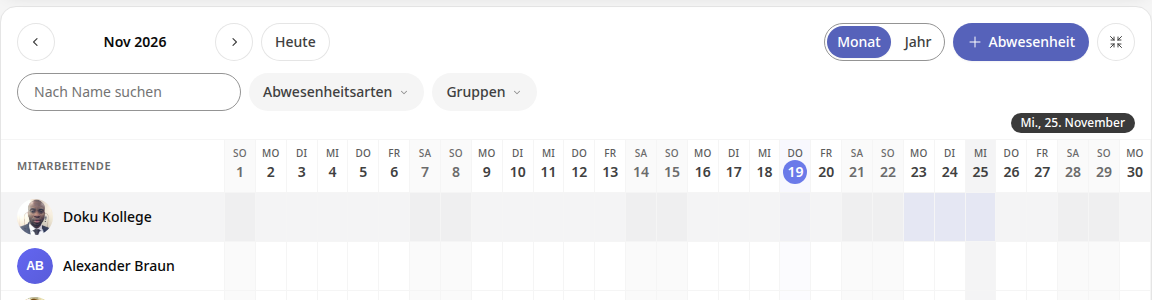
The Absence form opens, with From and To already filled in with the marked days.
Under Type of absence, select for example Vacation, add a Note if needed, and click on Submit request.
Your request immediately appears as a pale bar in your row until it is approved.
Tip
Without marking days beforehand, you can do it via the + Absence button at the top right of the calendar. Then you enter the period yourself in the form.
You can only mark days in your own row that are still free. You can only read the rows of others. How the form works in detail is described in How do I request vacation or another absence?.
Info
The team calendar is there for everyone to view and request, including HR. HR administrators record or change absences for others in the administration under Time & Absences in the Calendar tab.
Adjust the team calendar#
Change period: Use the arrows to page forward, Today takes you back. Use Month and Year to switch the view.
More space: With Wide view (icon top right), the calendar uses the full width and shows the entire month. Narrow view reverts this.
Find a person: Type a name in Search by name.
Filter: Under Absence types, you can show only specific types, while the person list remains complete. Under Groups, you restrict the calendar to the members of individual groups.