
How do I track time on tasks?
Updated Reading time: 2 min
On this page
You book directly on a task how long you worked on it. This way you can see how much time has already been spent and how much of the planned time is still remaining.
Info
The Task Time section only appears for tasks in a group that allows time tracking on tasks. Tasks without a group do not have it.
Book time#
Open the task in the board or in the list.
The Task Time section is on the right under the properties. If it is collapsed, click on Task Time.
Enter the time under Duration or select a value from the quick selection (0:15, 0:30, 1:00, 2:00). Possible entries include 1:30, 90, or 1.5h.
Describe briefly under Note what you did.
Click on Book time.
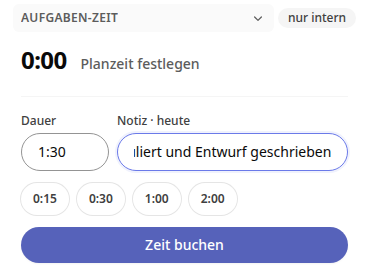
The booking counts for today. The message Time booked confirms it, and the total time of the task updates immediately. In the task's Activity, the booking appears in the Times tab.
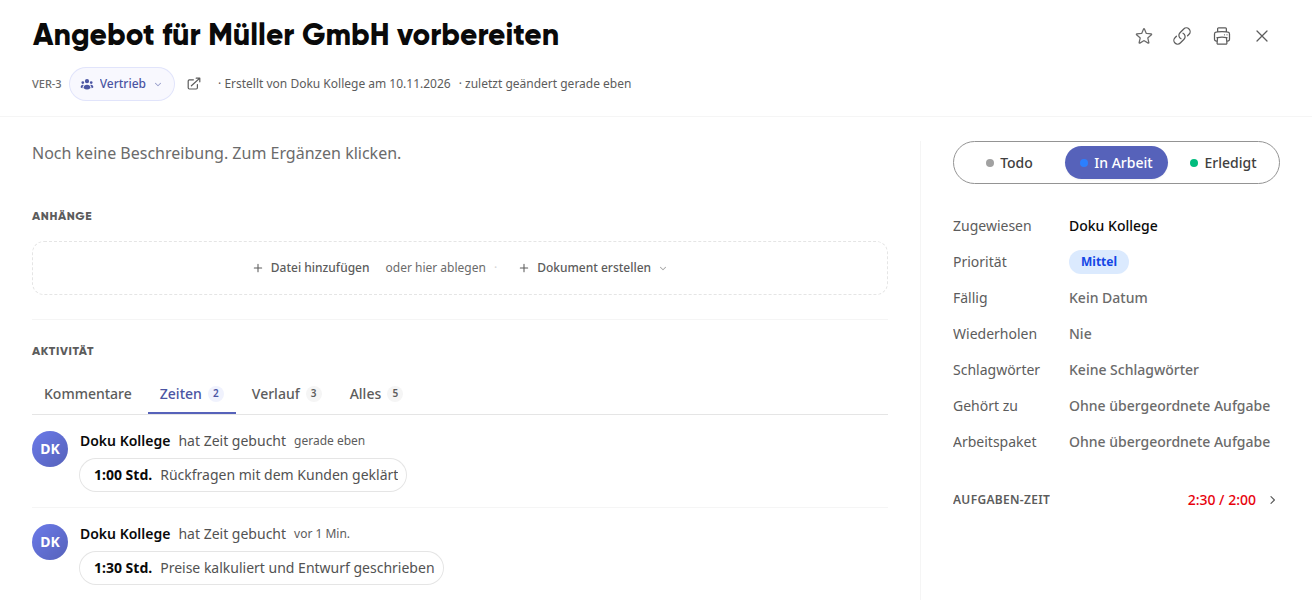
Set planned time#
In the Task Time section, click on Set planned time next to the booked time.
Enter the planned time, for example 8:00, and press Enter. The message Planned time saved confirms it.
The ring now shows what percentage of the planned time has been booked. At 80%, Close to planned time appears; at 100%, Planned time exceeded.
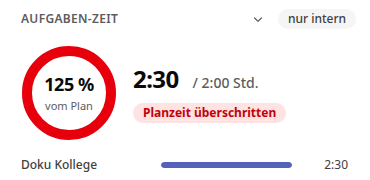
Whoever is currently booking and whoever is assigned to the task will be notified at 80%. At 100%, the person who created the task and the group admins will also receive a notification.
Collapse section#
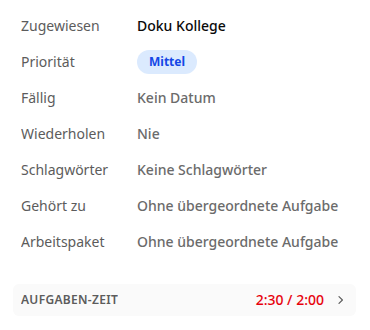
Clicking on Task Time collapses the section. Then you only see the booked total, for example 2:30 / 2:00 with planned time. If the planned time is exceeded, the total appears in red. Another click expands the section again.
Edit or delete booking#
In the Task Time section, click on Bookings at the bottom. The list shows each booking with duration, date, and note.
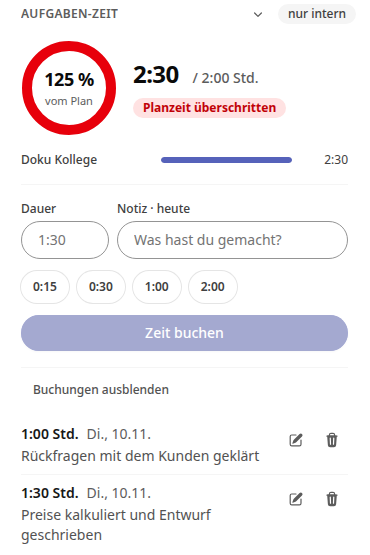
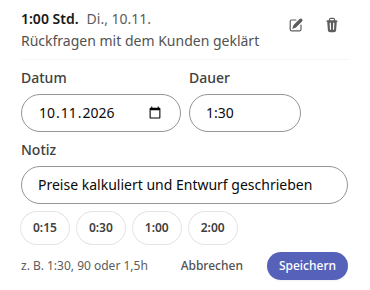
For your booking, click on the pencil icon (Edit), adjust Date, Duration, or Note, and click on Save.
To delete, click on the trash can icon and confirm with Delete.
You can also backdate time you worked on a different day via the date: First book it and then change the Date. Use Hide bookings to close the list again.
Who sees what#
If you are assigned to the task, you see all bookings and the times per person. You can only edit your own bookings.
If you are only a member of the group, you see your own bookings and the total time of the task.
Group admins see all bookings and, when booking, can specify via Billable whether the time can be billed.
The task time is internal only: Guests do not see it unless the group explicitly allows it. It runs separately from the time tracking module and does not count as working time.
For group admins: Enable time on tasks#
Open the group and click on the pencil icon (Edit) in the top right.
In the Times section, enable the option Counts as task time. The change is saved immediately.
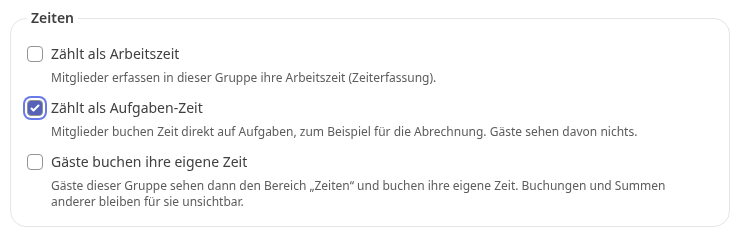
If guests should be able to book their own time, additionally enable Guests book their own time.