
How do I process catering orders?
Updated Reading time: 3 min
On this page
When colleagues order catering for a room booking, you can see in Prepare Catering what needs to be done, when, and in which room. There, you can take over an order, adjust it if necessary, and check off what has been completed.
Info
This function is available to you as soon as you are listed as the responsible person for catering at a location for an offer. You do not need any additional role for this. Without this assignment, the page is not available to you.
View Orders#
Click on your profile picture in the top right corner and then on Administration.
Under Organization, open the entry Catering.
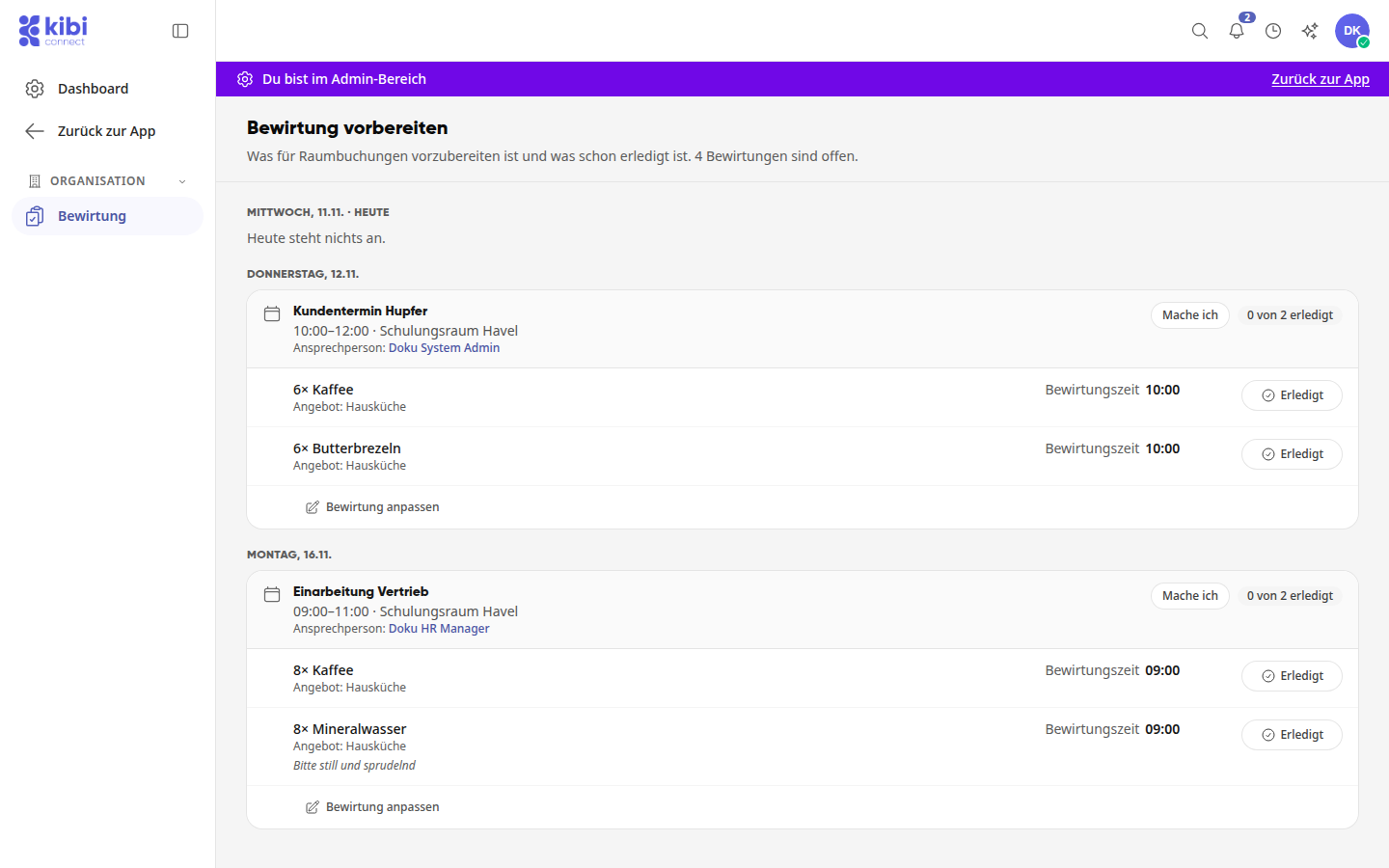
The orders are sorted by days, with the number of open catering orders displayed at the top. For each appointment, you can see:
the appointment with time and room
the contact person
for each item, the quantity and description, for example "8× Coffee", the offer it comes from, and a note from the booking person, for example "Please still and sparkling"
the catering time by which everything should be ready
how much has already been completed, for example "0 of 2 completed"
Use To Appointment to open the associated calendar entry, if you have permission to view it.
New Orders and Short-Notice Catering#
If someone books catering for a room, you will receive a notification Catering for a Room Booking. If changes are made, you will receive Catering for a Room Booking Changed. Clicking on the notification opens Prepare Catering.
Normally, an item can only be ordered up to its lead time. Anyone with the right Book Catering After Lead Time Expires can still add catering or increase the quantity afterward. Such subsequent bookings will appear to you as Short-Notice Catering for a Room Booking. The email will additionally include the note "Booked after the lead time has expired. The booking person will clarify whether the provision is still possible."
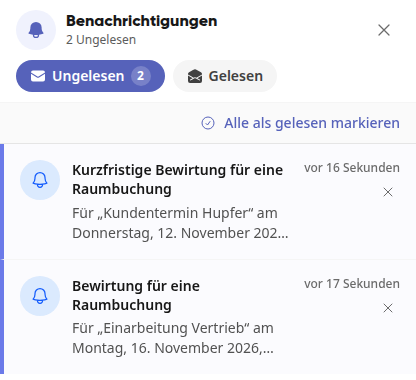
In the list itself, short-notice catering appears like any other under its day. If you can no longer manage it, coordinate with the contact person or adjust the catering (see below).
Info
The right Book Catering After Lead Time Expires is by default only available to system administrators. The administration can grant it to additional roles, for example, those who organize the catering.
Take Over an Order#
If there are multiple responsible persons, use I'll do it to indicate that you are taking care of an appointment.
Click I'll do it for the appointment. The message "You are taking care of it" confirms this.
The appointment now shows You do it. The other responsible persons can see who has taken over the order.
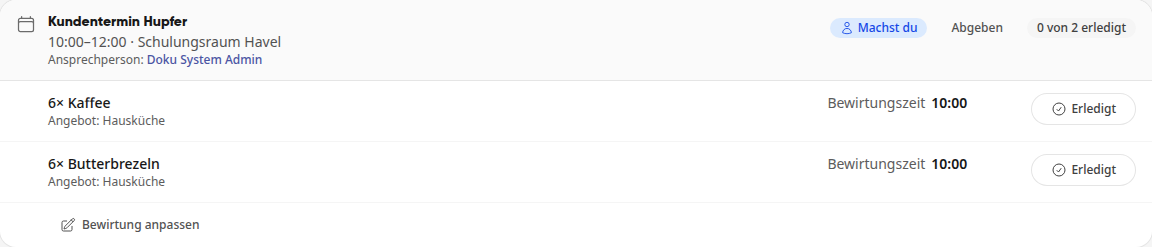
If you can no longer take over the order, click Release. It will then be open for everyone again.
View Details of an Item#
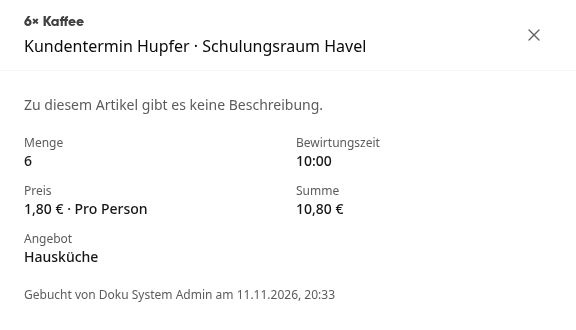
Click on an item, for example 6× Coffee. The details open on the right: description, Quantity, Catering Time, Price, Total, the Offer, and who booked the item and when.
Adjust Catering#
If something has run out or more is needed, you can adjust the catering yourself. The booking person will then receive a notification.
Click Adjust Catering for the appointment.
Change the quantities or remove an item using the trash can icon.
If you need an additional item, select it under Add Item and enter the quantity.
If necessary, write under Message to the Booking Person why something is changing.
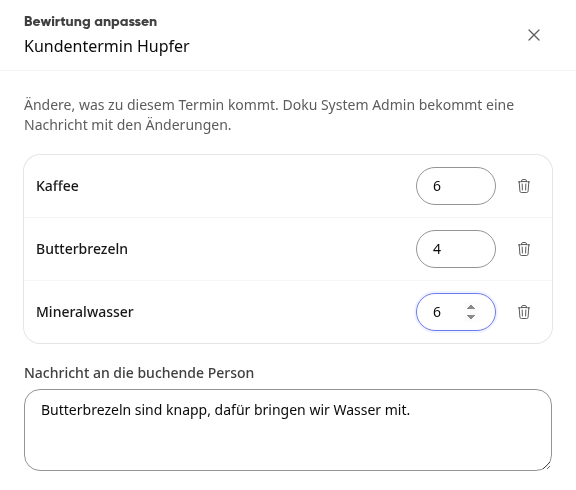
Click Send Changes. The message "Catering adjusted – ... has been informed" confirms that the booking person is aware.
Tipp
As the responsible person, the lead time for items does not apply to you. So you can also adjust catering shortly before the appointment.
Mark an Item as Completed#
Click Completed for the item.
The item now shows who completed it and when, for example "Completed by Doku Kollege at 20:35", and the status is counted for the appointment, for example "1 of 3 completed".
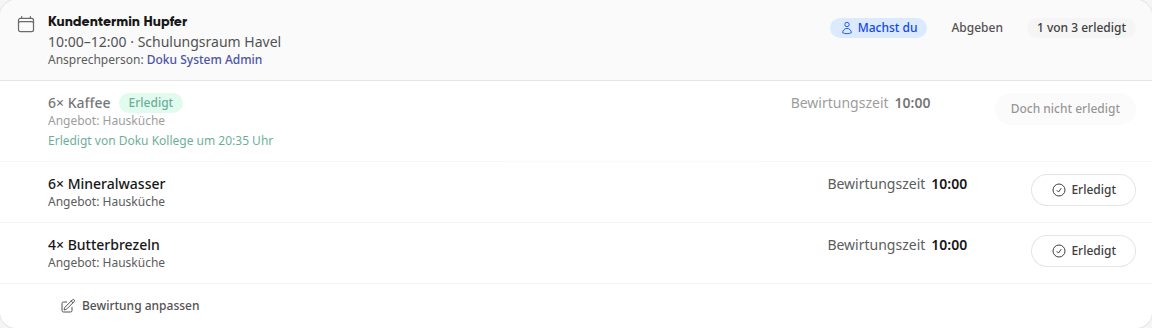
If you made a mistake, click Not Completed After All. The item will then be open again.
Tipp
Those who administer the catering can find the same orders in the catering administration under the Orders tab under Catering.