
Manage buddy
Updated Reading time: 6 min
On this page
The buddy is a small companion that your employees wear on their work clothes: hold the button, speak, release. Kibi Connect takes care of the rest. As an admin or in HR, you issue buddies, define what they are for, pass them on, and take them back.
What the buddy can do#
Record notes
Create and check off tasks
Clock in and out
Log time to projects
Ask Kai questions and hear the answer
Start your own Kai agents at the press of a button
Send short messages to your own group
Everything the buddy does happens in the name and with the rights of the person it is assigned to.
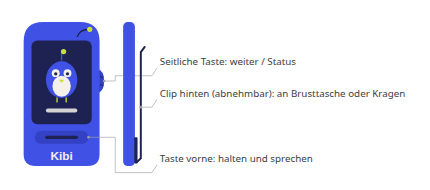
At the front, in a finger recess, is the button to hold and speak; on the side is the small wing for Next and Status. You can remove the clip at the back; it holds the buddy on a breast pocket or collar.
Where you manage buddies#
Open Administration → Kibi Devices. If you have multiple areas of device management, switch to the Buddy tab.
Info
For this, you need the right Manage buddies, which the HR Manager and System Admin roles have by default. It is located in the role management under Kibi Devices. Additionally, a person with the System Admin role must enable the switches Enable REST API and Allow Kibi Buddy pairing under Administration → Integrations → API. As long as one of the two settings is missing, the page shows the notice Buddy pairing is not possible here right now and states what needs to be enabled.

The list#
Under Issued buddies, each buddy shows the name, the person, the serial number, the hardware "Kibi Buddy", the cost, the battery with timestamp, and under Purpose the mode. Buddies are named after their serial number, for example KD-6ED3-4BF1. If the battery information is older than 12 hours, it turns gray and is marked as "outdated". At the top, you can search by name, person, or serial number.
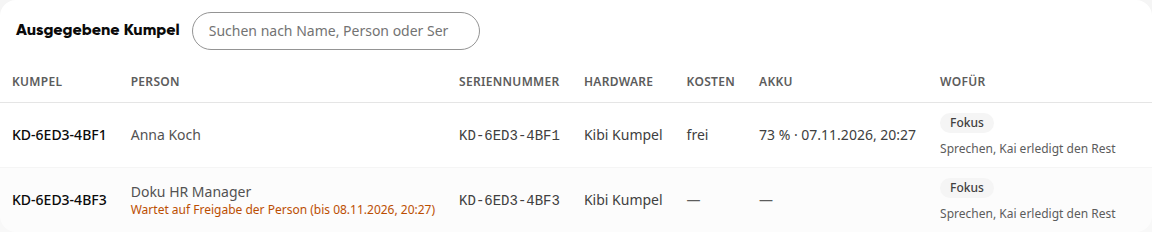
Under the person, it shows if a buddy has not yet arrived with them:
Waiting for person's release (until …): The person has not yet released it.
Currently switching from …: The buddy has not yet completed the switch to the new person.
Reset on … – waiting for new pairing: The buddy has been reset to factory settings and needs a new pairing.
Costs#
The personal buddy is included in the license, one per person. It does not cost any credits. Terminals cost the same as displays: 250 credits per month, the first device is free.
In the list, the Cost column shows for each buddy:
free: The buddy has arrived with its person.
—: The person has not yet released the buddy, or it is currently switching to them.
Kai on the buddy runs on the person's Kai balance. More about the balance under Subscription & Licenses.
Issue a buddy#
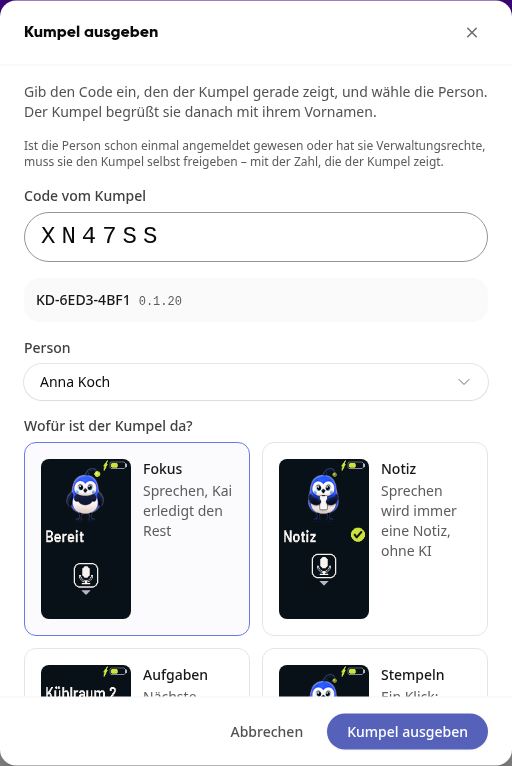
Turn on the buddy. It displays a code that is valid for 10 minutes.
Enter the code. Click on Pair Kibi device, enter the code from the buddy, and click Next. Kibi recognizes the buddy and displays its serial number.
Select the person. Under Person, choose who gets the buddy.
Select the mode. Under What is the buddy for?, you set the mode (see below).
Click on Issue buddy.
If the buddy does not yet have Wi-Fi, set it up via USB-C in the Kibi desktop app and assign it there immediately, see Set up buddy via USB-C. Without assignment, the person pairs it themselves later, see Pair buddy via code or QR.
What happens next depends on the person:
The person … |
What happens |
|---|---|
has never used Kibi and has only the Employee role |
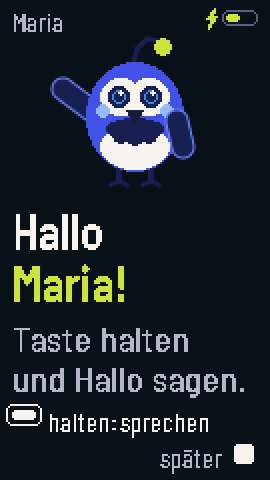
The buddy is immediately connected and greets them with "Hello" and their first name. You see "… now belongs to …". |
has used Kibi before or has an additional role |
The person must release the buddy themselves. You see "… is reserved for …", the buddy displays "Waiting for release". |
Info
Only a person with the System Admin role can give a buddy to accounts with admin rights. Even then, the person releases it themselves.
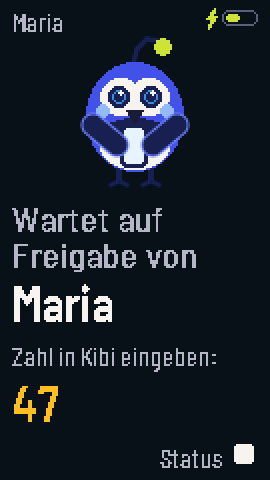
The person releases the buddy in Kibi: via the message "Release buddy?" in the bell (also by email) or via the yellow card Release buddy in their profile. There, they enter the number from the display. Without release, the request expires after 24 hours. Details are under Release and use buddy. After release, the buddy displays "Hello" and the first name.
Modes: what the buddy is for#
The mode determines what the buddy shows on the home screen and what a click on the front button does. Holding the front button and speaking works in every mode.
Mode |
In short |
|---|---|
Focus (default) |
Speak, Kai takes care of the rest. |
Note |
Everything spoken becomes a note, without AI. |
Tasks |
Shows the next task, one click = completed. |
Clock |
One click: clock in and out. |
Time tracking |
Log time to projects. |
Agent |
One button press starts your workflow. |
All |
All cards, for experienced users. |
Focus#
Speak, Kai takes care of the rest. Kai recognizes whether a note, task, question, or action is intended. The default and the right choice for most employees.
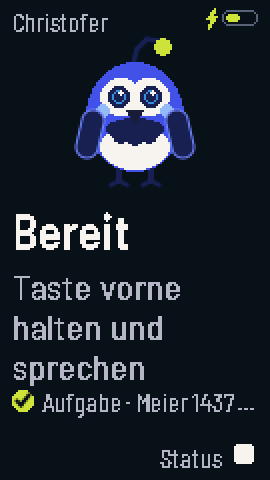
Note#
What the person says always becomes a note, without AI evaluation.
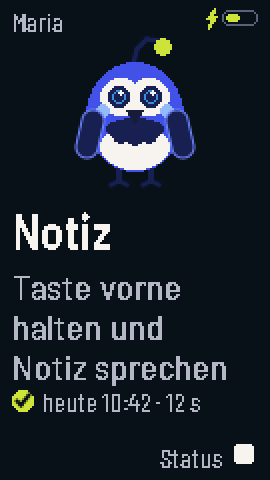
Tasks#
The buddy shows the next task. One click on the front button marks it as completed.
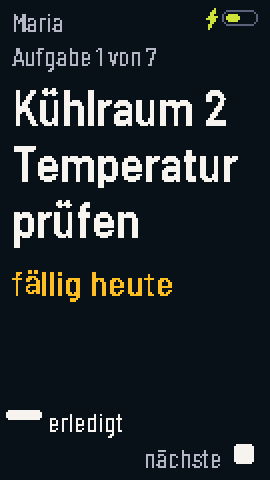
Clock#
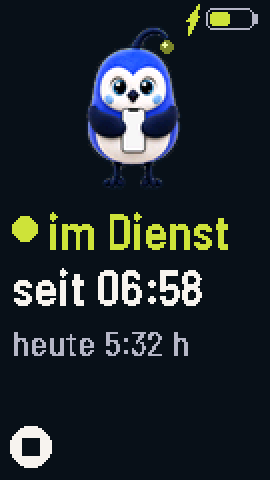
One click: clock in and out. The buddy asks beforehand and shows how long the person has been on duty.
Time tracking#
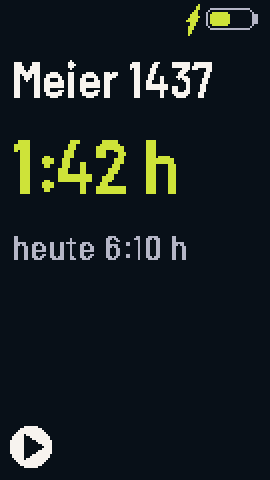
Log time to projects. The person simply announces the project change, for example "Project Meier 1437".
Agent#
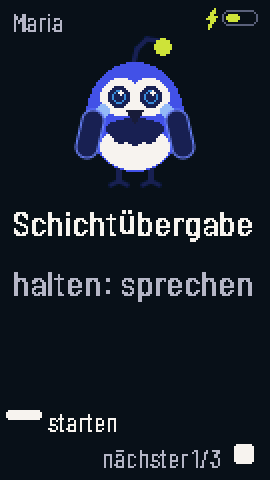
One button press starts your workflow. You can assign up to four Kai agents to the buddy, for example for shift handover. The person scrolls through them using the side button and starts an agent with the front button.
Under What is the buddy for?, select the Agent card.
Under Agents on the buddy, check the desired agents by name. The order of checking is the order on the buddy; the number appears before the name.
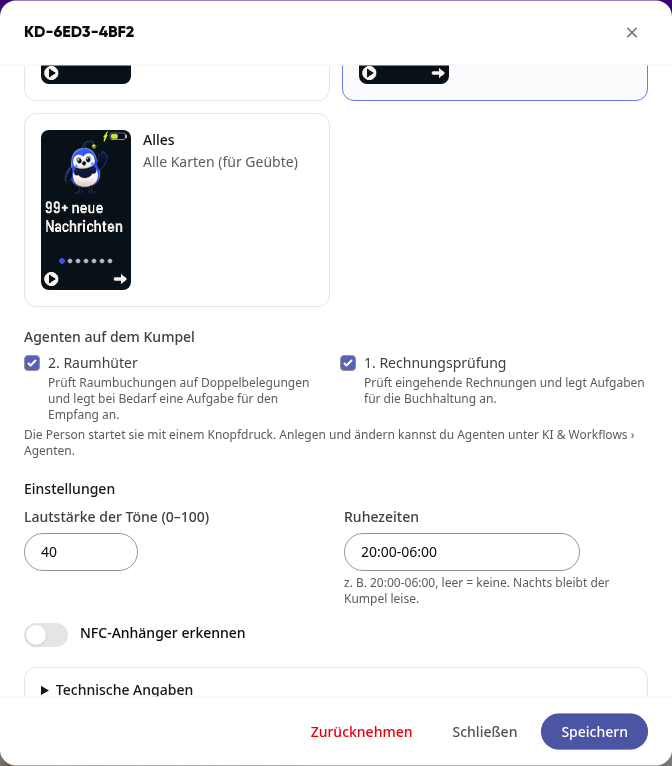
The agent runs as the person, with their rights and their Kai balance. Only enabled agents that the person is allowed to use appear on the buddy. Disabled ones remain visible in the selection and are marked as disabled. You create agents under AI & Workflows → Agents; for this, you need the right Manage agents.
All#
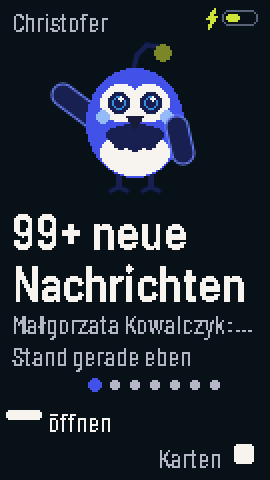
All cards to scroll through: messages, tasks, time, and more. For experienced users.
Change mode and settings#
Click on the buddy in the list.
Change the mode or the settings:
Volume of sounds (0–100)
Quiet hours, for example 20:00-06:00. Leave blank for none; during this time, the buddy remains silent.
Recognize NFC tags
Click on Save. The buddy applies the change during the next sync.
Further down in the window, under Technical details, you can see when the buddy was last connected, the connection, and the software version.
Give to someone else or take back#
You can find both in the buddy's window when you click on it in the list.
-
Give to someone else: Select the new person and click Give to someone else. The buddy no longer works for the previous person from now on. The Wi-Fi remains set up; any unsent notes are sent to the previous person's account first. Here too, the new person releases the buddy themselves if they have used Kibi before or have an additional role.
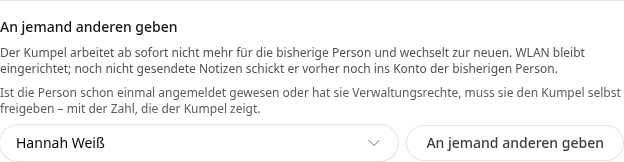
In the list, under the new person, it says Currently switching from … until the buddy has completed the switch.

-
Take back: Click Take back and confirm. The buddy is reset to factory settings and can no longer do anything in the person's name. Any unsent notes and the Wi-Fi on the buddy are lost in the process.
Transparency and data protection#
The person is informed every time a buddy is connected to their account: message "New buddy paired" in the bell, via push notification, and by email, with your name as the assigning admin.
The person sees their buddy under My Profile → Integrations tab → Devices and Apps section and can remove it there themselves.
Everything is logged: Issuing, reassigning, and revoking are traceable.
Admins only see the device, never the notes, questions to Kai, or tasks of the person.
Microphone only on button press: The buddy only listens while the front button is held down.
Warning
Before introduction: Inform your employees before issuing their buddy: what the buddy can do and who can see what. If you use the Clock or Time Tracking modes, involve your works or personnel council if necessary. This notice is not legal advice.