
How do I set up relationship types in the CRM?
Updated Reading time: 2 min
On this page
In the CRM, you record how contacts and companies relate to each other, for example who is the planner for a construction project or through which dealer a company makes purchases. You define the types of relationships in the Administration as relationship types. Each type has a designation for both directions, for example "is planner for" and "is planned by".
Info
This function is available to system administrators.
Open relationship types#
Open the Administration.
Expand Organization on the left and click on CRM.
Scroll to the Relationship types card.
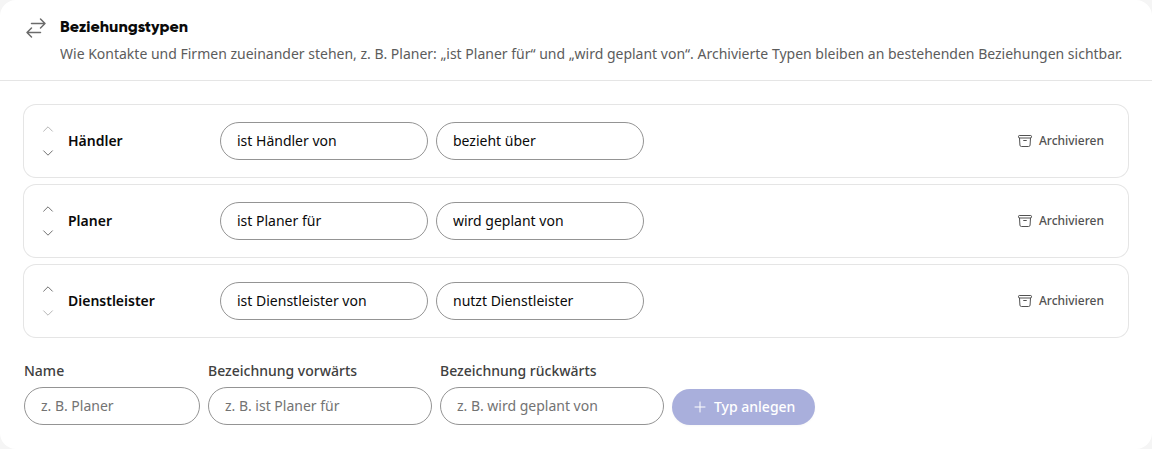
Each row shows the name of the type and next to it its two labels: first forward, then backward.
Create relationship type#
Enter a Name below the list, for example "Supplier".
Under Forward label, enter what the relationship is called from the perspective of the first contact, for example "supplies".
Under Reverse label, enter what it is called from the perspective of the other party, for example "is supplied by".
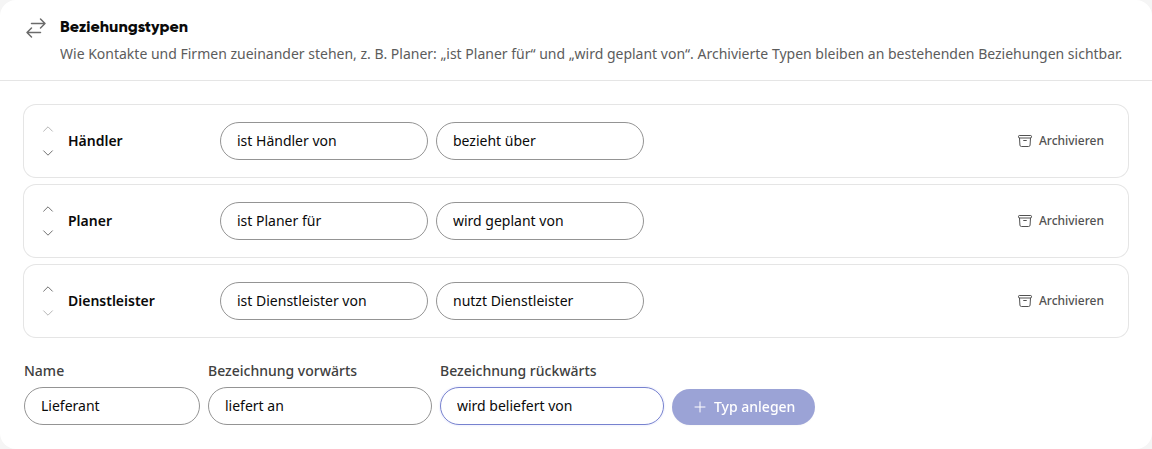
Click on Create type. The platform reports "Relationship type created", and the new type appears at the end of the list.
The Create type button only becomes active once all three fields are filled in.
Tip
If you select Add relationship for a contact or company, the platform offers each type in both directions, for example "Müller GmbH supplies ..." and "Müller GmbH is supplied by ...". Therefore, phrase the labels so that they form a sentence when placed after the name of a contact or company.
Rename relationship type#
Click in the row of the type in the field you want to change: the name, the forward label, or the backward label.
Overwrite the text and press the Enter key or click next to it.
The change is saved immediately and also applies to all relationships that already use this type.
Change order#
Click the up or down arrow on the left side of the row to move the type one position. The types will appear in this order in Add relationship as well.
Archive relationship type#
Click on Archive on the right side of the type's row.
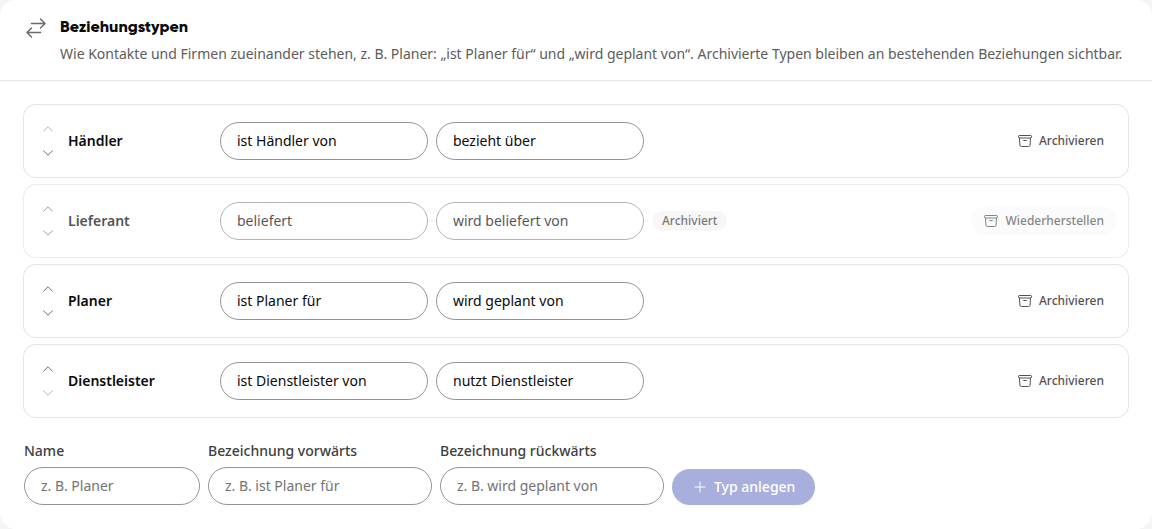
The type is then marked as Archived. The platform no longer offers it for new relationships, but existing relationships with this type remain visible. With Restore you can put it back into use.