
How do I view my team's schedule for my area?
Updated Reading time: 2 min
In the team schedule, you can see who in your area is working when, for example who is on the early shift with you or which shifts are still available.
Info
All people in an area can see the team schedule, regardless of whether they are assigned as planners, employees, or read-only. It only shows what a planning person has already published.
Open team schedule#
Click on Schedule in the navigation.
Under My areas, click on the name of the area, for example "Kitchen".
The team schedule opens with the current week. If it says "No schedule has been published for this period yet," nothing has been released for this week yet.
Browsing the Plan#
Use the arrows next to the date to switch to the previous or next week; Today jumps back.
On the right, you can toggle between Week and Month.
People View#
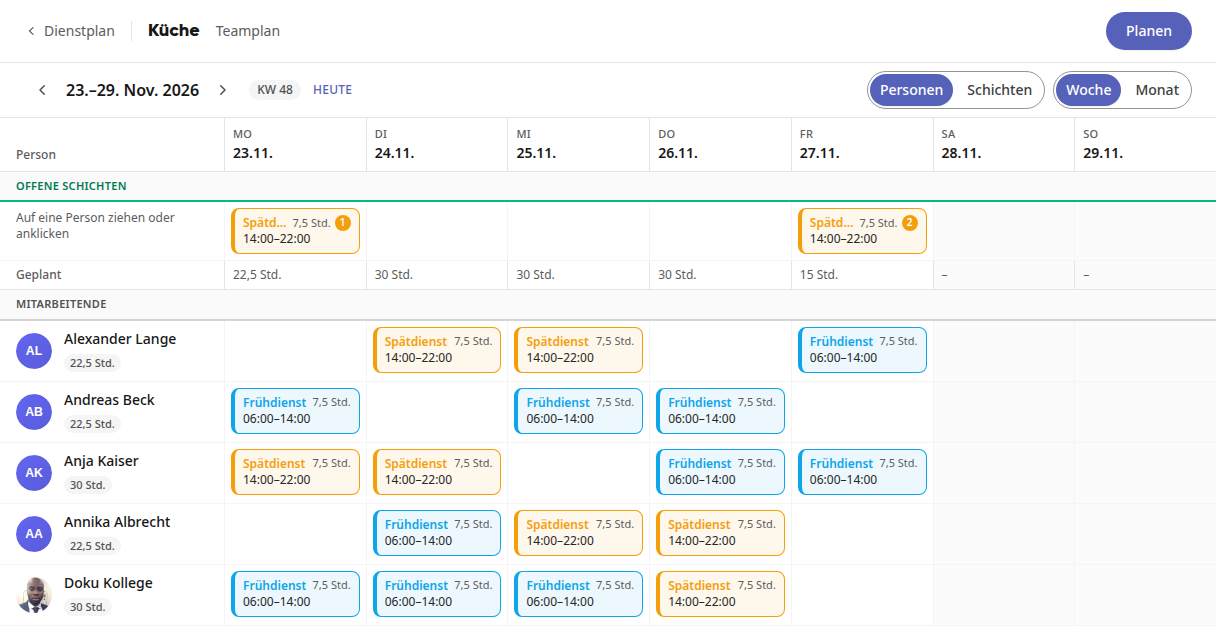
In the People view, each person is listed in their own row with their shifts and the planned hours for the week. Above that, the Open Shifts show which shifts still need people (the number in the circle), and the Planned row shows the planned hours per day.
Shift View#
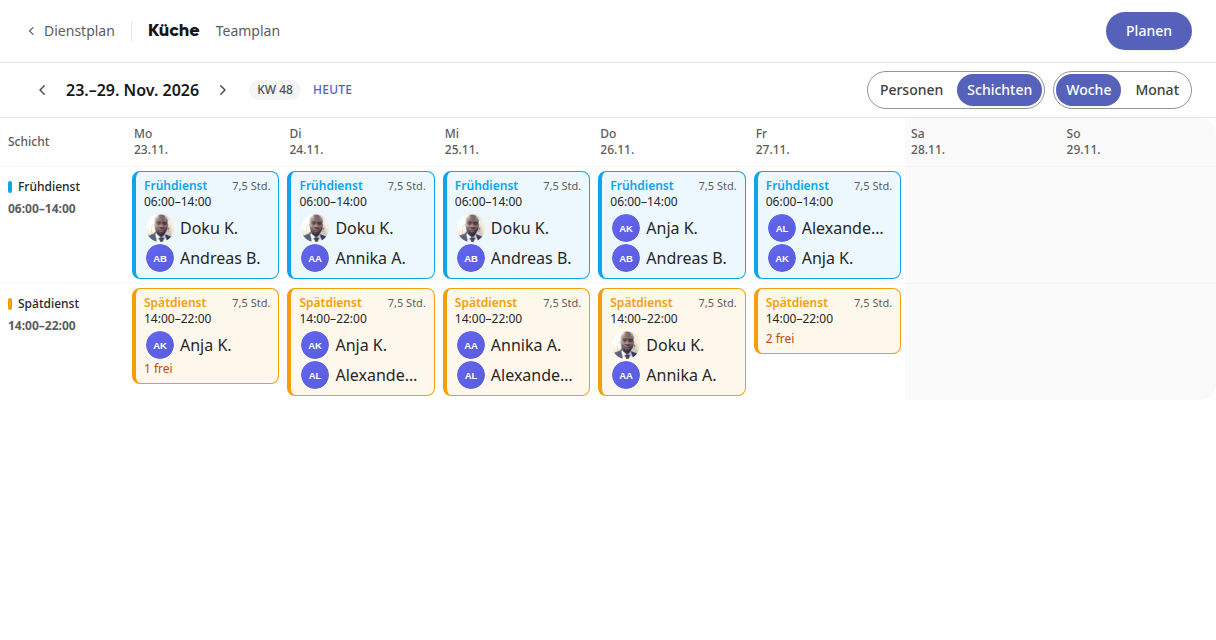
In the Shift view, each shift is displayed in its own row, for example early shift and late shift. For each day, you can see who is scheduled. "1 free" means that there is still one spot available in this shift.
Month View#
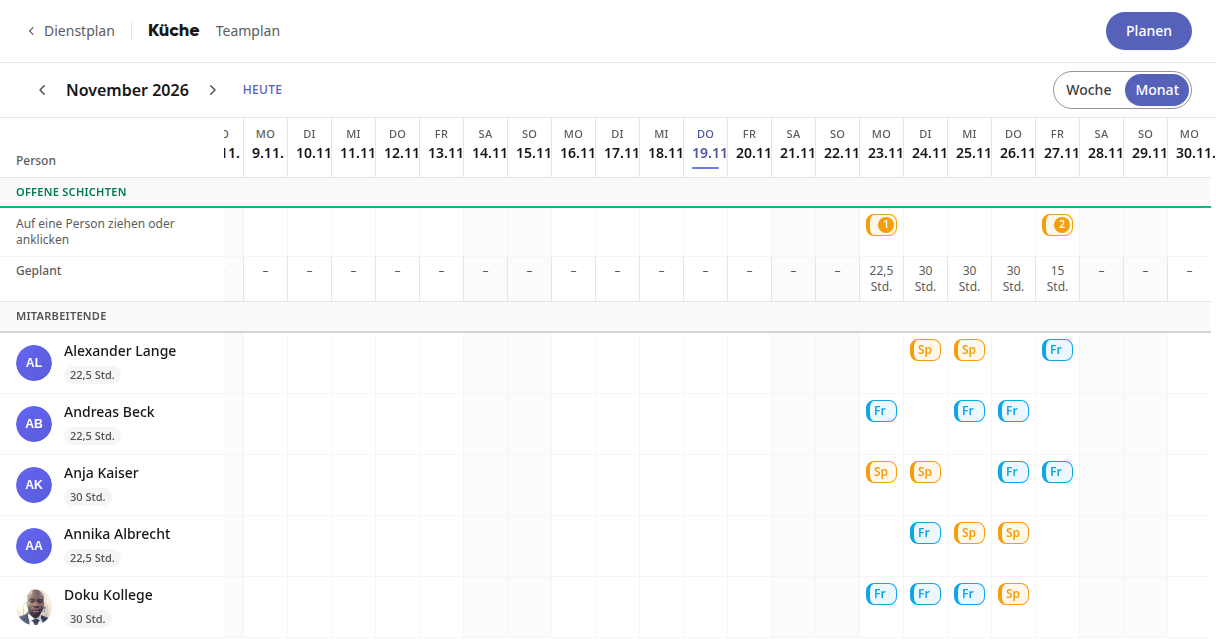
With Month, you can see the entire month at a glance, one row per person. The shifts are shown as abbreviations, for example Fr for early shift and Sp for late shift.
Tip
On your smartphone, the team schedule shows the shifts as a list by day. If you are a planner in an area, Plan also appears at the top right, which lets you switch to planning.