
How do I schedule recurring tasks for Kai?
Updated Reading time: 2 min
Under Scheduled, you give Kai a task for him to complete for you at a fixed time: one-time or recurring, for example every Monday at 9 a.m. There you will also see the reminders and review tasks that Kai has scheduled for you during the conversation.
Plan task#
Open Kai in the navigation and switch to the Scheduled tab.
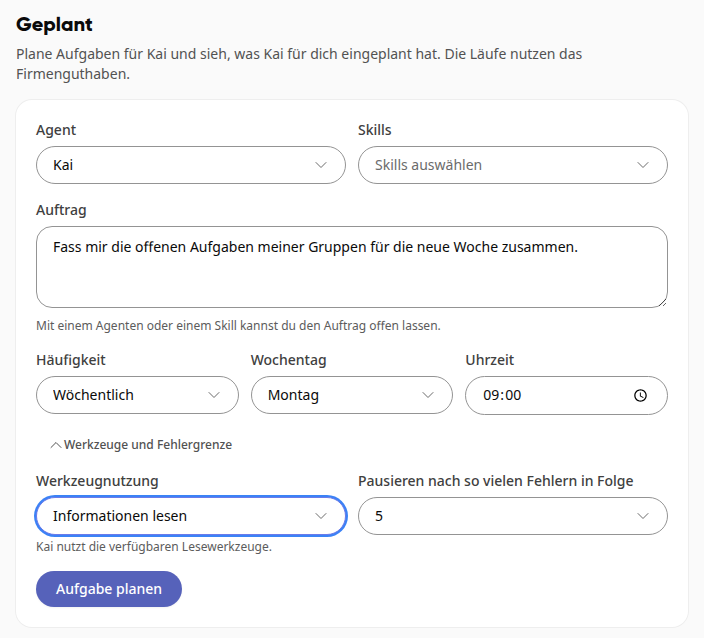
Under Agent, select who will carry out the task: Kai or one of your agents. Under Skills, you can also select one or more skills.
Under Task, describe what Kai should do, for example, "Summarize the open tasks of my groups for the new week." If you have selected an agent or skill, you can also leave the field empty.
Select the Frequency: Once, Daily, Weekdays (Mon–Fri), or Weekly. Depending on your selection, you set the Date, Day of the week, and Time.
Optional: Click on Tools and error limit and define how Kai may work (see below).
Click on Plan task.
Kai carries out the task at the selected time with your permissions and sends you the result as a notification.
Info
Scheduled tasks can be created by anyone with access to Kai. The runs are paid for from your company's Kai credit.
Tools and Error Limit#
Under Tool Usage, you define what Kai is allowed to do during a run:
Read information – Kai only reads and changes nothing. This is the default setting.
Suggest changes for approval – Kai may prepare changes but only executes them after you have approved them.
Apply agent rules – appears when you have selected an agent. The agent then works according to its tool and approval rules.
For recurring tasks, you can also set under Pause after this many consecutive errors when Kai should stop a task that keeps failing. The default is five errors.
View and pause scheduled tasks#
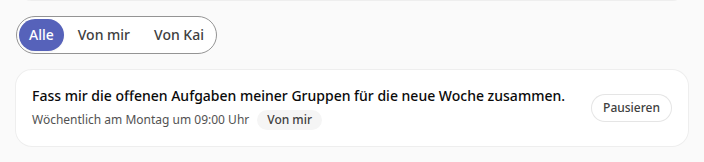
Below the form, you will find all your scheduled tasks with their frequency and time.
Use All, By me, and By Kai to filter by origin: By me are tasks you created yourself, By Kai are reminders and review requests that Kai has scheduled for you during a conversation.
Use Pause to pause a task; it will then show the label Paused. Use Resume to start it again.
Tip
You can also ask Kai directly in a conversation to remind you, for example, "Remind me tomorrow about the quote for Müller Bau." Kai will create the reminder and link it in his response. If you don't specify a time, Kai will remind you at 9 a.m.
Info
A one-time task disappears from the list once it has run successfully. If a run fails, it remains visible.