
Where can I see my learning records and certificates?
Updated Reading time: 1 min
On this page
Under My Certificates you will find all the training courses you have completed: when you completed them, with what result, and when the next instruction is due. You can also open your certificates there.
Opening certificates#
Open Academy in the navigation on the left.
Click on My Certificates at the top right.
Each completed training course is listed with the following details: - Status: for example Completed - Completed: the date on which you completed the training - Next instruction: when you need to repeat the training, or no repetition - Result: your result in the knowledge test in percent; if there is no knowledge test, a dash is displayed
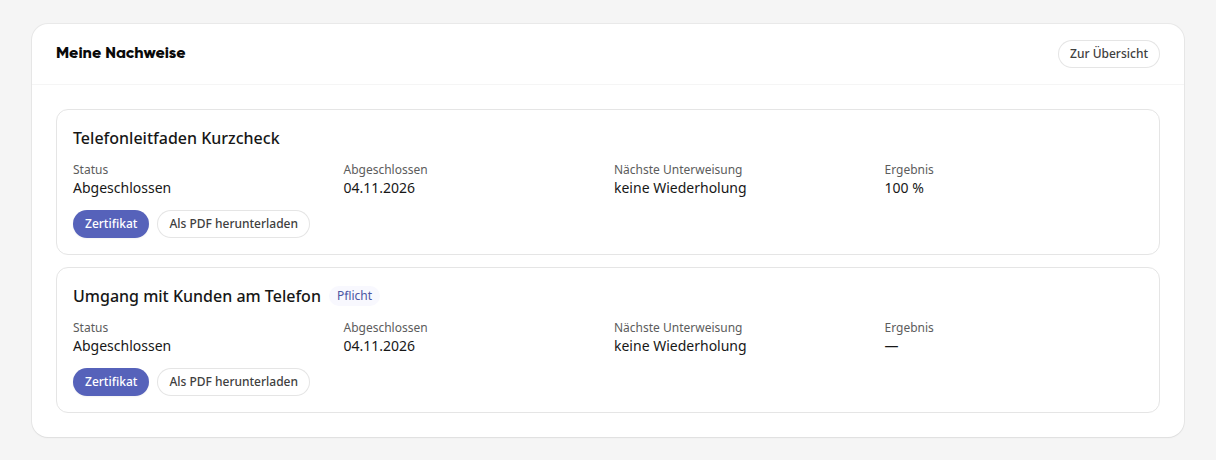
Mandatory training courses are marked with the note Mandatory. If one of your mandatory training courses is overdue, a notice at the top will point this out.
Info
If you need to repeat a training course regularly, the previous run remains as a certificate and is marked as Replaced.
View and download certificate#
Click on Certificate for the certificate. The certificate shows your name, the training course, the date, the test result, the type of training, and the sections.
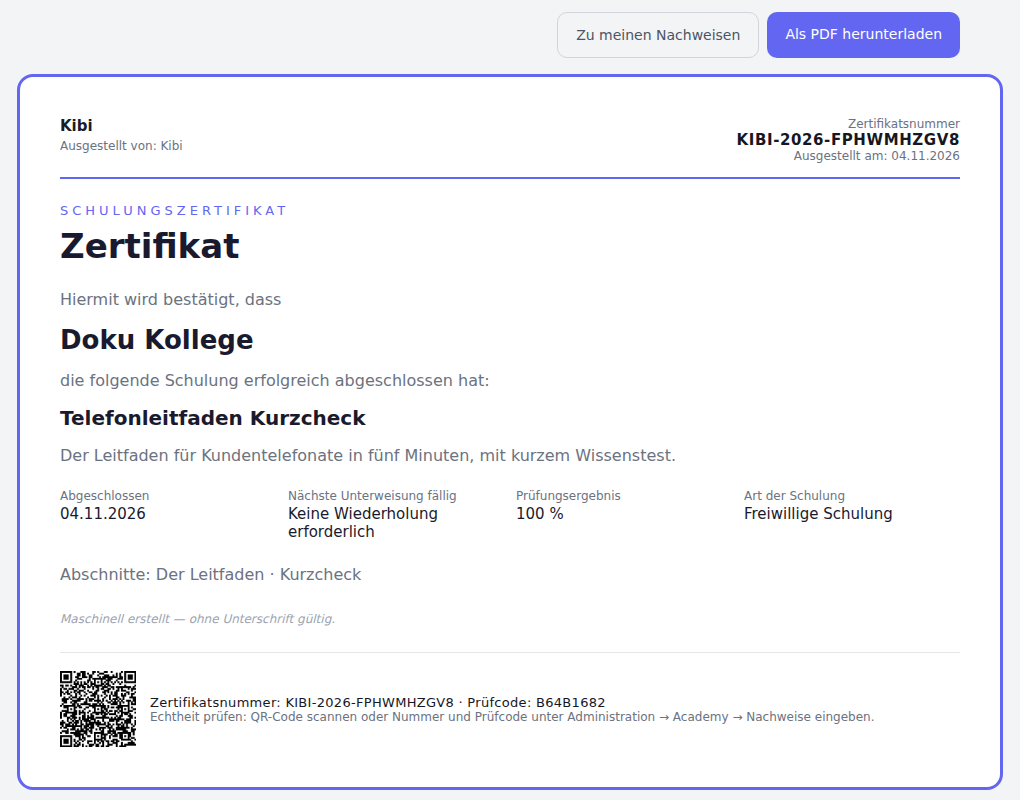
Click on Download as PDF to save the certificate. You can also do this directly in the list using the button of the same name.
Use Back to My Certificates to return to the list.
Tipp
Each certificate has a certificate number, a verification code, and a QR code. This allows the HR department to check whether the certificate is genuine.
If you have not yet completed any training, No certificates yet will appear under My Certificates.
Info
This function is available to all employees. You can only see your own certificates.