
To compare what Kai changed in a text, you can use version control tools like Git (with commands such as `git diff` to see changes between commits) or collaborative editing platforms like Google Docs (using "Version history" to view edits by specific users). If you're using a specific application, check its revision history or track changes feature.
Updated Reading time: 2 min
On this page
If Kai changes a note, a task description, or the text of a post for you, Kibi saves the text before and after the change. You can view both versions side by side at any time to check exactly what Kai changed.
Info
This feature is available to everyone who is allowed to use Kai. You only see changes to content that you have access to yourself.
Compare changes in the conversation#
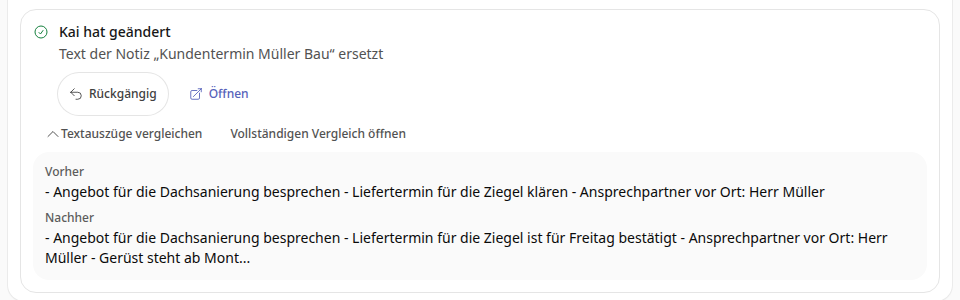
Ask Kai in the conversation to change a text, for example: "Change the second point in the note 'Customer appointment Müller Bau' to: Delivery date for the bricks is confirmed for Friday."
Below Kai's response, the card Kai has changed appears with a brief description of the change.
Click on Compare text excerpts. Below that, under Before and After, you will see the beginning of both versions as plain text.
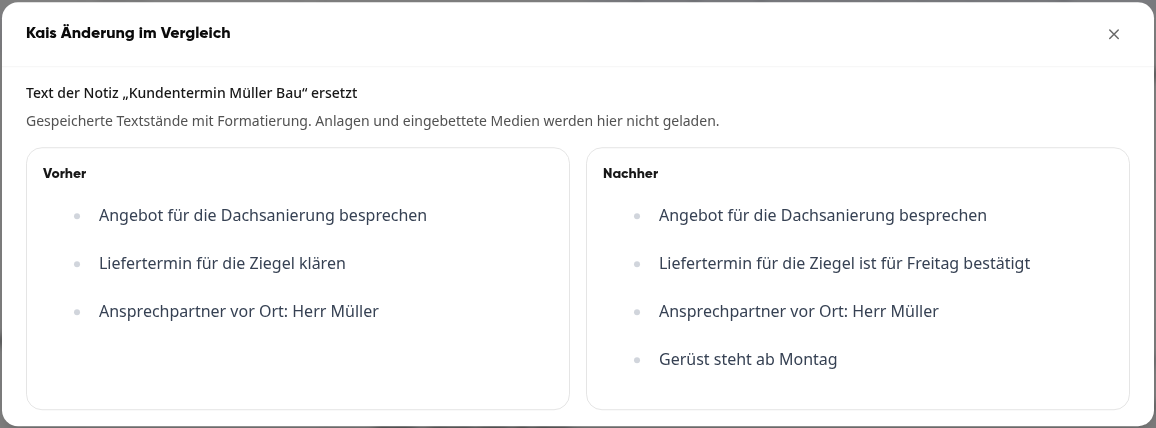
Click on Open full comparison. The window Kai's change in comparison shows both versions fully side by side, with headings, paragraphs, lists, and text formatting.
Tip
The text excerpts only show the first characters of a text. If the change is further down or Kai only changed the formatting, use the full comparison.
Compare changes in the workspace#
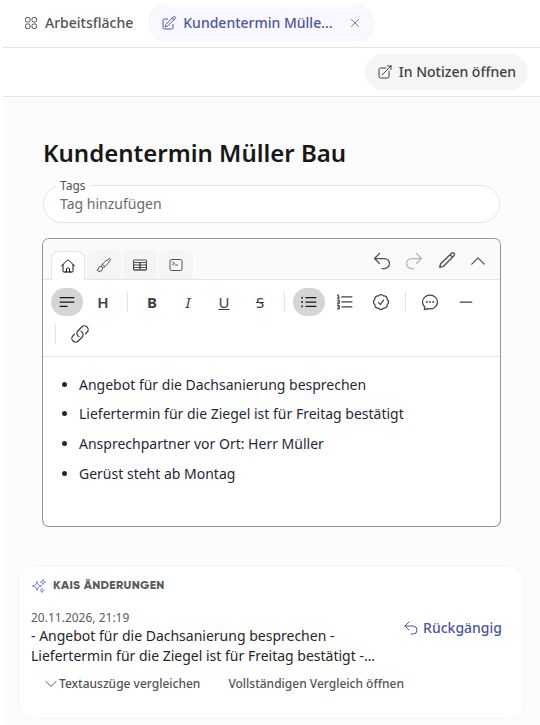
In the conversation, open the workspace at the top right and click on the changed object under Results, for example the note.
Below the content, in the Kai's changes section, all changes Kai made to it in this conversation are listed with date and time.
Here too, you open the two versions with Compare text excerpts and Open full comparison.
What the comparison shows#
The comparison always shows exactly the versions of this one change, even if the text was edited again afterwards.
Attachments and embedded images are not loaded in the comparison, only the text with its formatting.
The comparison changes nothing. If you want to undo Kai's change, click on Undo.