
How do I fill out a form?
Updated Reading time: 2 min
On this page
Under Forms, you will find all the forms you can fill out, for example a damage report, a registration, or an IT ticket. You can review your submitted responses there at any time, and for requests, you can see how far they have been processed.
Info
Which forms you see is determined by who built them. If there is no form for you, the Forms entry in the navigation is also missing.
Fill out and submit a form#
Click on Forms in the navigation. Using Search forms, you can find a form faster, and you can switch the view using List and Tiles.
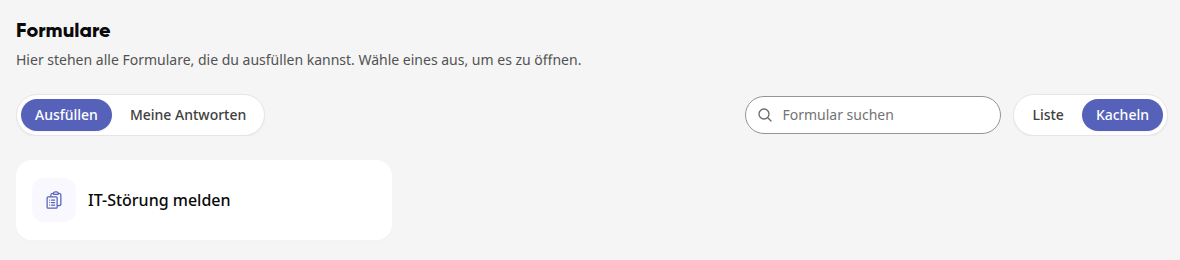
Click on the form to open it.
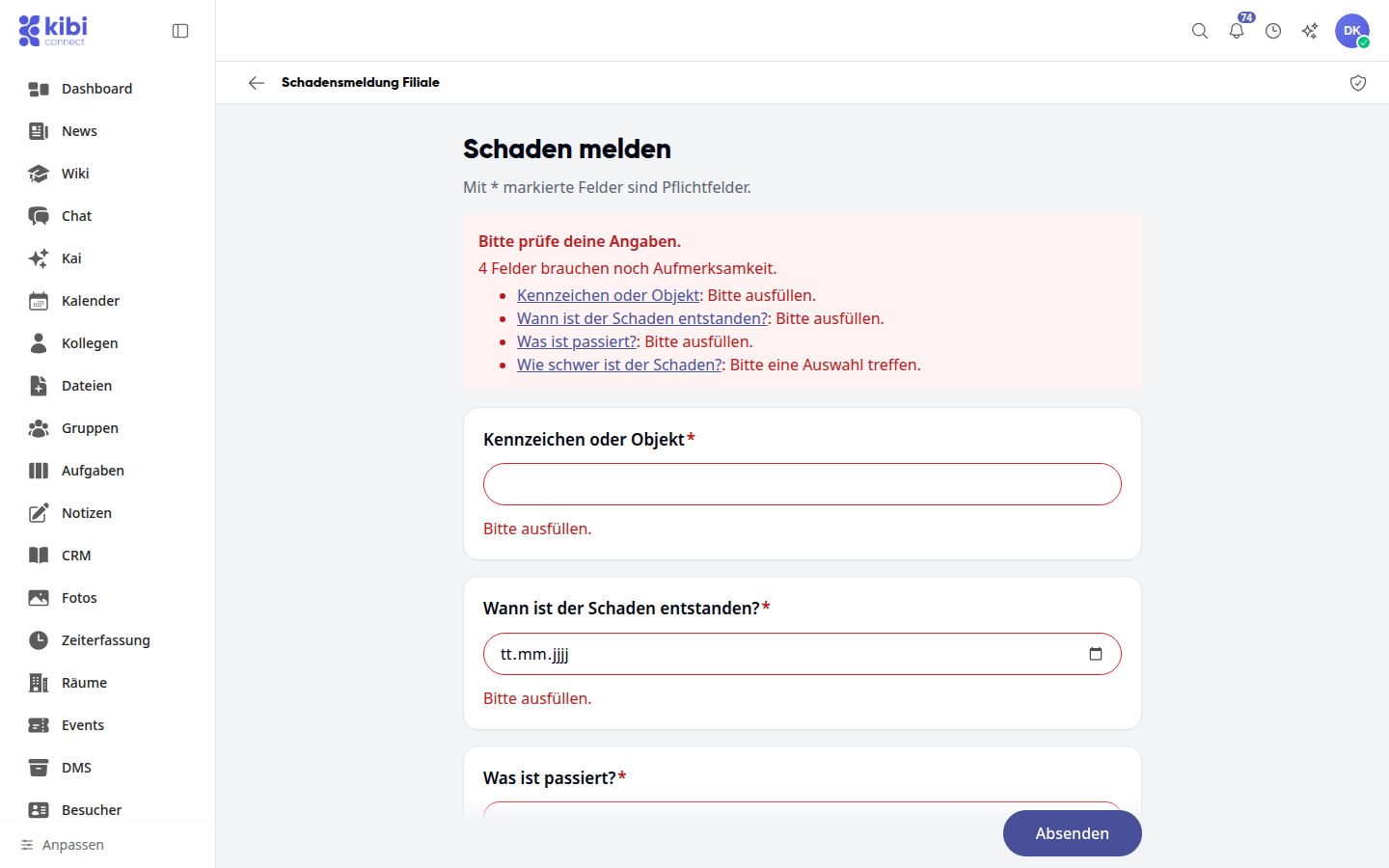
Answer the questions. Fields marked with an asterisk are mandatory fields. If the form shows one question per screen, use Next to go to the next one and Back to go to the previous one. For a photo question, choose Take photo or From gallery; for a location question, enter an address or click on Use current location.
Click on Submit. If something is missing, the platform shows "Please check your details." and lists the fields.
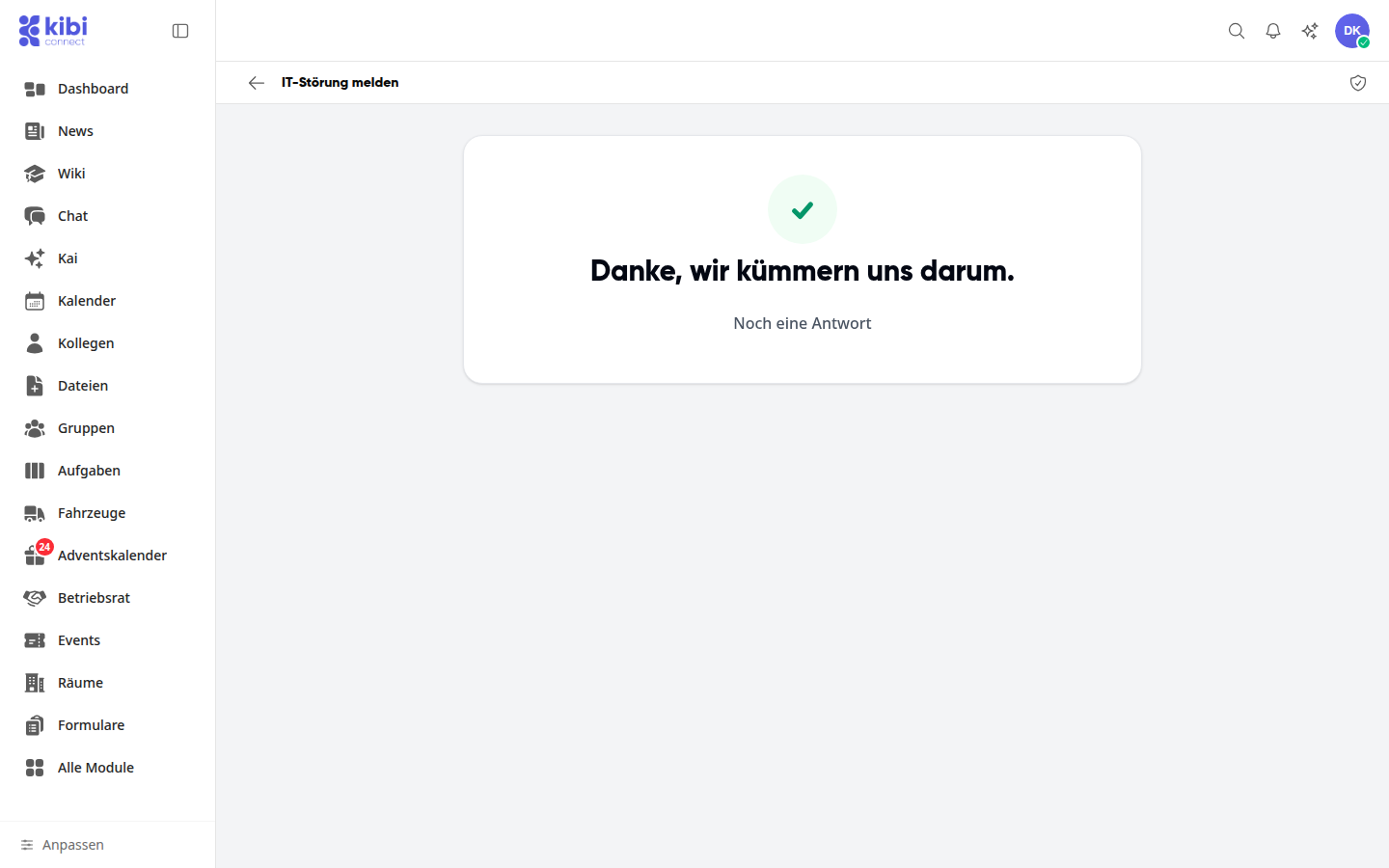
After submitting, you will see the thank-you page. Use Submit another response to fill out the form again; the arrow at the top left takes you back to Forms.
Review My Answers#
Under Forms, click on the My Answers tab.
Click on an entry. You will see when you submitted the answer and what you provided.
Info
You can no longer change a submitted answer.
Track the status of a request#
Some forms turn every response into a task, such as an IT ticket or a defect report. Then you can see how far your request has progressed and answer any follow-up questions.
Under Forms, click on My responses. Next to the response, you will see the status: In progress or Completed.
Click on the response. Below the status, you will see the reference for your request and the case number of the task. Mention either one when you make an inquiry.
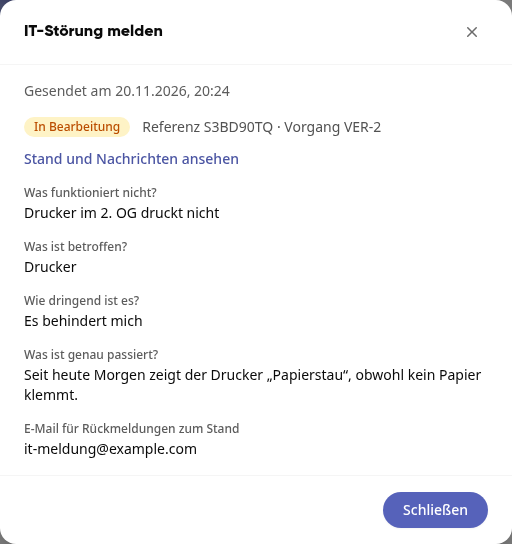
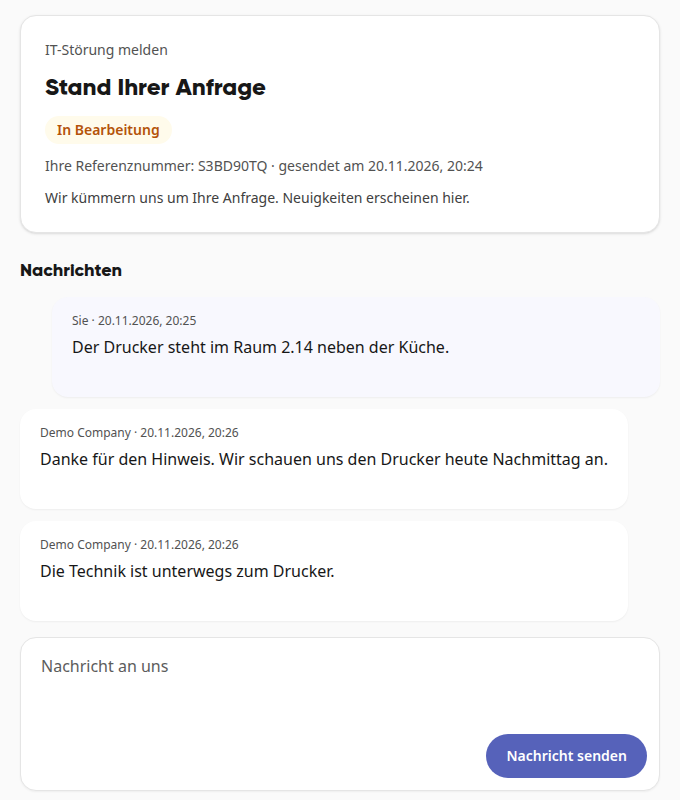
Click on View status and messages. The status page opens in a new tab. There you can read the messages that have been released for you.
Write a reply under Message to us and click on Send message.
Tip
If you provided an email address for feedback in the form, you will receive the link to the status page there, along with a message as soon as there is news or the request has been completed.
Share the form link#
If a form has a public link, the tile shows a link icon and the list shows the Copy link button. You can share the copied link with customers, citizens, or guests. They can then respond even without an account. If the form creates requests for tasks, the thank-you page shows them the Track status button.
Check origin and data protection#
In the opened form, click the shield icon at the top right. You will see who is responsible for the form, what is stored, and whether anyone has accessed personal data in the last 90 days.