
How do I set up areas in the duty roster?
Updated Reading time: 2 min
On this page
A department is a team for which a shared schedule is created, for example a ward, a kitchen, or a warehouse. For each department, you define who plans, who is scheduled, and who only reads the schedule.
Info
By default, HR managers manage departments. You can find them under Administration and then Organization › Schedule.
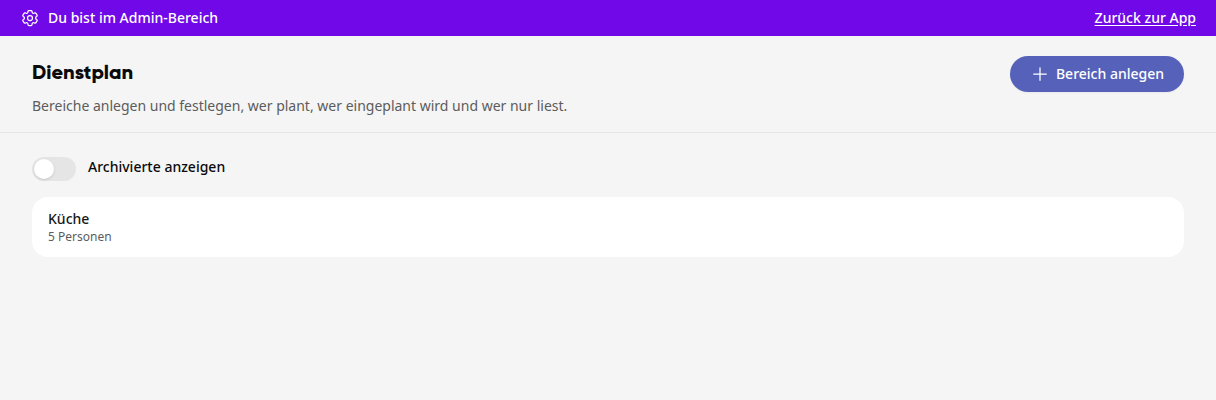
Create an area#
Click on Create area at the top right.
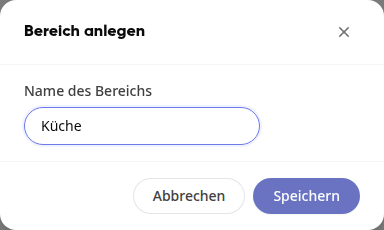
Enter the name of the area, for example "Kitchen", and click on Save.
The page of the new area opens. Under General, you can change the name later using the pencil icon.
Link group and set request deadline#
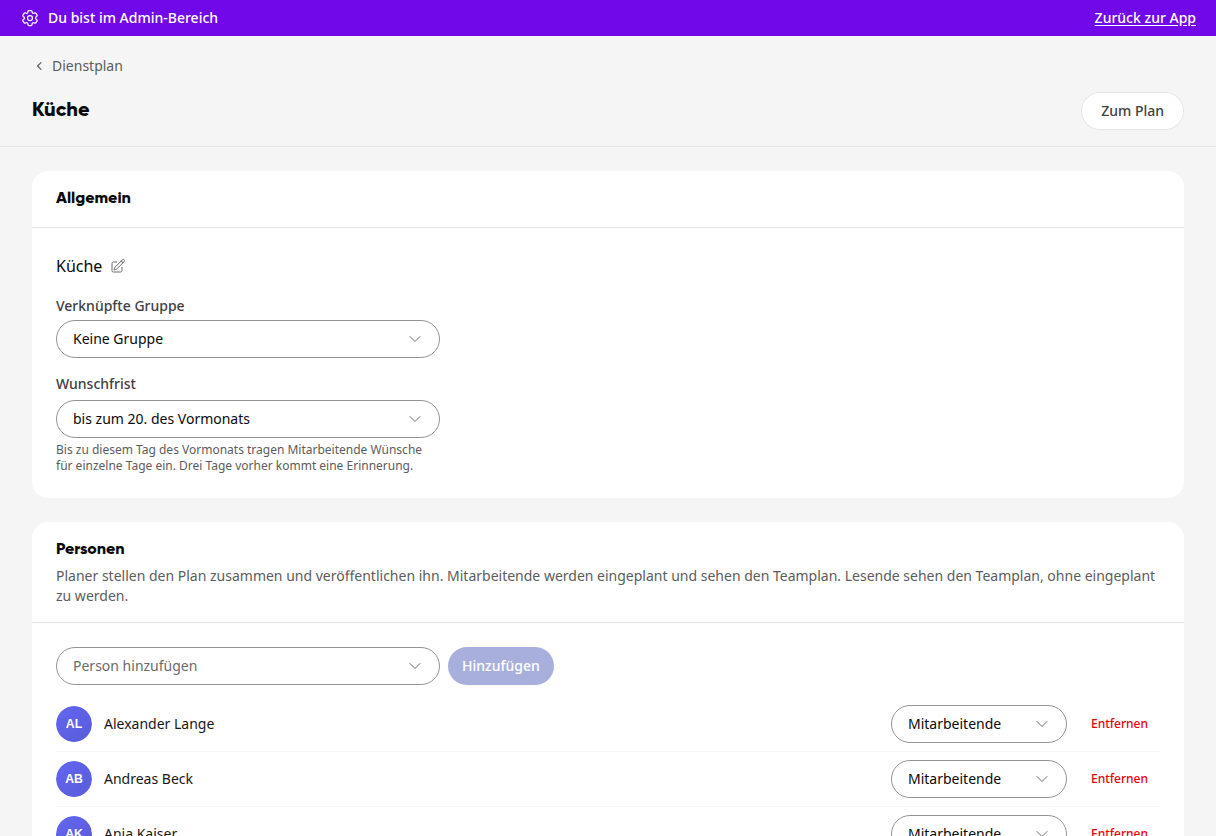
Linked group: Connects the area with a group on the platform. Using Adopt group members, you can then bring all group members into the area at once. Anyone already in the area keeps their role.
Request deadline: By this day of the previous month, employees enter requests for individual days, for example by the 20th of the previous month. Three days before the deadline, they receive a reminder. With No deadline, there is no reminder.
Every change is saved immediately.
Adding people and assigning roles#
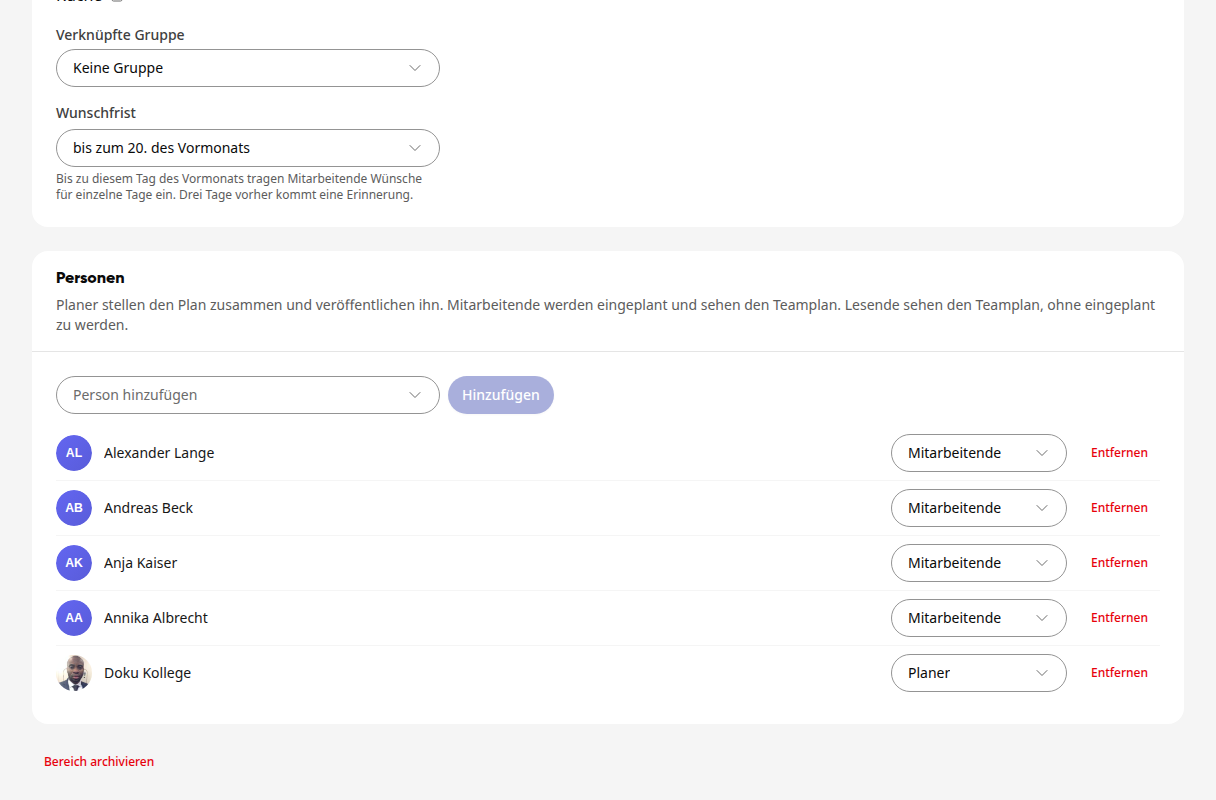
Under People, click in the Add person field and search for the name.
Select one or more people and click Add. New people receive the role Employee.
Select the appropriate role to the right of the name.
Role | What the person is allowed to do |
|---|---|
Planner | puts together the plan, maintains the templates and publishes the plan; can be scheduled themselves |
Employee | is scheduled and sees the team plan |
Read | sees the team plan without being scheduled |
As long as no one has the Planner role, the page shows the notice "No one is planning this area yet. Give at least one person the Planner role."
Info
Only employees of your organization can be scheduled. Guests, service accounts, and people from other Kibi teams cannot be scheduled.
With Go to plan at the top right, you open the plan for the area. As an HR manager, you can plan any area, even without being a planner yourself.
Removing People#
Click Remove next to the name and confirm. The person's future shifts will be freed up and reported at the next publication. The same happens if you assign someone the Read role.
Archiving a section#
Click on Archive section at the bottom of the section's page and confirm. The section will then no longer appear in the schedule. If it still has published shifts in the future, it cannot be archived. You can display archived sections again in the list via Show archived.