
How do I set up Kai for on the go?
Updated Reading time: 3 min
On this page
In the Mobile tab of the Kai settings, you determine whether Kai may use your location and which agents appear to you in the car. It also shows what Kai can do on the Apple Watch.
Info
This feature is available to everyone who is allowed to use Kai. Your settings apply only to you.
Open settings#
Open Kai in the navigation and click on the gear icon (Open settings) next to New conversation in the Conversations tab.
Switch to the Mobile tab.
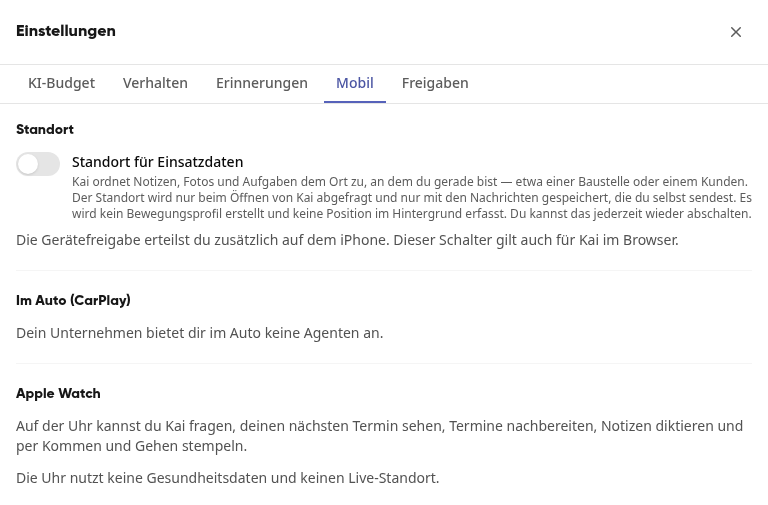
Changes to the switches are saved immediately.
Info
Kai in the car and on the Apple Watch work without any further activation by your system administration. It is sufficient that you are logged in to the app.
Share location#
Under Location, turn on the switch Location for operational data. Kai then assigns notes, photos, and tasks to the place where you currently are, such as a construction site or a customer.
The location is only queried when Kai is opened and is only saved with the messages you send yourself. No movement profile is created and no position is recorded in the background. You can turn the switch off again at any time.
The switch also applies to Kai in the browser. On the iPhone, you also grant permission on the device.
Info
If instead of the switch it says "Your company must first enable the location function.", system admins must first activate the location function: under Administration > AI & Workflows > Kai in the Settings tab, Location section.
Selecting agents in the car#
Under In the car (CarPlay), you will find the agents that your company offers in the car. Turn off the ones you don't need there.

In the car, a maximum of 6 agents appear, sorted by name. If you turn one off, the next one moves up. If your company does not offer any agents in the car, this will be indicated at that point.
Conversations with Kai in the Car#
In the car, you can have a full conversation with Kai, including pauses. If you ask another question within 30 minutes of your last one, Kai continues the conversation and knows your last eight questions along with his answers. You can therefore refer back to earlier topics, such as with "And when is the next appointment there?". After a longer pause, a new conversation begins.
What Kai Does for You in the Car#
In the car, Kai can do everything he can do in the chat: check tasks and appointments, create notes and tasks, search your company knowledge, and work with the third-party systems your company has connected. He always works with your permissions.
Kai reads out what he has written: When Kai creates a note or task or changes a note, he doesn't just say "created." He then reads the text he has written back to you verbatim. This way, you can check while driving whether he understood you correctly. A long text is cut off after a portion, and the rest is in the entry.
Dictated notes: Notes you dictate in the car are tagged with the keyword
carmode. You can quickly find them again under Notes.Steps requiring confirmation: What Kai only executes in the chat after your confirmation, such as sending an email or sharing a note, he does not execute in the car. He tells you this, and you handle it later in the app or browser.
Info
If the follow-up of an appointment is interrupted, it is not lost: you will find the dictation as a note under Notes.
There is nothing further to configure for Kai in the car. Conversations in the car do not appear in your conversation list under Kai.
Kai on the Apple Watch#
There is nothing to configure here for the watch. On the watch, you can ask Kai questions, see your next appointment, follow up on appointments, dictate notes, and clock in and out using arrival and departure. The watch does not use health data or live location.