
How do I set the color of my group in the calendar?
Updated Reading time: 1 min
On this page
In the calendar, you can see the appointments of all your groups side by side. If you give your group its own color, all members can recognize their appointments at a glance.
Info
The color is set by the group's admins. The field only appears if the calendar area is active in the group.
Set color#
Open Groups in the navigation and click on your group.
Click the pencil icon Edit at the top right.

In the Edit group window, scroll down to Color in calendar.
Click on one of the color suggestions, for example Turquoise. You can also enter the color code directly into the Color in calendar field, for example #5EEAD4.

The change is saved immediately, Saved appears at the top of the window. Close the window.
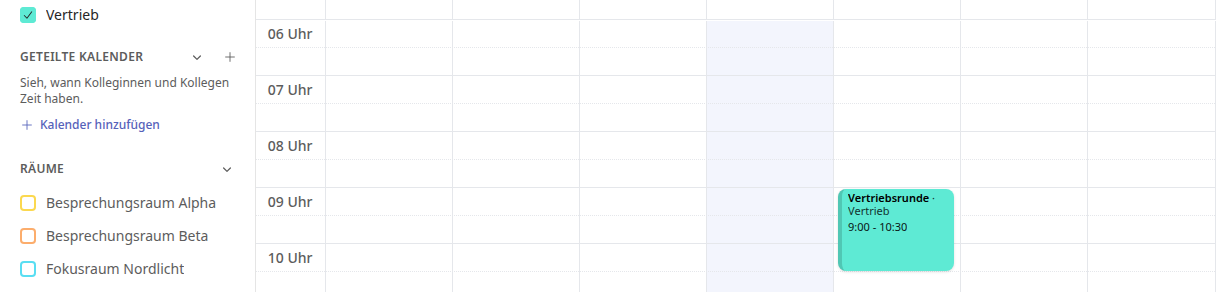
From now on, the group's appointments appear in the calendar in the selected color. The group's checkbox under Groups in the left column also carries this color.
Returning to the default color#
Open Edit group as described above.
Click on the first circle Default among the color suggestions. Alternatively, clear the Color in calendar field.
The group's appointments will then appear in the default color again.
Tip
For groups that often have appointments at the same time, choose clearly different colors, such as red and sky blue.