
How do I create a learning path in the academy?
Updated Reading time: 2 min
On this page
With a learning path, you bundle several training topics into one program, for example for onboarding or annual mandatory instruction. Participants receive the topics in sequence; a topic with a prerequisite is only unlocked once the prerequisite has been completed.
Open learning paths#
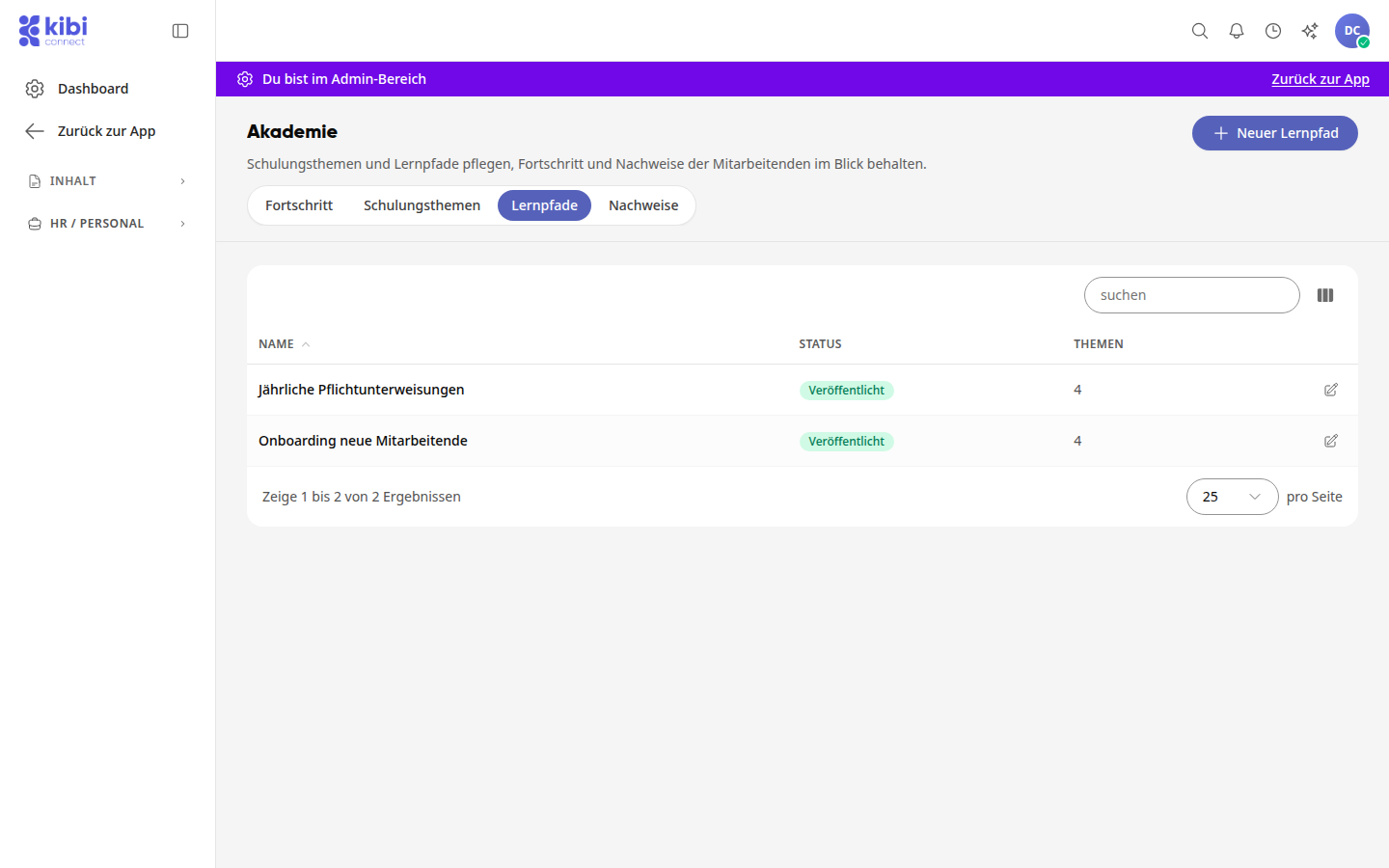
In the navigation on the left, open Administration.
Under HR / Personnel, click on Academy and then on the Learning paths tab.
The list shows all learning paths with Status and the number of Topics. Click on a learning path to edit it.
Create a new learning path#
Click on New learning path at the top right.
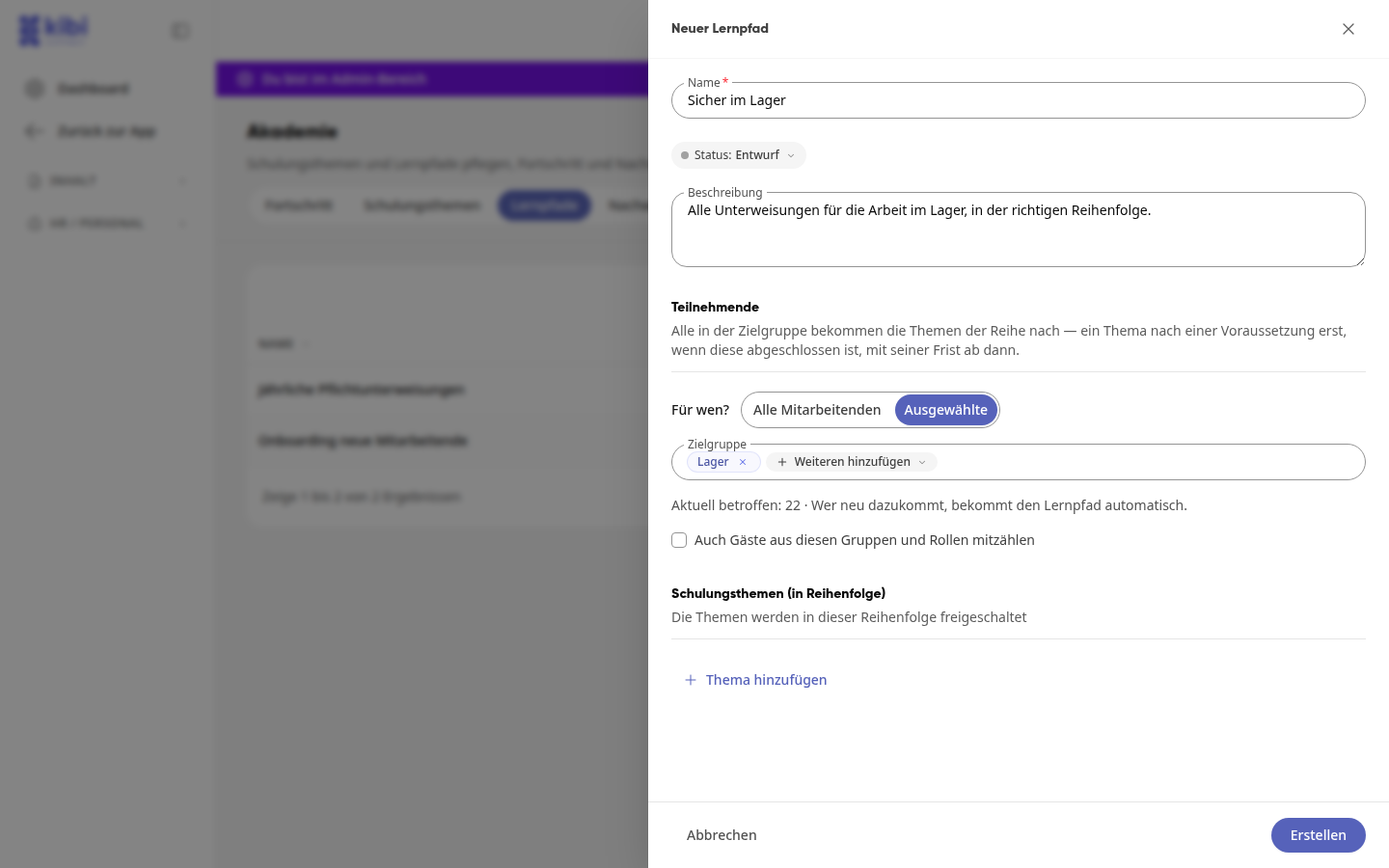
Enter a name and a description. Participants will see the description above the learning path.
Leave the status set to Draft while you are still working on the learning path. If you select Published, it will take effect immediately.
Under Participants, in the For whom? section, define whether the learning path applies to All employees or to Selected. For Selected, click on Add in the Target group and choose groups, roles, or individuals.
Below the target group, you will see how many people are Currently affected. Anyone who joins later will automatically receive the learning path. Guests are only counted if you enable Also count guests from these groups and roles.
Adding Training Topics#
Under Training Topics (in Order), click on Add Topic and select a Training Topic. Published topics are available for selection.
Set Prerequisite if the topic must be completed before the next one becomes available.
Add more topics. You can change the order by moving a topic using the handle on the left; use the trash can to remove it.
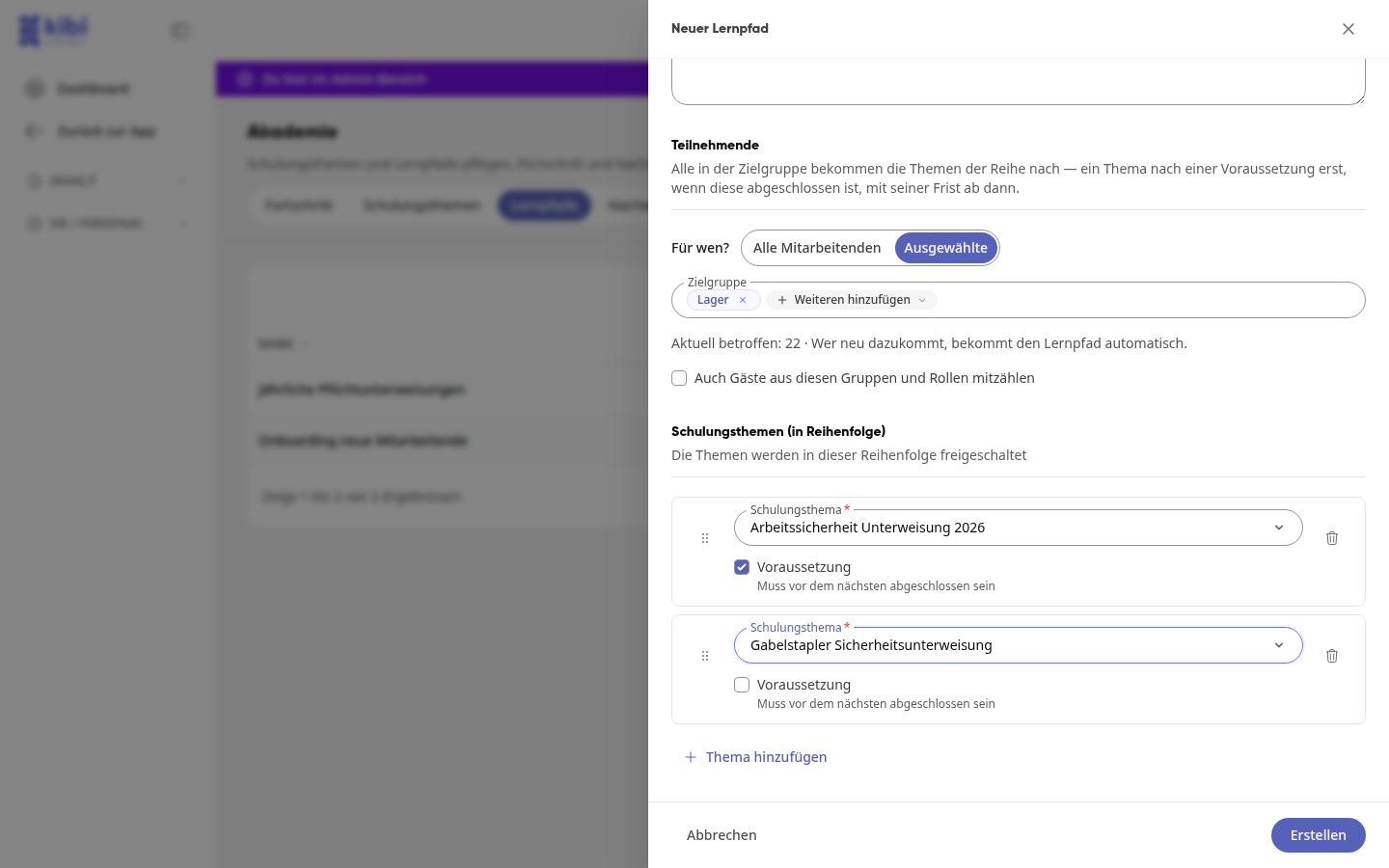
Click on Create. The learning path now appears in the list.
Info
The deadline for a topic only begins when the topic becomes available to the person, i.e., after the prerequisite has been completed.
Edit Learning Path#
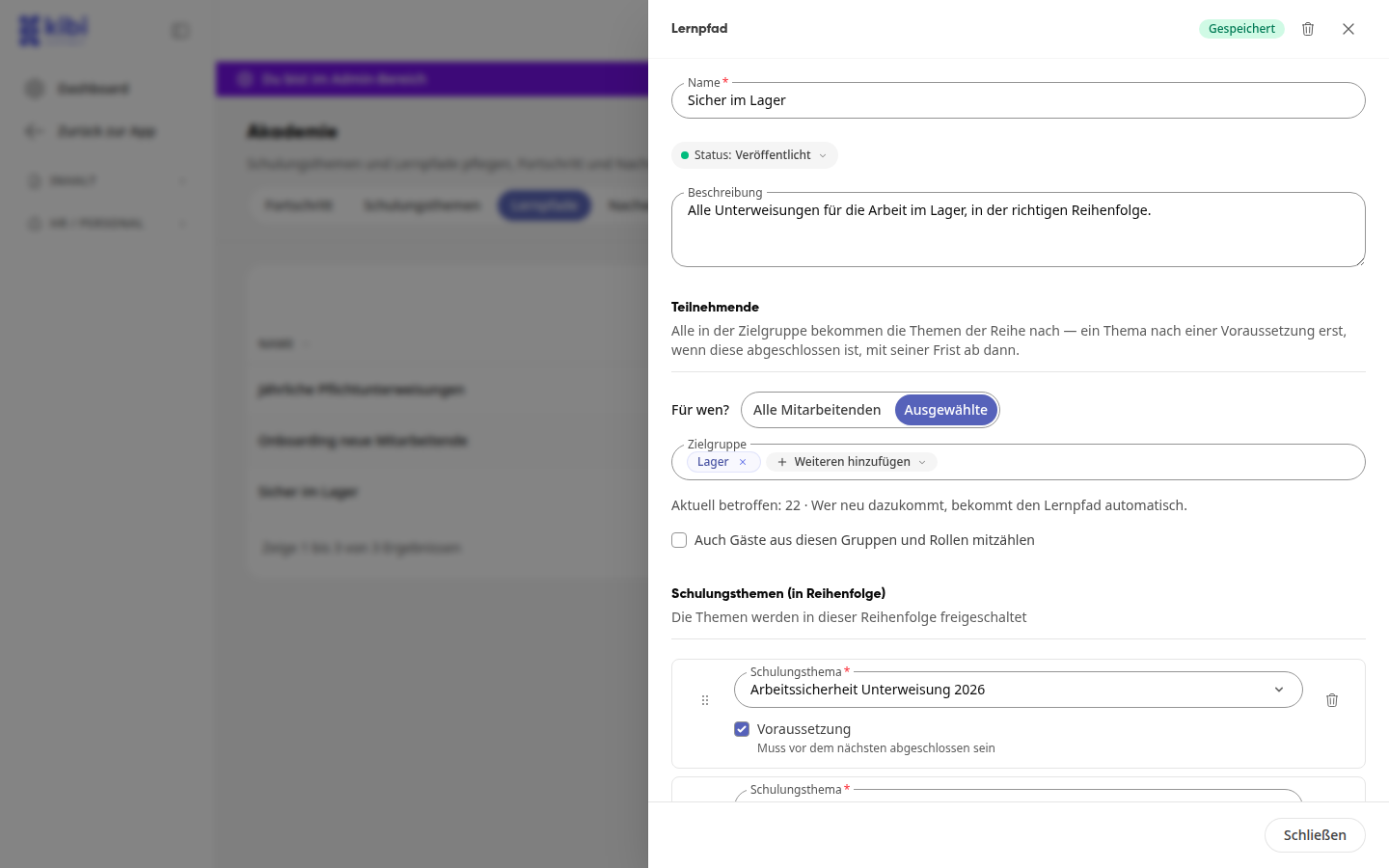
Click on the learning path in the list.
Change what you need: status, target group, topics, or order. Every change is saved automatically, even for a published learning path. Saved will then appear at the top right; there is no save button, only Close at the bottom.
Important
Changes to a published learning path take effect immediately. For example, if you add a person to the target group, they will automatically receive the learning path.
This is how participants see the learning path#
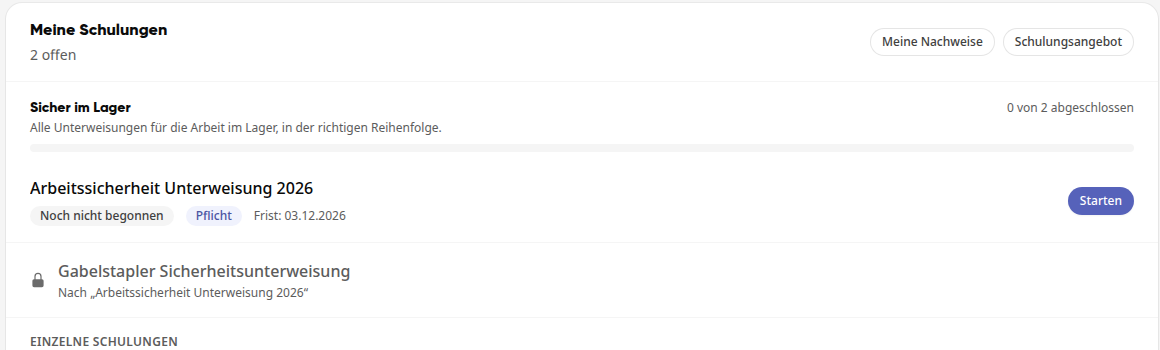
Under Academy → My trainings, the learning path is listed with name, description, and progress, e.g., 0 of 2 completed. Topics that are still waiting for a prerequisite are marked with a lock and the note After "…".
Info
If a change cannot be saved, e.g., because the name is empty, Not saved appears at the top. If you then close the learning path, the platform asks Discard changes?: With Continue editing you stay in the learning path, with Discard the unsaved changes are lost.
Info
This function is available to content managers.