
Photos & Videos
Updated Reading time: 4 min
On this page
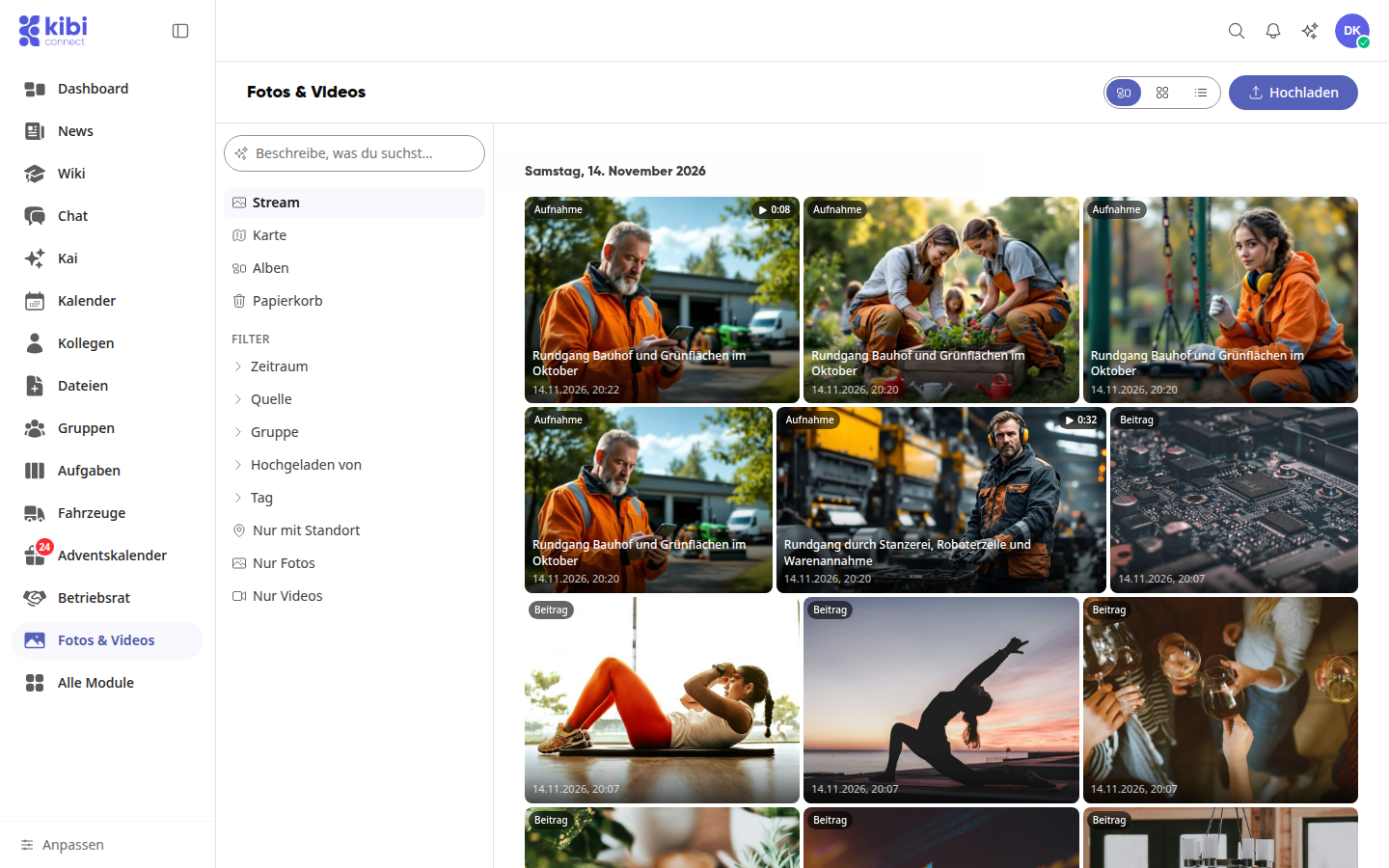
In the Photos & Videos module, all images that arise in your areas are stored in one place: in posts, chats, tasks, in the wiki, or as your own recordings. In addition, there are videos that you upload yourself. You can find everything by date, by location, and – via the AI search – by what is visible in a photo or video. The module is available to all employees.
The Areas at a Glance#
Area | Purpose |
|---|---|
Stream | All photos and videos by date. With the Photos only or Videos only filter, you can hide the respective others. |
Map | Photos and videos with location on the map. |
AI Search | Search in your own words for what is visible – in photos and in videos. |
Albums | Own and shared albums with sub-albums, as tiles or as a list. |
Trash | Deleted photos and videos, recoverable for 30 days. |
Upload photos and videos#
Use Upload at the top right to upload photos and videos to the archive, and in an album use Add photos and Upload new photos & videos. This works in the browser on your computer just as well as on your smartphone. You can select photos and videos together in one step.
Large videos are uploaded in parts. Videos up to 500 MB are possible.
Thumbnail: Every video automatically gets a thumbnail. On the tile you will also see a play icon and the length, for example 0:08.
Playable on all devices: Kibi Connect prepares each video so that it plays on the computer and on the smartphone – including recordings that not every browser recognizes, such as those from an iPhone. Until then, the tile shows Being processed.
Info
For large videos, processing can take a few minutes. You don't need to do anything for this.
Formats and limits: Photos as JPG, PNG, WebP, GIF, HEIC, or AVIF, videos as MP4, MOV, M4V, or WebM. The steps in detail: How do I upload and play videos? and How do I create a photo album and upload photos?.
Recording Location and Recording Time#
Kibi Connect takes the recording location and recording time from photos – including those uploaded in posts, chats, tasks, comments, notes, in the wiki, or in the file manager, and from iPhone photos in HEIC format. This way, they appear on the map and can be found by location.
Info
Administrators can disable this under Administration › Security using the switch Save photo recording location. Then new photos will no longer have a location; already saved locations will be retained.
Search for content – including in videos#
In the search field Describe what you are looking for…, enter in your own words what should be visible, for example "forklift in the yard". The view switches to the AI search area and shows matching photos and videos.
Kibi Connect searches videos via still images: still images are extracted from each video and captured like photos. This way, you can also find scenes that are not mentioned in any note. When there is a hit, the tile shows the location, for example Hit at 0:30, and in the enlarged view the video starts exactly there.
Tipp
Freshly uploaded videos are only found by the AI search after a few minutes, once the still images have been captured.
If the search finds nothing suitable, you will see No results after a few seconds – then try a different description. If the search service is currently unavailable, AI search currently not available appears. You can still find your photos and videos in the Stream and via the filters.
Downloading photos and videos#
Photos and videos can be downloaded at any time in original size or as the original file – in the large view via the download icon or by right-clicking on the tile:
Download original: the file exactly as it was uploaded.
Download as MP4 (for all devices): for videos, the processed version that plays anywhere.
Download rotated version: for photos that you have rotated in Kibi Connect.
You can download multiple photos and videos at once in an album via Select and Download as a ZIP file.
Albums and Sharing#
In Albums, you organize photos and videos by occasion, project, or location, such as "Summer Party" or "North Hall Construction Site." Albums can be structured into sub-albums, up to five levels deep—including in albums that colleagues have shared with you. An album with sub-albums shows a preview of up to four images in its tile. At the top right, you can switch between tiles and a list.
You determine who can see an album via the three dots (More) and Share with employees:
Sharing | Who sees the album? |
|---|---|
All employees | All members of your organization. Guests are excluded. |
Specific groups and people | The members of the selected groups and the selected people. |
Only me | Only you. The photos in it retain their own visibility. |
Important
The sharing always applies to one album. Sub-albums do not inherit it automatically: when created, the sharing of the parent album is adopted, after which you set each sub-album individually. Therefore, after changing a sharing, also check the sub-albums.
Anyone who sees an album sees all photos and videos in it—including those that are otherwise only visible to specific groups or people, and everything that is added later. If you extend a sharing, Kibi Connect therefore asks again with Really share photos?
For people without an account, you can show an album via Public link for external users, optionally with a password and expiration date. The link contains only what is directly in the album, not sub-albums. All steps: How do I create a photo album and upload photos?.
Photos in the Desktop App#
In the Kibi Connect desktop app, you will find the Photos folder in Finder (macOS) or Explorer (Windows) containing all albums that you are allowed to open in Kibi Connect. The albums are read-only there; by right-clicking and selecting "Open in Kibi Connect," you can jump directly to the album or photo. Details: Photos and personnel files in the desktop app.
Instructions#
Photos & Videos
- How do I create a photo album and upload photos? In the Photos & Videos module, you collect images and videos in your own albums, for example everything from a summer party or from a construction site.…
- How do I upload and play videos? In the Photos & Videos module, you can store videos in addition to photos, for example a tour of the hall or a brief introduction to a machine. Videos ap…
- How do I restore deleted photos from the Recycle Bin? Photos and videos that you delete are not gone immediately: they remain in the Trash of the Photos & Videos module for 30 days. During this time, you can…