
How do I apply for leave or other absence?
Updated Reading time: 3 min
On this page
You submit vacation and other absences directly in time tracking and can see at any time the status of your requests and your vacation balance. You submit the request in the Absence tab or directly in the team calendar.
Requesting Absence#
Open Time Tracking and switch to the Absence tab.
Click on + Absence.
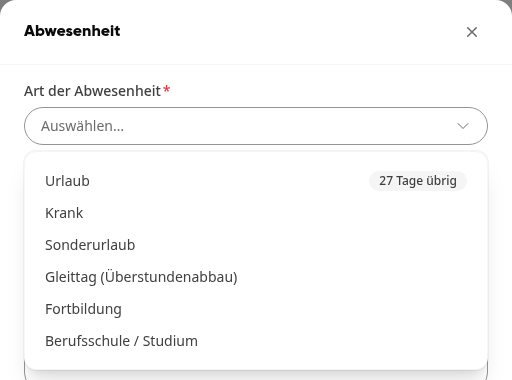
Under Type of Absence, select what it concerns, for example Vacation or Training. Next to Vacation, a badge shows how many days you have left, for example 27 days left. Next to a flex day, your flex time balance in hours is shown accordingly. If nothing is left or your flex time account is negative, the badge is yellow.
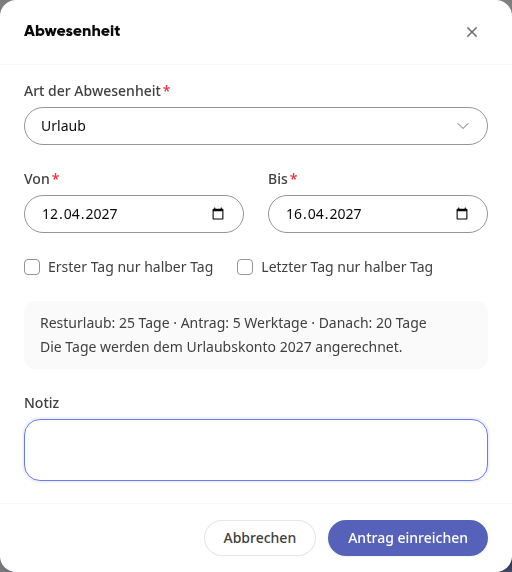
Under From and To, enter the period. For a single day, enter the same date twice.
If necessary, check the box for a half day. For a single day, the option is called Only half day, for multiple days First day only half day and Last day only half day.
For vacation, check the preview below the period: It shows your remaining vacation, the days of the request, and what remains Afterwards, as well as which vacation account the days will be credited to.
Add a Note if necessary.
Click on Submit Request.
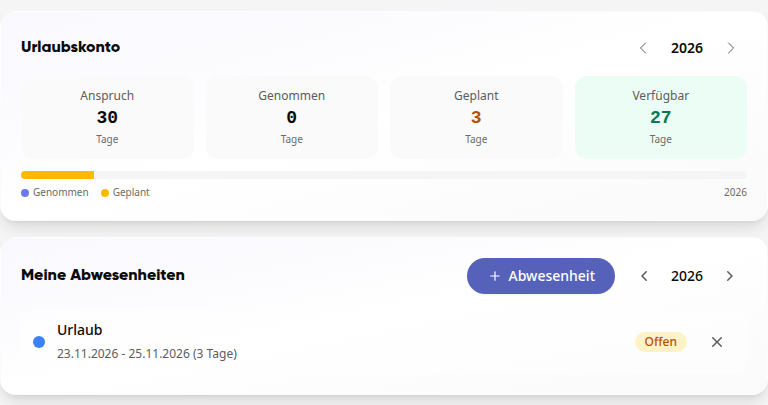
Your request now appears in the list with the status Open and awaits the decision. Once it has been made, you will receive a notification.
Tip
If an absence has already been recorded for the period, the form will point this out to you. This way, a duplicate entry will be noticed in time.
Requesting absence in the team calendar#
In the Team tab, you can see who is absent and when, and you can submit your request right there:
Open Time tracking and switch to the Team tab.
In the team calendar, mark the days in your own row at the very top: click on a day or drag with the mouse button held down across multiple days. Alternatively, click on + Absence in the top right corner of the calendar.
The Absence form opens with the marked days under From and To. You proceed as described above.
More about the team calendar can be found in How do I see who is present or absent in the team?.
Requesting vacation for the next year#
You proceed exactly as described above and select a period in the next year. The days in the badge next to Vacation and in the preview then belong to the year in which your vacation begins. This way, you can directly see the entitlement for the next year, including transferred remaining vacation and already requested days.
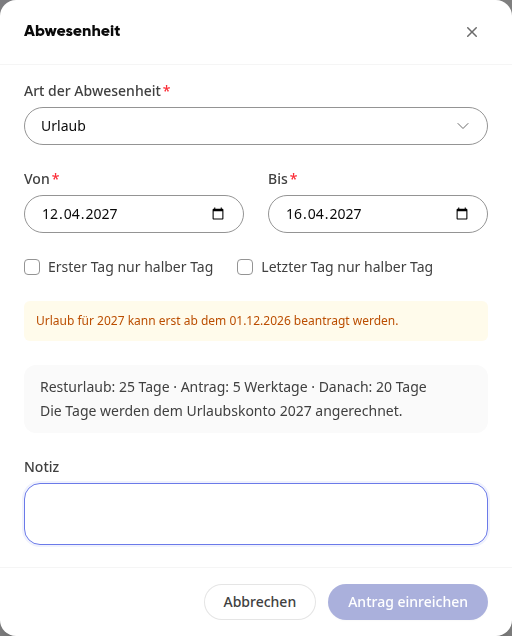
Your organization can determine from which date vacation for the next year can be requested. Before that, the form displays a notice with the date, for example Vacation for 2027 can only be requested from 12/01/2026., and Submit request remains grayed out.
Info
The cutoff date only applies to vacation. Sick leave, training, and other types that do not deduct from vacation can be entered at any time.
Report absence without approval#
Some types do not require approval, for example often sick and vocational school / studies. Which these are is determined by your organization. The form shows you this directly below the selection.
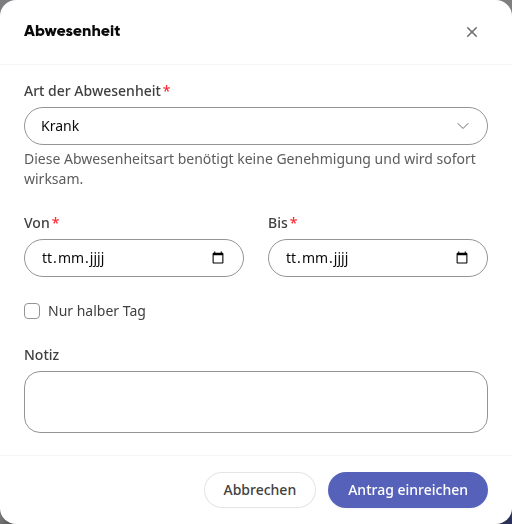
You proceed the same way as with the application. After clicking on Submit application, the absence applies immediately and appears in your list with the status Approved.
Check vacation account#
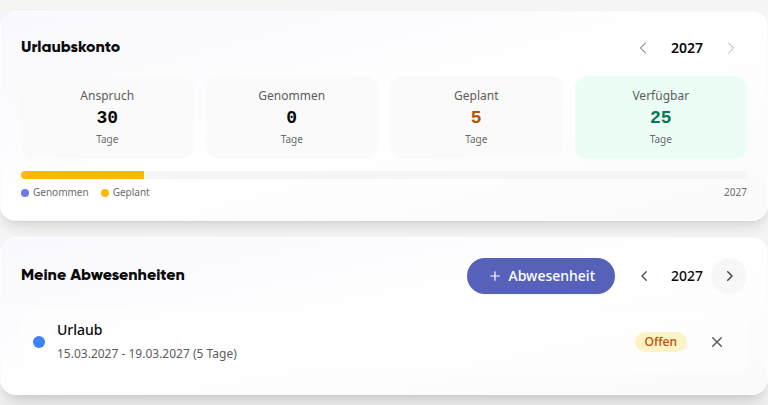
If a vacation entitlement has been set up for you, you will see the vacation account at the top of the Absence tab with Entitlement, Taken, Planned, and Available. Using the arrows next to the year, you can switch to the next year. There, your open requests for the next year are listed under Planned.
Check the status of your requests#
Under My absences, you will see all entries for a year with type, period, and number of days. Use the arrows next to the year to switch years.
Open: The request is awaiting a decision.
Approved: The absence is confirmed.
Rejected: The request has been rejected.
Cancelled: You have withdrawn the request.
Cancel request#
You can withdraw an open request yourself:
Click the X in the row of the request.
Confirm with Cancel request.
The entry remains in the list with the status Cancelled.
Info
You cannot cancel approved or rejected entries yourself. If something needs to change regarding an approved absence, contact your HR department.