
How do I organize tasks on boards?
Updated Reading time: 4 min
On this page
On the board, you see your tasks as cards in columns such as Todo, In Progress, and Done. By moving them, you show how far along a task is, and by sorting, you determine the order in which the cards appear in the columns.
Opening the correct board#
Open Tasks in the navigation.
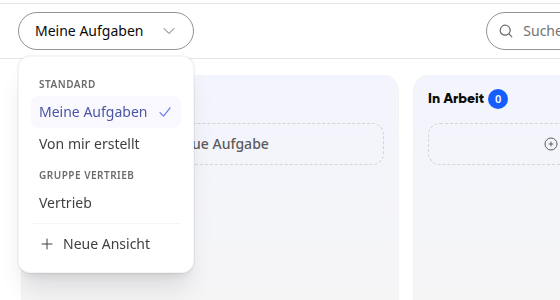
Click on the View selection at the top left and choose which tasks you want to see. Under Standard, you will find My Tasks and Created by Me. Below that, each of your groups has its own view, for example Sales.
In a group view, Only Mine hides all tasks not assigned to you. Another click will show all tasks in the group again.
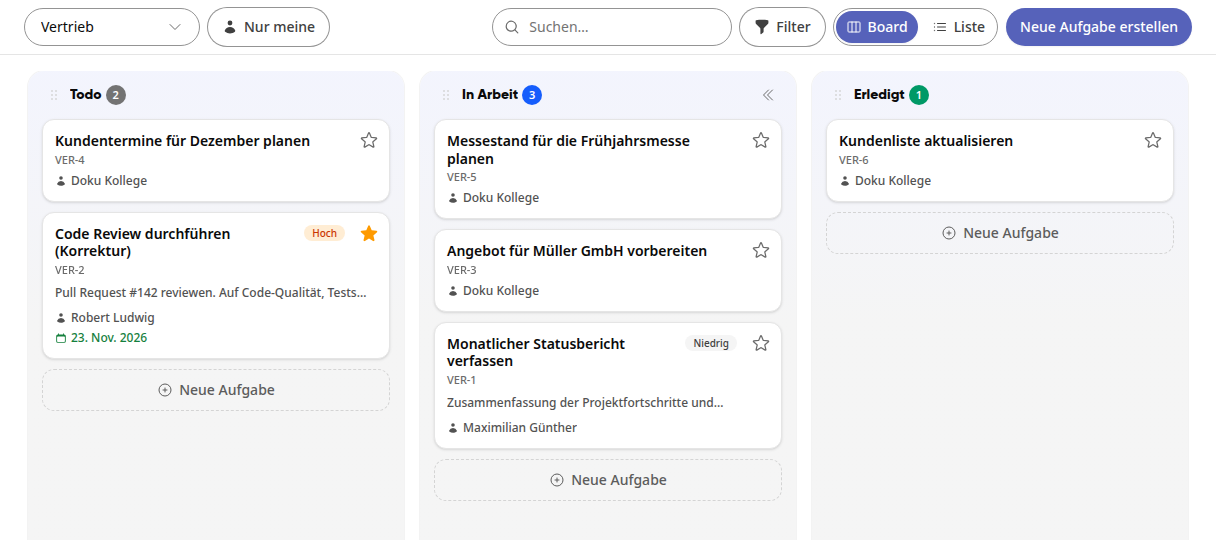
You can also access the same board in the group via the Tasks tab. If a group is missing from the View selection, open the Tasks tab there once.
Use New View to create your own views with custom columns and filters.
Info
Each column shows the number of tasks it contains next to its name. You can create a new task with New Task directly below the last card in a column.
Moving tasks between columns#
Grab the card and drag it to the desired column.
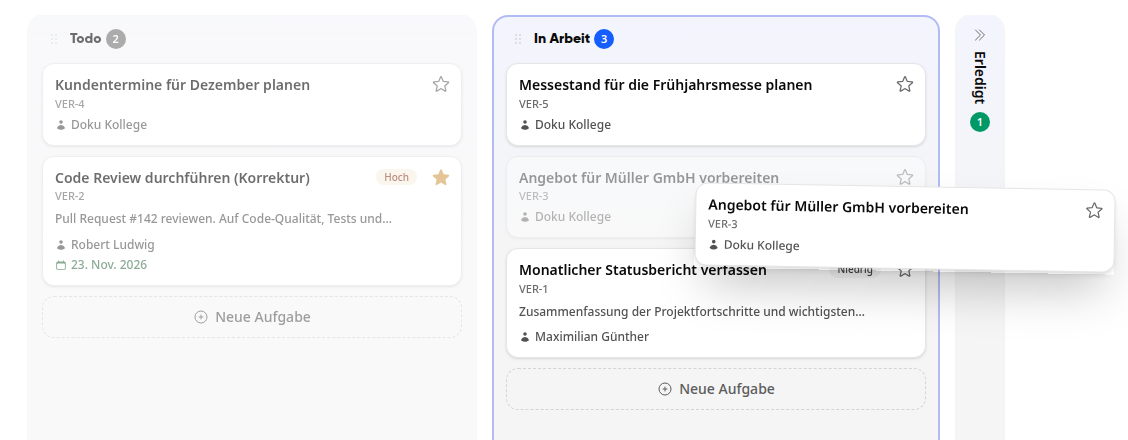
Release the card. The message Moved to "In Progress" confirms the change.
As long as the board is not sorted, dragging also determines the order of the cards within a column.
Sorting cards in the columns#
Instead of manually arranging the cards, the board can sort them for you, for example, moving the most urgent tasks to the top.
Hover over the top of a column and click the sort icon (Sort Cards).
Under Order in Board, select the sorting criterion: Due Date, Priority, or Created On. Manual (by dragging) is the default.
Under Direction, select the order, for example, Earliest First or Latest First for due dates, Highest First or Lowest First for priority, and Newest First or Oldest First for creation date.
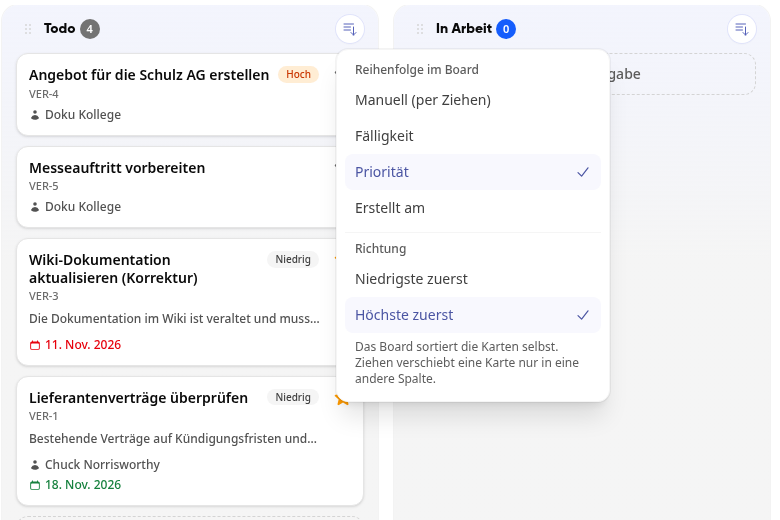
The sorting applies to all columns on the board. As long as it is active, the sort icon remains visible in each column header, showing what it is sorted by, for example, Sorted: Priority, Highest First. Tasks without a due date appear at the end when sorting by due date.
Wichtig
If sorting is active, the board sorts the cards itself. Dragging then only moves a card to another column. If you select Manual (by dragging) again, the cards will appear in the order you last set manually.
You can find the same setting under Filter in the Display tab (see below). The board remembers your sorting, even after reloading.
Collapsing columns#
The columns share the width of the board. If you don’t need a column right now, collapse it:
Hover over the column header and click the double arrow (Collapse Column).
The column shrinks to a narrow strip showing its name and count. The remaining columns become wider.
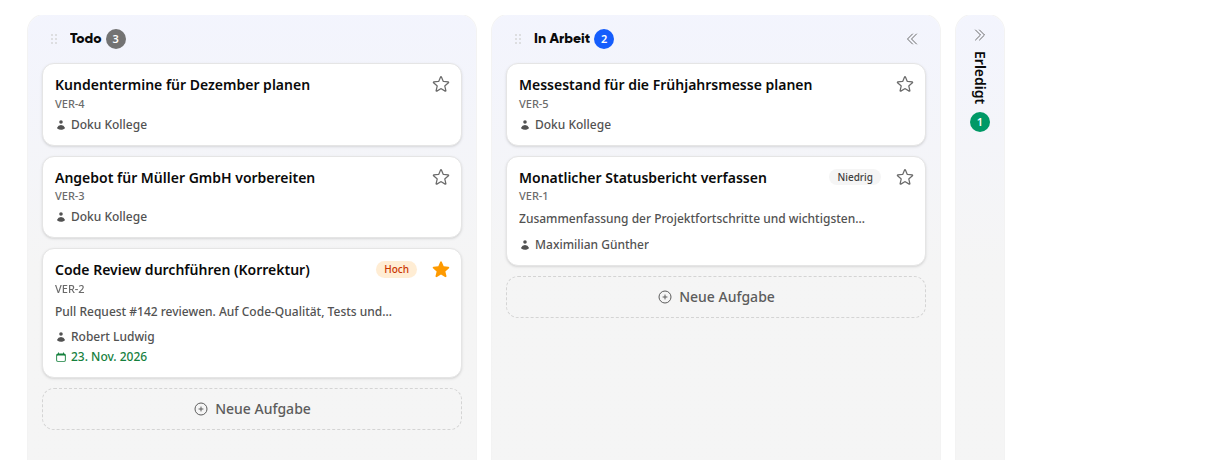
Clicking the strip expands the column again.
Adjusting the view#
-
Board and List switch between cards and table view. In the list, you can change assignments and status directly in the row.
-
Use Search... to quickly find tasks in the view.
-
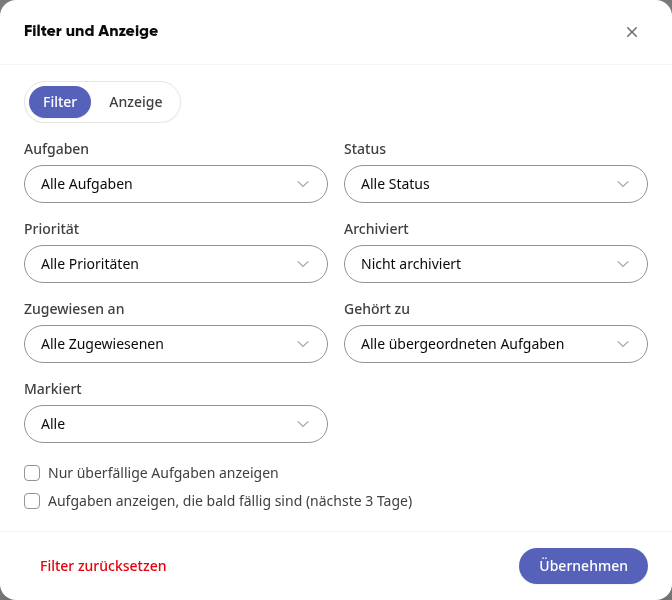
Filter opens the Filter and Display window. In the Filter tab, you can narrow down tasks by Status, Priority, Assigned To, Belongs To, Marked, or Archived, or show only overdue or soon-due tasks. Confirm with Apply.
-
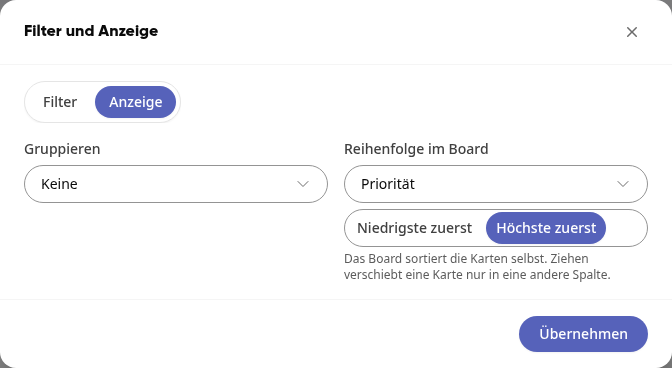
In the Display tab, you can organize the board via Group By by Group, Hierarchy, or Due Date. Next to it, under Order in Board with Direction, you determine how the cards are sorted in the columns.
-
With Group By: Hierarchy, you can see which tasks belong to which parent task and how many of them are completed.
-
The star on a card marks the task. Use Filter and Marked to find it quickly.
-
The arrow symbol next to the due date indicates: Recurring. The task is part of a series.
Tipp
Reset Filter in the Filter and Display window shows all tasks in the view again.
Cleaning up completed tasks#
Hover over the header of the Done column and click the archive icon.
Confirm the prompt.
All tasks in this column will be archived. You can find them again via Filter and Archived.
Managing a group's columns#
Info
Only group admins can create, configure, and delete columns in their group's board.
Open the group view.
To create a column, click the narrow strip Add Column on the right edge of the board, enter the name, and press Enter. The message Column created confirms it.
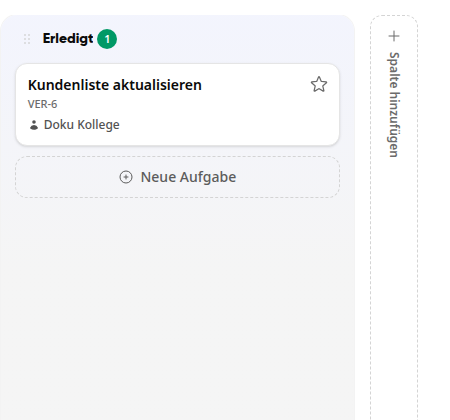
To rename, click on the column name.
Using the gear icon in the column header, you can set the Type of the column (Todo, In Progress, or Done) and whether it is Collapsed by Default.
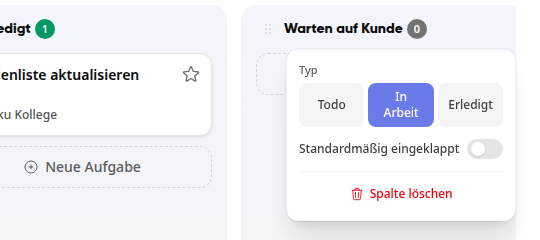
Use Delete Column to remove a column. Confirm the prompt with Delete Column. Its tasks will move to the first column of the same type.
Warnung
The last column of type Done cannot be deleted. Also, the last column of another type will remain as long as it still contains tasks.