
How do I export time data?
Updated Reading time: 2 min
On this page
You can download working hours and absences as a report, for example for payroll accounting or as proof for individual employees.
Info
This function is available to HR managers and system administrators. You can find it in the admin area under HR / Personnel > Time & Absences in the Exports tab.
Download monthly reports#
Under Monthly-based exports, select the month and the format (PDF or CSV).
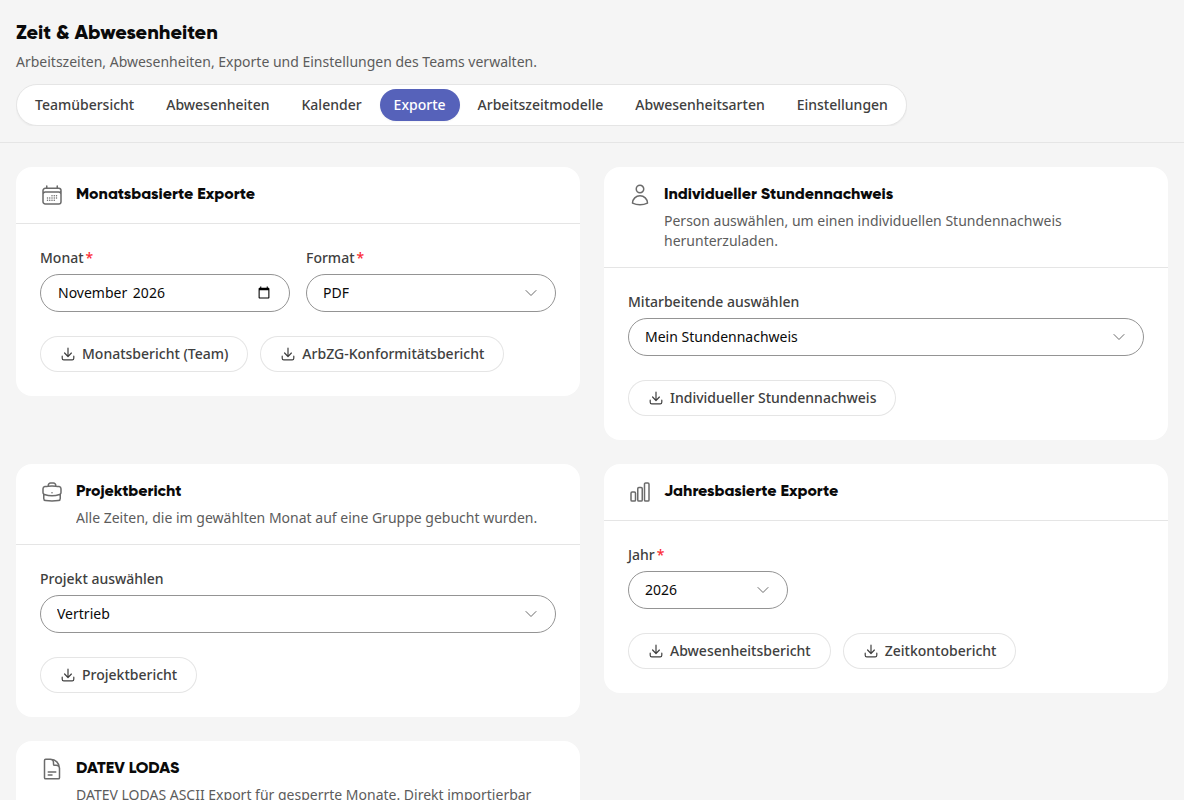
Click on the desired report. The download starts immediately.
This is what the reports contain:
Monthly report (team): working days, actual hours, target hours, and overtime per person.
ArbZG compliance report: the warnings regarding the Working Hours Act in the selected month.
Downloading a time record for one person#
The record uses the month and format from the monthly exports section.
In the individual time record section, under select employees, choose the person. With my time record, you get your own record.
Click on individual time record. The download starts immediately.
The record lists each day of the month with arrival, departure, break, work, target, and difference, below that the monthly account with the balance.
Info
If the person works in a working time model without fixed weekdays (type variable), no daily target is shown for the days in the current month. Instead, below the table, the monthly target is shown, for example monthly target, settled at the end of the month: 42:51 h.
Download project report#
The project report shows all times booked to a group in the selected month: per person the days and the actual hours, with the total below. It uses the Month and the Format from the Monthly exports section.
In the Project report section, under Select project, choose the group.
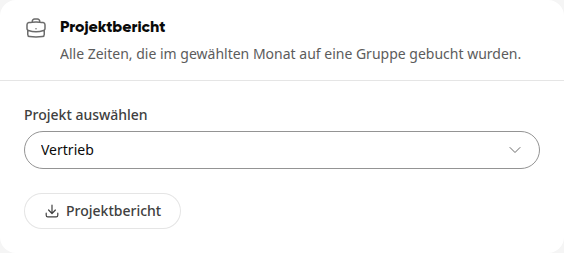
Click on Project report. The download starts immediately.
Only groups with time tracking enabled are available for selection. If this is not the case in any group, Time tracking is not enabled in any group. is displayed there. How a group enables time tracking is described in How do I see my group's working hours?.
Info
The project report is now only available here in the administration. It is no longer available in the personal time tracking.
Download annual reports#
Under Year-based exports, select the year.
Click on the desired report. The download starts immediately.
This is what the reports contain:
Absence report: the absences per person and absence type.
Time account report: actual hours and plus or minus hours per person and month.
Download data for DATEV LODAS#
The DATEV export is only available for locked months. Consultant number and client number must be entered.
Enter the consultant number and client number under Settings in the DATEV LODAS section if the Exports page asks for them.
Lock the month in the team overview using Lock month.
In the DATEV LODAS section, select the month and click on Download LODAS. You will receive a text file that you can give to your tax office.
Info
People who are listed under Excluded from time tracking in the settings are missing from all exports: in the monthly, absence, and time account reports, in the ArbZG compliance report, in project reports, and in the DATEV export. How to exclude test and auxiliary accounts is described in How do I manage my team's time tracking?.
Tip
You can download the documents for a billing run in the Hourly billing tab via the Details of the run.