
How do I import contacts and companies via CSV?
Updated Reading time: 2 min
You can import many contacts and companies into the CRM at once, such as an address list from another software or your trade fair contacts. If something goes wrong, you can undo the entire import with a single click.
Preparing the CSV file#
The first line of the file contains the column names, and each subsequent line contains a contact or a company. Semicolons and commas can be used as separators, and umlauts from Excel are transferred correctly. You can write the column names in German or English:
Column | Content |
|---|---|
Type | Company or Contact. Without this column, a line without a person's name but with a company name is created as a company. |
Name | For companies, the company name; for contacts, the full name |
First name, Last name | Name of the contact |
Company | Company to which a contact belongs. If it does not exist yet, it will be created. |
Job title | Position of the contact, e.g., Purchasing |
Email, Phone, Mobile, Website | Contact details |
Street, ZIP code, City, Country | Address |
Tags | Multiple tags separated by commas |
Visibility | Only me for private entries, otherwise everyone can see the entry |
Notes | Free text |
Import CSV file#
Click on CRM in the navigation on the left.
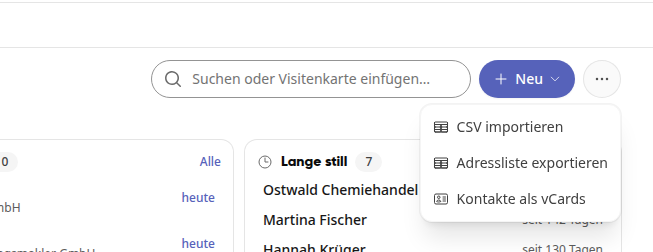
Click on More actions (⋯) at the top right next to New and select Import CSV.
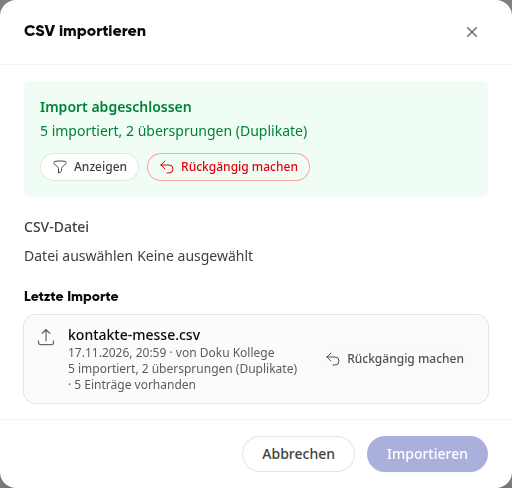
Under CSV file, select your file and click on Import.
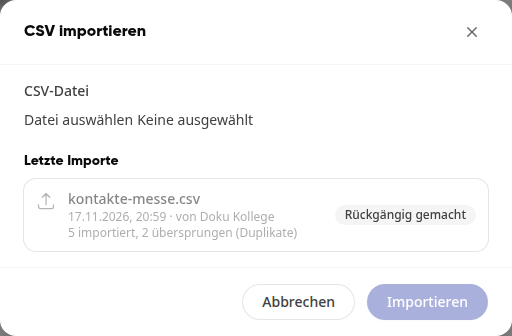
The window shows how many entries were imported and how many were skipped. Under Recent imports, the import is listed with the file name, time, and who performed it.
Info
Duplicates are skipped: a contact with an email address or a first and last name that already exists, and a company that already exists with the same name at the same location. For an existing company, the import only fills in fields that are still empty there.
View Imported Entries#
In the results, click on View or, under Recent Imports, click on the import.
The list now shows only the contacts and companies from this file. At the top, the filter Import appears with the file name.
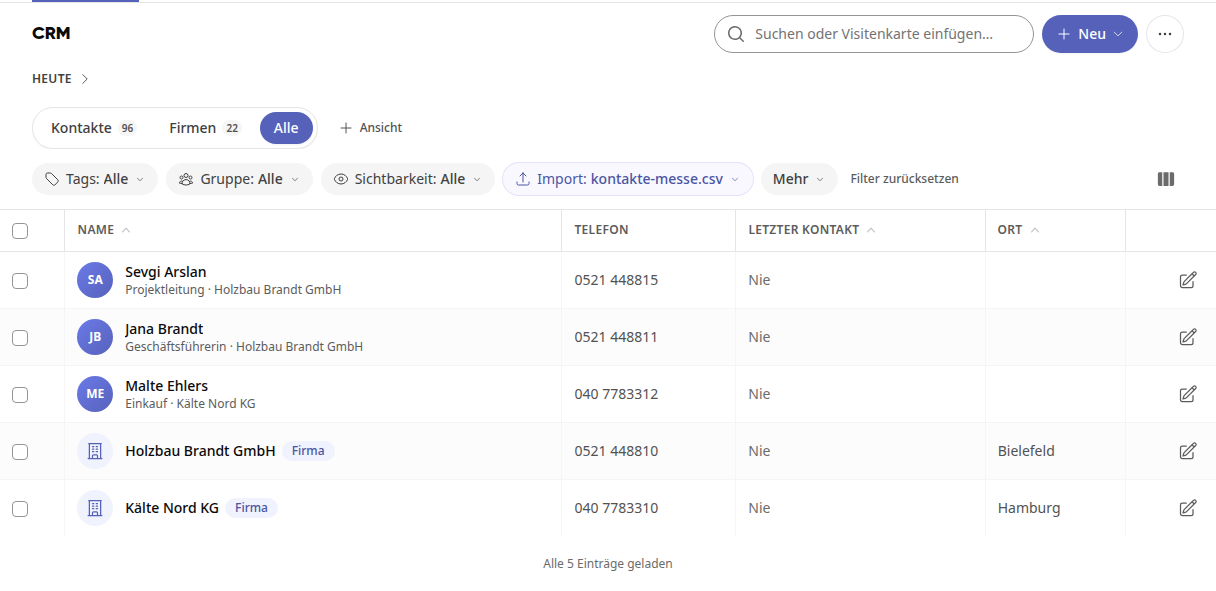
Using the Import filter, you can select a different import or use All Entries to return to the full list. Reset Filters clears all filters.
Undo import#
Click on More actions (⋯) at the top right next to New and select Import CSV.
Under Recent imports, click on Undo for the desired import. Right after an import, you will also find the button in the result.
Confirm with Move to trash.
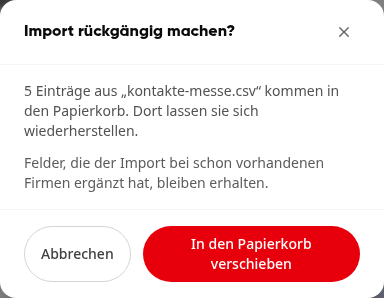
All entries from the file are now in the trash, and the import is marked as Undone under Recent imports.
Info
From the Trash under the CRM list, you can restore individual entries. Large imports are undone in the background; you can see the status under Recent imports. Entries that you are not allowed to delete will remain. Fields that the import added to existing companies will also remain.