
How do I record my knowledge with Kai?
Updated Reading time: 3 min
On this page
You know something from practice that isn't in any wiki article yet, such as how a complaint process works or what matters when it comes to a system? In a knowledge session, you tell Kai about it. Kai asks questions, summarizes, and writes what you confirm into the working status of a wiki page. It is only published once you approve it.
Info
Knowledge sessions are available to all employees who use Kai. Only you can see the conversation.
Start a knowledge session#
Open Kai in the navigation and click on New conversation.
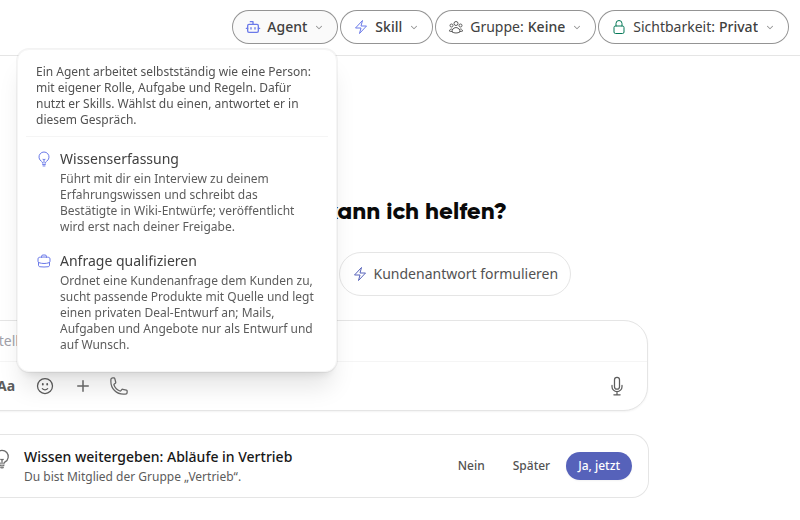
Click on Agent at the top and select Knowledge capture.
In the Capture knowledge window, select how you want to start:
I will name a topic: Enter your topic under What would you like to talk about?, for example "Process for customer complaints".
Kai should ask me: Kai asks about your daily work and suggests topics that are still missing in your organization.
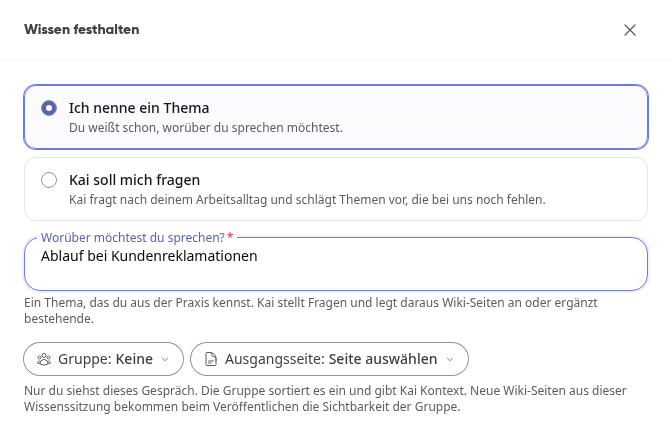
Optional: Select one of your groups under Group. It categorizes the conversation and gives Kai context. New wiki pages from the session will receive the visibility of this group when published.
Optional: Select a wiki page under Source page that Kai should supplement.
Click on Start.
Kai greets you in the conversation and tells you whether a page already exists for your topic. On the right, the workspace opens with the status of the session.
Tip
You can also start a knowledge session from the wiki: In the wiki overview via Capture knowledge. Additionally, Kai occasionally suggests a topic on his start page, such as "Share knowledge: Processes in sales". With Yes, now you start the session, with Later or No you hide the suggestion.
Talk to Kai#
Tell Kai in your own words how things are going for you. You can write or speak using the microphone.
Answer Kai's follow-up questions. Kai asks them one after another, one at a time.
Once Kai has understood a section, he summarizes it and asks Did I understand that correctly? Click Yes if everything is right, or No and correct him.
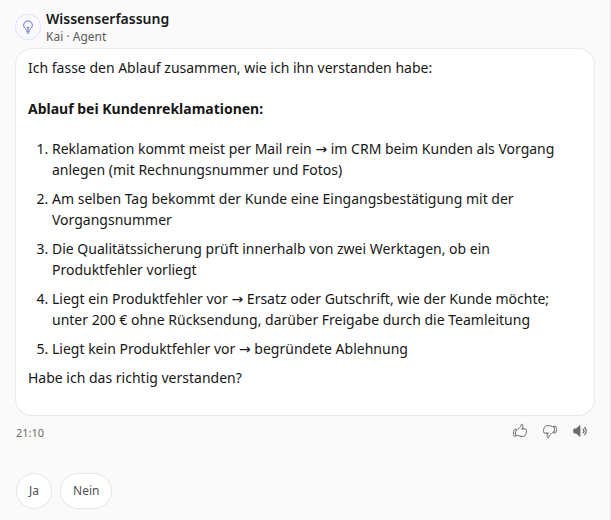
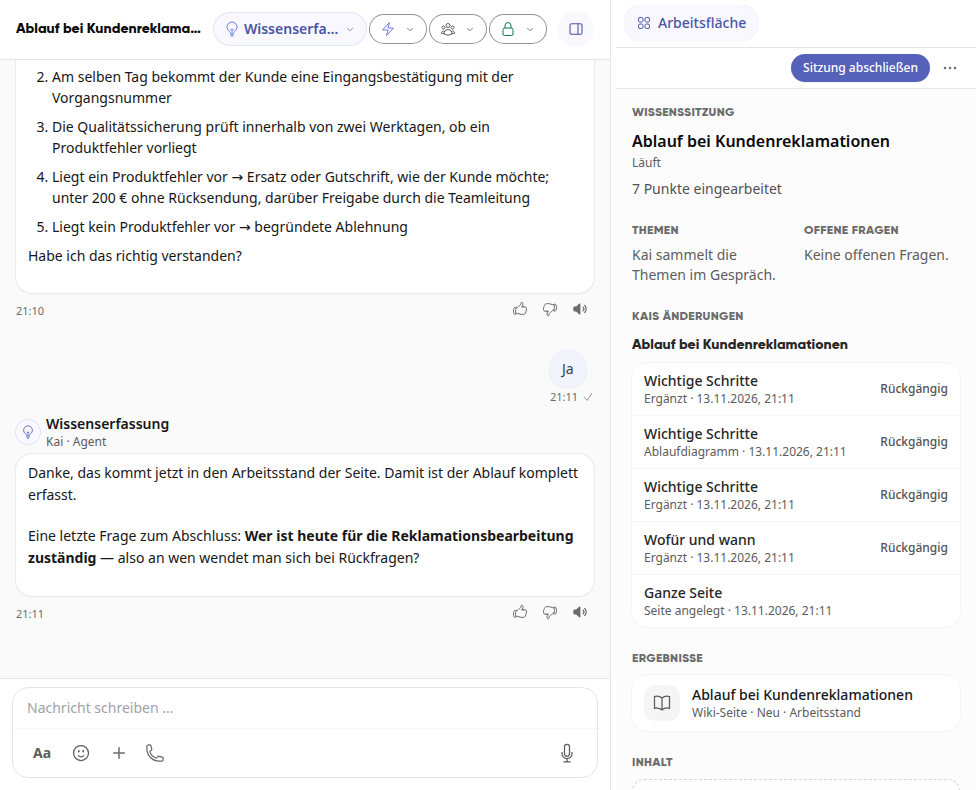
Only what you confirm does Kai write into the wiki page. On the workspace you can see under Kai's changes which sections he has added. Using Undo you revert a change. Under Results the page is listed with the note Work in progress.
View and co-write the work status#
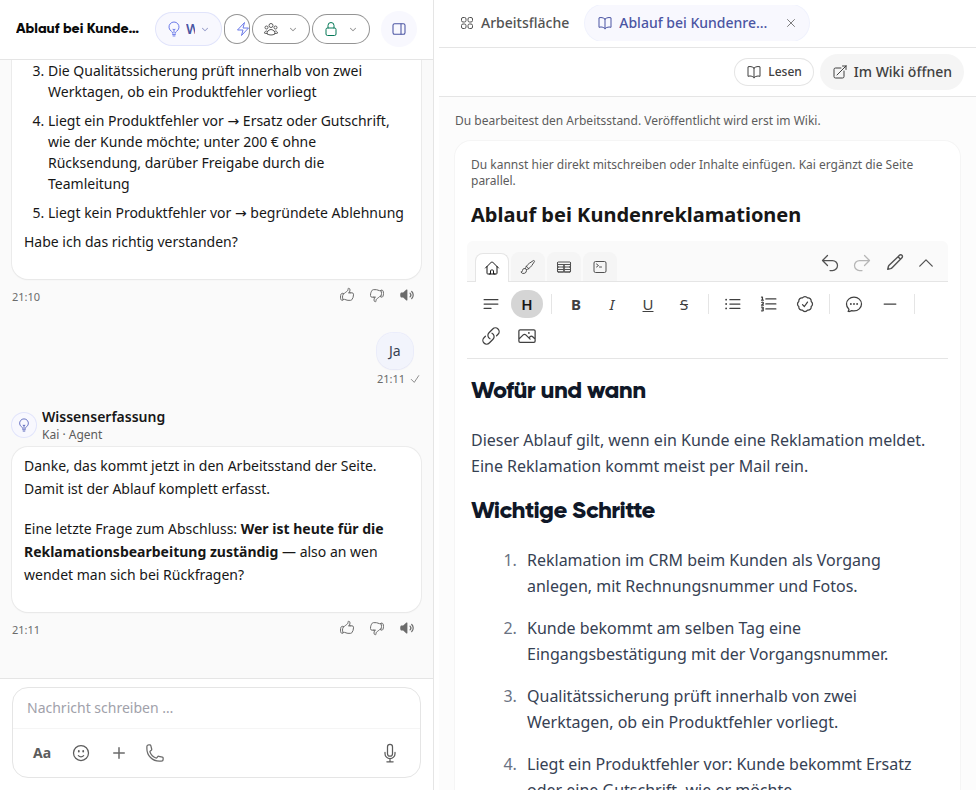
Under Results, click on the page. It opens next to the conversation in the editor. You can write directly there or paste content, and Kai supplements the page in parallel. Via Open in Wiki, you can view the page in the wiki.
Info
You are editing the work status. The published version of the page does not change as a result.
Complete and publish the session#
Click on Complete session on the workspace and confirm with Complete session.
Kai works on the final points, checks the pages, and summarizes. Under Review result, you can see per page what has changed and which open questions remain.
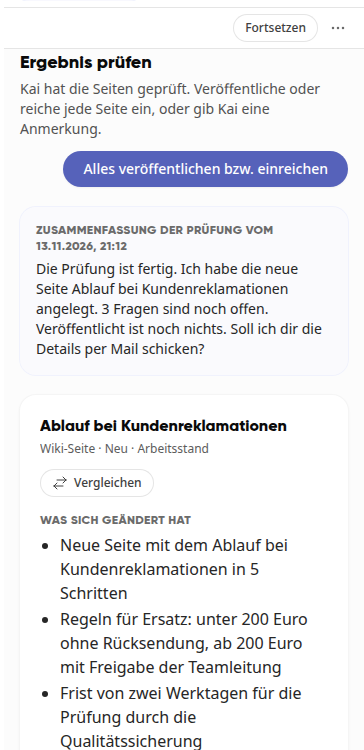
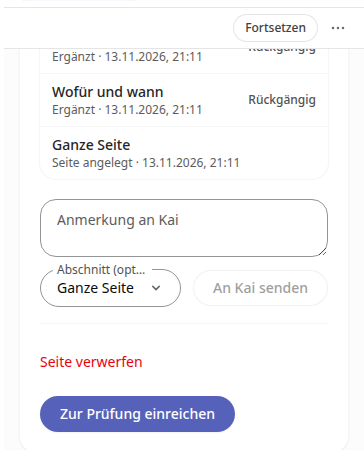
Decide for each page:
Publish, if you are allowed to publish in the wiki, or Submit for review, if a responsible person must first approve the page.
Note to Kai: Write what Kai should change, select a section if needed, and click on Send to Kai.
Discard page, if the page should not go into the wiki.
Using Publish or submit all, you decide for all pages of the session at once. After that, the page appears under Results, for example with the note Submitted.
Tip
If you think of something after completion, click on Continue on the workspace and keep telling Kai.
Disable topic suggestions#
Kai suggests a topic on its homepage at most once a month. If you don't want this, click the gear icon next to New conversation under Kai, open the Behavior tab, and turn off Topic suggestions for knowledge capture.