
How do I look up a right in the permissions catalog?
Updated Reading time: 2 min
On this page
The permissions catalog lists all rights of the platform, regardless of a single role or person. Here you can find out what a right means, which roles include it, and how many people have it. You can also directly assign or revoke rights to/from roles there.
Info
This function is available to System Admins.
Find a right#
In the administration, open Users and select Roles & Rights.
Switch to the Permissions Catalog tab.
Enter a term in Search by name or right..., for example "lead time". The search finds both the plain text and the technical name. Use All Areas and All Roles to limit the list to a specific area or role.
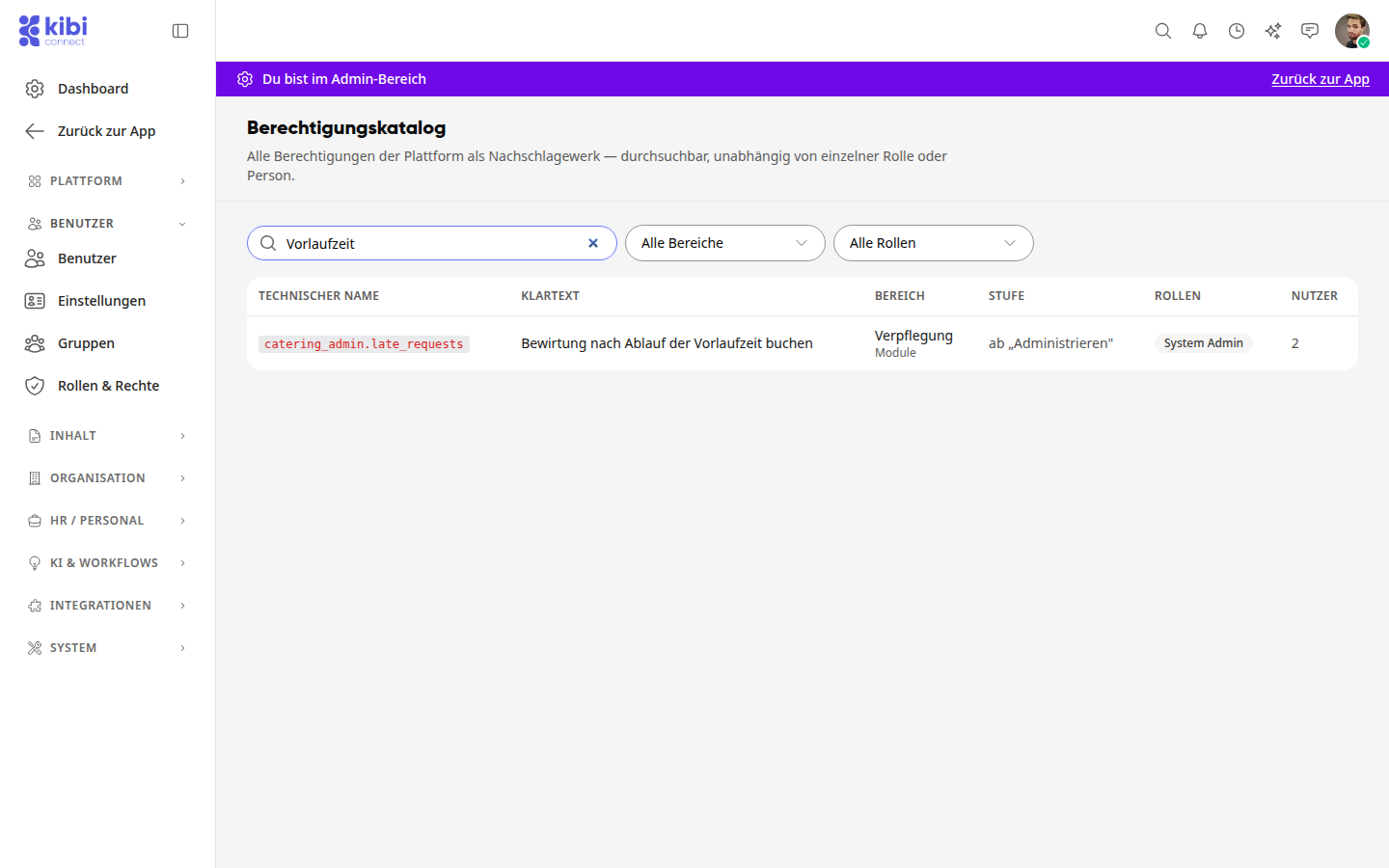
Each row shows you:
Technical Name: the unique designation of the right, for example
catering_admin.late_requests.Plain Text: what the right allows.
Area: the module or system area to which the right belongs.
Level: from which level a role includes the right, for example from "Administer".
Roles: all roles that currently include the right.
Users: how many people have the right.
Tipp
New modules and functions bring their own rights. For example, in the Catering area, you will find the right "Book catering after lead time expires". In addition to "System Admin", all roles that already had the right "Admin: Manage meal plans and catering" will include it. Assign it to additional roles if their members should be able to book catering even after the lead time has expired.
Assign or revoke a right to/from roles#
Click on the row of the right in the catalog. A dialog shows the technical name, the area, the level, and all roles with the number of their users.
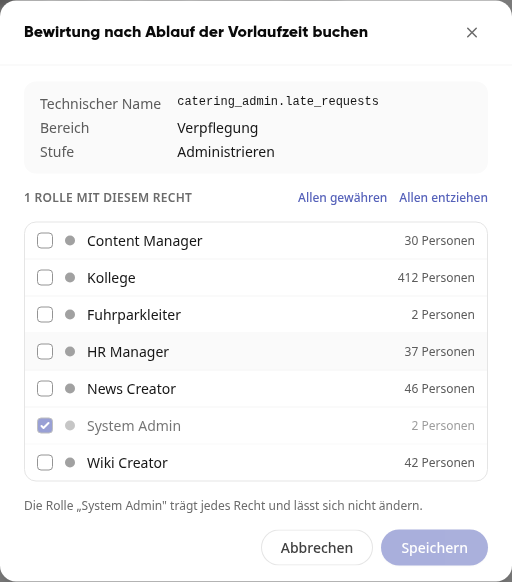
Check or uncheck the boxes next to the roles. Grant to All and Revoke from All change all roles at once.
Click Save. The platform shows you how many people will receive or lose the right and how many will have it afterward.
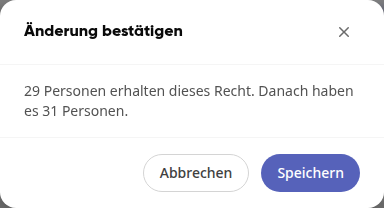
Check the numbers and confirm with Save.
A pre-delivered role that you modify in this way will afterward have the label Customized in the role list. Use Reset to Default in the role's menu to restore its original state.
Warnung
The change applies to all people with this role. Therefore, check the numbers in the dialog before confirming, especially with Grant to All and Revoke from All.
Info
The "System Admin" role has every right and cannot be changed here. The only exception is the right "Connect AI assistants via MCP": You can revoke it to completely disable MCP.
Tipp
If the dialog shows Something went wrong., reload the page and open the right again.