
App Lock (Face ID / Fingerprint)
Updated Reading time: 6 min
On this page
- What is the app lock?
- For Administrators: Enforce App Lock
- For Administrators: Confirm Approvals and Receipts with Face ID
- For Employees: Enable App Lock
- Re-lock after
- Disable App Lock
- If Your Company Prescribes the App Lock
- If Your Device Has No Screen Lock
- For Employees: Confirm with Face ID
- Good to Know
- If Something Doesn’t Work
The Kibi app only opens with the app lock once you have confirmed your identity with Face ID, fingerprint, or device code. This keeps messages, files, and everything else from your company protected if your phone falls into the wrong hands. Additionally, your company can require you to confirm approvals and acknowledgments in the app using Face ID or fingerprint.
What is the app lock?#
The app lock is an additional protection on your device. Before the Kibi app displays anything, it asks for the owner's face, fingerprint, or device code. This also applies if you open the app via a notification.
Info
Example: Your child is watching a video on your phone. A notification from Kibi arrives, the child taps it. The Kibi app opens but only shows the lock screen and first asks for your face. The message is not visible.
Function |
Who enables it |
Where |
|---|---|---|
App lock (voluntary) |
Each person for their own device |
Kibi app: My Profile › Security |
App lock (mandatory) |
Administration, for everyone |
Administration › System › Security |
Confirm approvals and receipts with Face ID |
Administration, for everyone |
Administration › System › Security |
Info
The app lock and confirmation with Face ID are only available in the Kibi app on the smartphone. In the browser and desktop app, you won’t see the tile in the profile, and approvals are sent there without a Face ID prompt.
For Administrators: Enforce App Lock#
Without a requirement, each person decides for themselves in their profile. As an administrator, you can enforce the app lock for everyone who logs into the Kibi app.
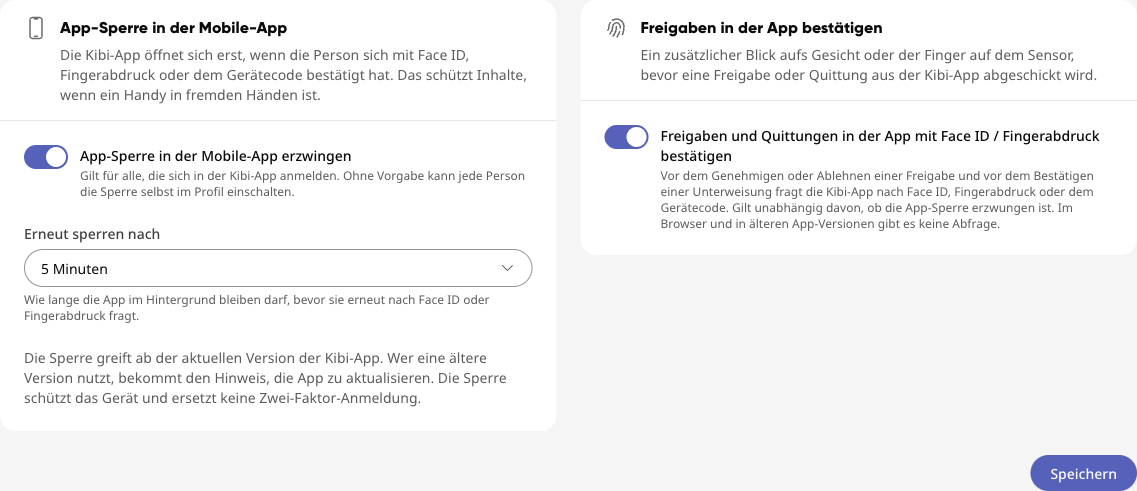
Open Administration and in the menu System › Security.
Scroll to the card App Lock in the Mobile App.
Enable Enforce App Lock in the Mobile App.
Under Re-lock after, select how long the app can remain in the background.
Click Save under both cards App Lock in the Mobile App and Confirm Approvals in the App. The button saves both cards together.
Setting |
Options |
Effect |
|---|---|---|
Enforce App Lock in the Mobile App |
On / Off |
On: The Kibi app asks all users for Face ID, fingerprint, or device code. In the profile, it then says “Prescribed by your company.” |
Re-lock after |
Immediately / 1 minute / 5 minutes / 15 minutes |
How long the app can remain in the background before it asks again. The selection appears once the lock is enforced. |
Confirm approvals and receipts in the app with Face ID / fingerprint |
On / Off |
Confirm Approvals in the App card, see next section. Applies regardless of whether the app lock is enforced. |
The requirement takes effect on the device as soon as the person next opens the Kibi app and is logged in. This also applies if you disable the requirement again. If someone logs out of the app, the device discards your company’s requirement.
Warning
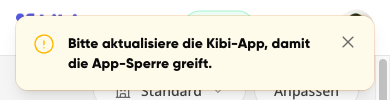
Older app versions: The app lock only works from the current version of the Kibi app. If someone uses an older version, they will see the message “Please update the Kibi app so the app lock takes effect” when opening it. Nothing will be blocked until the update.
For Administrators: Confirm Approvals and Receipts with Face ID#
If Confirm approvals and receipts in the app with Face ID / fingerprint is enabled, the Kibi app will ask once for Face ID, fingerprint, or device code before sending one of these actions:
definitively confirm an acknowledgment in an Academy training,
approve or reject a workflow approval (the card in the chat with Kai),
confirm a driver instruction in the vehicle fleet.
This works even without the app lock enabled. The device only needs a screen lock. You can find the toggle on the same page in the Confirm Approvals in the App card. Then click Save.
If the setting is on, approvals in the Kibi app can no longer be decided with a typed or spoken response in the chat, for example “Yes, that works.” Kai will then respond: “Please confirm the approval via the card.” In the browser and desktop app, this remains as before.
Info
The confirmation takes place on the device. It shows that the person on the phone is the owner and does not replace login with a second factor.
For Employees: Enable App Lock#
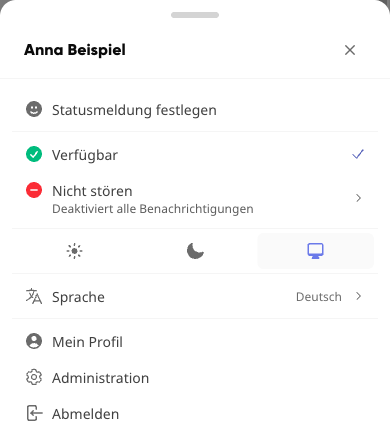
Open the Kibi app and tap your profile picture in the top right.
Tap My Profile.
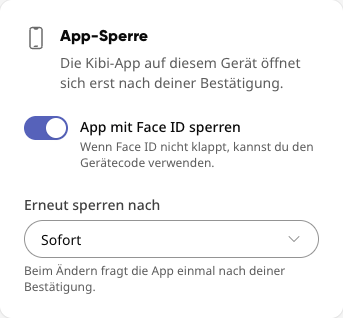
Select the Security tab and scroll to the App Lock tile.
Enable the toggle. Depending on the device, it will say “Lock app with Face ID,” “Lock app with fingerprint,” or “Lock app with device code.”
Confirm once with Face ID, fingerprint, or device code. From now on, the app is locked.

Re-lock after#
Once the app lock is enabled, you select under Re-lock after how long the app can remain in the background before it asks for your confirmation again.
Selection |
Effect |
|---|---|
Immediately |
The app asks every time you return to it. This is the default setting. |
1 minute |
If you were in another app for less than a minute, Kibi opens without a prompt. |
5 minutes |
Same as above, with five minutes. |
15 minutes |
Same as above, with 15 minutes. |
When changing the period, the app will ask once for your confirmation. If your company prescribes the app lock, you won’t see the selection. The period set by your administration then applies.
Disable App Lock#
Disable the toggle in the App Lock tile. The app will ask once for Face ID, fingerprint, or device code. Only after you confirm will the lock be disabled. If you cancel the prompt, it remains enabled.
If Your Company Prescribes the App Lock#
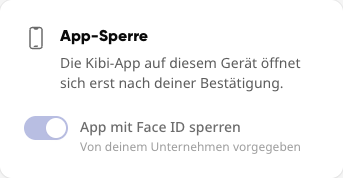
The toggle is then enabled and cannot be changed. Below it, it says “Prescribed by your company.”
If Your Device Has No Screen Lock#
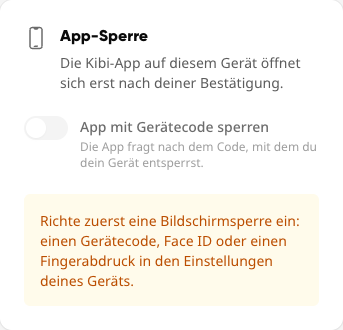
Without a device code, Face ID, or fingerprint, the app cannot be locked. The toggle is then grayed out, and the tile displays a notice. Set up a screen lock in your device settings and reopen the tile.
For Employees: Confirm with Face ID#
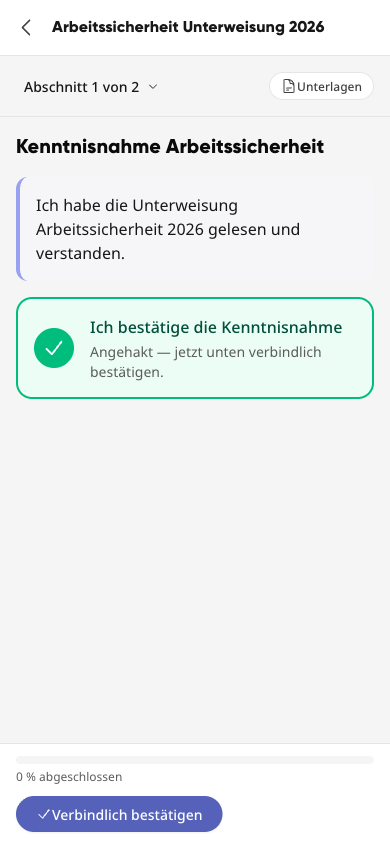
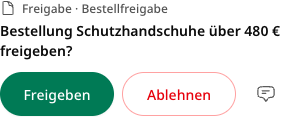
If your company requires confirmation, the Kibi app will ask for Face ID, fingerprint, or device code when you tap one of these buttons:
Where |
Button |
|---|---|
Academy, Acknowledgment section (after checking “I confirm the acknowledgment”) |
Confirm Definitively |
Chat with Kai, approval card |
Approve or Reject |
Vehicle Fleet, Driver Instruction |
Confirm |
If you confirm, the app sends the action as usual.
If you cancel the prompt, nothing is sent. You can simply try again.
If the prompt fails, for example after too many failed attempts, the app displays a message ending with “Nothing was sent.”
You decide on an approval in the app via the card. A response like “Yes, that works” in the chat is then not sufficient.
Good to Know#
The device code is always allowed as a fallback. So you won’t lock yourself out with a wet finger or mask.
Camera, document scanner, sharing, and NFC, which you open from the Kibi app, do not re-lock the app. You can return without a new prompt.
In the app switcher, the content of the Kibi app is hidden. No one sees a preview of your messages there.
Displays in kiosk mode (Digital Signage) are never locked.
The app lock protects the device. It does not replace login with a second factor or passkeys for your account.
If Something Doesn’t Work#
What happens |
Cause and solution |
|---|---|
The App Lock tile is missing in the profile. |
You are in the browser, desktop app, or an older Kibi app. Update the Kibi app on your smartphone and open the profile there. |
“Set up a screen lock first …” |
Neither device code, Face ID, nor fingerprint is set up on the device. Set up one of these in the device settings. |
“Too many failed attempts …” |
The device has temporarily locked Face ID or fingerprint. Unlock the device once with the code and try again. |
The toggle cannot be disabled. |
Your company prescribes the app lock (“Prescribed by your company”). Your administration can answer questions about this. |
“Please update the Kibi app so the app lock takes effect.” |
Your company enforces the app lock, but your app version does not yet support it. Update the Kibi app in the App Store or on Google Play. |
After an approval, it says “Nothing was sent.” |
The confirmation on the device did not work. Try again. The approval is still open. |