
How do I find and store documents in the DMS?
Updated Reading time: 3 min
On this page
In the DMS, you can quickly find invoices, contracts, and other business documents, view them directly, and file new documents in the appropriate folder.
Info
You only see the repositories for which you have read permissions. If you do not see any documents, your system administration must first grant you access to the repository. External parties do not have access to the DMS.
Searching for documents#
Click on DMS in the navigation. On the start page you will see the Document types with their count, the Recently filed list, and the Inbox.
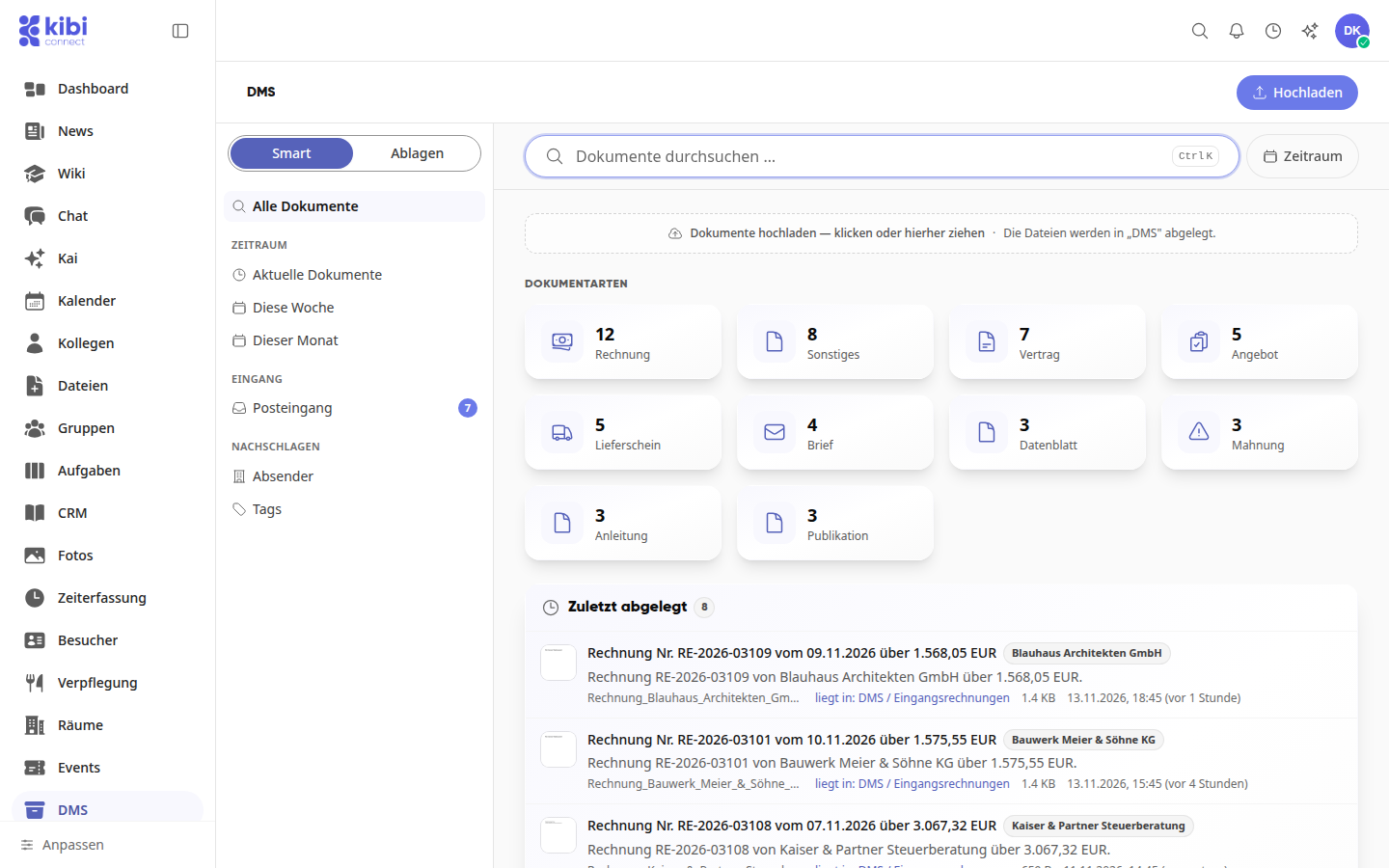
Enter a term at the top under Search documents …, for example a sender or an invoice number. The results appear directly below.
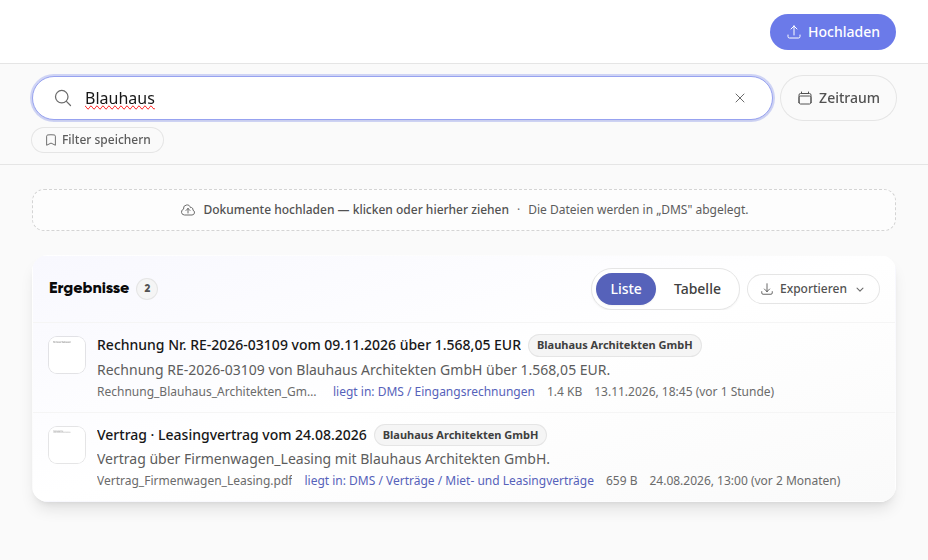
Narrow down the list further if needed: Click on a tile under Document types, for example Invoice. Or select an entry on the left under Smart such as This week, Sender, or Tags. Under Filing locations you can search for folders.
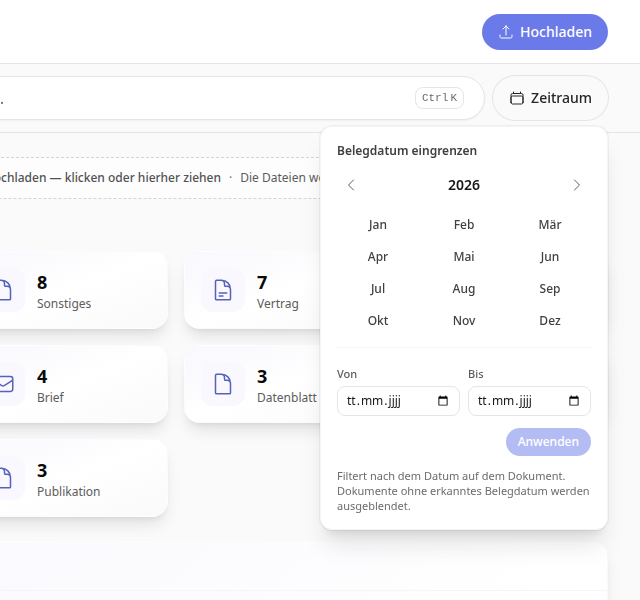
Use Time period to filter by the date on the document. Click on a month and the filter applies immediately. Or enter From and To and click on Apply.
Tip
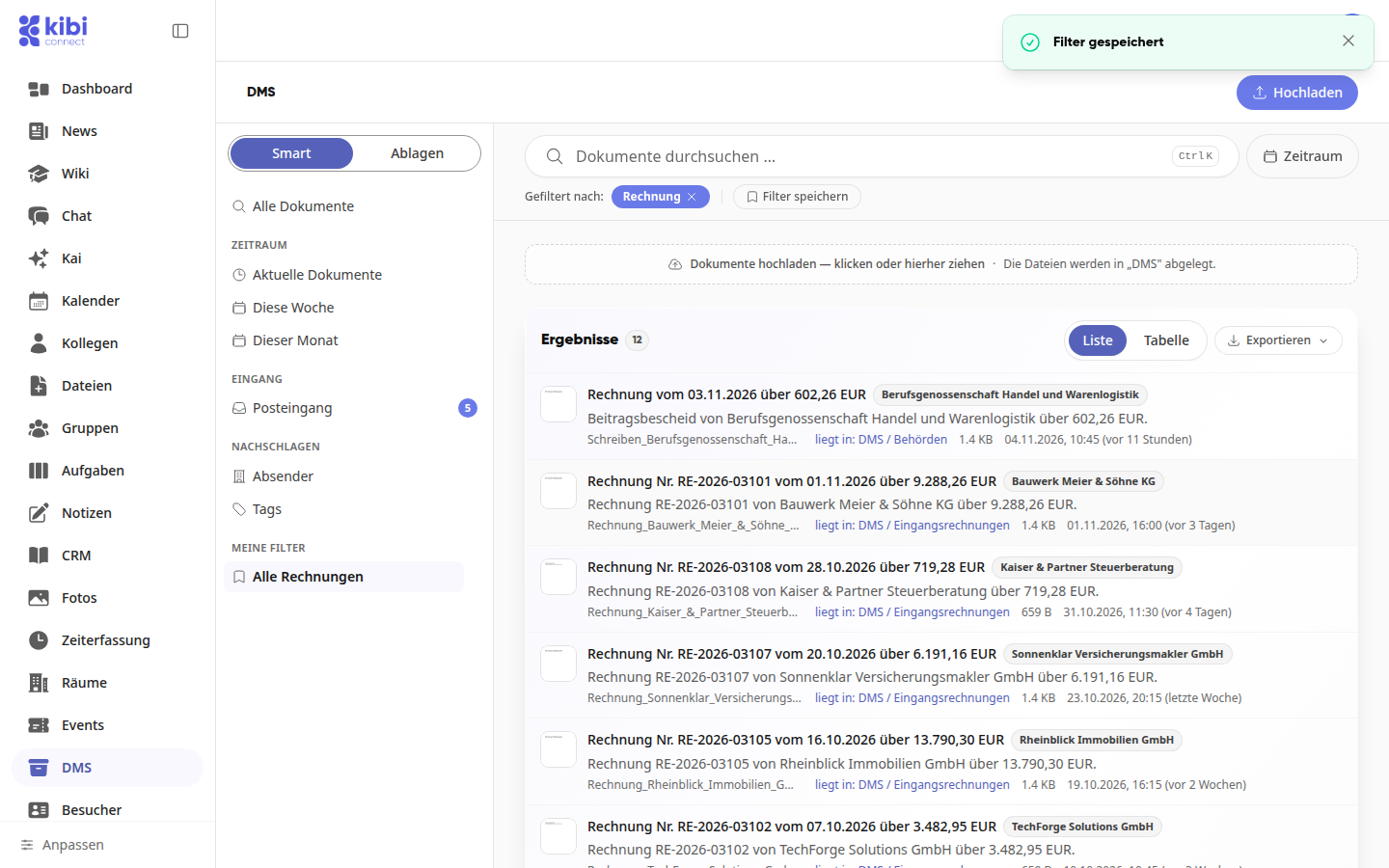
The active filters are shown below the search field under Filtered by:. Use the cross on the filter to remove it again.
Save filter and export list#
Set up the search or filter that you need more often.
Click on Save filter, enter a filter name and confirm with Save filter. The filter will then appear on the left under My filters.
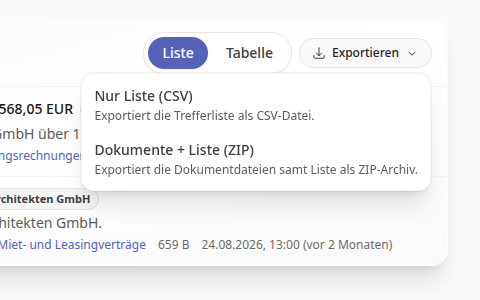
Click on Table above the result list if you prefer to see the hits as a table.
Click on Export and select List only (CSV) or Documents + list (ZIP).
View document#
Click on a document in the list. The preview opens on the right.
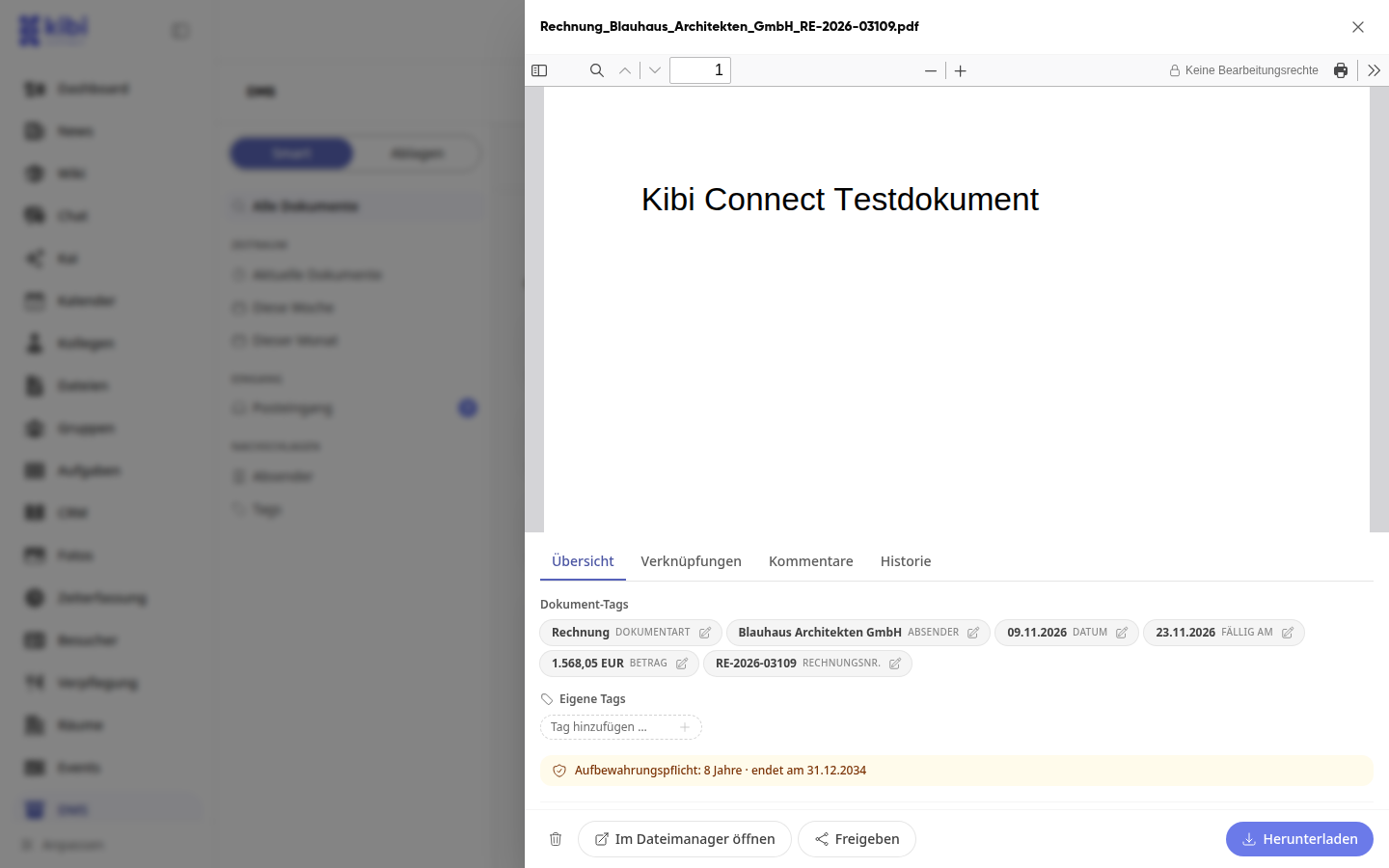
At the bottom of the preview, you can Download, Share, or Open in File Manager the document.
Below the document, you will find these tabs:
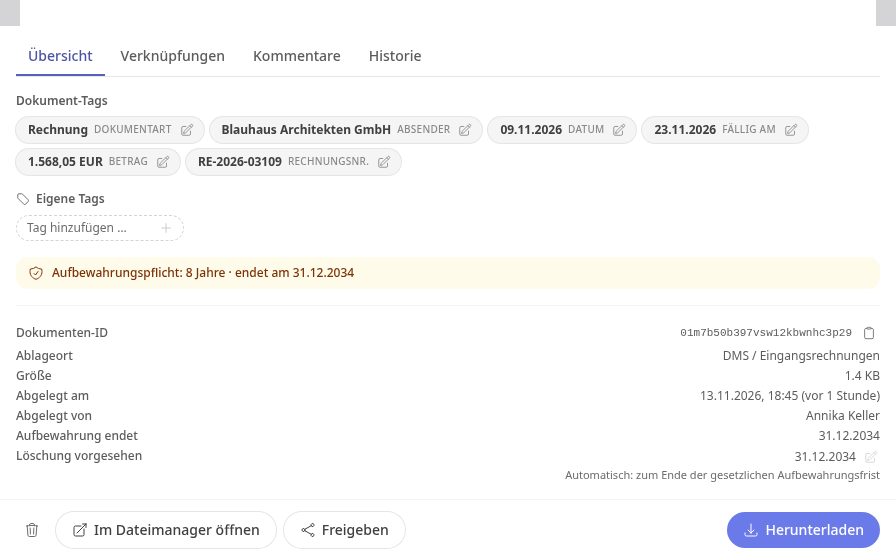
Overview: Document tags, own tags, storage location, and deletion deadline.
Links: Links and files in which the document is linked.
Comments: Questions and notes about the document, see below.
History: Changes to the document, for example to the tags.
Comment on document#
Open the document and switch to the Comments tab.
Write your comment. If you want to directly address a colleague, type @ and the first letters of the name, and select the person from the list.
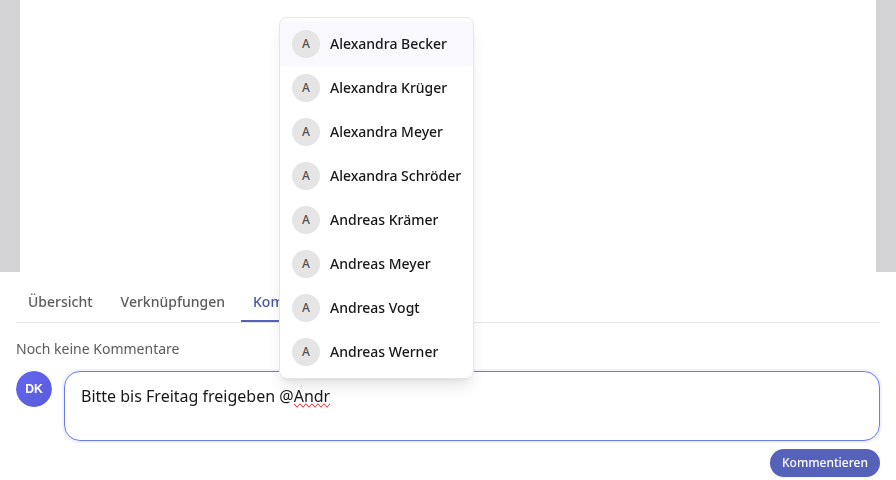
Click on Comment.
Info
Mentioned people receive a notification. All other comments on DMS documents do not trigger a notification.
Change document details#
Open the document and stay on the Overview tab.
Click on the pencil icon for a document tag such as Sender and correct the information.
Under Custom tags, enter a term and press Enter. Later, you can find all documents with this tag under Tags in the left column.
Use the pencil icon next to Deletion scheduled to set the deletion deadline. Select the date and click Save.
Info
A deletion deadline does not delete anything automatically. The system administration checks and deletes due documents. For documents subject to retention, the deadline must not be before the end of the statutory period.
Storing Documents#
Switch to Filing on the left and click on the folder where the document belongs.
Click Upload at the top right and select one or more files. You can also drag the files into the Upload documents — click or drag here field. It also shows which folder they will be saved to.
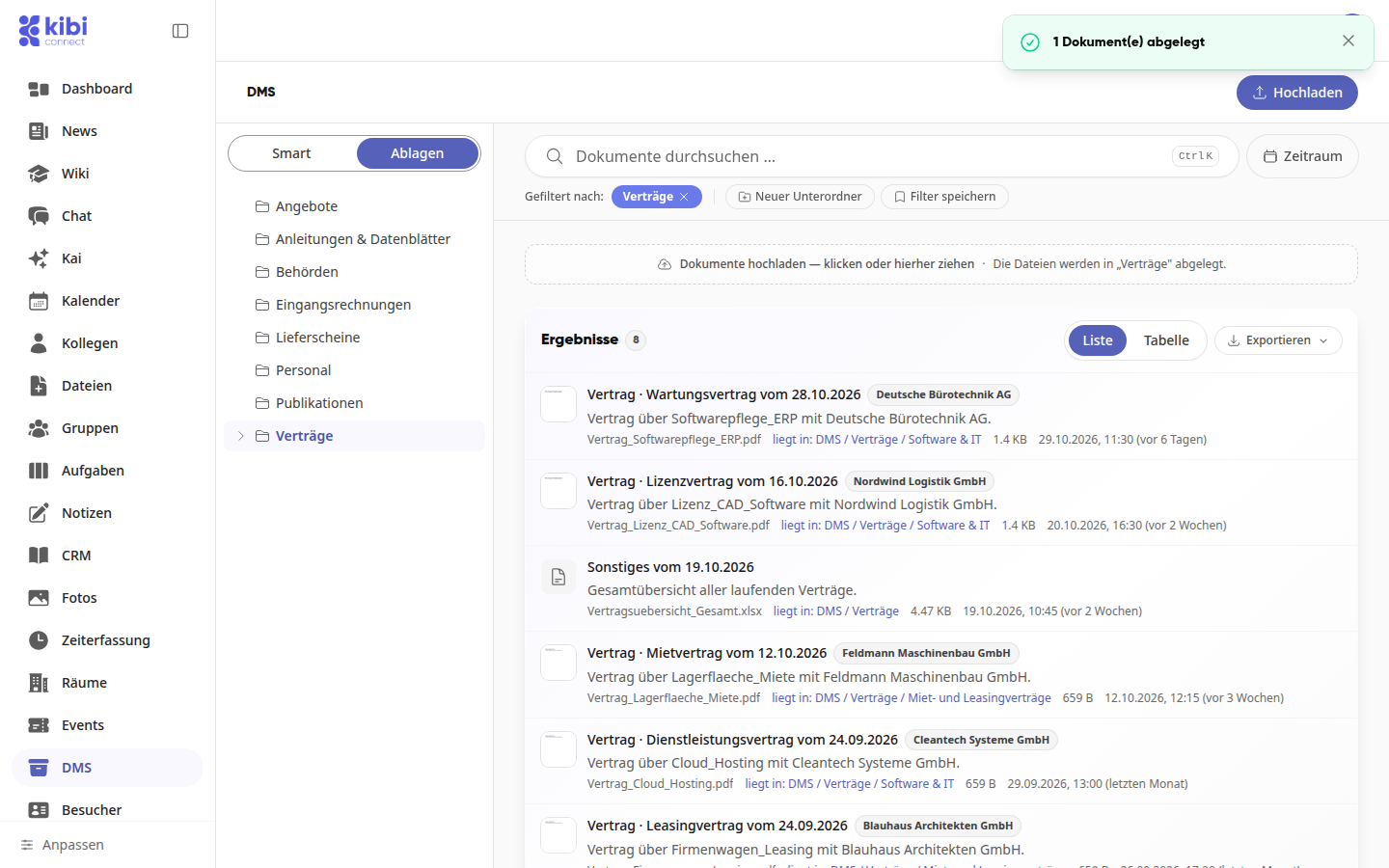
If a folder is missing, create it in the selected folder using New subfolder.
Info
If Upload and New subfolder are missing, you only have read access to this folder. Uploaded documents initially appear in the list only with their file name. Kai adds the document type and sender if your platform is configured that way.
Confirm suggestions in the inbox#
Click on Inbox on the left. Under To be confirmed, you will find the documents with the note Suggestions.
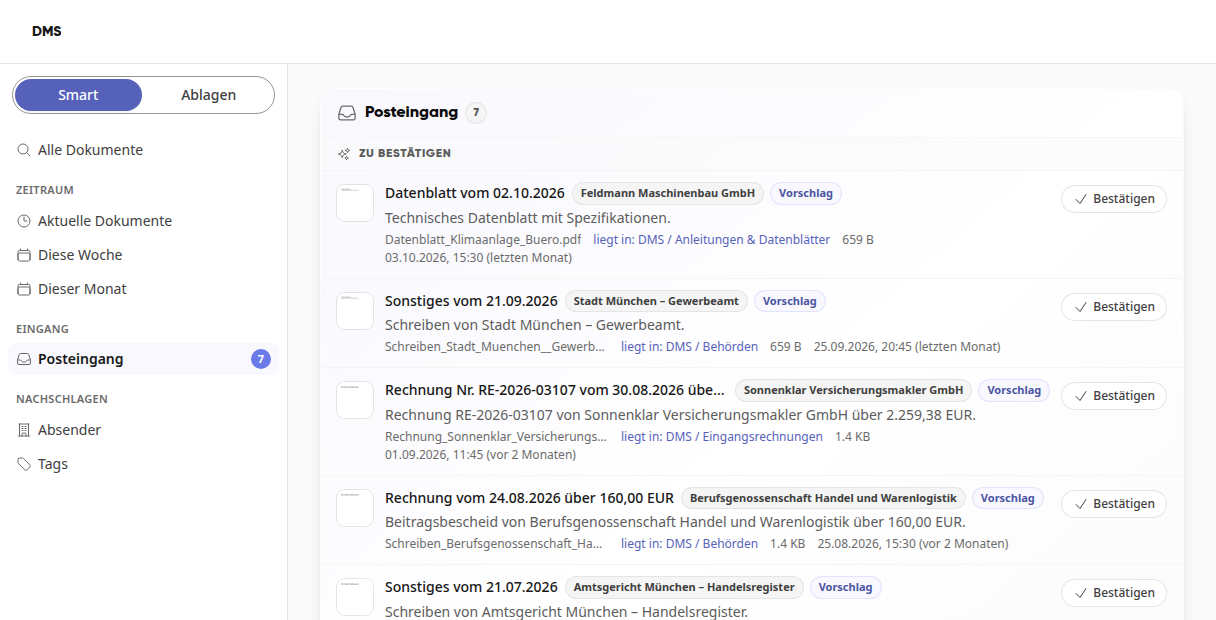
Open a document if you want to check or correct the details.
Click on Confirm. The document disappears from the inbox.
Delete and restore documents#
Open the document and click the trash can icon at the bottom left.
Confirm Delete document? with Delete. The document is now in the trash.
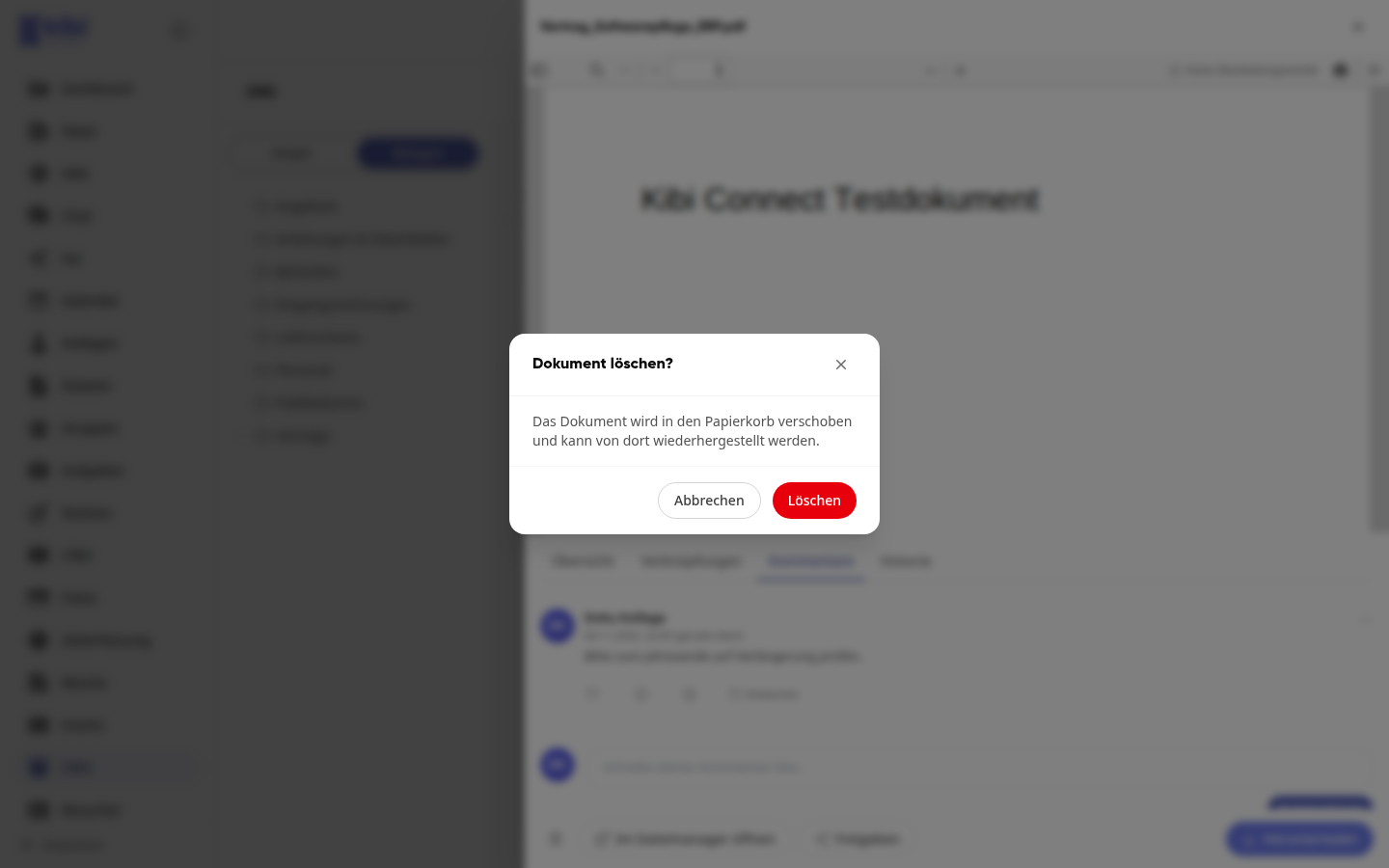
To restore, open Files, then Trash, and click Restore on the document.
Info
Whether you are allowed to delete is determined by your system administrator in the DMS settings.