
How do I design the dashboard template for the company?
Updated Reading time: 2 min
On this page
With the dashboard template, you define which tiles all employees see on the Standard dashboard. You can set individual tiles for everyone or show them only to specific roles and groups.
Info
This function is available to system administrators.
Edit template#
Click on Administration in the left navigation and then, under Platform, on Dashboard template.
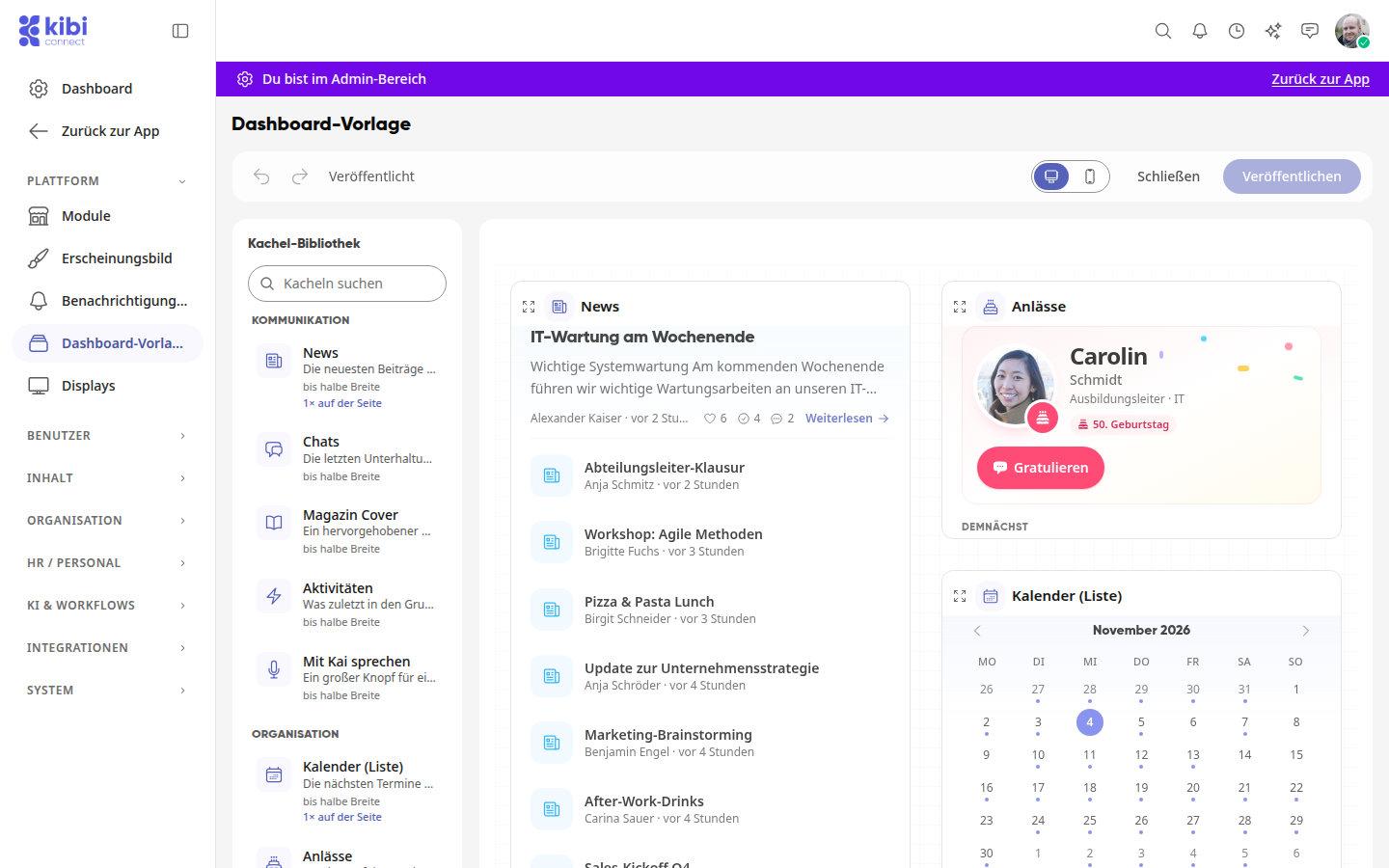
Click on a tile in the tile library to add it. Tiles marked with 1× per page can only be used once.
Drag a tile with the mouse to its new position.
Hover over a tile with the mouse to show its tools. You can edit, duplicate, resize, and delete it there.
Use the Desktop and Mobile toggle at the top right to check how the page looks on both devices.
Your changes are initially a draft. At the top, for example, you will see Draft · 1 change. Employees do not see anything yet.
Info
Some newly added tiles only show the note Preview after publishing until you publish.
Add new wiki entries to the template#
With the New wiki entries tile, you show all employees the most recently published pages from the wiki. Each person only sees pages that they are also allowed to see in the wiki.
In the Tile library, under Search tiles, enter "Wiki" and click on New wiki entries.
Hover over the tile with the mouse and click on the gear icon.
Under Number of pages, select how many pages the tile shows: 3, 5, 10, 15, or 20. As with every tile, you also set Pinned and the Target audience here.
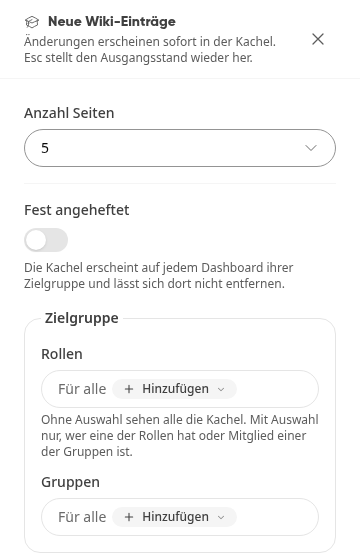
Click on Done and publish the change.
Until publishing, the tile in the template only shows the note Preview after publishing.
Pin a tile or make it available to an audience#
Hover over the tile with the mouse and click on the gear icon.
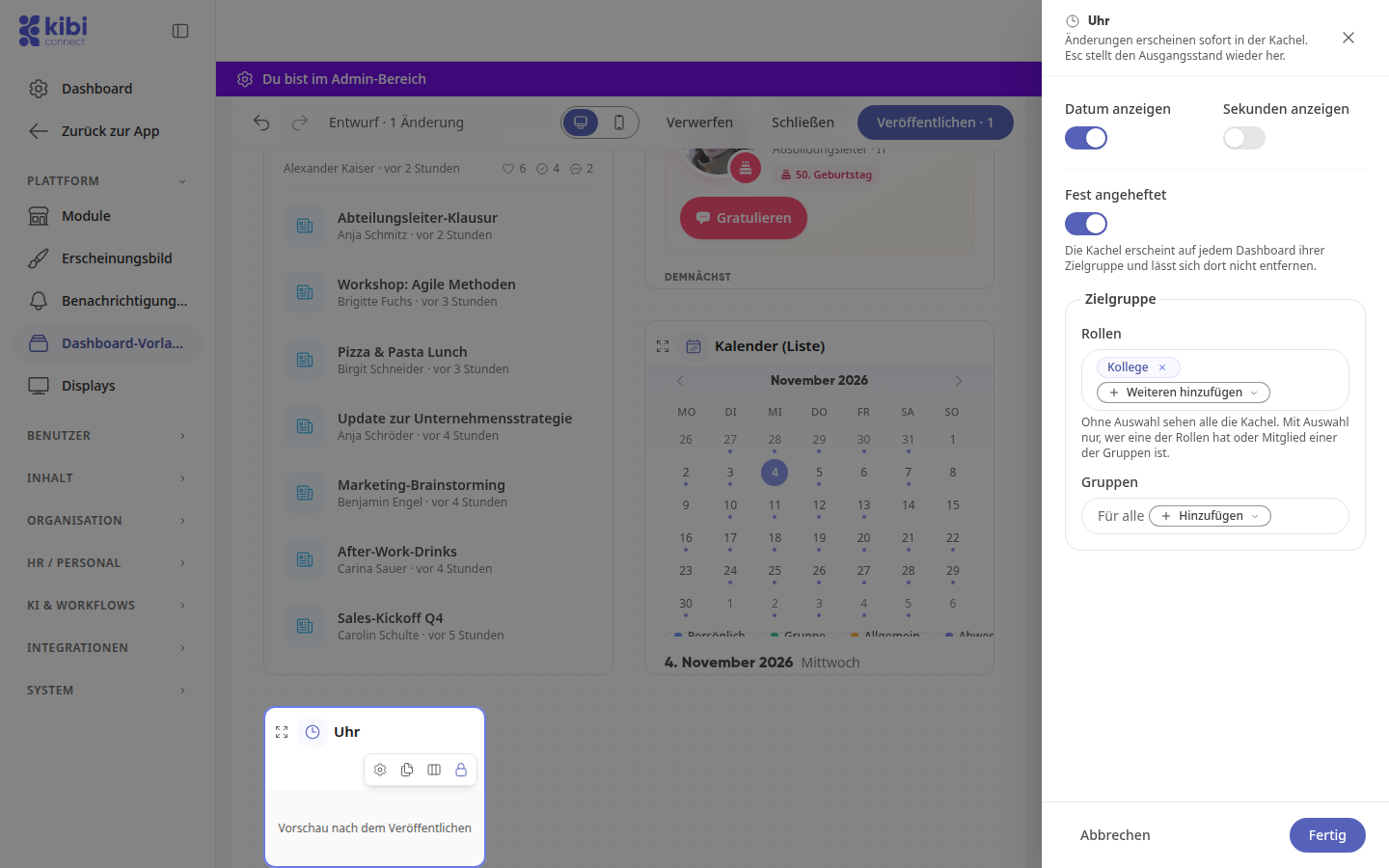
Enable Pinned if the tile should appear on every dashboard of its audience and cannot be removed there.
Under Audience, click Add next to Roles or Groups and select who should see the tile. Without a selection, everyone sees it. With a selection, only people who have one of the roles or are members of one of the groups see it.
Click on Done.
Tip
You cannot delete a pinned tile directly. First turn off Pinned. After that, the trash can will appear again in the tile's tools.
Publishing Changes#
Click on Publish in the top right corner. The number on the button shows how many changes are pending.
Check the overview to see what is changing.
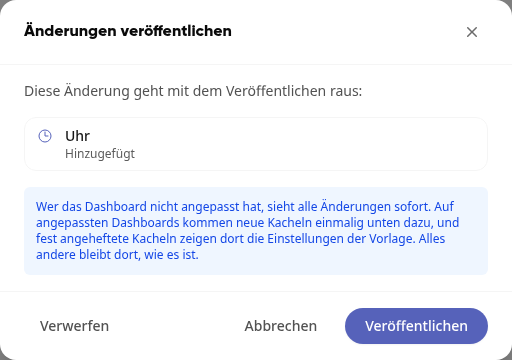
Click on Publish. Afterward, Published will appear at the top.
Wichtig
Anyone who has not customized the dashboard will see all changes immediately. On customized dashboards, new tiles are added once at the bottom, and pinned tiles there show the template settings. Everything else remains as it is.
Discard draft#
Click on Discard in the top right corner.
Confirm with Discard. The page will be reset to the last published version.
Warning
A draft is not saved if you leave the page. If you click on Close beforehand, you can return to your changes in the following dialog with Continue editing and publish them.