
How do I book a vehicle?
Updated Reading time: 5 min
On this page
You will find an available vehicle for your time period or book directly from the booking overview. If the vehicle no longer fits, you can change it in the existing booking. After that, you take over the vehicle and return it again.
Info
This function is available to all employees. You will find it in the navigation under Vehicles.
Find a free vehicle#
Click on Vehicles in the navigation and then on the Find vehicle tab.
Enter under From and To when you need a vehicle. The list adjusts immediately.
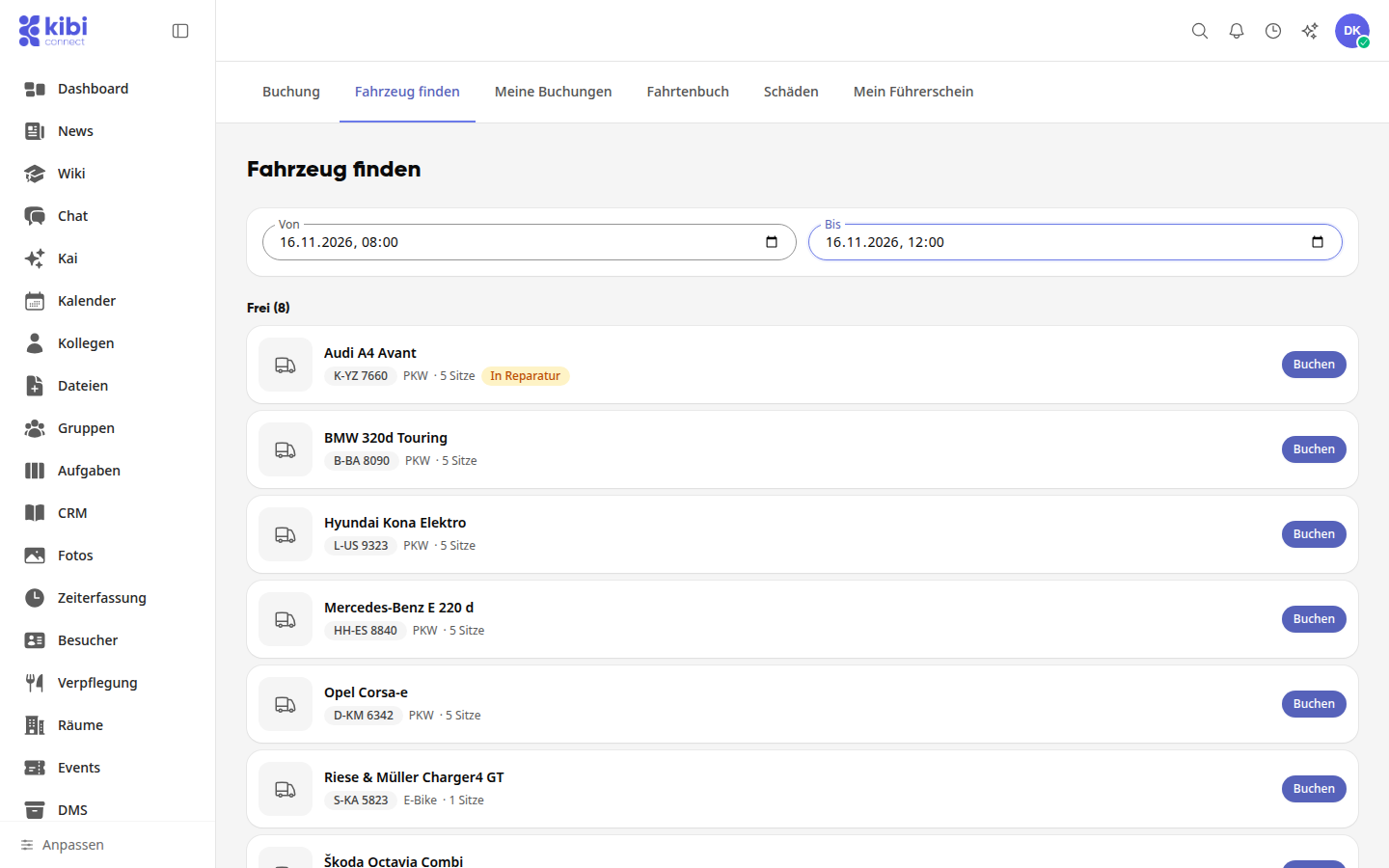
Click on Book under Available for a vehicle. The form opens with your time period.
Under Not available, the reason is shown for each vehicle, for example Booked until Mon., Nov 16, 1:00 PM or Driver's license class missing.
Booking from the booking overview#
The Booking tab shows the pool vehicles with their bookings. At the top, you can set Day, Week, or Month and filter by vehicle type.
In the Week or Month view, search for the vehicle and the day.
Under a booked vehicle, there is a plus sign for each day. Click on it.
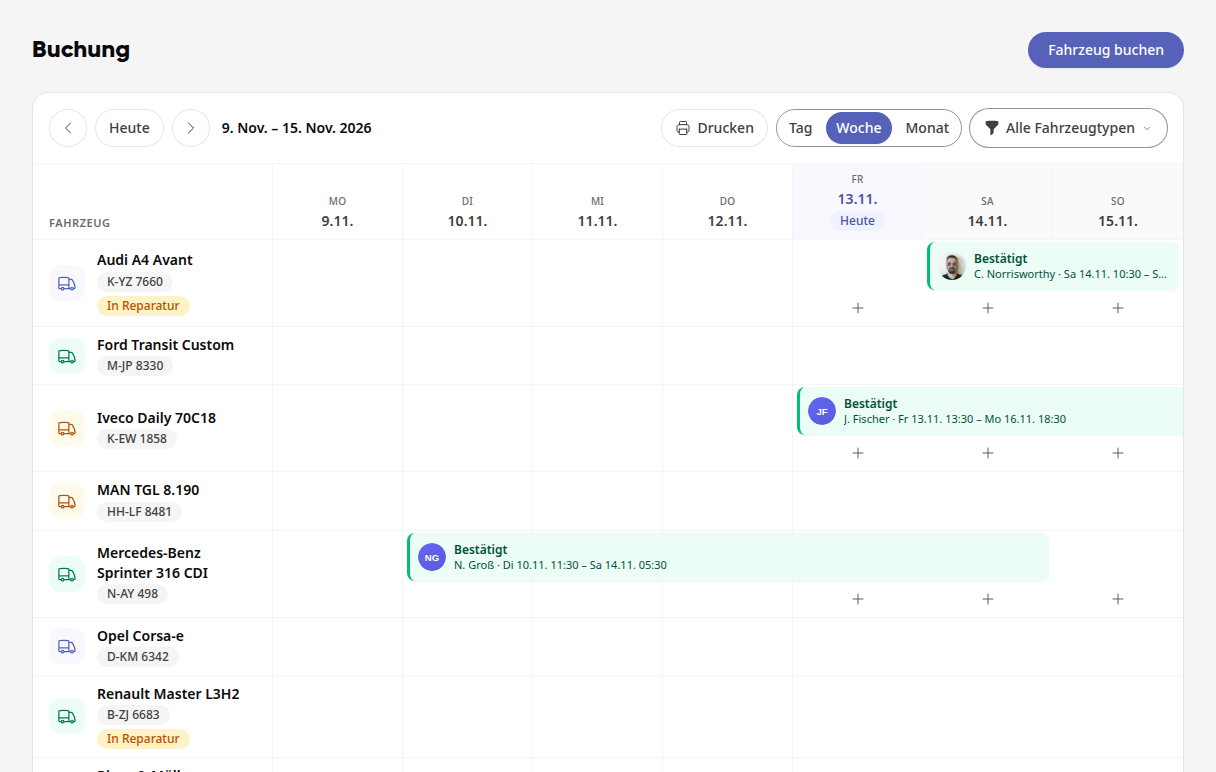
The start time is already entered: the first available time slot of that day. If a booking ends at 7:15 PM, yours begins at 7:15 PM.
For a vehicle without a booking in this period, the plus sign appears as soon as you hover over the day with the mouse. On a free day in the future, the booking starts at 8:00 AM. Using the Book vehicle button at the top right, you open the form without any preselection.
Tip
Click on a booking to see its details. For bookings by colleagues, only the bookers, the drivers, and the fleet management can see the purpose, notes, and mileage readings.
Complete Booking#
Check Pool vehicle, Day, Start, Ends on, and End.
Under Driver, you are listed yourself. If someone else is driving, select that person here.
If needed, enter Purpose and Notes.
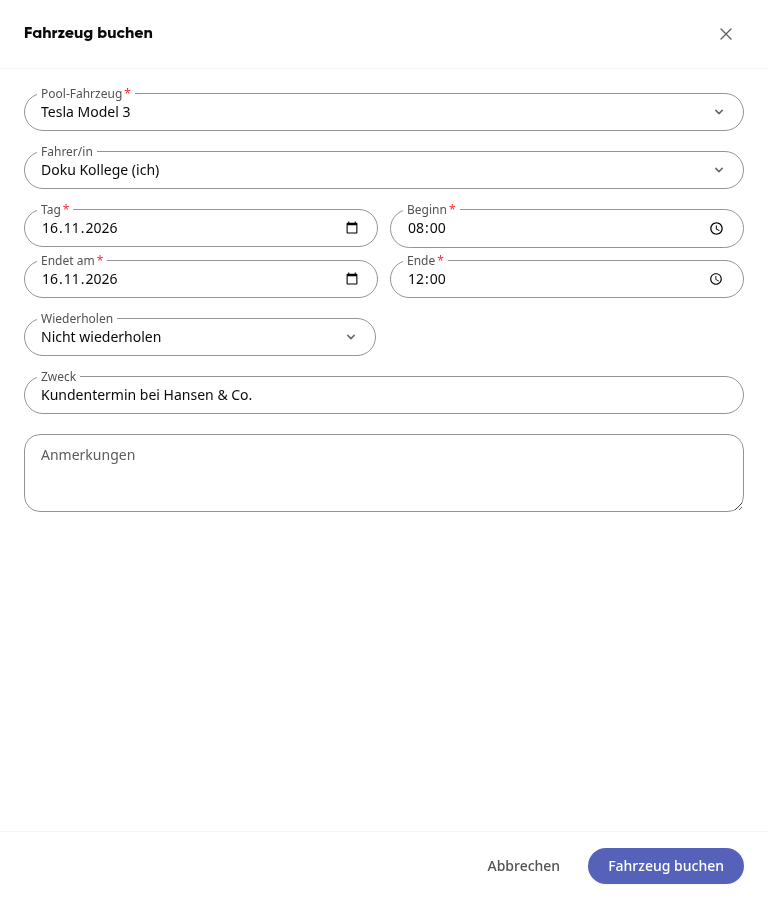
Click on Book vehicle. The booking will then appear under My bookings.
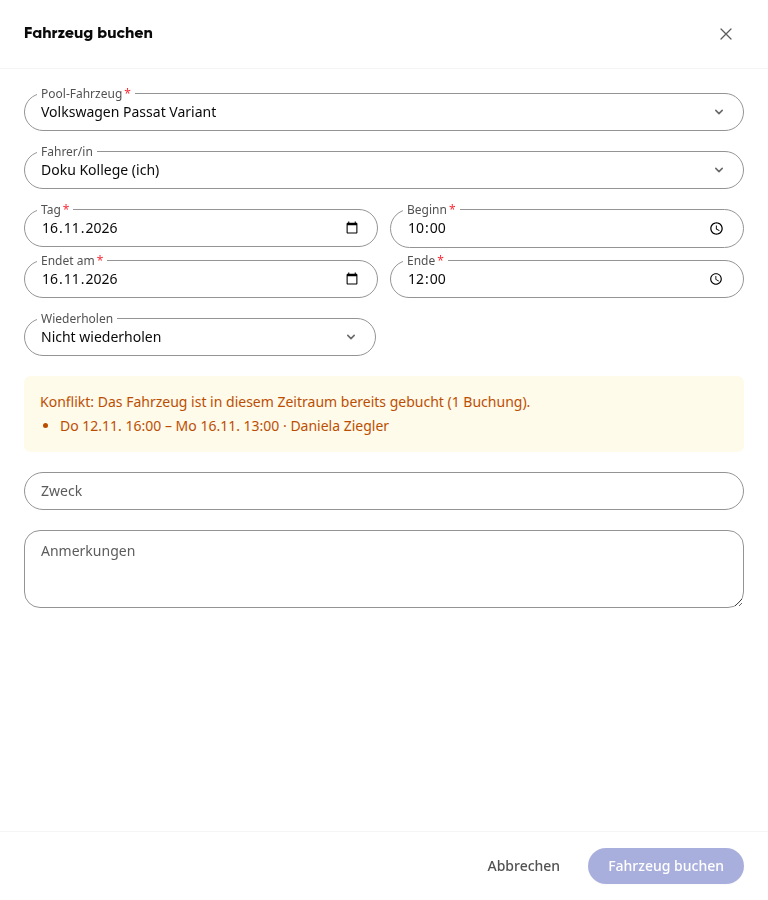
If the vehicle is already assigned during the selected time period, the form will show the booking it overlaps with. You can only book once you have changed the time period.
Important
Some vehicles require a specific driver's license class. If you do not have it, the platform will show Driver's license required and guide you with To my driver's license to upload it.
Info
If bookings in your team require approval, your booking will initially show Waiting for approval until it has been approved.
Answering questions about the vehicle#
For some vehicles, the fleet management has stored questions. They appear in the form below the time period or only upon return. Questions with an asterisk must be answered before you book or return the vehicle.
Answer the questions in the form. Depending on the question, you enter text, a number, or a date, select an answer, or upload something.
For a photo question, click on Add photo. On your smartphone, you take the photo with the camera or select it from your images; on your computer, you select an image file. You can add multiple photos.
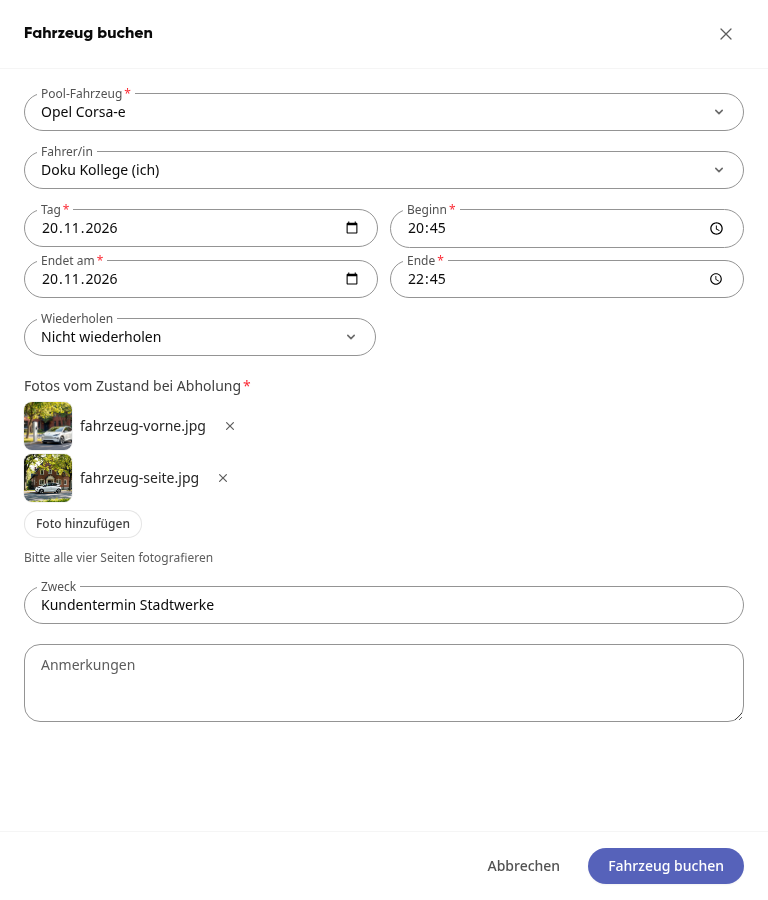
For a file question, click on Add file and select, for example, a PDF.
You can remove a wrong photo or file using the cross next to the name.
Your answers will then appear in the booking details. The fleet management can also see them, and in the case of approvals, already in the request.
Booking regular trips#
In the form, under Repeat, select: Daily, On working days (Mon–Fri) or Weekly.
Under Repeat until, enter the last date. Below that, you will see how many appointments are created.
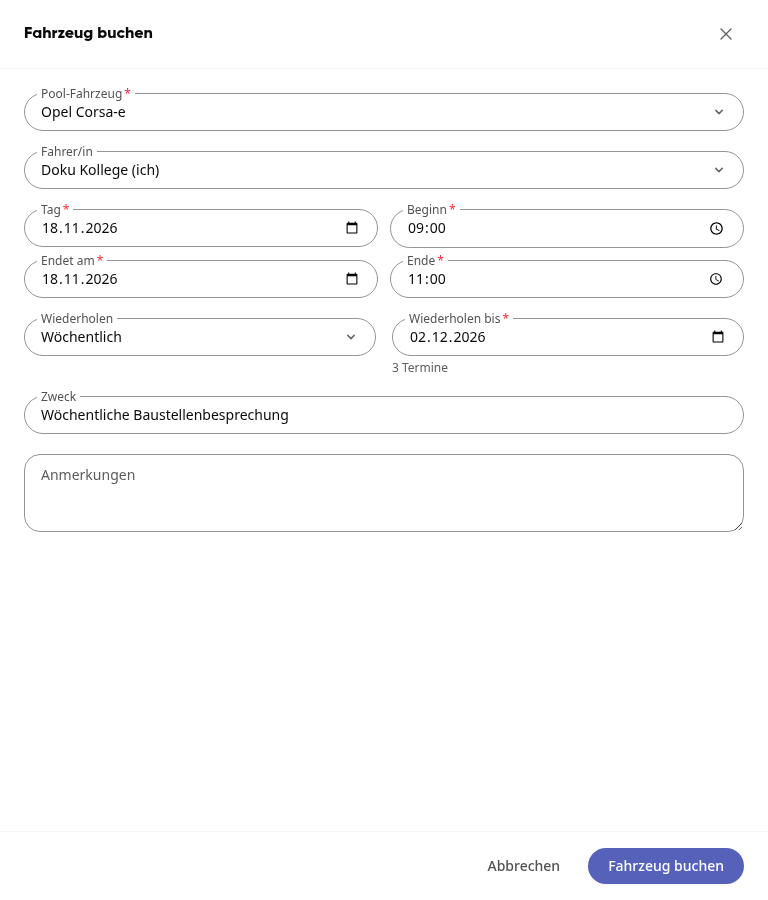
Click on Book vehicle. The platform will, for example, report 2 appointments booked.
If your booking spans several days, the vehicle is occupied the entire time. If you only need it during the day, use Repeat instead.
Change or cancel a booking#
Open the My bookings tab and click on Details for the booking.
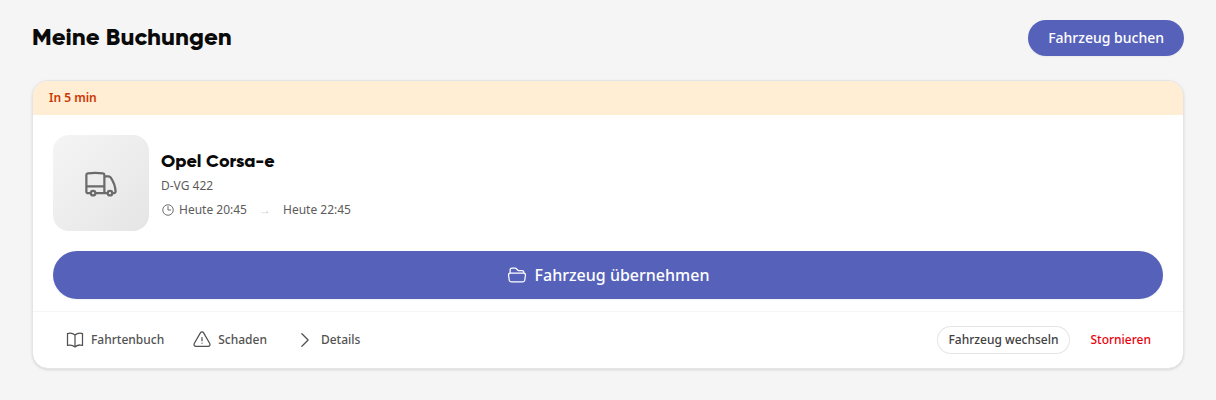
Click on Change time, enter the new period under From and To, and click on Apply time. The vehicle must then be available.
Or click on Cancel and confirm again with Cancel. This cannot be undone.
For a series, when canceling, select Only this appointment or This and all following appointments.
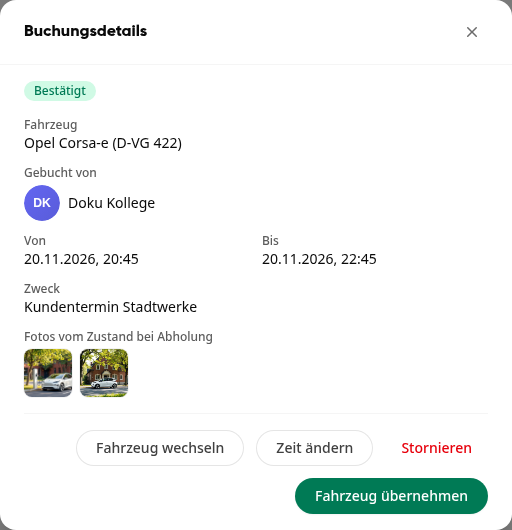
Change the vehicle of a booking#
If you need a different vehicle, you don't have to cancel and recreate your booking. The period, purpose, and notes are retained.
Under My bookings, click on Change vehicle for the booking. You can also find the button in the booking details.
The platform shows you all vehicles available during your period under Available. Under Not available, the reason is listed for each other vehicle, for example Driver's license class missing.
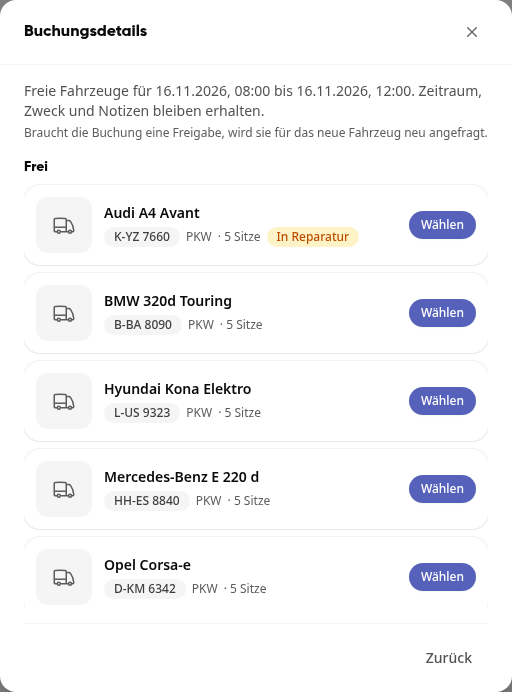
Click on Select for the desired vehicle. The platform reports, for example, Vehicle changed: BMW 320d Touring (B-BA 8090). With Back you cancel.
For a series, you only change the vehicle for the individual appointment. If you have already taken over the vehicle, a change is no longer possible.
Info
If bookings in your team require approval, the booking for the new vehicle will be requested again. It will then be set to Pending approval again, even if it was previously confirmed. A series that is still pending approval can only be rebooked after approval.
Pick up and return vehicle#
The booking details show when you can pick up a vehicle, for example under the button Pickup possible from 16.11.2026, 07:30.
Click on My bookings, then on Pick up vehicle, and in the next window again on Pick up vehicle.
Enter the mileage and, if necessary, handover notes about the vehicle's condition.
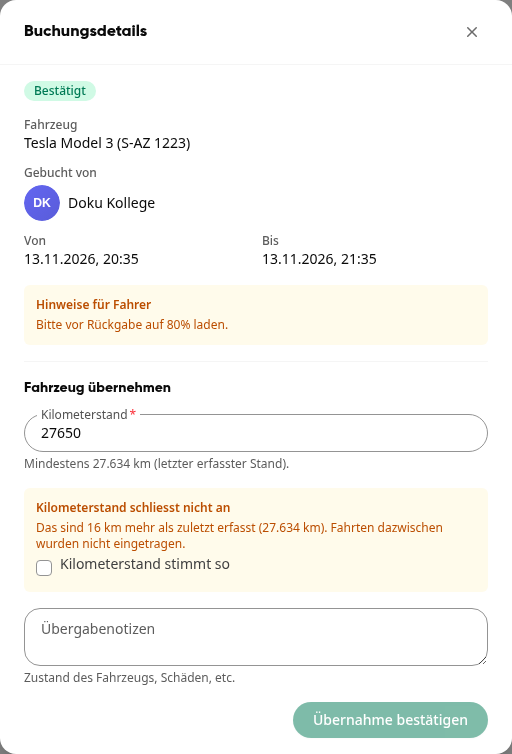
Click on Confirm pickup.
After the trip, click on Return vehicle and then again on Return vehicle.
Enter the mileage. If the vehicle has return questions, answer them here, for example with Add file for a fuel receipt. If necessary, add return notes and click on Confirm return.
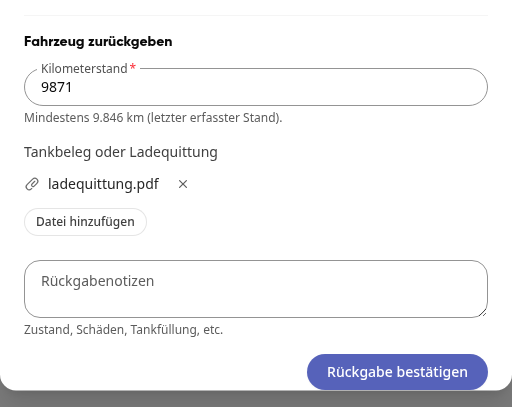
If the logbook is enabled, the platform offers you the logbook entry, already pre-filled with the kilometers. Complete it and click on Save entry or skip it with Cancel.
The mileage must not be lower than the last recorded value. If it is higher, the platform will ask for confirmation: You then confirm Mileage is correct as is before picking up the vehicle.
Info
If driver's license check is enabled before each trip, on the first pickup of the day, photograph the front and back of your driver's license and click on Complete check. The check applies to all pickups that day.