
How do I send content from another app to Kibi Connect?
Updated Reading time: 2 min
With the Kibi Connect mobile app, you can send files, images, texts, and links directly from another app to Kibi, for example, a PDF from your email program or a photo from your gallery. Afterward, you decide where the content ends up.
Send content to Kibi#
In the other app, tap Share and select Kibi Connect from the list (on some devices, the entry is called Send to Kibi).
Kibi Connect opens with the page Sent to Kibi. At the top is the question Where should the content go?, below it a line with what you sent, for example 3 files · PDF, Excel, JPG.
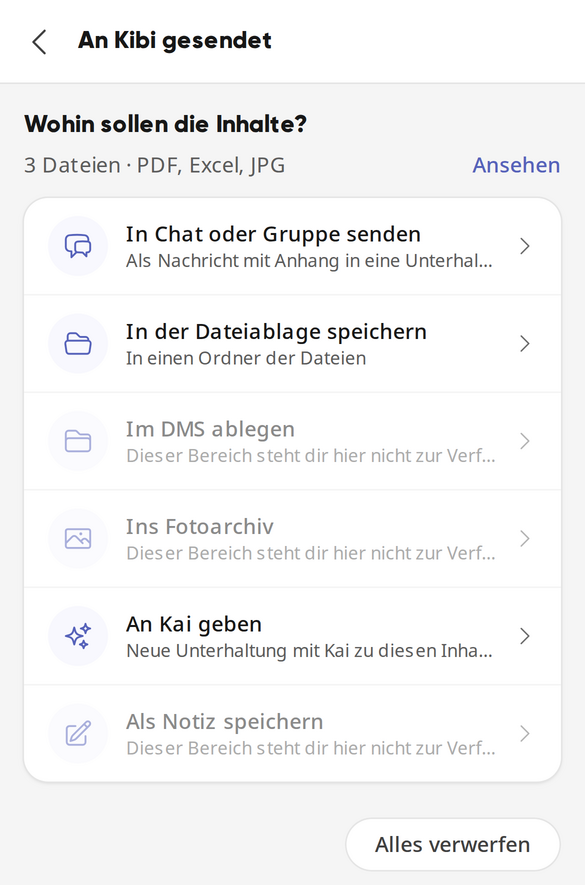
Tap the destination where the content should go (overview below).
Depending on the destination, you then choose exactly where. When saving to files, for example, select a folder under Choose folder in files and tap Place here.
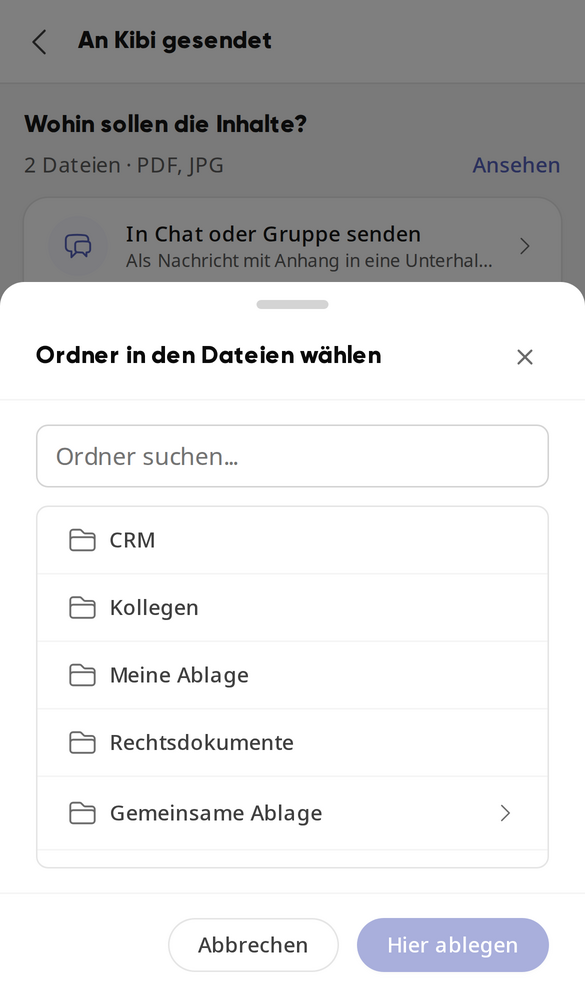
After saving to files, Saved in files. appears and the selected folder opens with the new files.
Check shared content and remove individual items#
Tap View next to the summary. The list shows each entry with name, file type, and size.
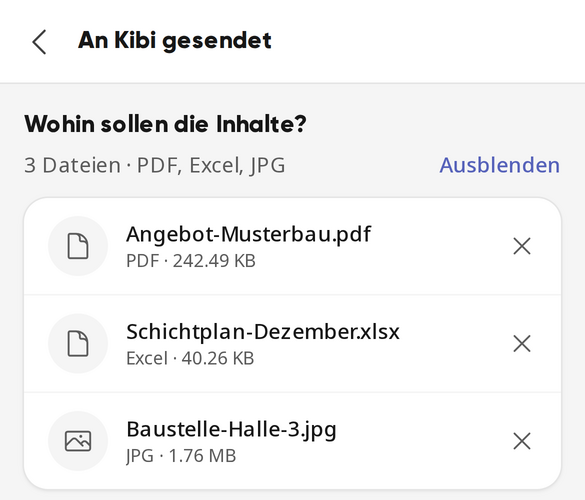
If you don't want to share something, tap the X in its row. If you remove the last entry, sharing is discarded entirely.
Use Hide to collapse the list again.
Use Discard all to cancel without saving anything.
Info
If an entry could not be added, the list opens automatically and shows the reason, for example Too large to share (maximum 40 MB per file).
These goals exist#
Goal | What happens |
|---|---|
Send to chat or group | The content is sent as a message with an attachment to a conversation you select. |
Save in file storage | The files end up in a folder in the files area. |
Store in DMS | The files end up in a folder in the document management system. |
To photo archive | The images are saved in the photo archive. |
Send to Kai | A new conversation with Kai about this content starts. |
Save as note | A new note is created with the text and the files as attachments. |
A goal is grayed out if it does not fit: If it says This area is not available to you here. below it, the module is not set up in your system or you do not have permission for it. Only for files or Only for images means that you must send files or images respectively for that purpose.
Important
Sending to Kibi only works in the mobile app for Android and iOS. If you open the page in a browser, Only in the mobile app appears.