
How do I record conversations and remind myself of a contact?
Updated Reading time: 4 min
On this page
For each contact in the CRM, you can record when you called, wrote to, or had an appointment with them. For visits and longer conversations, you write a protocol – with a template, photos, and next steps. With a reminder, you ensure that you get back in touch in good time – optionally together with colleagues.
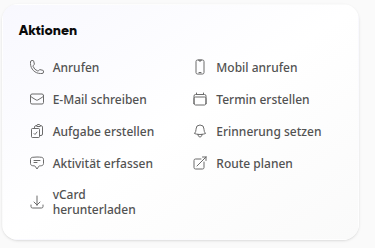
The quickest way to start is via the Actions card at the top right of the contact's detail page: Log activity jumps to the Activities card, Set reminder opens the Reminder card.
Quickly record a conversation or appointment#
Open the contact (person or company) in the CRM.
Click on Record activity in the Actions card, or scroll to the Activities card on the Overview.
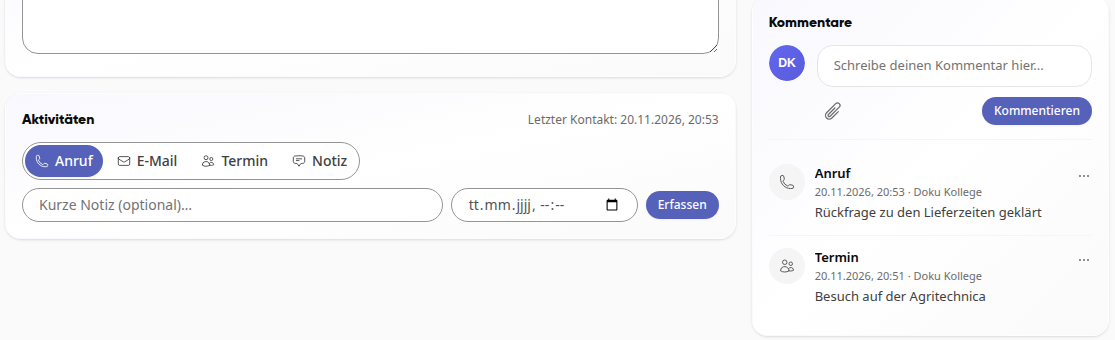
Select the type of contact: Call, Email, Appointment, or Note.
If needed, write a brief note in the Short note (optional)… field. If you leave the date and time empty, the current time will be used.
Click on Record. The message Contact noted appears, the entry is shown on the right in the Comments card, and Last contact displays the new date.
Info
The Comments card shows the recorded activities and logs together with the comments from your colleagues. You write a comment directly at the top of the card and click on Comment. Free notes about the contact belong in the Notes card or as a Note activity in the Activities card.
Tip
Contacts whose last contact was a long time ago are shown to you on the CRM home page under Today in the Long idle card.
Document a visit or conversation in detail#
A protocol records more than a brief activity: fixed fields from a template, photos or files, a summary, and the next steps.
Open the contact and switch to the Protocols tab. Click on Create protocol. You can also access the same path via the document icon Create protocol at the top right next to the name.
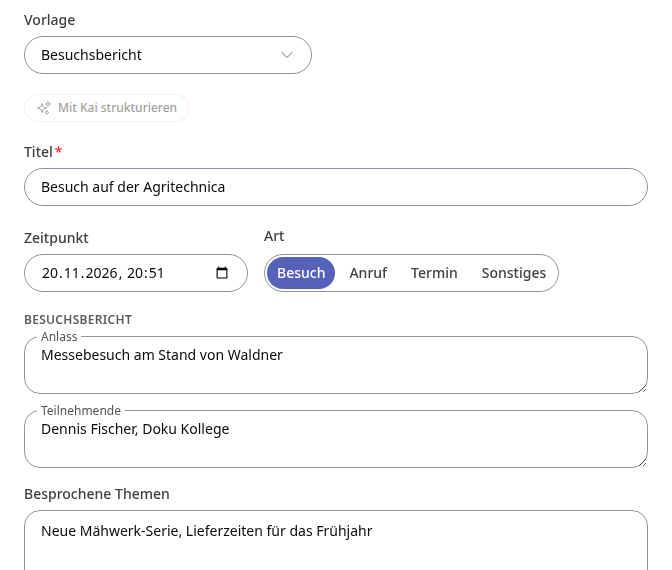
Under Template, select a template, for example Visit report or Conversation protocol. Without a template, it remains Free text without template.
Enter a Title, check Time and Type (Visit, Call, Appointment, or Other), and fill in the fields of the template.
If the template contains a photo or file field, click on Add photo and take a photo or select one. Use the x next to the file name to remove it again.
Under Summary, write the most important point in one sentence. Under Next steps, use Add step to define what to do next, optionally with a due date.
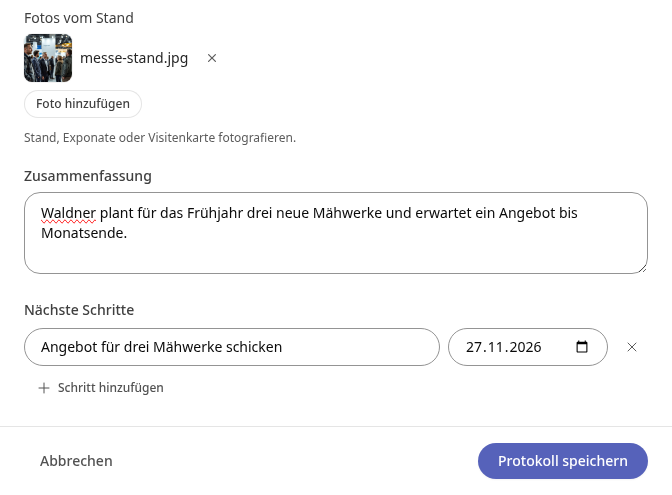
Click on Save protocol. Protocol saved appears. The protocol remains open: further changes are saved directly, and with As task you can turn a next step into a task.
Close the protocol. It now appears in the Protocols tab with type, template, summary, and the number of open steps. Clicking on it opens it again.

Tip
You can also simply tell: write or dictate your notes into the field Tell or dictate and click on Structure with Kai. Kai then suggests the fields of the template, a summary, and next steps, which you adopt with Apply.
Info
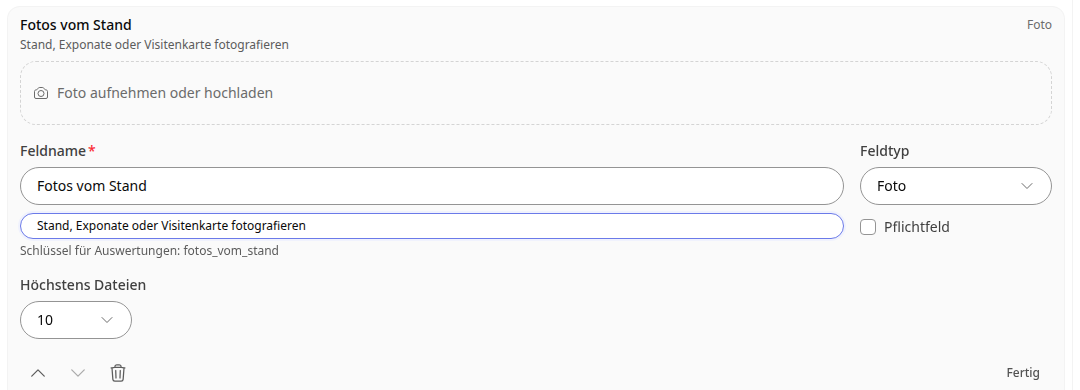
Which templates exist and which fields they have is determined by people with the right to CRM setup (by default system admins) under Administration > CRM > Protocol templates. With Add field, new fields are added; under Field type, options include Short text, Long text, Selection, Date, File, Photo, Signature, and Location. Above each field, the editor shows a preview of how it looks in the protocol.
Set a reminder#
Click on Set a reminder in the Actions card, on Remind in the Reminder card, or on the bell next to the name at the top.
Select the time under Date. The same time in one week is suggested.
Write under Note what it is about, for example "Follow up on quote".
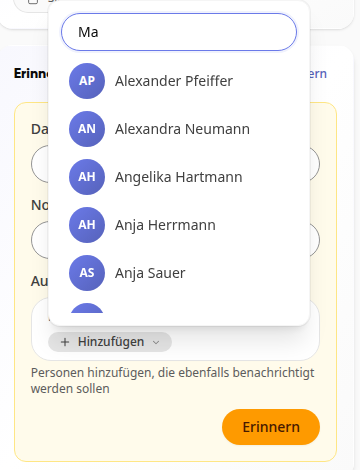
If colleagues should also be reminded, click on Add under Also remind (optional), enter a name under Search for person… and select the person. Add more people via Add another, and remove someone with the x next to the name. If you don't add anyone, it will say "Only you will be reminded."
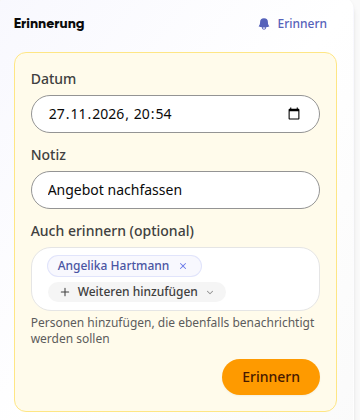
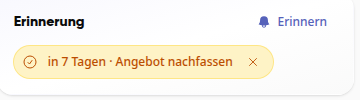
Click on Remind. The reminder now appears in the card, for example "in 7 days · Follow up on quote".
Complete a Due Reminder#
At the selected time, you will receive a notification, as will all people you added under Also remind. The button inside it takes you directly to the entry: it is called Contact for a person and Company for a company. The reminder also appears on the CRM home page under Today in the Due card, and in the contact's Comments card it says "Reminder triggered".
The reminder remains open and is displayed as Overdue until it is completed:
Use the checkmark to the left of the text (Mark as done) to complete it. It then also disappears from the Due card.
Use the x to the right of the text (Delete reminder) to remove a reminder you no longer need.
Info
Activities, logs, and reminders are available to all employees who can see the contact. Under Also remind, you can only select colleagues, not yourself – you will be reminded anyway as the creator.